Template Variables - Custom Text
Sometimes, it might be required to customize a Template by replacing generic terms with specific terms.
Consider the below scenario:
A generic Template Oil Replenishment Procedure details the steps to be carried out to replenish oil across the factory machinery. This Template has a placeholder text QuantityVar for the actual quantity of oil to be used.
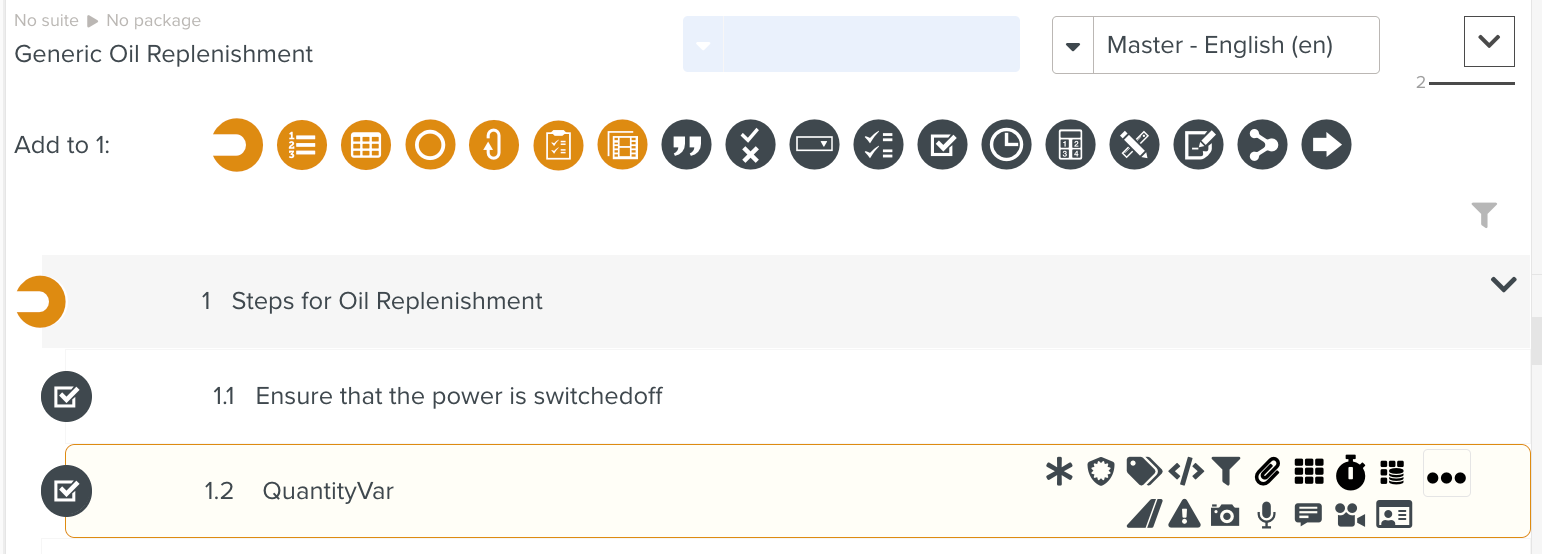 |
Depending on the component or machine that is being serviced, the quantity of oil will differ. A fieldworker assigned to replenish the engine oil will work on the Template Engine Oil Replenishment Procedure. This specific Template for engine oil replacement reuses the generic Template Oil Replenishment Procedure by embedding it as a Component Step.
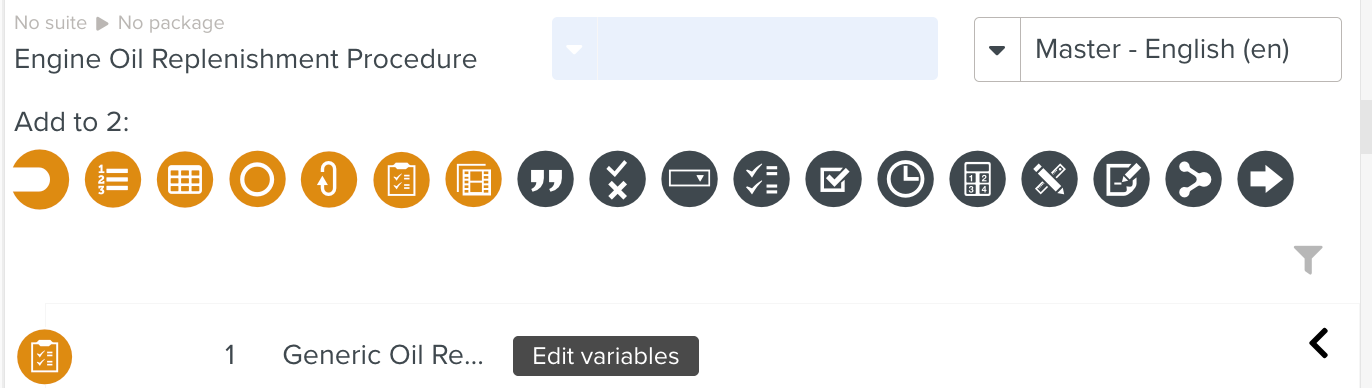 |
A Custom Text Template Variable is used in the Engine Oil Replenishment Procedure Template to replace the generic placeholder text with text that is context-specific - in this case, the exact quantity of oil required for engine oil replenishment.
Using a Custom Text Template Variable, the same Oil Replenishment Procedure can be reused by all the fieldworkers with the correct quantity of oil corresponding to the component being worked on.
To set up a Custom Text Template variable:
Create a Template Variable as detailed here.
Select as the type of the variable. Enter the Variable Name, Description, and Variable Value in the respective fields as shown.
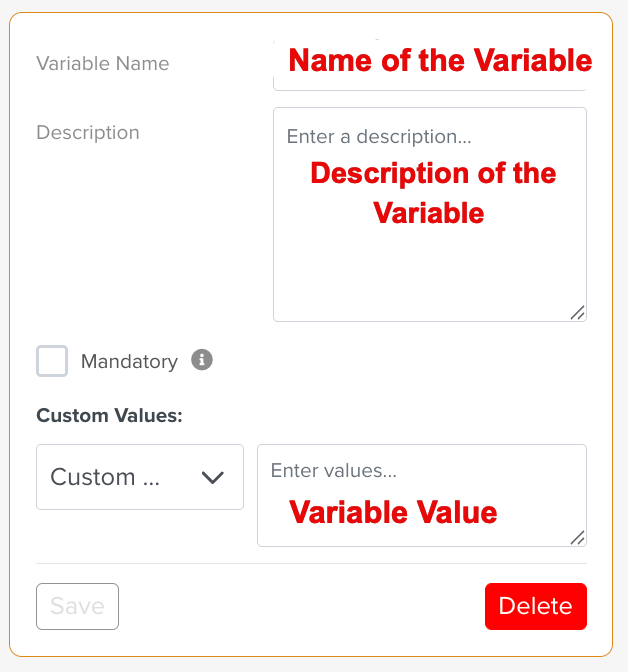
At runtime, the generic text will be replaced by the Variable Value.
In the above example, a Custom Text variable to replace the text QuantityVar by the text 5 litres is set up in the Template Engine Oil Replenishment Procedure as shown below.
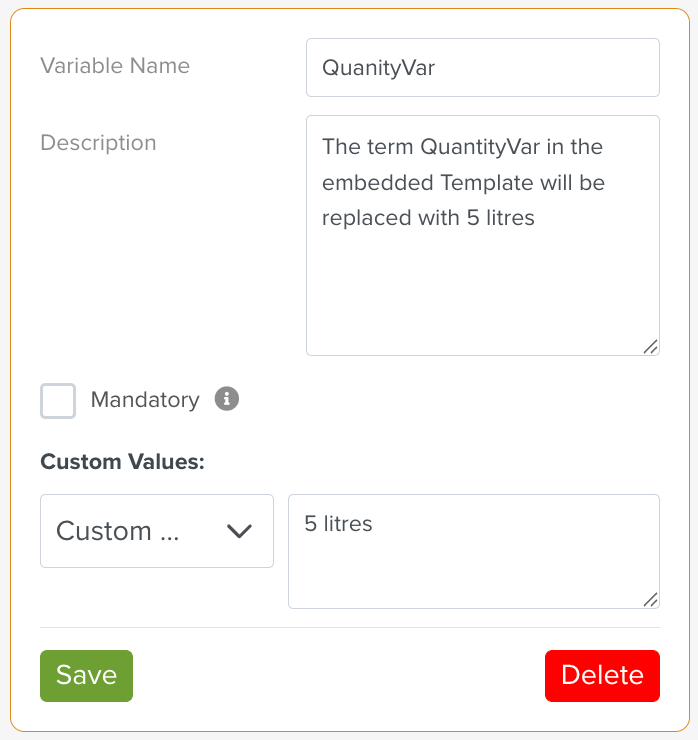 |
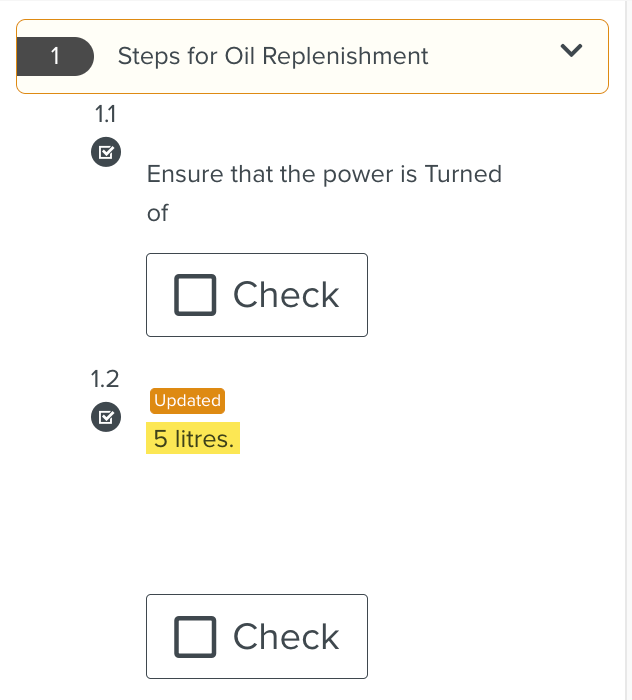
At runtime, the Engine Oil Replenishment Task displays the exact amount 5 litres to the user.
 |
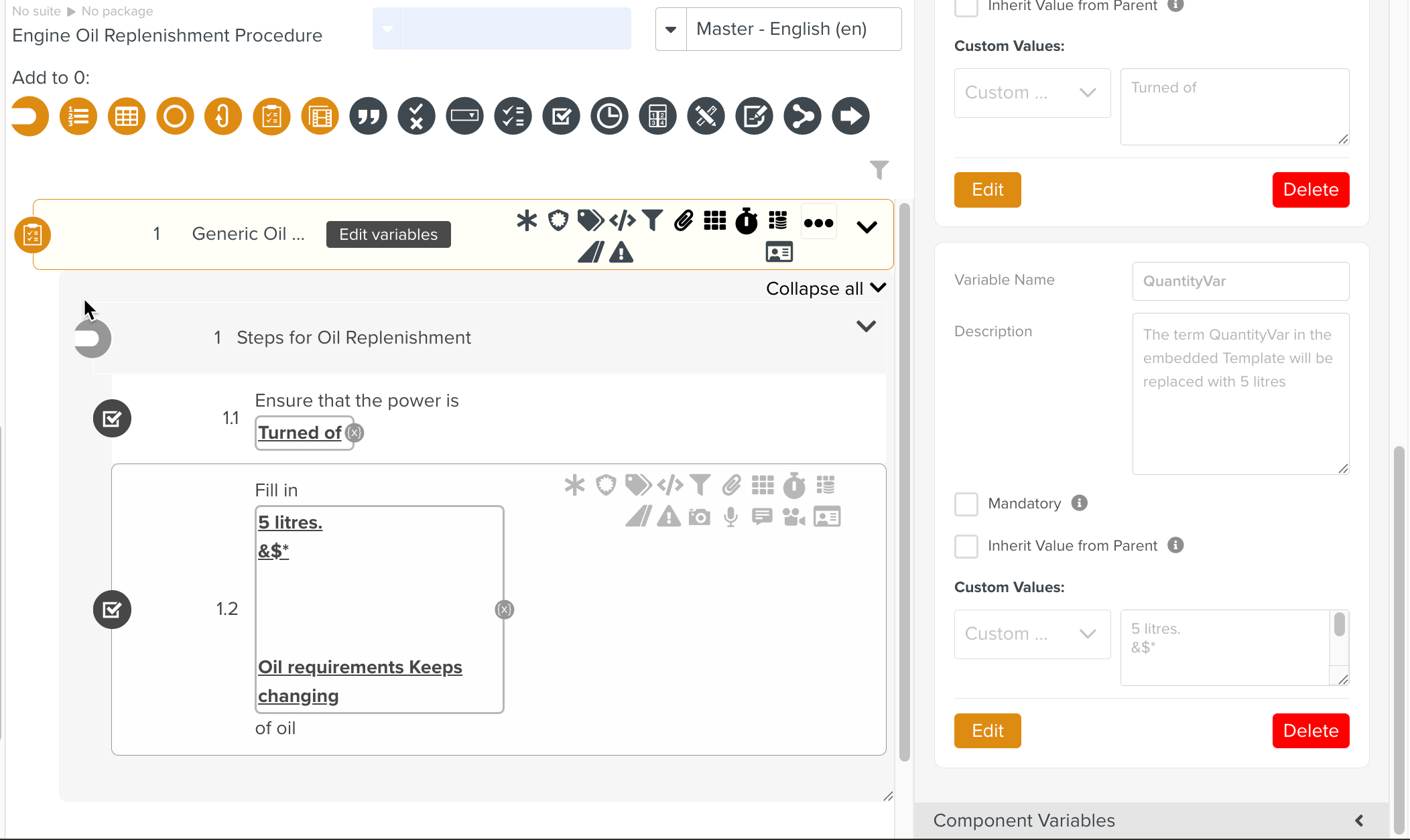
The inline Custom Text supports formatting including line breaks and special characters across the editor, simulator and runtime environment.
You can edit the text of a Custom Text variable either directly within a Component Step or through the property pane in the Variables section.
 |