Selecting a Project
When you log in, you can choose to work in the scope of a Project.
Selecting a Project allows you to view and execute the Tasks related to that Project.
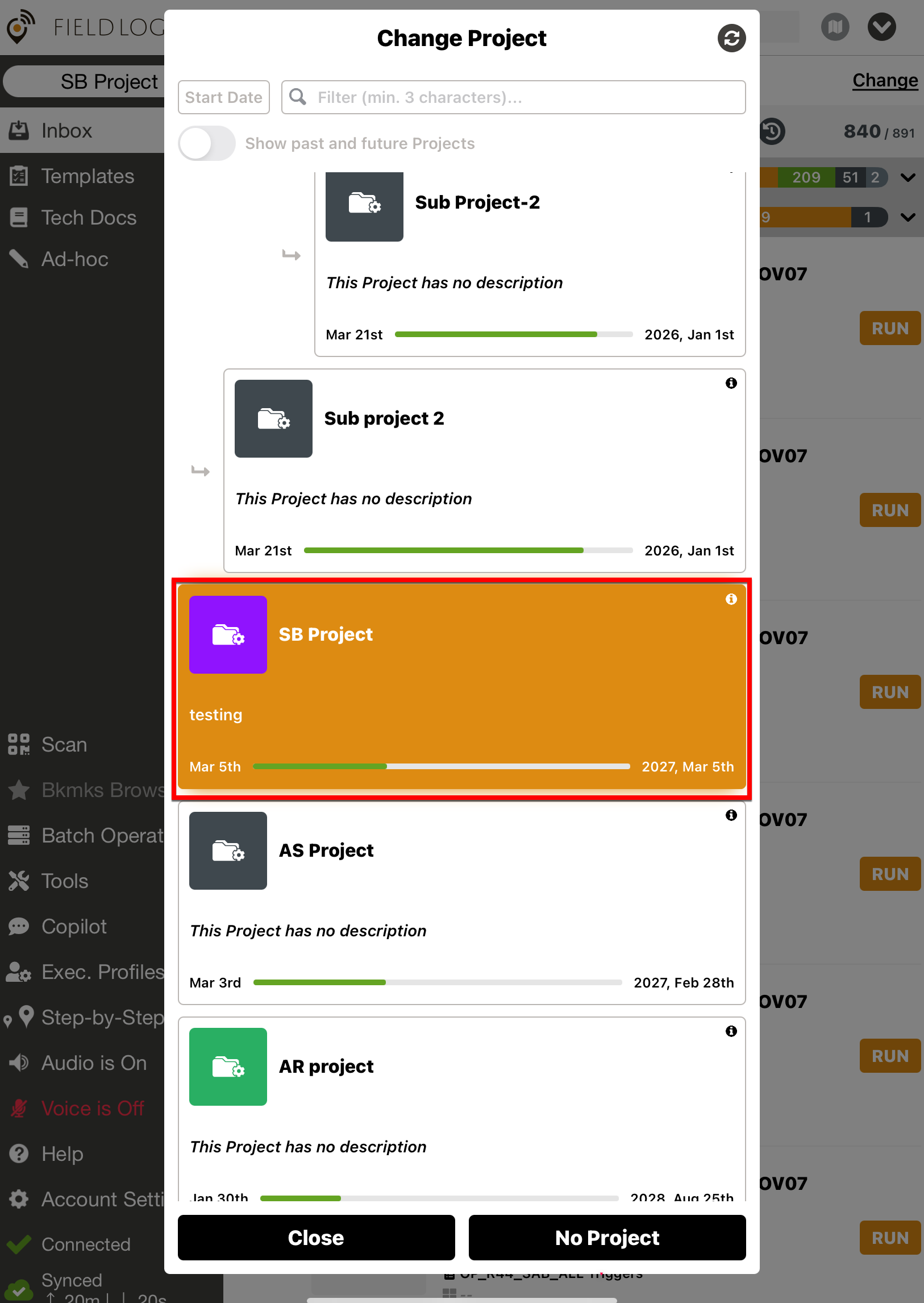 |
You can also choose to work in the scope of a Sub Project.
Project
A Project is a package of User Sets, Task Queues, and other resources with a start date and end date. A Planner can select a Project and assign a Task to user, team or field workers. The Assignees select the same Project and see all the Tasks assigned to them within this Project.
How can I use it?
You can select a Project only if you belong to one of the User Sets defined in the Project. If you do not want to work in Project mode, select . In No Project mode, you will see Tasks that do not belong to any Project.
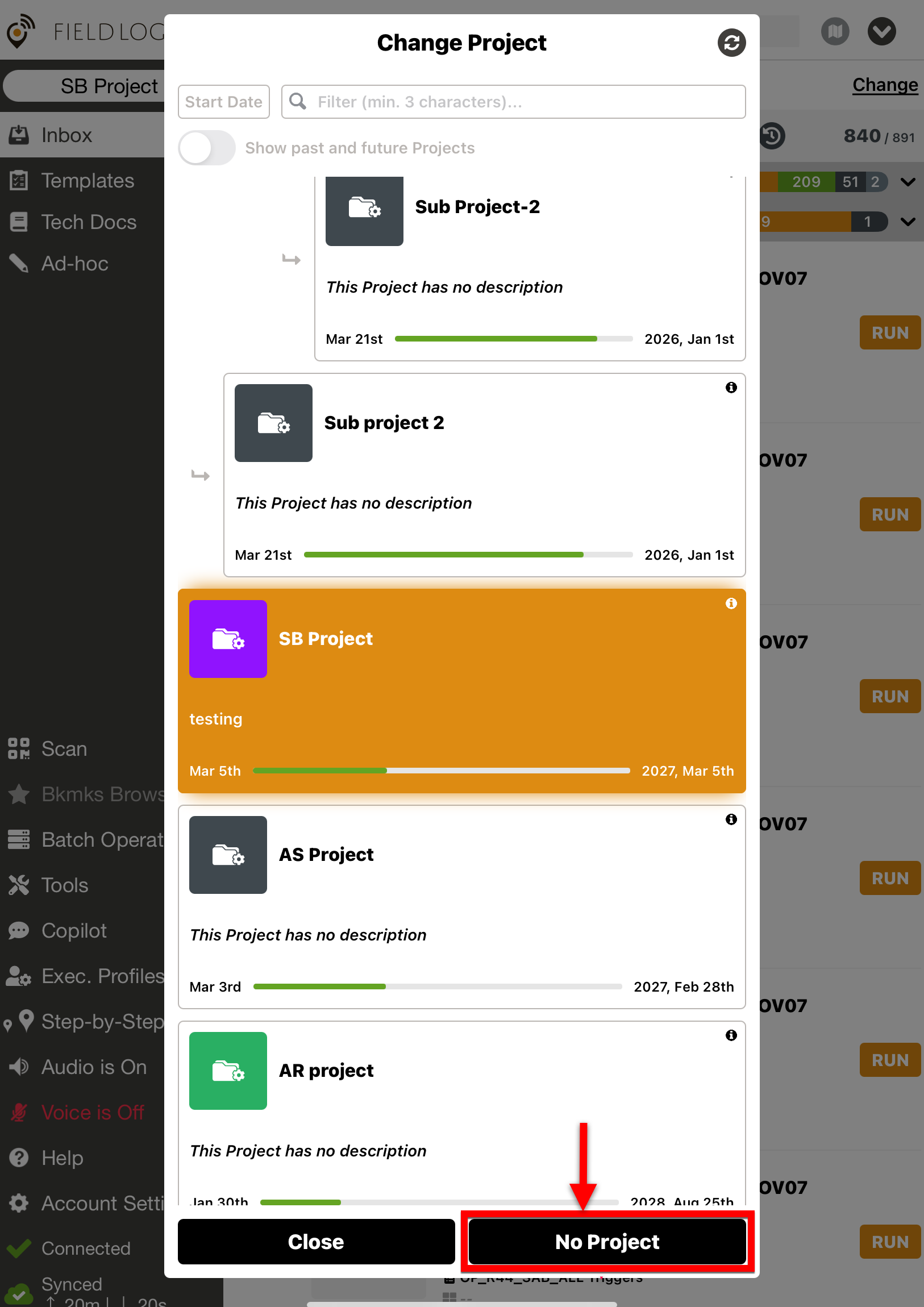 |
In the Change Project dialog, you can perform the following actions:
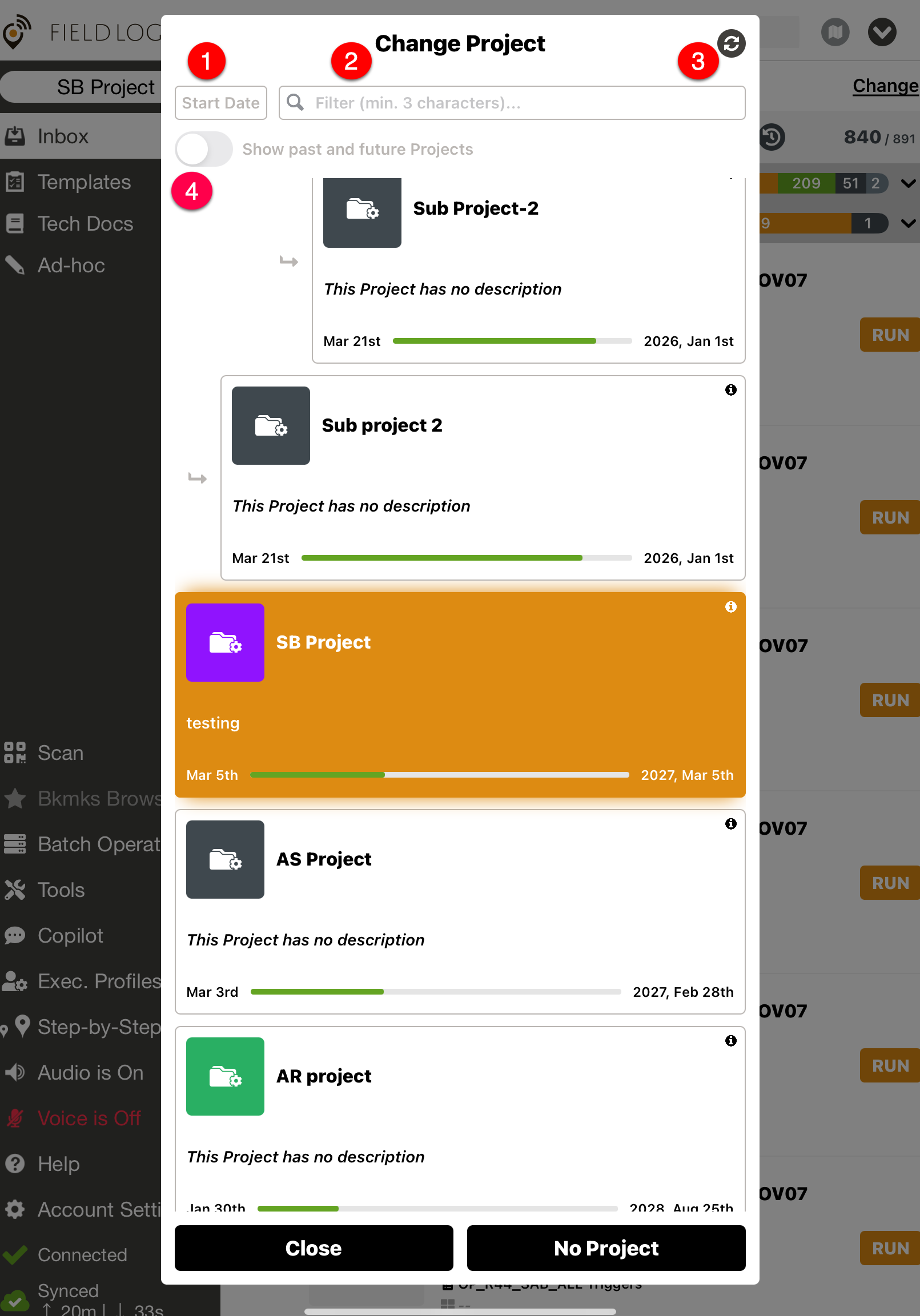 |
Sort Projects: You can sort Projects by start or end date, by creation date (newest or oldest), by alphabetical or reverse alphabetical order, or by progression. Tap on the sorting button to access the different sorting options.
Note
Note: You can long-press the button to have direct access to all options.
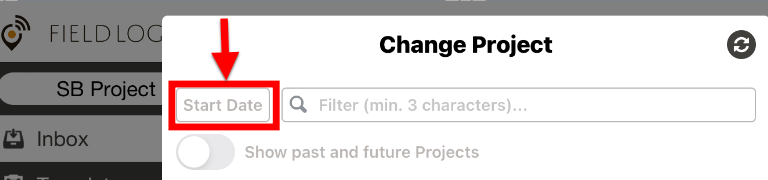
Filter Projects: You can filter Projects by the name of the Projects or sub-Projects.
Refresh the list of Projects: The Projects information is refreshed.
Enable or disable the option "Show past and future Projects": You can show information about a Project, such as the name, description, start date and end date, creation date, last modification date, tags, and owner.

Click the folder icon  , Change
 in the top right corner or
  Project selector in the left main menu to change the Project.
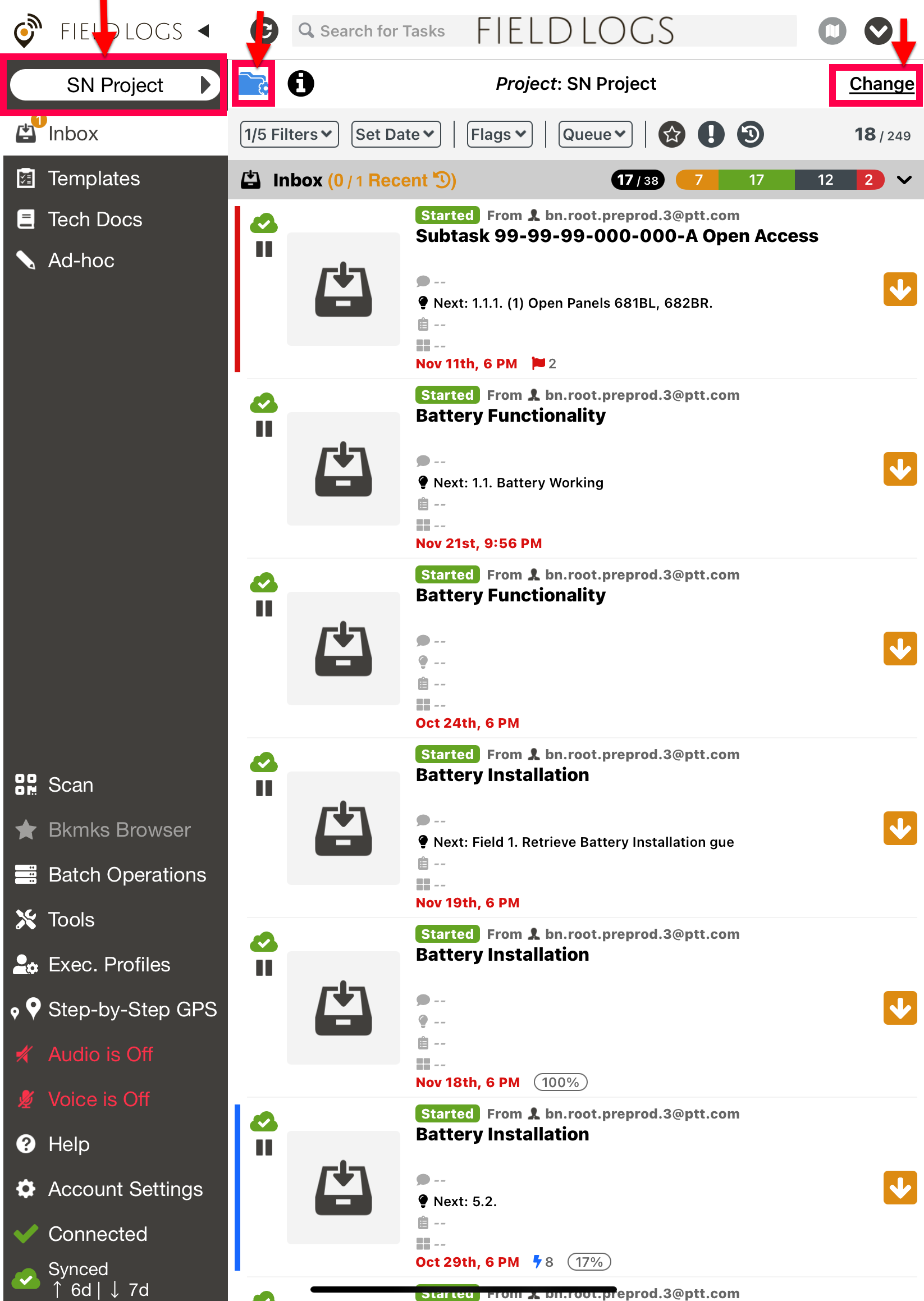 |
Click the icon  to view information about the Project.
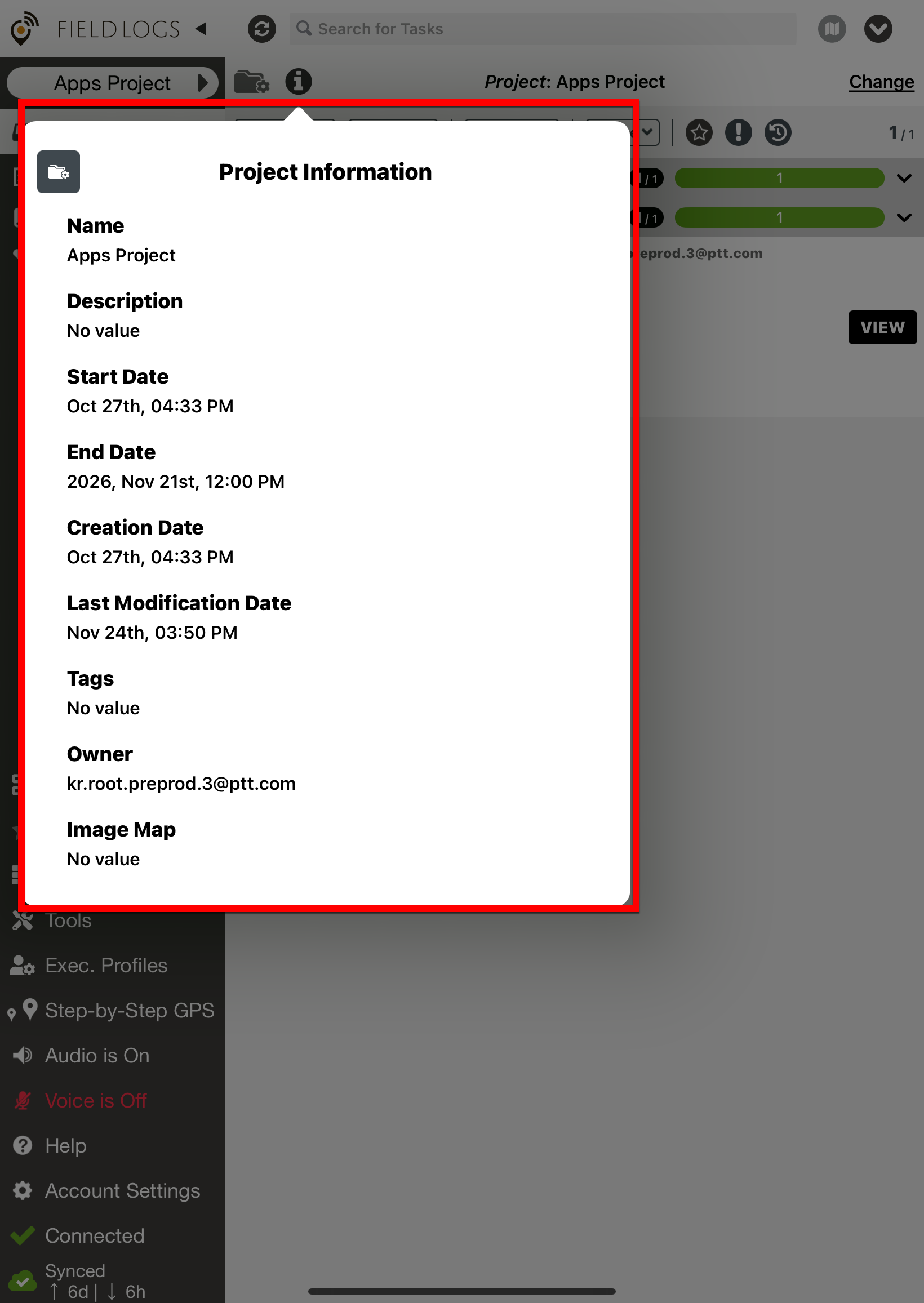 |
Fieldworker Access
As a fieldworker, you can choose the Project on which you want to work. When you select a Project, your Inbox displays only the Tasks assigned to you within the scope of this Project.
If you do not want to work in the scope of a specific Project, select No Project mode. You will see Tasks that do not belong to any Project.
Planner Access
As a Planner, you can choose to work in the scope of a Project. This means that all the Tasks that you assign belong to the selected Project. The field workers must select this Project to see the Tasks assigned to it, or work in No Project mode.
As a planner, you can also create a Project.