Using Componentization Features
While using Components, you can perform some operations on those Components from the Parent Template.
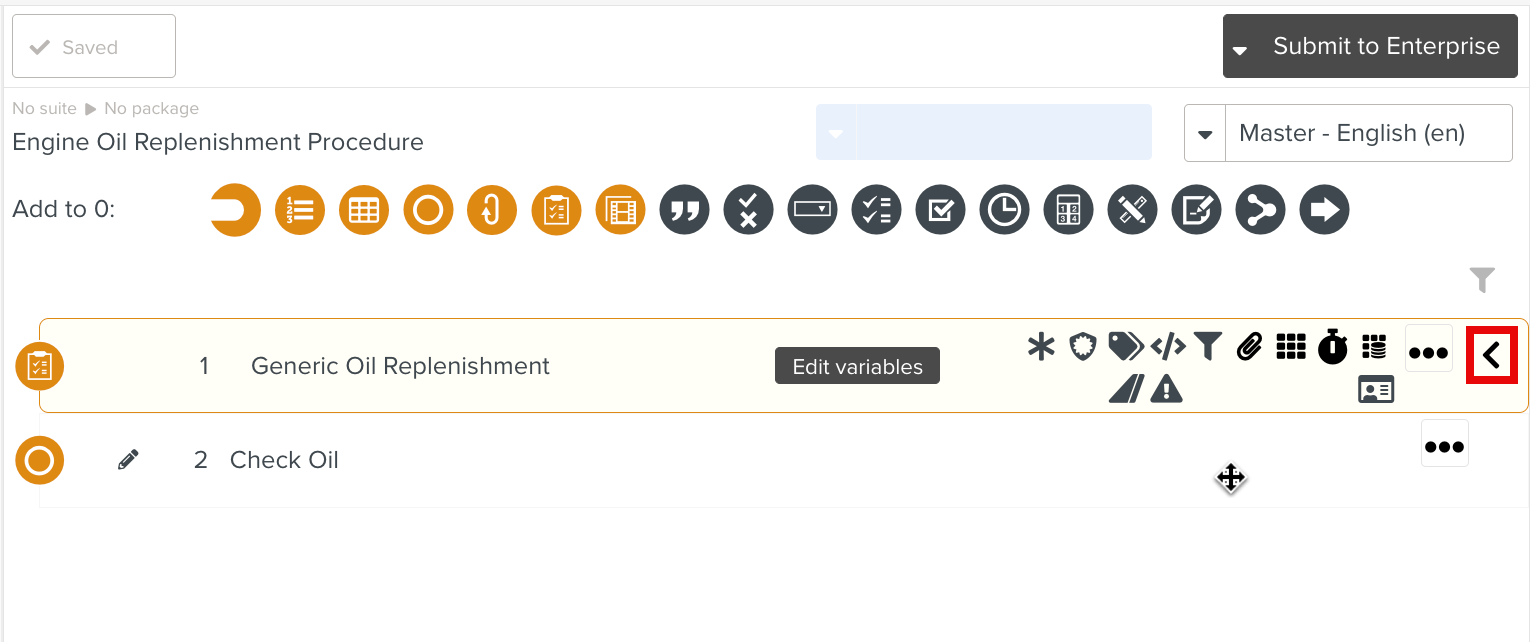
Component Steps can be viewed by clicking  icon. The Component Steps are read only.
 |
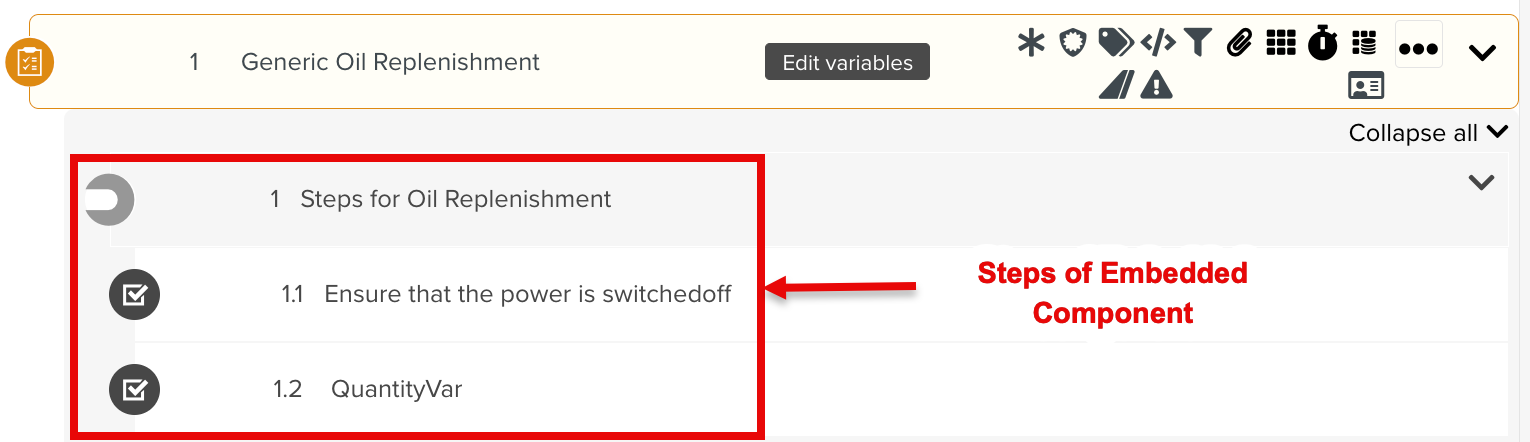
The Steps of the Embedded Component are displayed as shown below.
 |
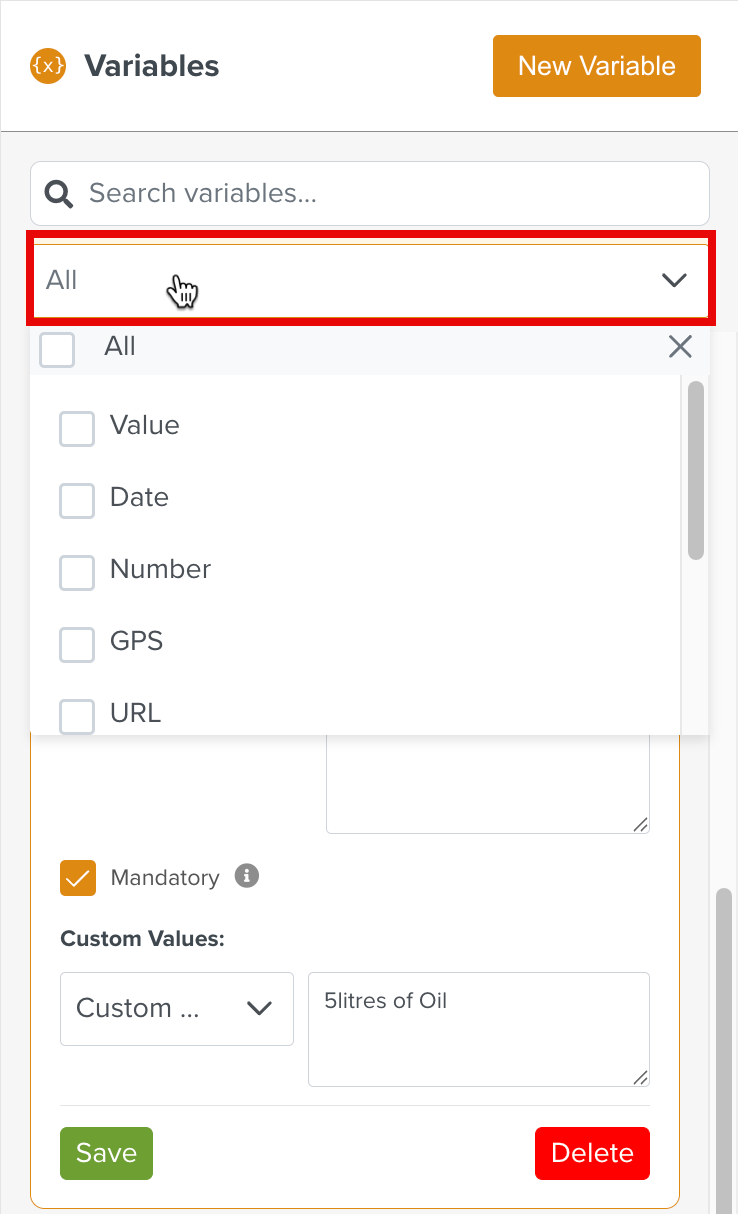
The Template Variables of the embedded Component Template are listed in the Local Variables section under the Step Information Editor. You can filter variables based on their Type using the dropdown below. You can only edit the values of the variables.
 |
Here, Battery Inspection is the Component Template added to the main Template Battery Maintenance. Any changes made to the values in the Component Step does not affect the variable values in the Battery Inspection Template.
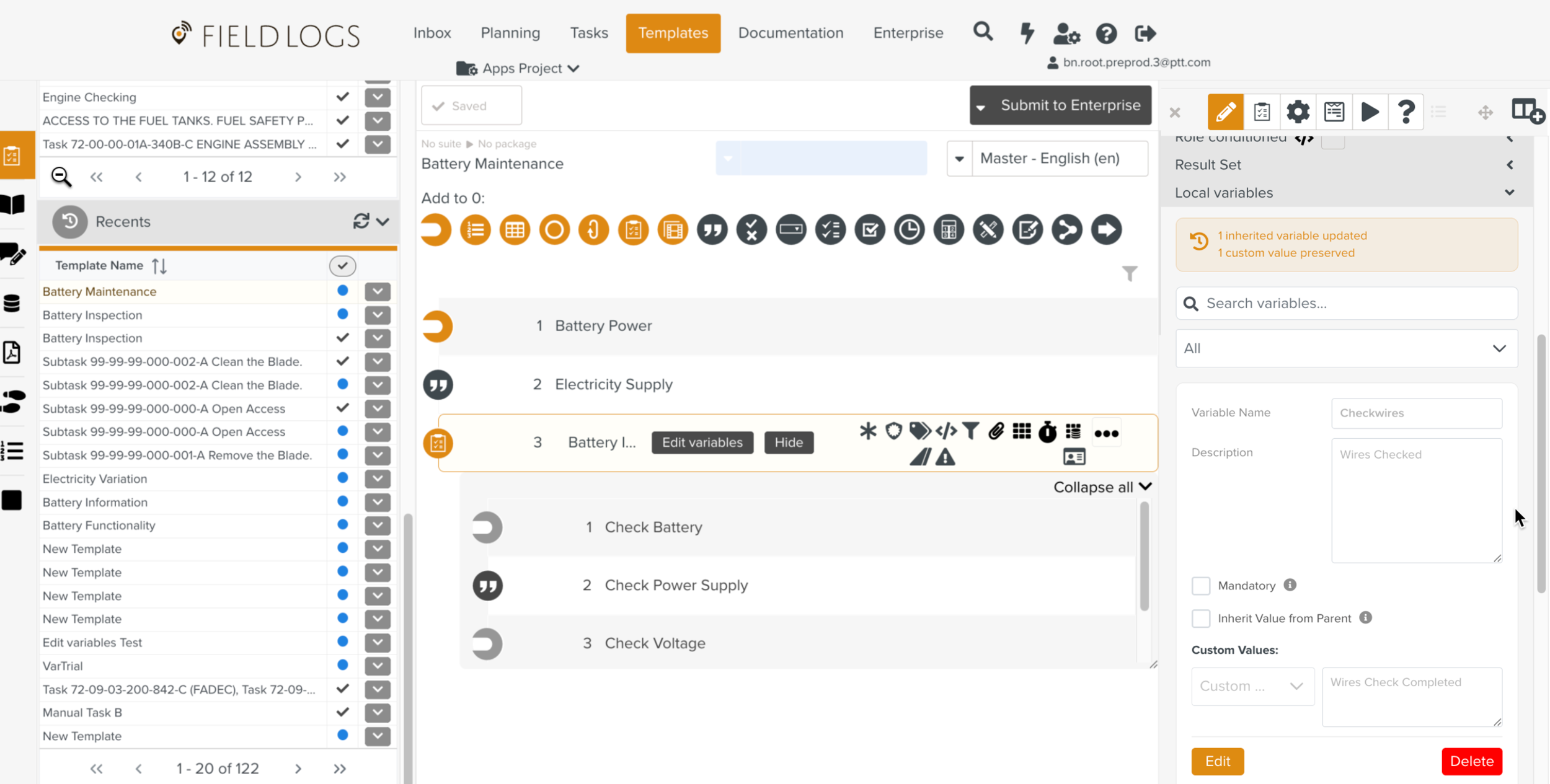 |
A banner is displayed indicating the number of variables inherited from the parent and user-defined Variables.
 |
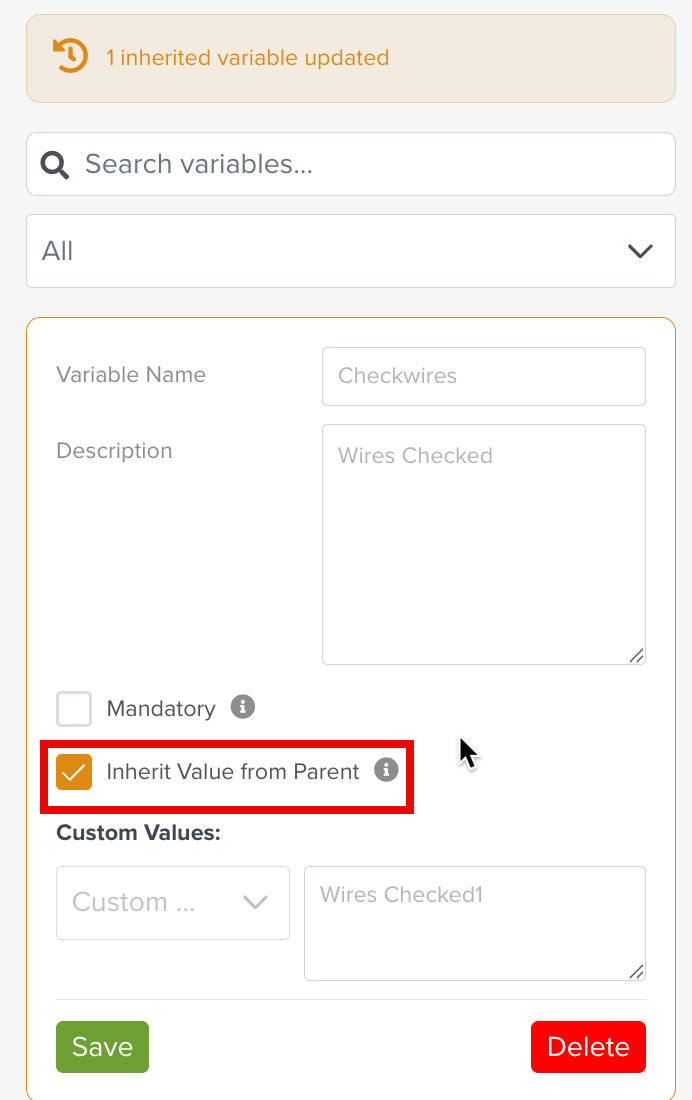
A checkbox is provided to inherit the value from the parent.
Checked: The value is inherited from the parent and is read‑only. Enabling the checkbox overwrites any existing user‑defined value from the Parent Template.
Unchecked: The value in Parent Template is not inherited. The variable value can be edited.
 |
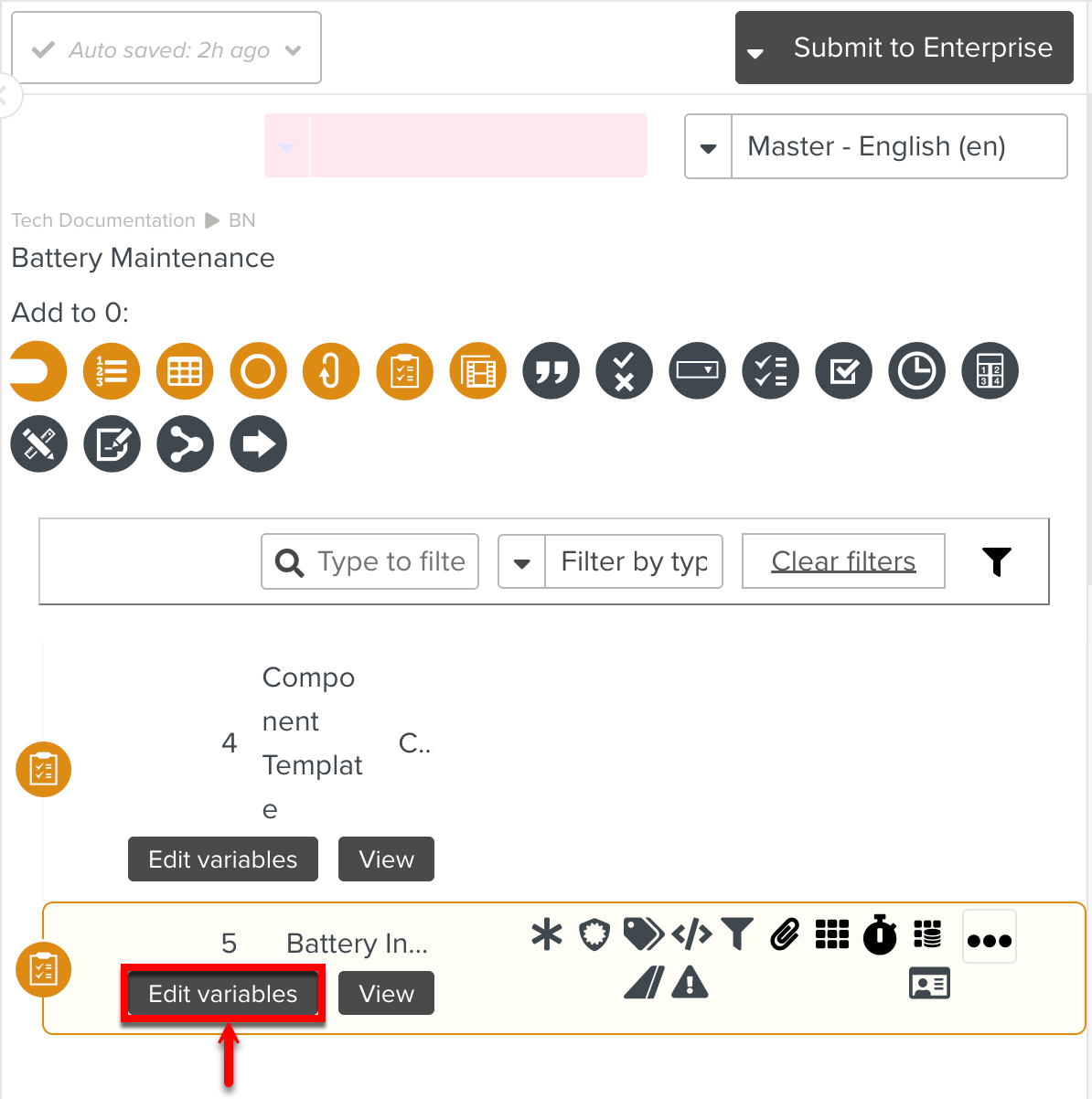
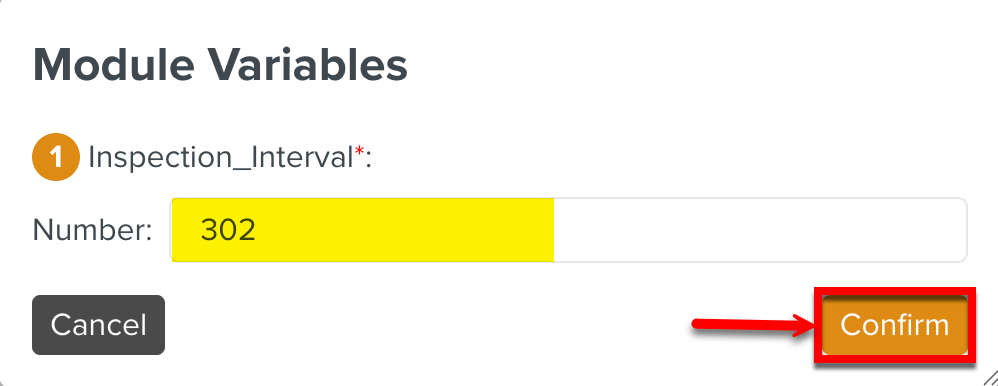
You can click on the Component to edit the variabilized Custom Fields and PTC details.
 |
 |
Note
You cannot add new variables to the Component Step.
When the Inherit Value from Parent checkbox is selected, the variable values are read only in the Edit variables dialog.
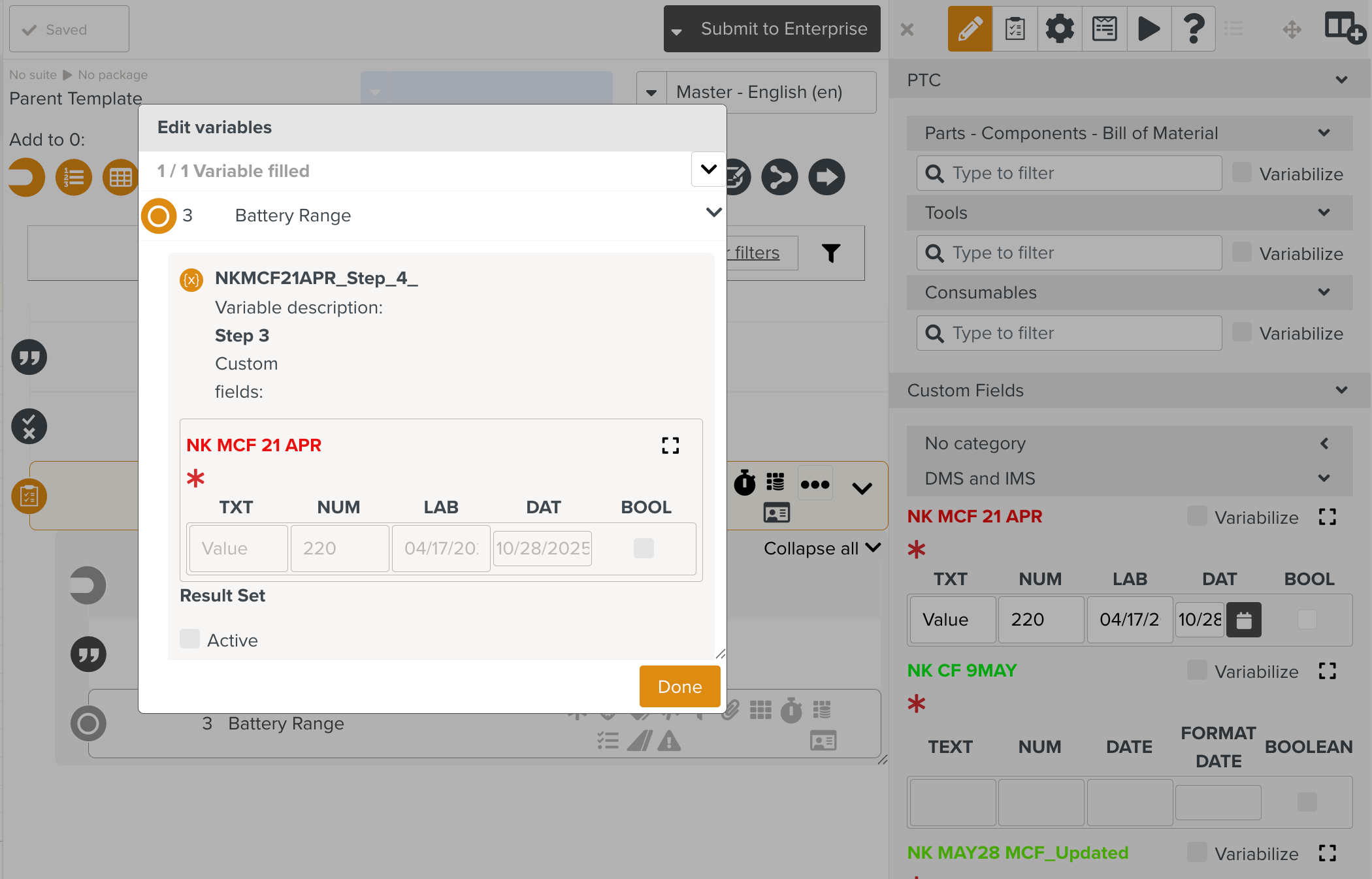 |
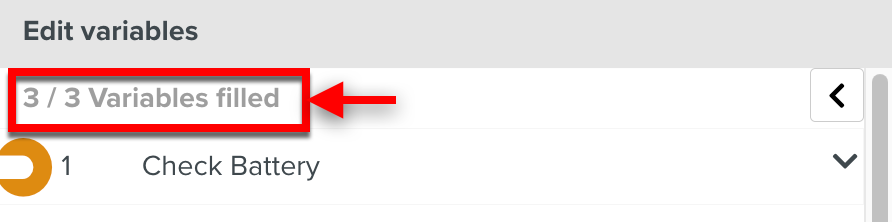
A progress indicator is displayed in the top corner of the pop-up to highlight the number of Variables filled.
 |
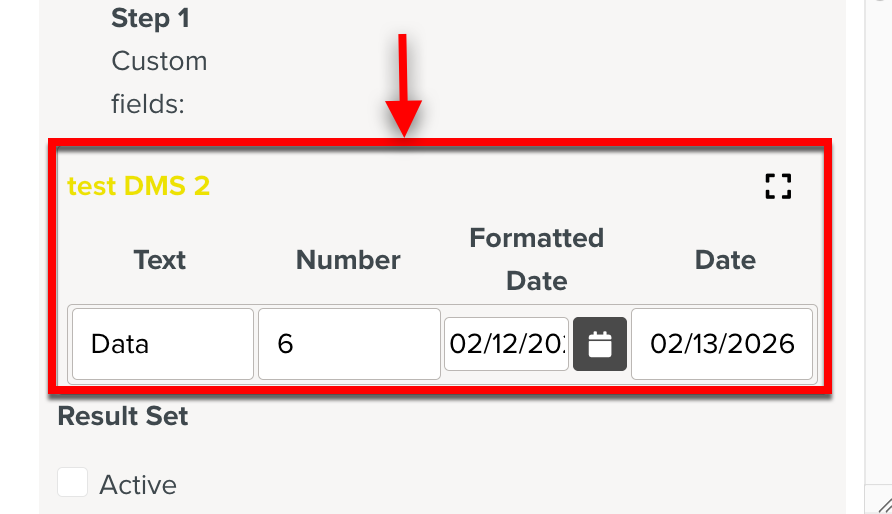
Variables can be edited in the Edit variables dialog. The changes made to the values are reflected in the Local Variables, PTC and Custom Fields sections under the Step Information Editor and vice versa.
 |
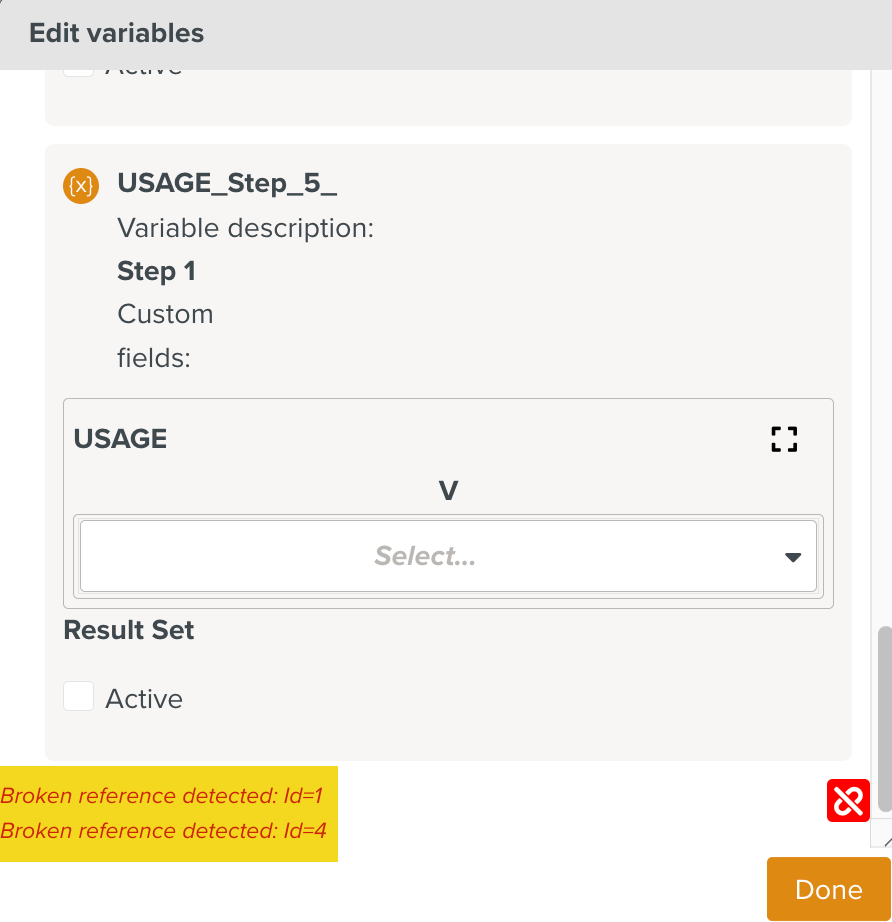
When a Step containing Variables is deleted from a Component Template, the system displays a warning message.
 |
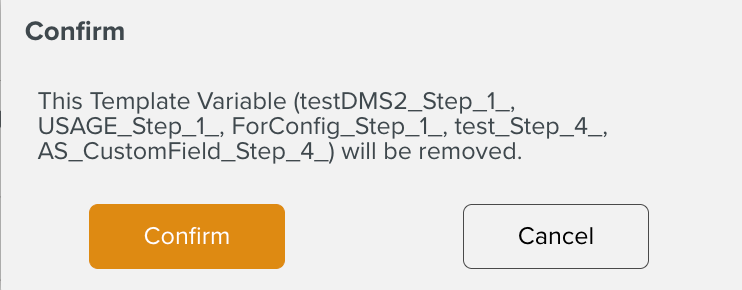
When you click  , a confirmation dialog appears.
 |
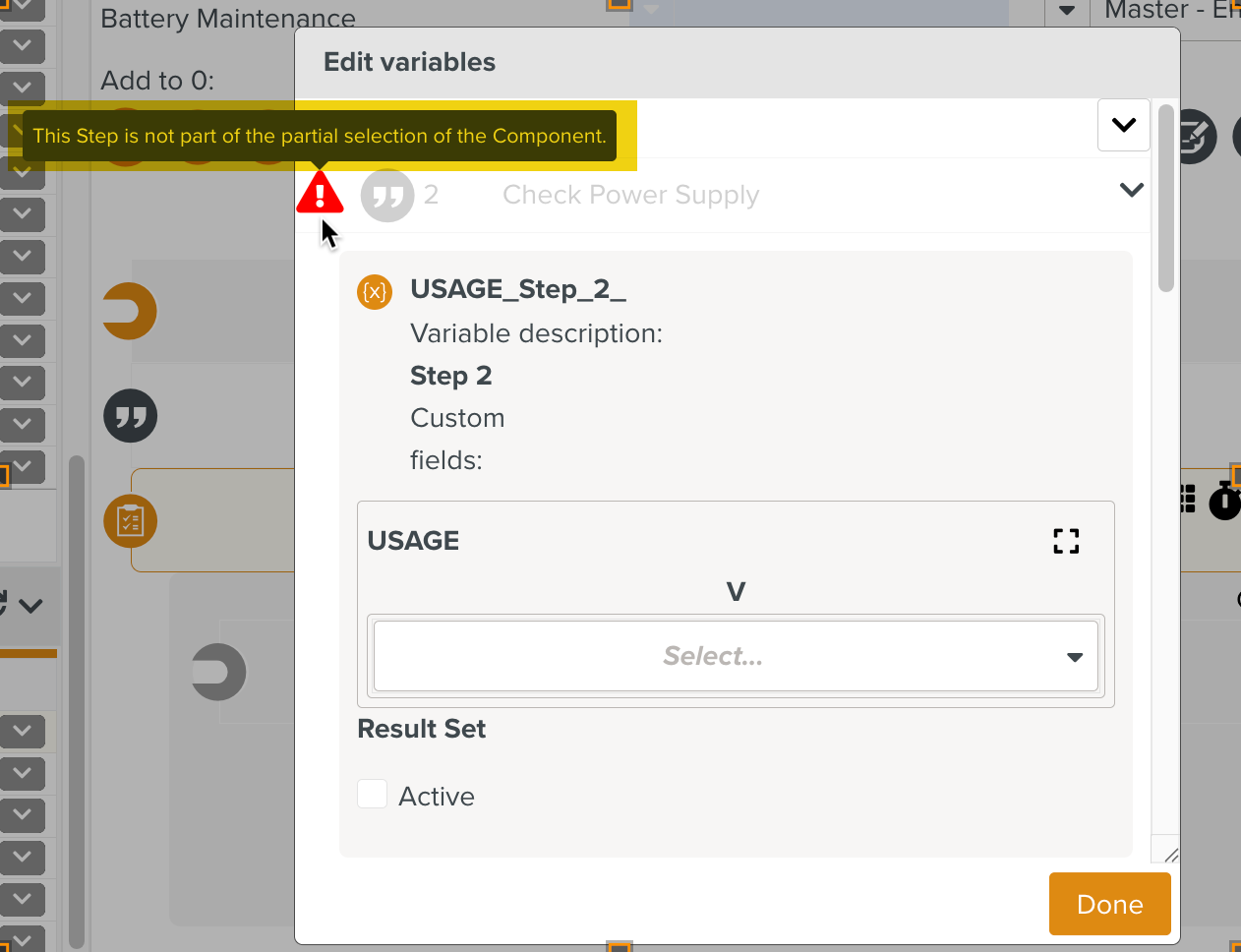
When a Step containing Variables is excluded from the Component’s partial selection, the highlighted warning is displayed.
 |
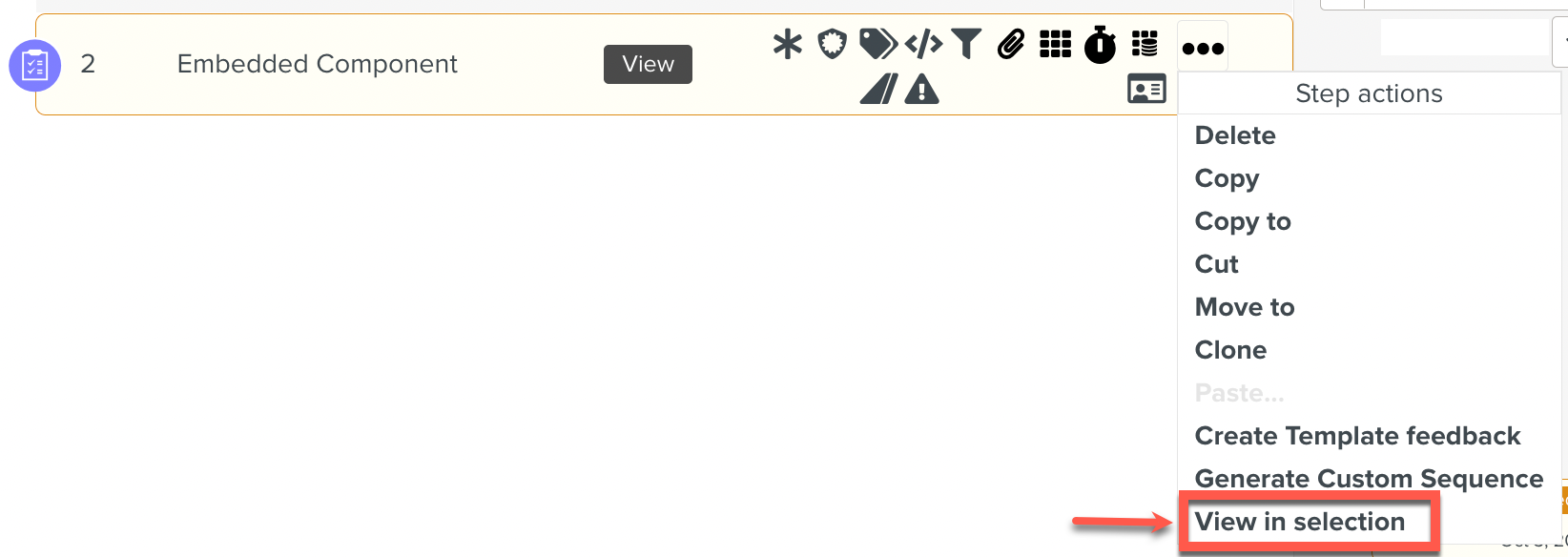
The View in selection option opens the Component Template in the workspace pane.
Click the three dots to display the Step actions and click View in selection.
 |
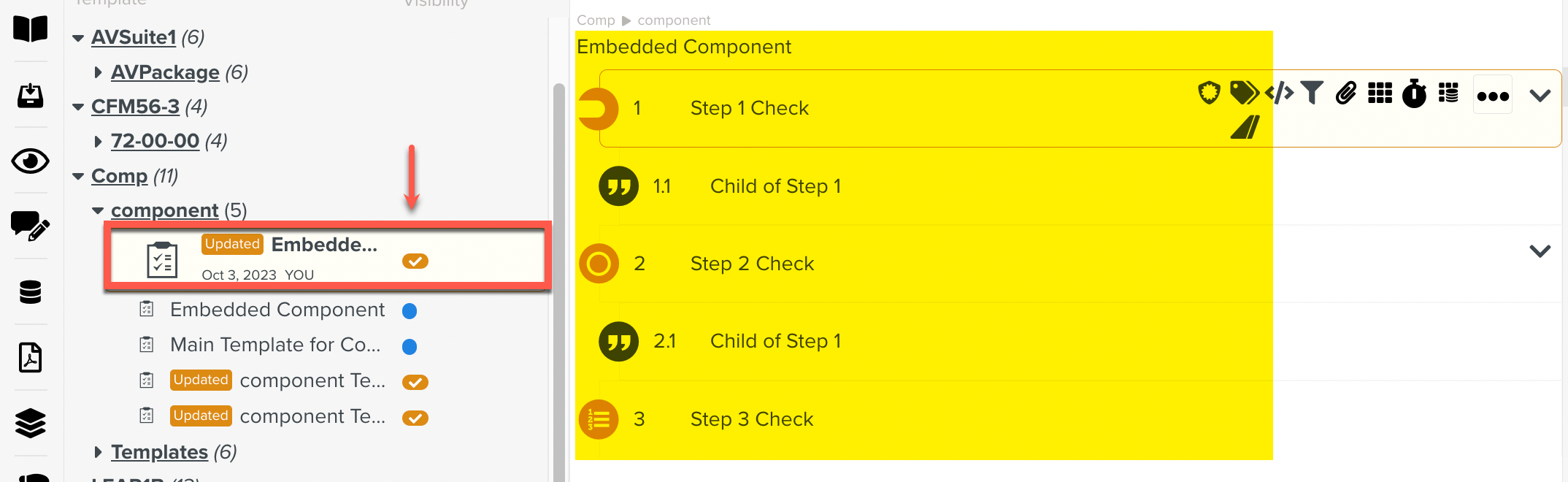
The Component Template is opened as shown below.
 |
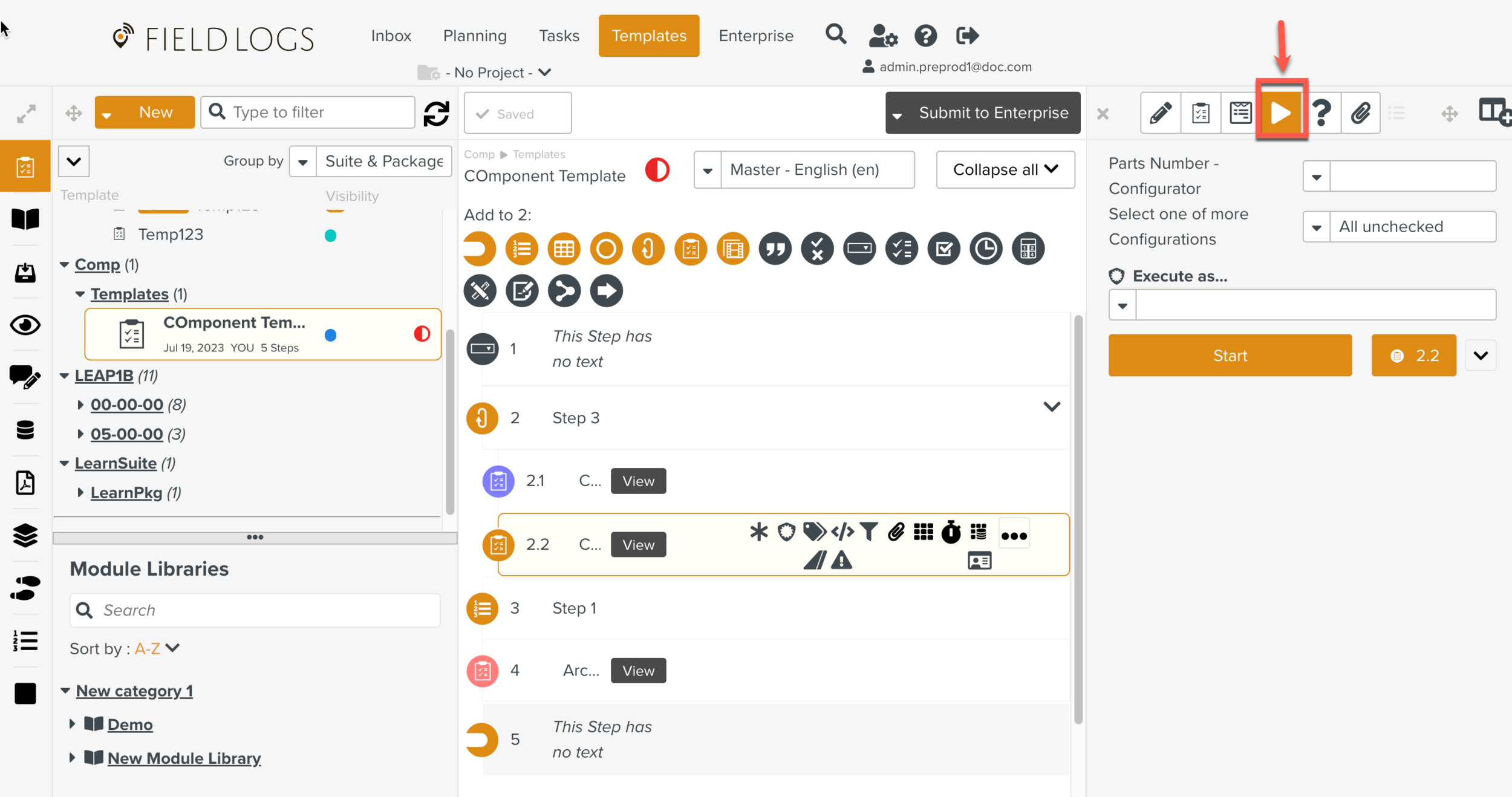
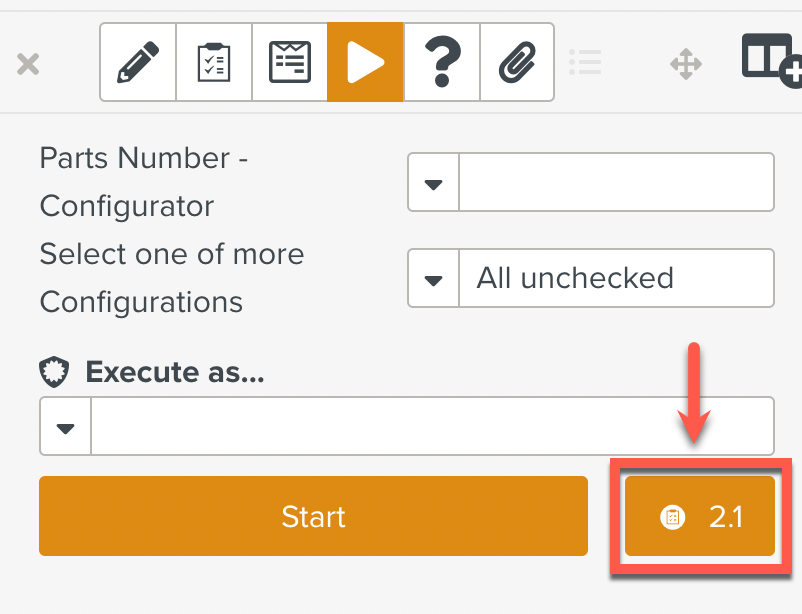
Click the Execution Preview button to view the preview of the Component.
 |
Click the icon as shown below, to view the preview of the Component Steps.
 |
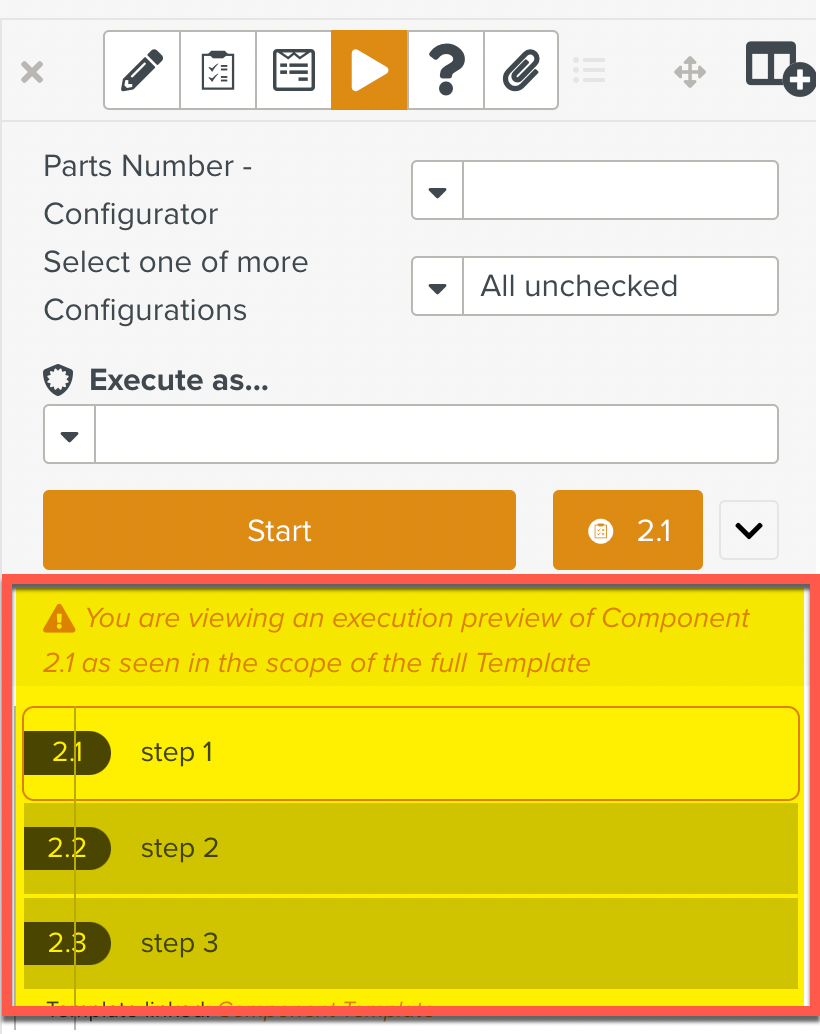
This displays the Execution Preview of only the Steps in the Component.
 |
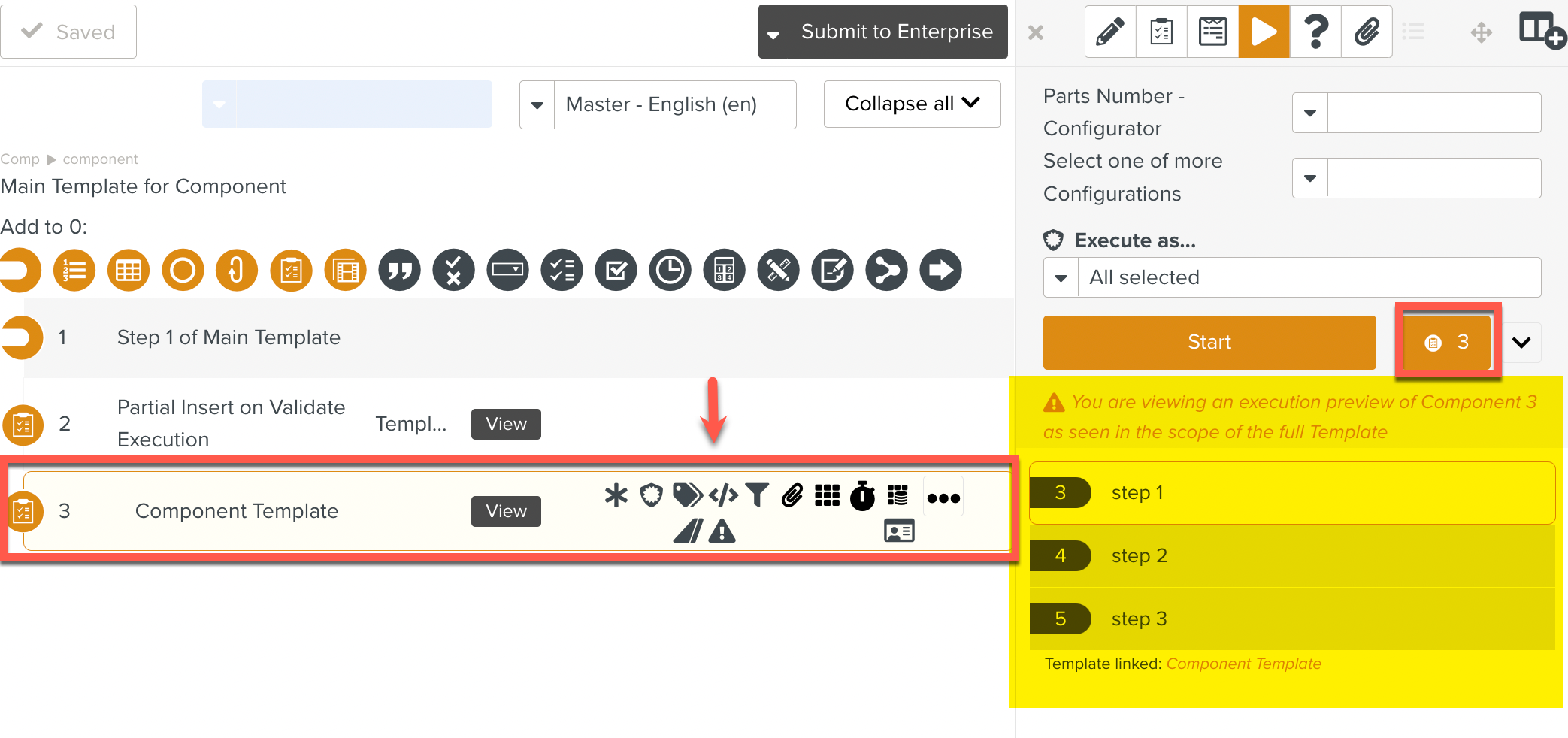
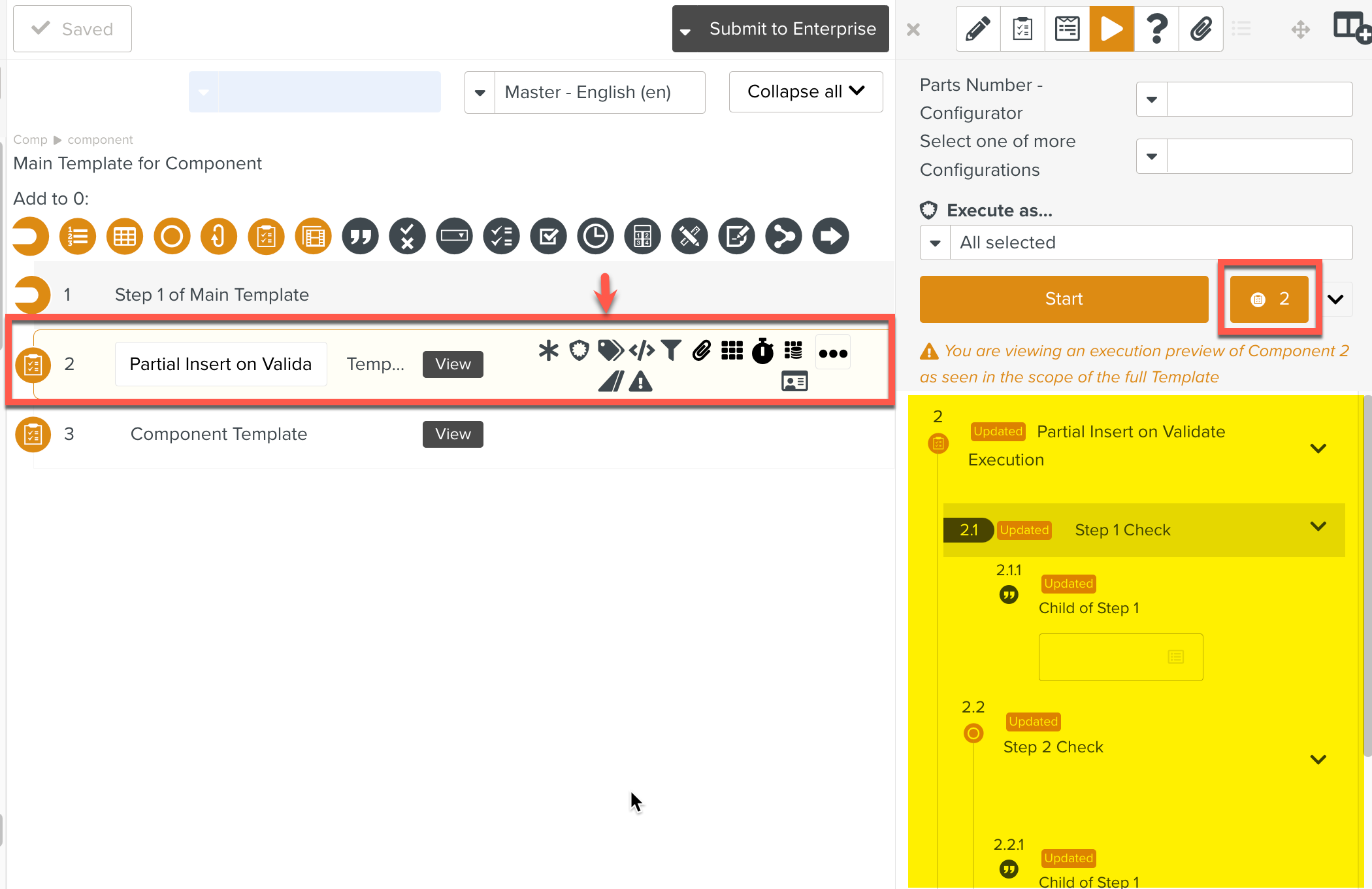
If there are multiple Component Steps in the main Template, a preview of each Step can be viewed.
 |
 |