Using the Tryout Approval Manager Dashboard
The Tryout Approval Manager dashboard displays the different Tryout Tasks created for the Artifact validation.
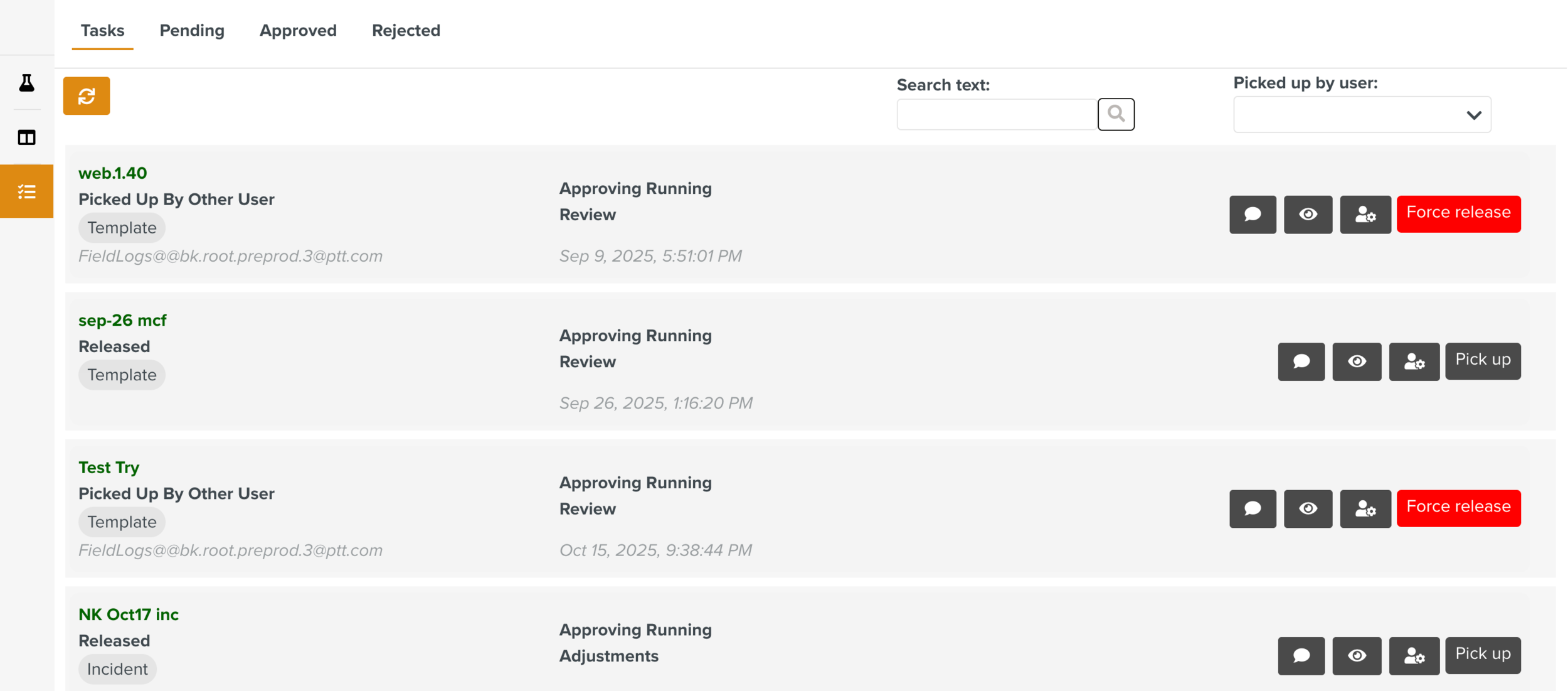
Each Task's progress within the approval process is tracked in the dashboard. Every stage of the Task reflects a step in the Tryout workflow. This enables users to monitor and manage approvals through various stages, from initial submission to final decision.
This dashboard allows the Approval Managers to monitor Task statuses, track pending approvals, and review completed Tasks.
It has four tabs as shown below.
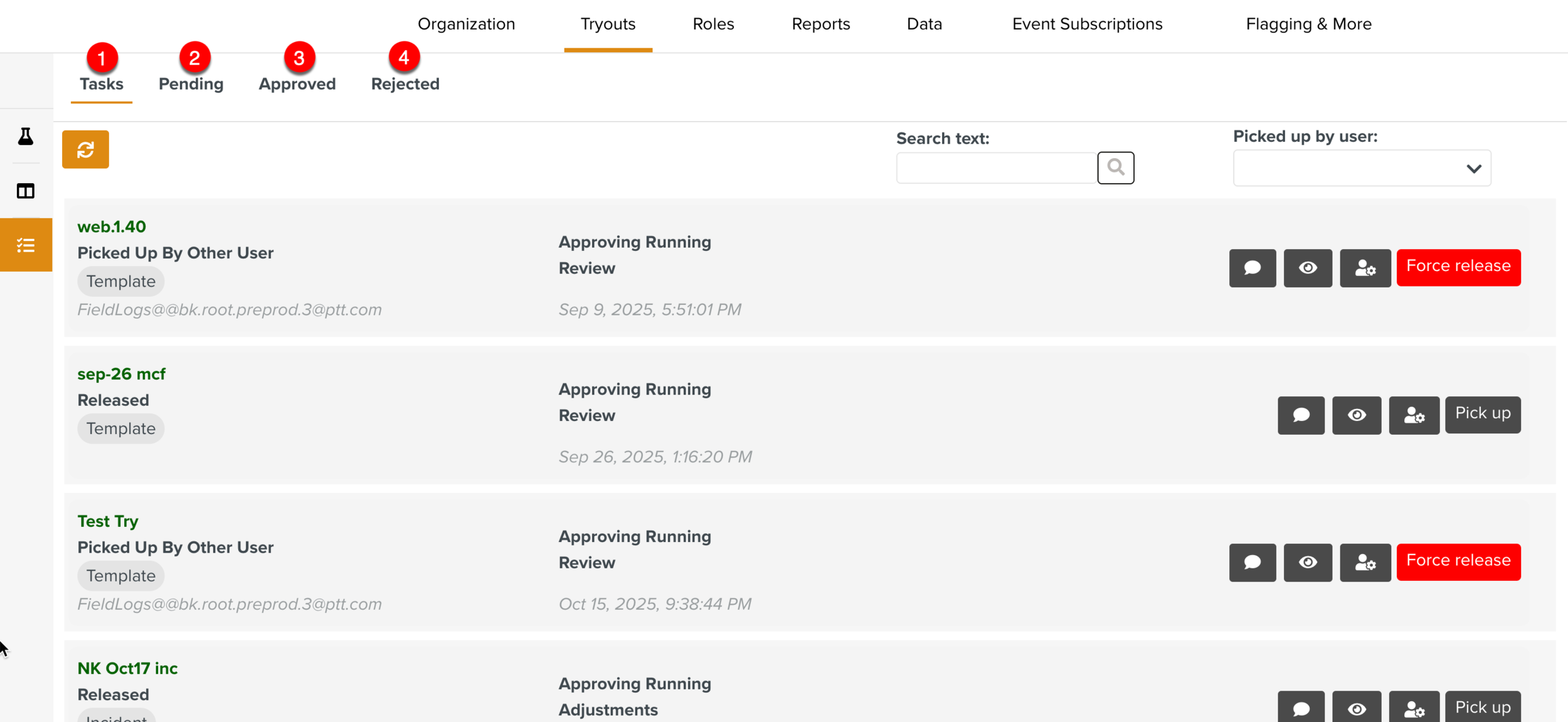
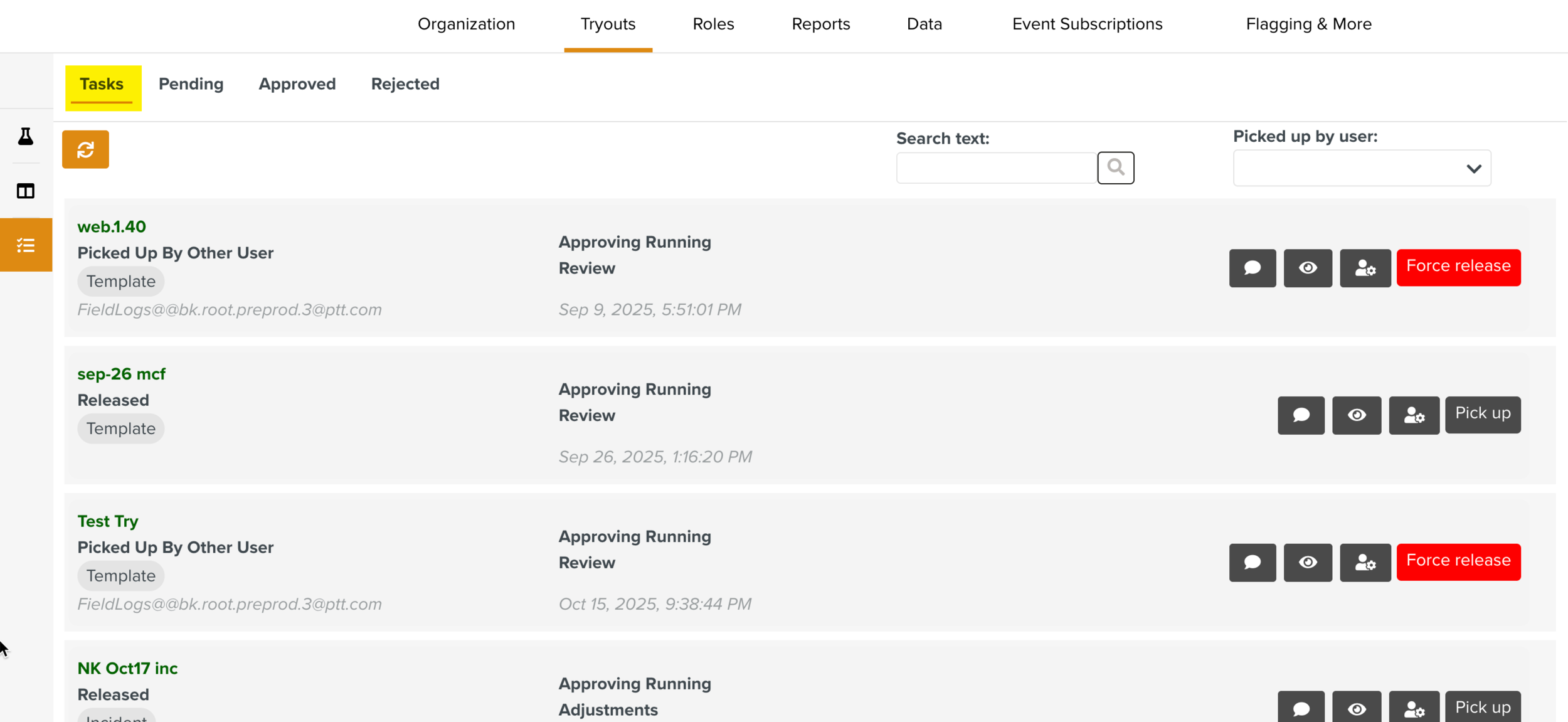
Tasks: Lists all the Tryout Tasks on which authorized users can take action on. Users can view the Task information, including the process and Artifact data relevant to each Task. Based on the settings, users can also perform required updates and modifications to the Artifact within the process before the final approval.
Users have the appropriate level of access to perform their tasks in the Tryout workflow.
Note
The different stages of the Approval Task are assigned to different users of specific role.
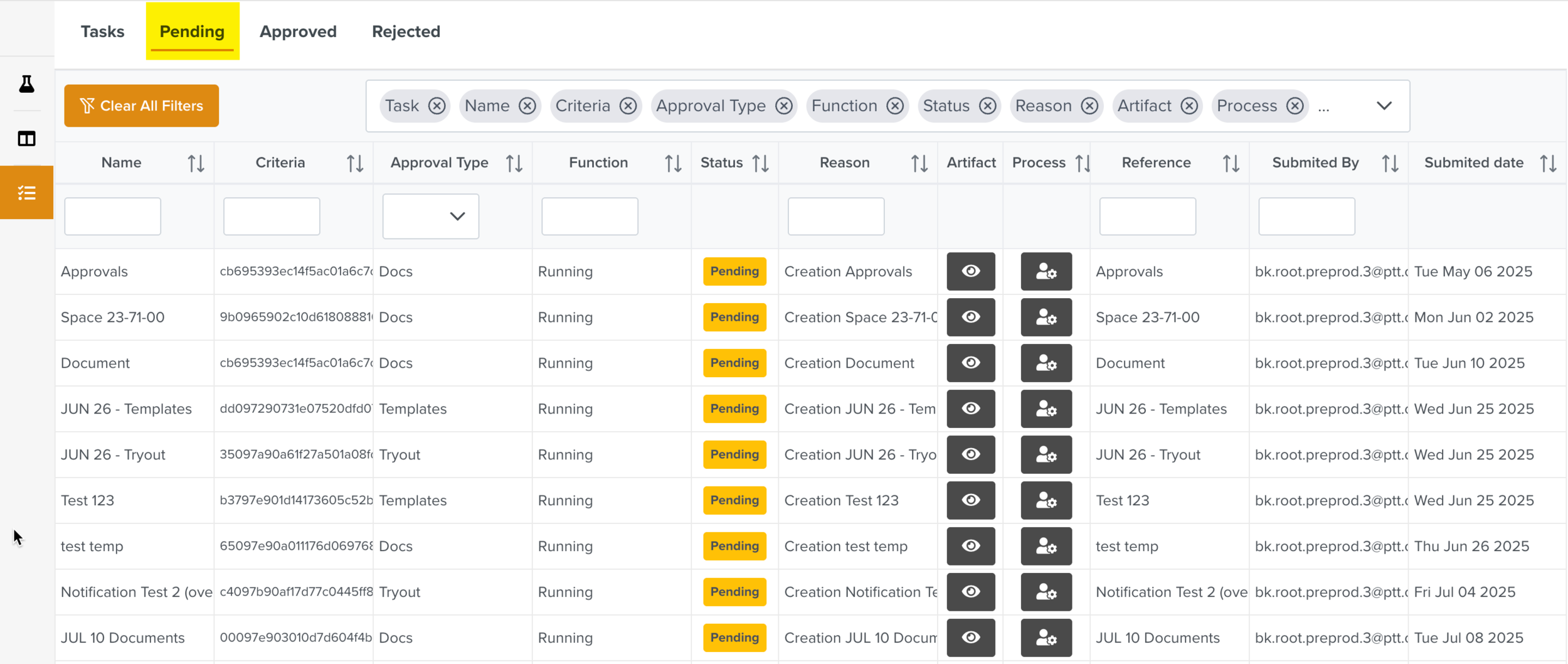
Pending: Lists the details of all the Tryout Tasks that are in progress. Here, users can also view the Tryout information, including the process and Artifact data.
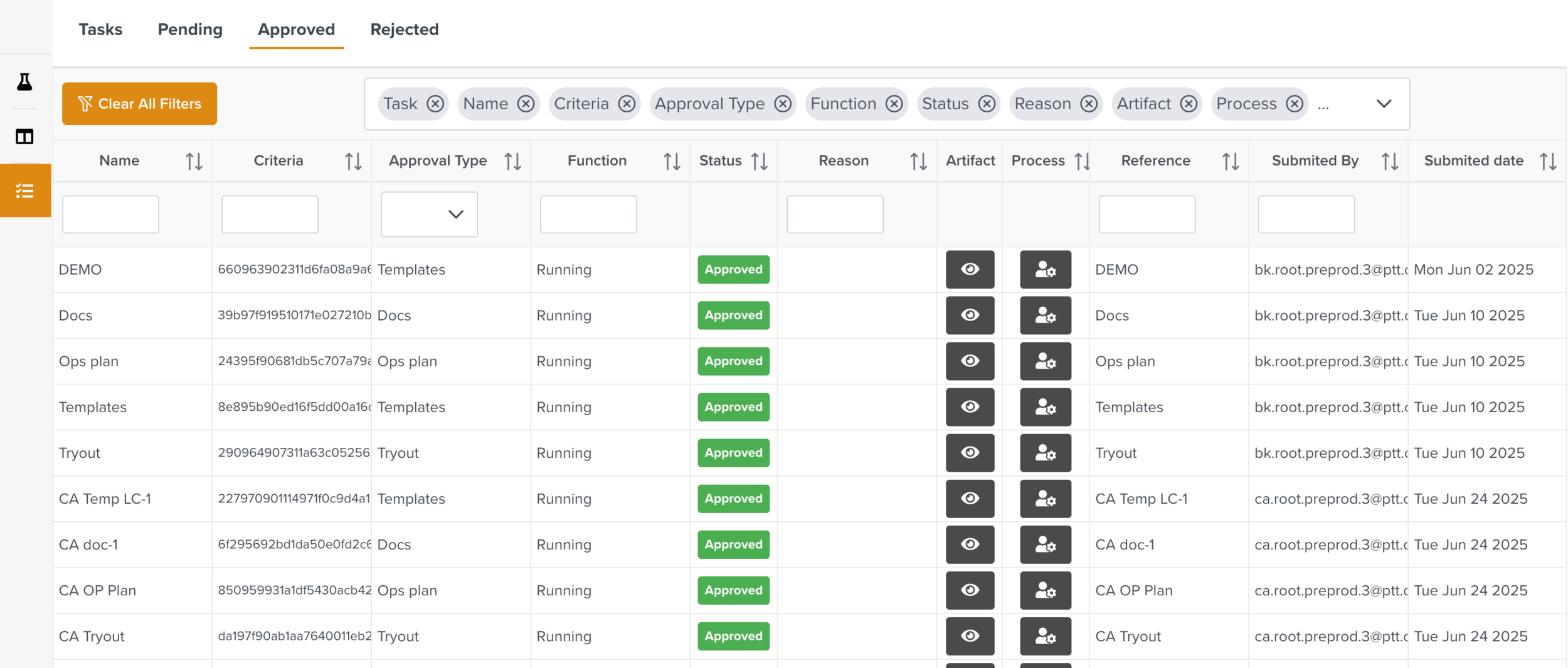
Approved: Lists the details of all the Tryout Tasks that are approved. Here, users can also view the Tryout information, including the process and Artifact data.
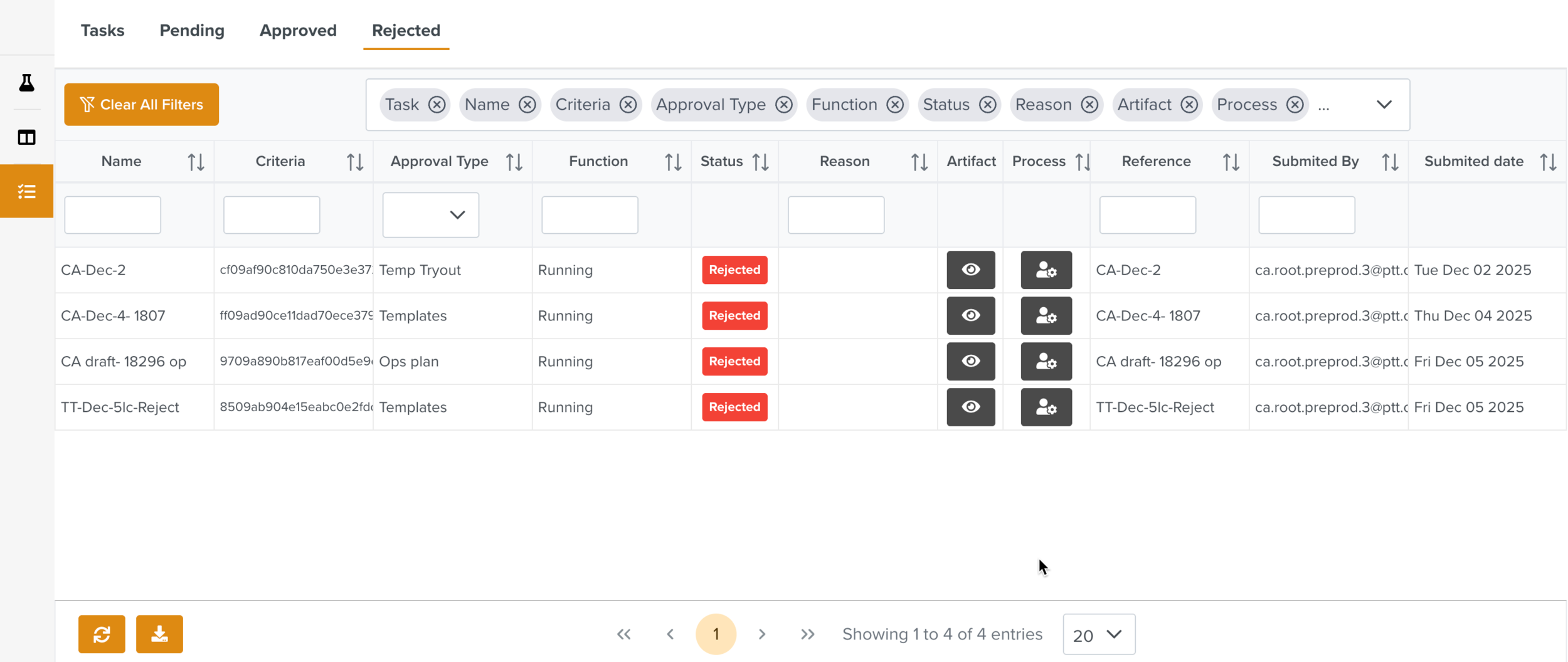
Rejected: Lists the details of all the Tryout Tasks that are rejected. Here, users can also view the Tryout information, including the process and Artifact data.
You can pick up the Tasks and move them through the different stages of the Tryout Lifecycle.
In the below example, the Approval Task Maintenance Template Tryout is picked up. The Tryout Lifecycle used for this Task is Tryout lc.
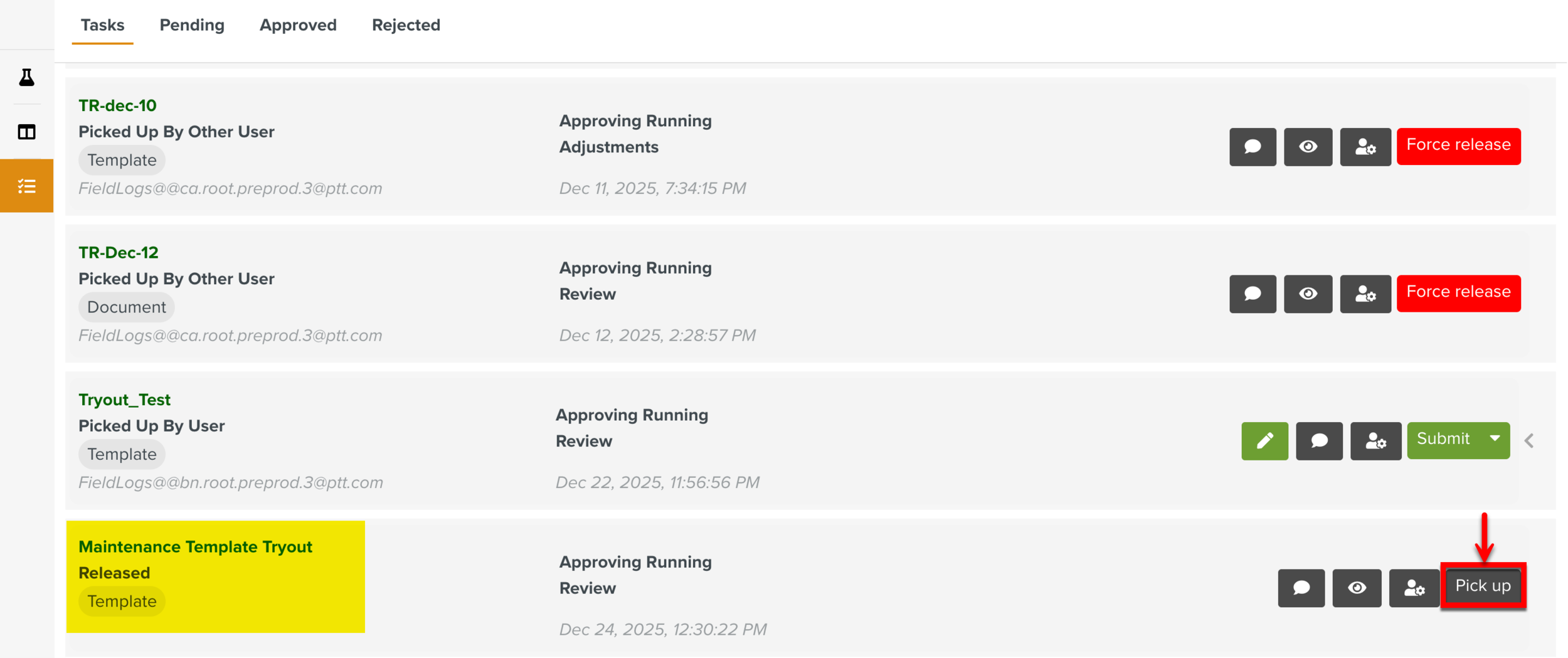
When you pick up the Task, the username, stage, date and time of pickup are displayed. This information gets updated at every stage.
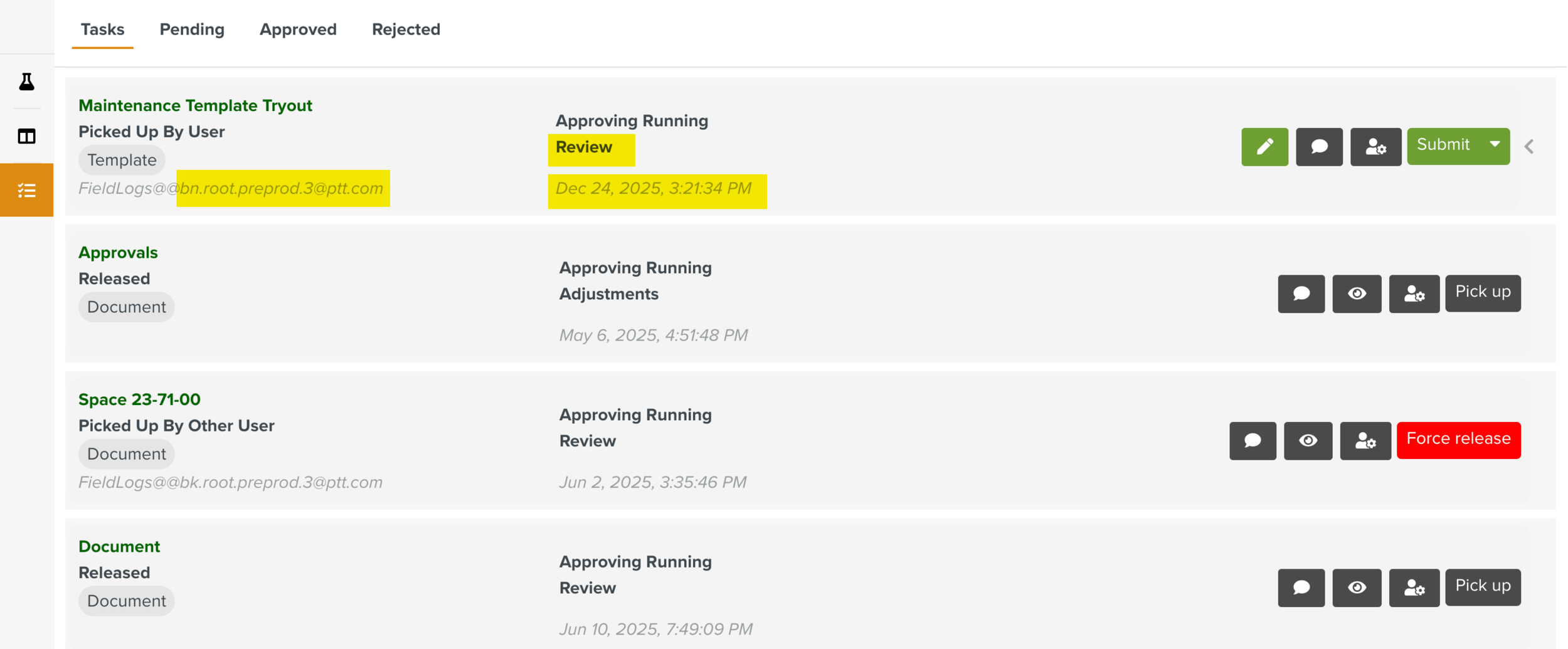
For this Tryout Task, the customizable actions defined in the Tryout Lifecycle are as follows:
: The Tryout Task moves to the next step in the Tryout Lifecycle.
: The current action is rejected. This moves the Tryout Task to the stage defined in the Tryout Lifecycle.
: The Tryout Task is archived.
Note
You can enable or disable these actions while defining the Tryout Lifecycle.
The actions available based on the current states of the Tryout Tasks are as follows:
: The Tryout Task is picked up and you can take action on it.
: The Tryout Task is released from you. Another user can pick it up.
: The Tryout Task is released from another user. Other users can then pick up the Tryout Task.
There are several other actions available in the tab Tasks as shown below.
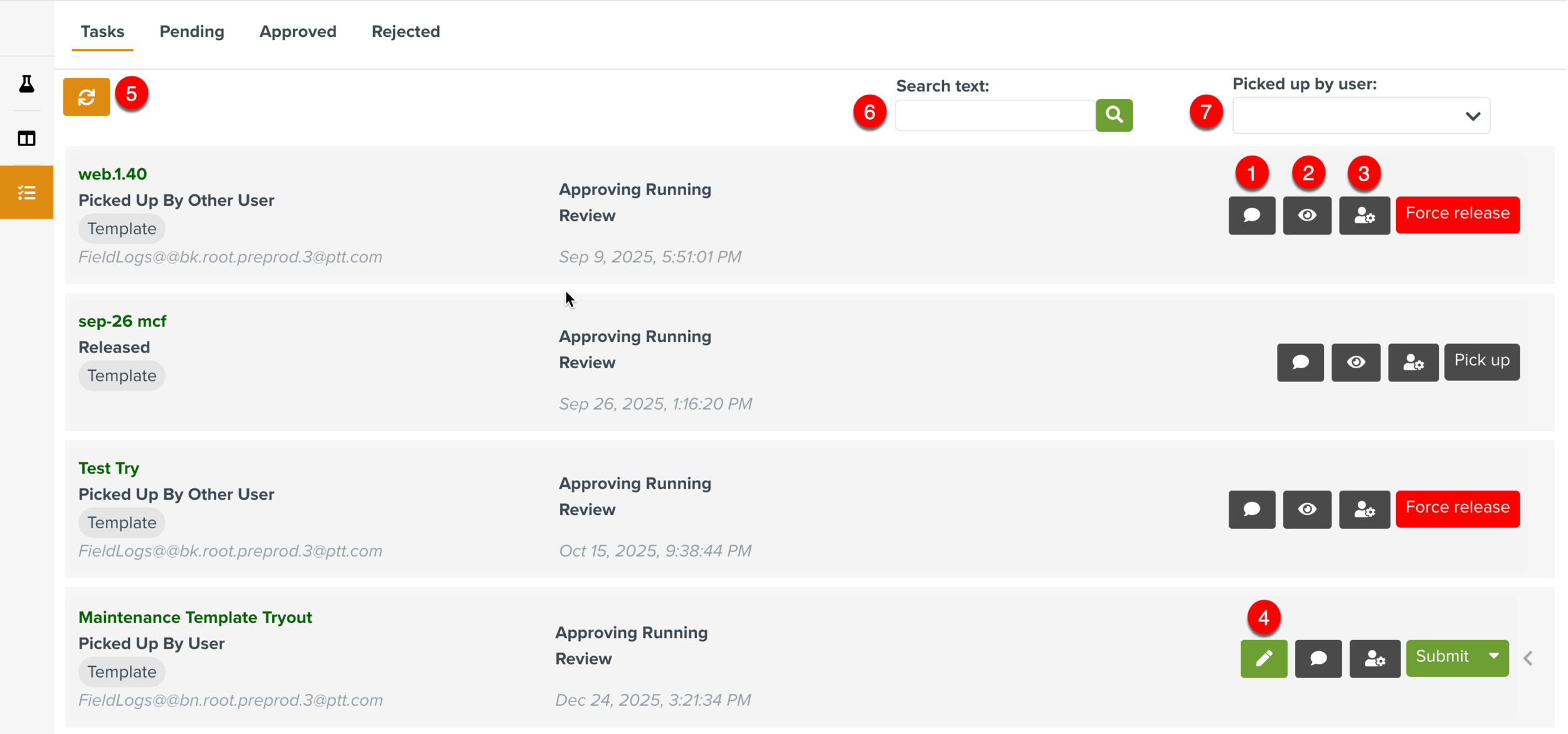
View Task Information: Click
 to view the Tryout Task Information. You can add new comments or reply to the existing comments.
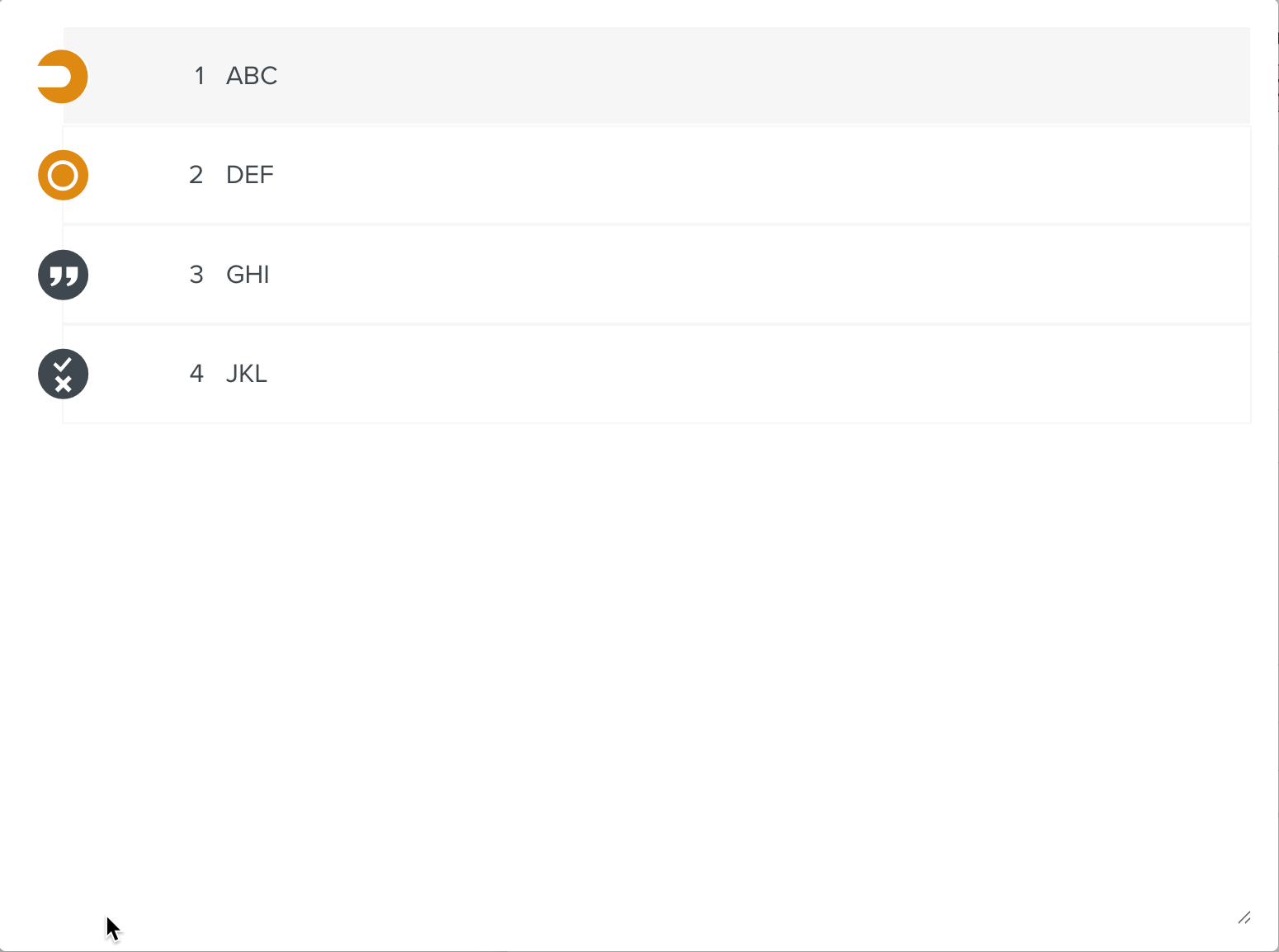
On the Template details, click the eye
 icon to view the Template Steps.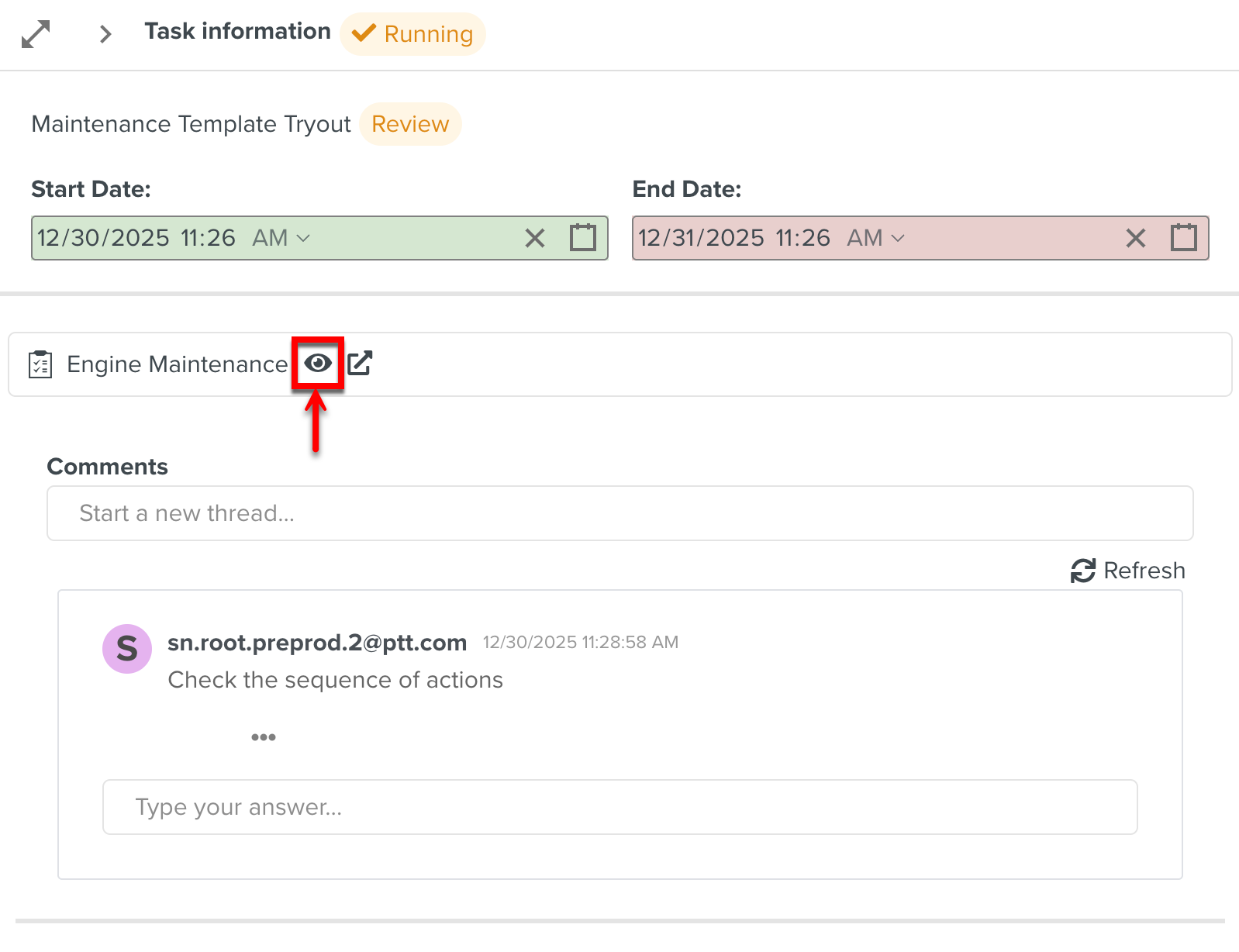
Clicking
 redirects you to the Template page to view the Template.
View Tryout: Click
 to view the details of the Tryout.
Edit: Click
 to edit theTryout.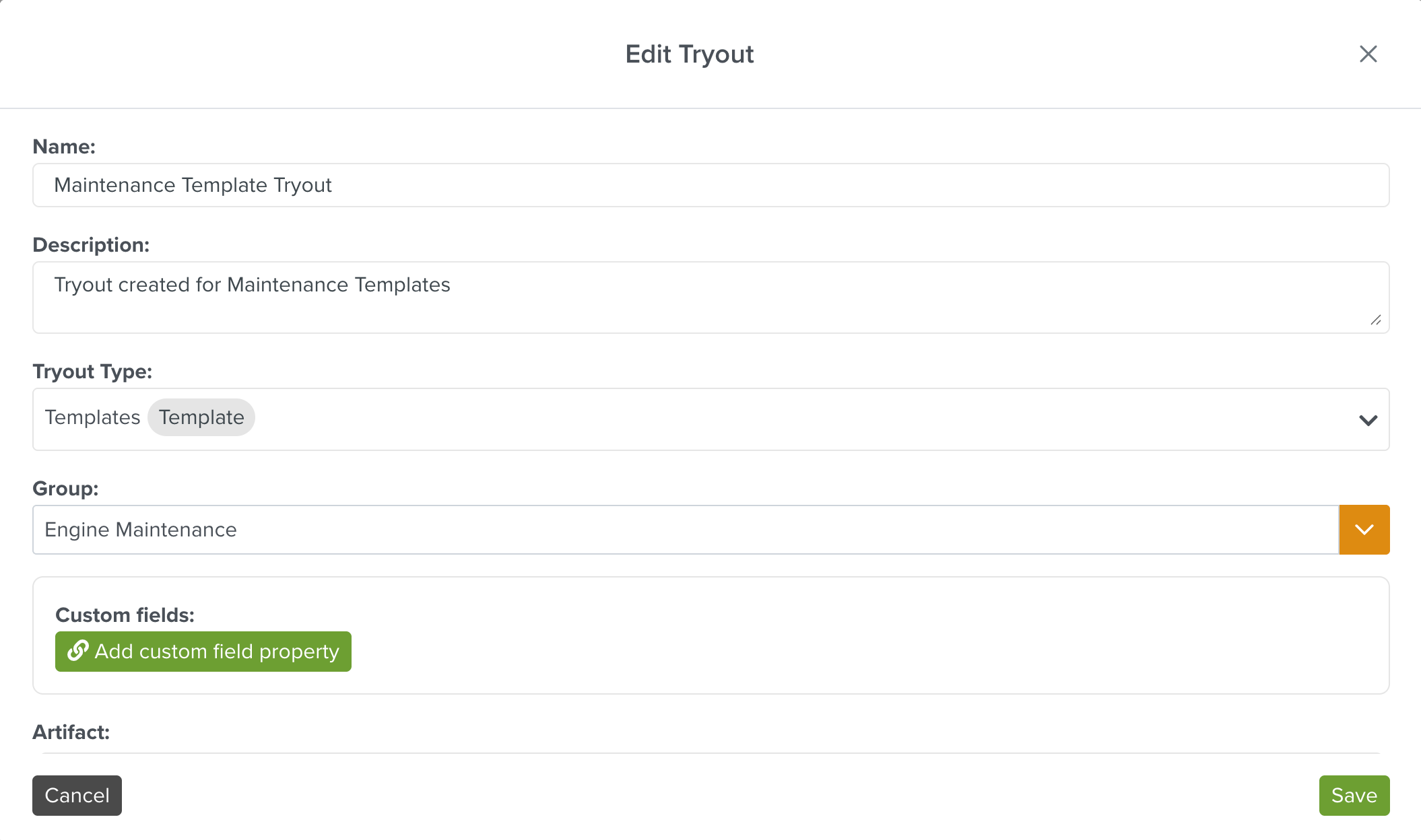
Note
The Edit
icon is visible in the Tryout Task only if the Object Editable checkbox is selected while creating the Tryout Lifecycle.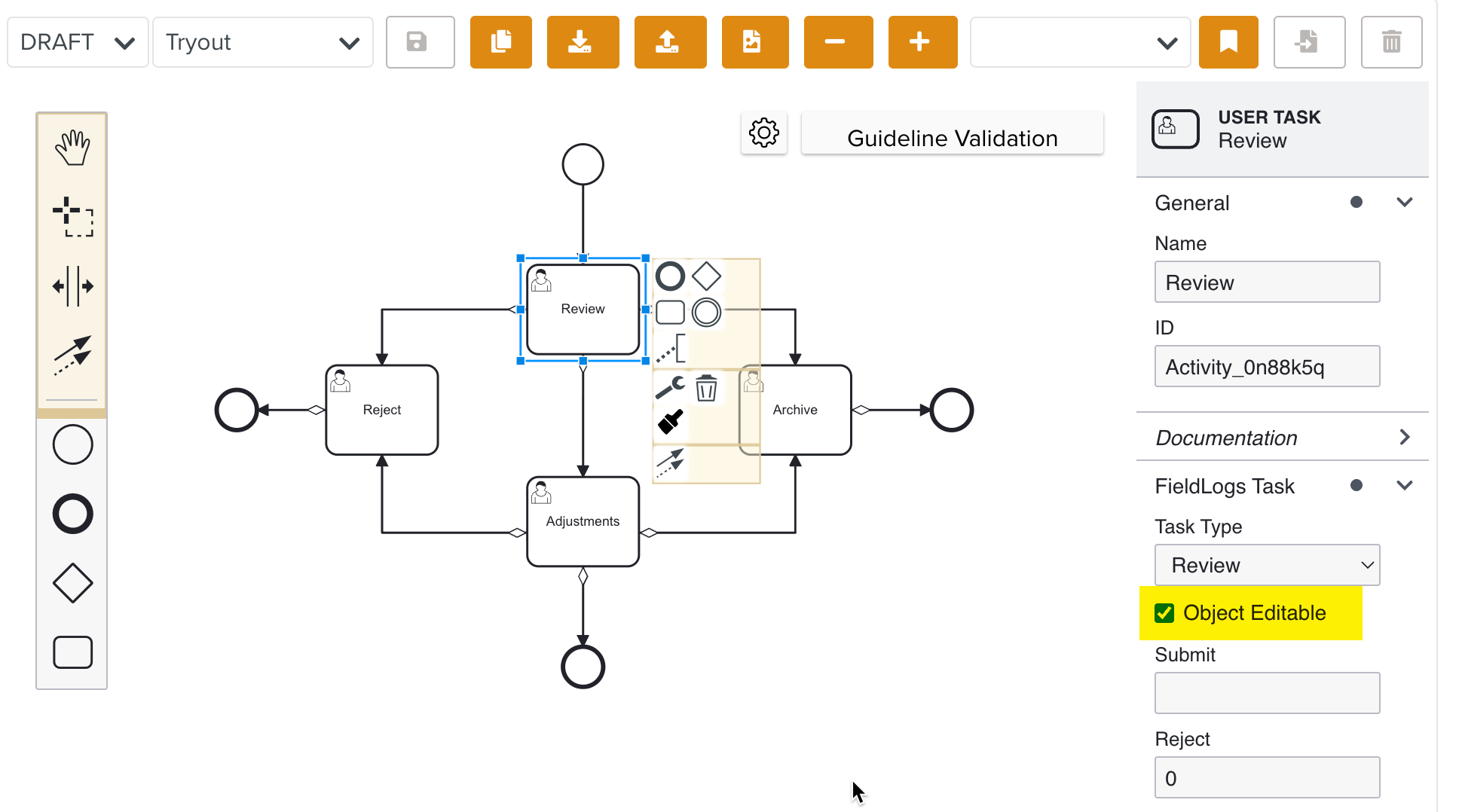
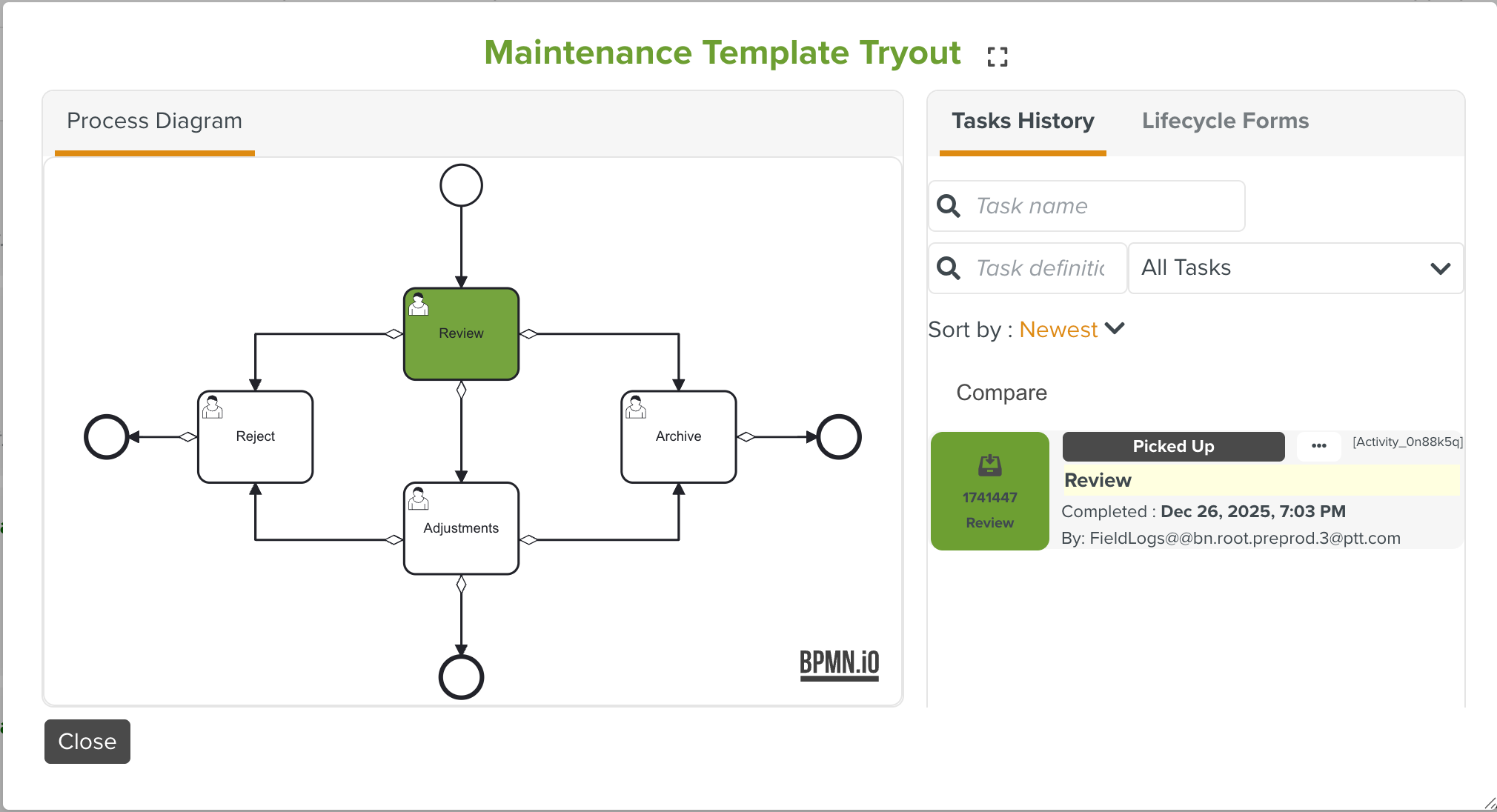
Task History: Click
 to track the progress of the Tryout Task.
You can view the Task History and the Tryout Lifecycle linked to the Tryout Task.
Refresh: Click
 to refresh the page.
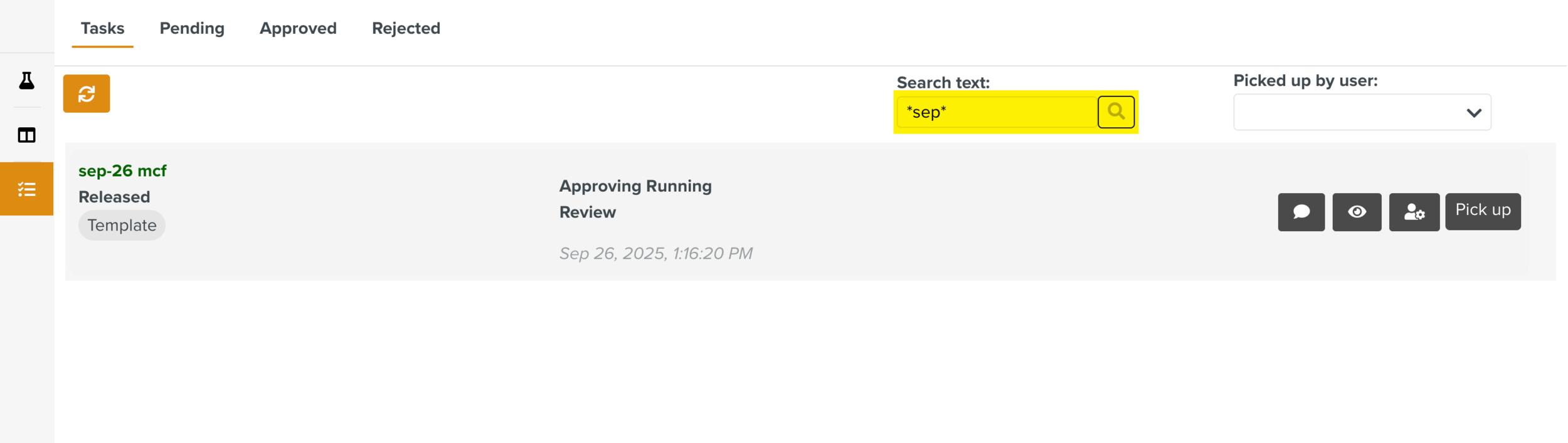
Search: Enter keywords in the search box and click
 to search for the required Tryout Task.
Note
To search for Tasks containing some text, use asterisks (*) with the text. In the below example *sep* searches for all Tasks containing the text sep.
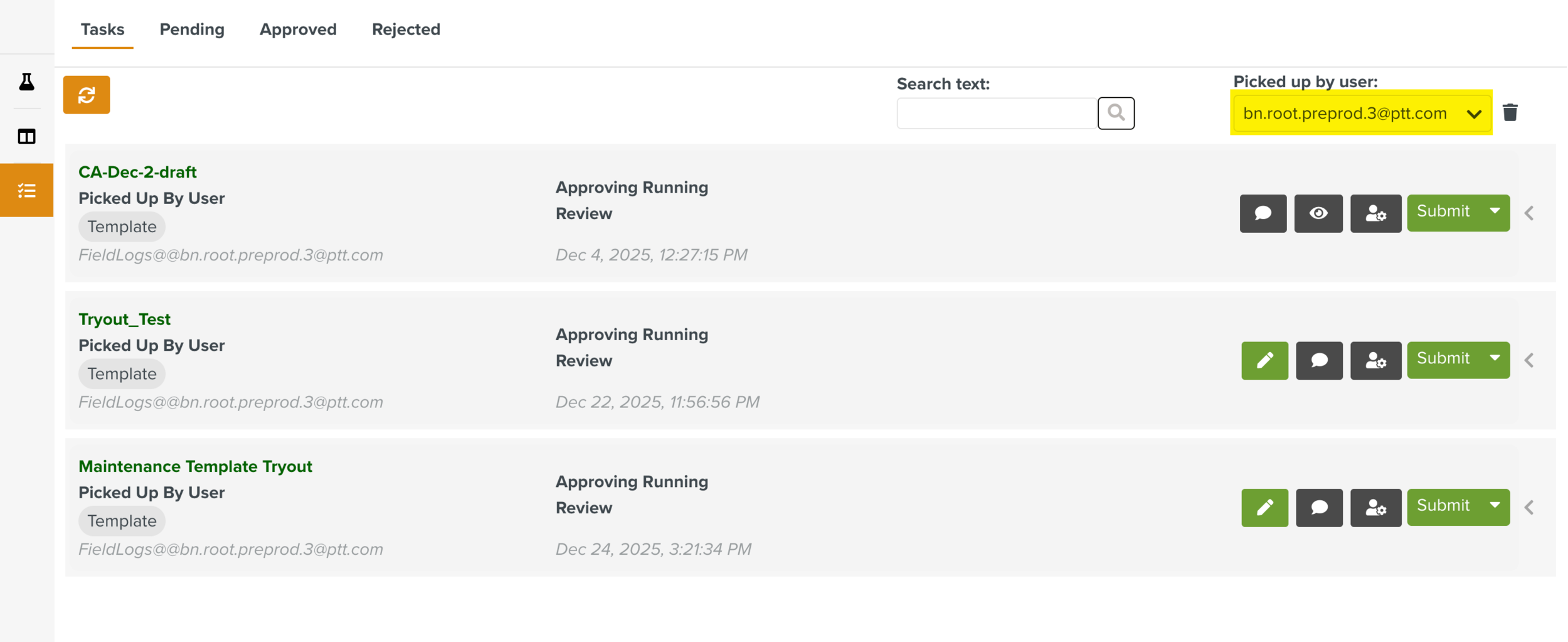
Picked up by user: Select a user from the dropdown to view the Tryout Tasks picked up by the user.
There are three other tabs in the Approval Manager dashboard to view the details of the Tryout Tasks. Following are the available tabs:
Pending
Approved
Rejected
You can find the following details of the tasks in all the three tabs:
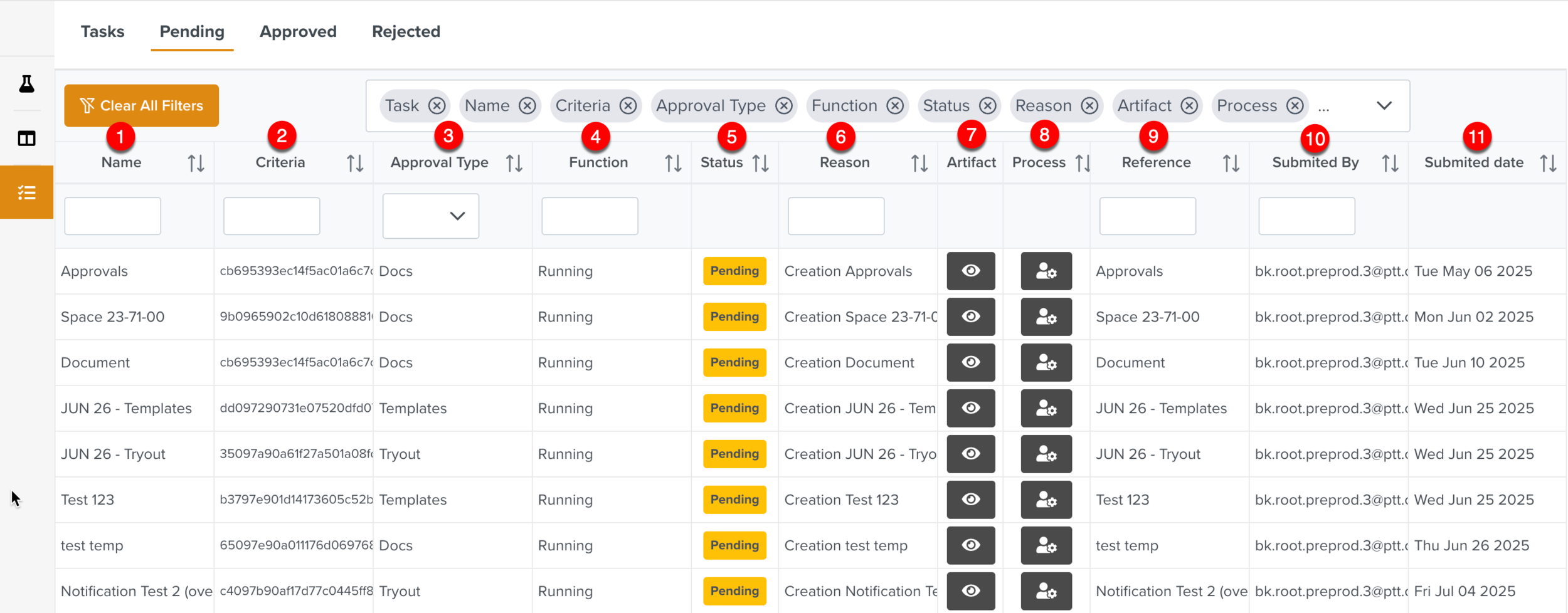
Name: Displays the document name.
Criteria: Displays the Type number.
Approval Type: Displays the Tryout Type.
Function: Displays the status of the Tryout - Running or Completed.
Status: Displays the status of the Tryout Task - Pending, Approved or Rejected.
Reason: Displays the respective label of the End Events in the Tryout Lifecycle for approval or rejection.
Artifact: Displays the Tryout details.
Process: Displays the Task History and the the Tryout Lifecycle linked to the Tryout Task.
Reference: Displays the Tryout name.
Submitted By: Displays the name of the user who submitted the Tryout Task.
Submitted Date: Displays the date of submission.
You can also perform the actions listed below while viewing the Tryout Tasks in these tabs:
Enter keywords in the Search field to narrow down your search results.
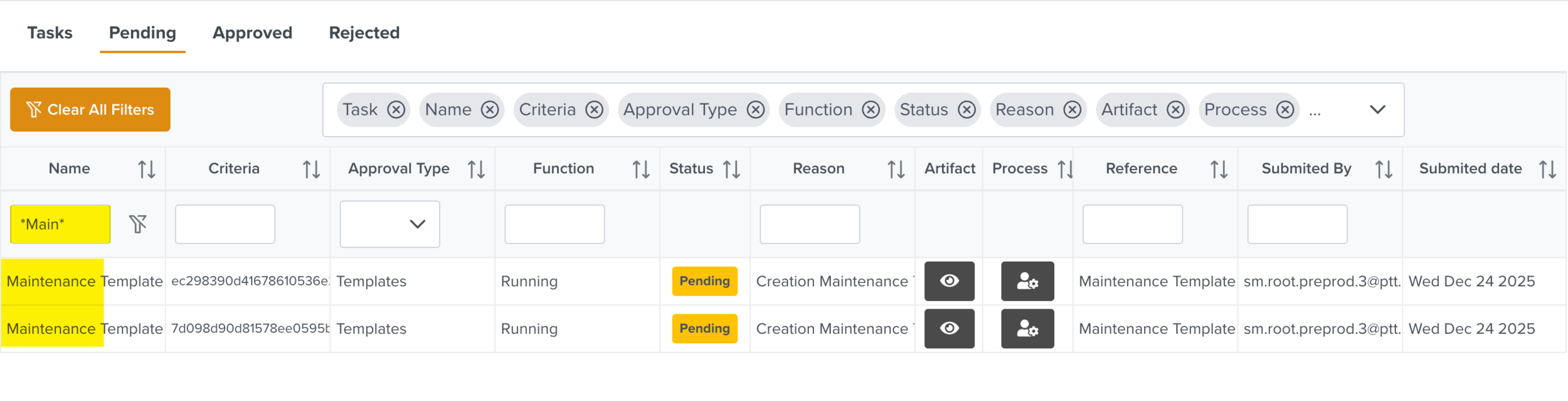
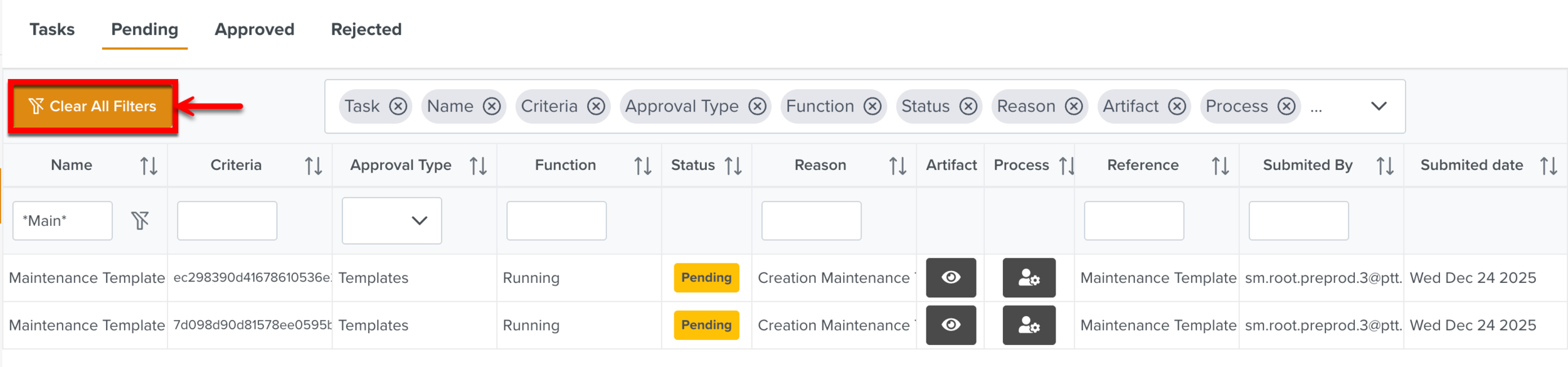
Click to remove the filters applied in all the columns.
To remove the filters applied in specifics columns, you can use
 .
.Expand the column selector dropdown to select the required columns to be displayed.
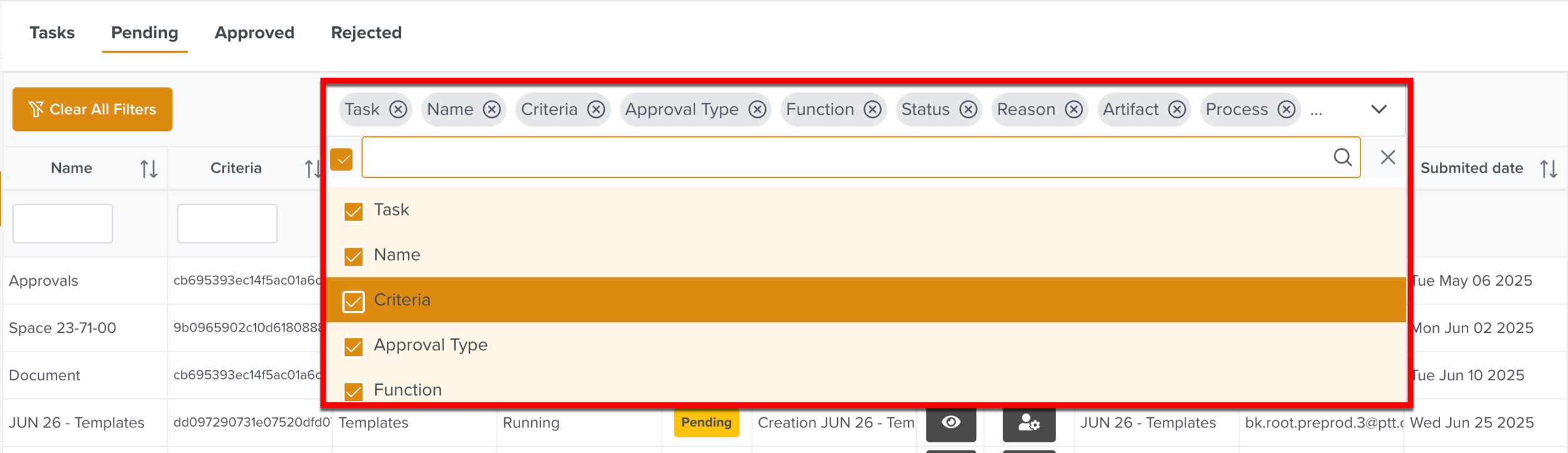
Select the number of Tasks to be displayed in a page.
