Using Production Capacity
Production Capacity is used to model an organization's production capacity and resources as a recursive, hierarchical structure.
All production resources (work centers, machines, etc.) are organized in a hierarchy of Production Capacity elements. Each Production Capacity element can, in turn, have several Sub Production Capacity elements.
Every Production Capacity/ Sub Production Capacity element can be linked to a:
Physical location - It is specified using a physical map or GPS coordinates.
Task Queue - It is used to assign Tasks, Operation Plans, and Projects.
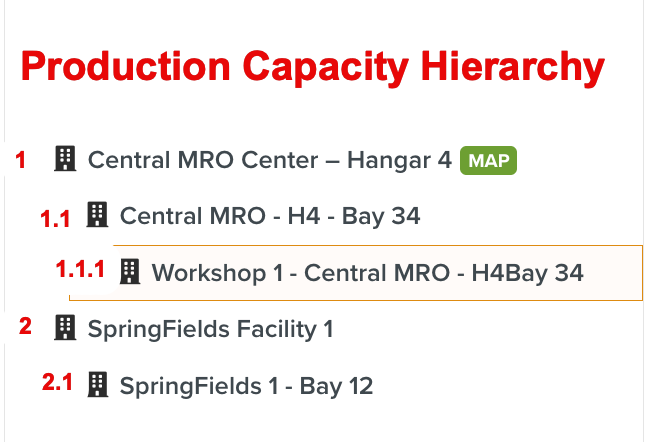
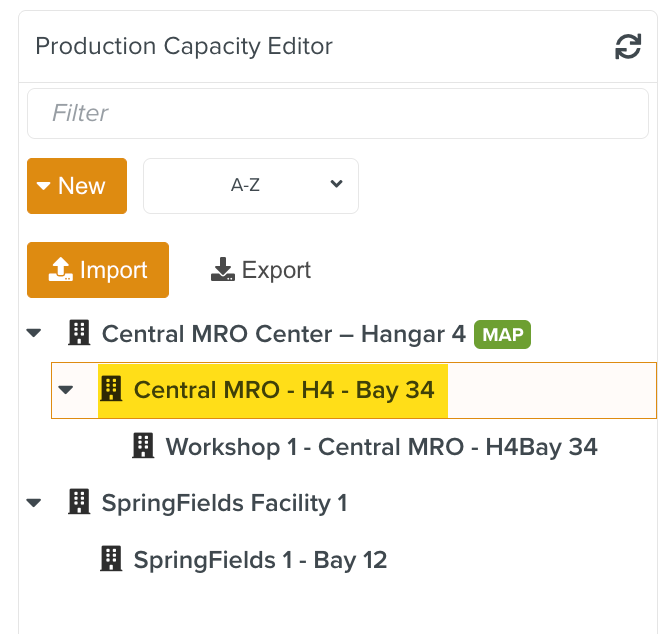
In the example below, there are two Production Capacity elements - Central MRO Center – Hangar 4 and SpringFields Facility 1. The Sub Production Capacity Central MRO - H4 - Bay 34 is nested under Central MRO Center – Hangar 4 . Note that there is another Sub Production Capacity nested under Central MRO - H4 - Bay 34.
 |
Note
You can create multiple levels of Sub Production Capacities as needed.
Production Capacity is defined with attributes related to the physical location or resource.
To create a Production Capacity:
From the main menu, go to > > .
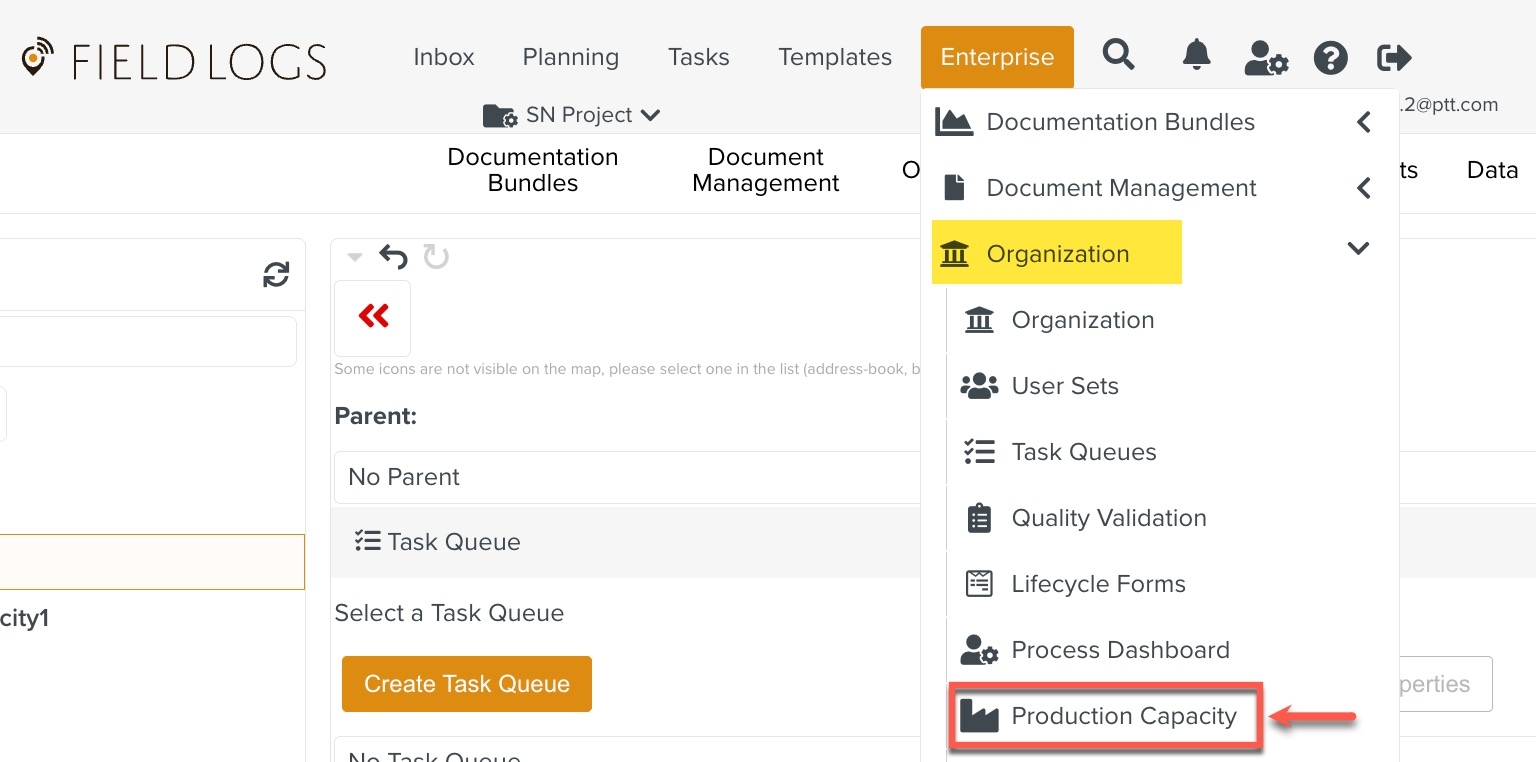
The Production Capacity Editor page appears. The list of existing Production Capacity elements is displayed.
Click the New dropdown. Then, click New Production Capacity.
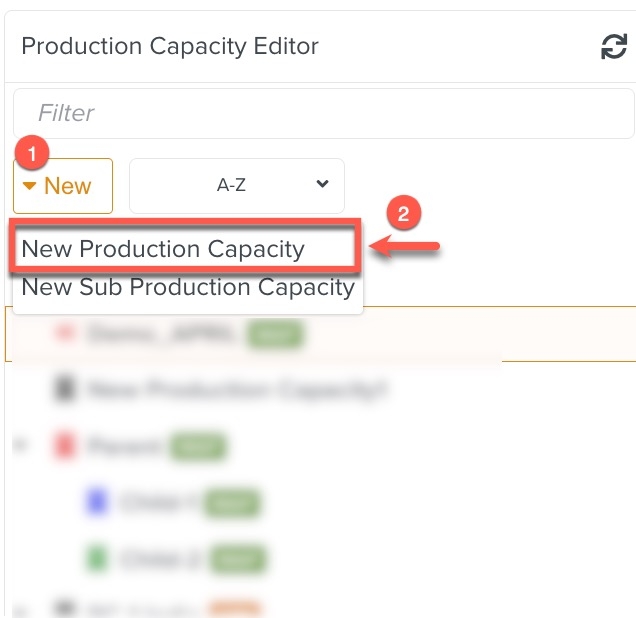
A new Production Capacity element is created and added to the list of existing Production Capacity elements.
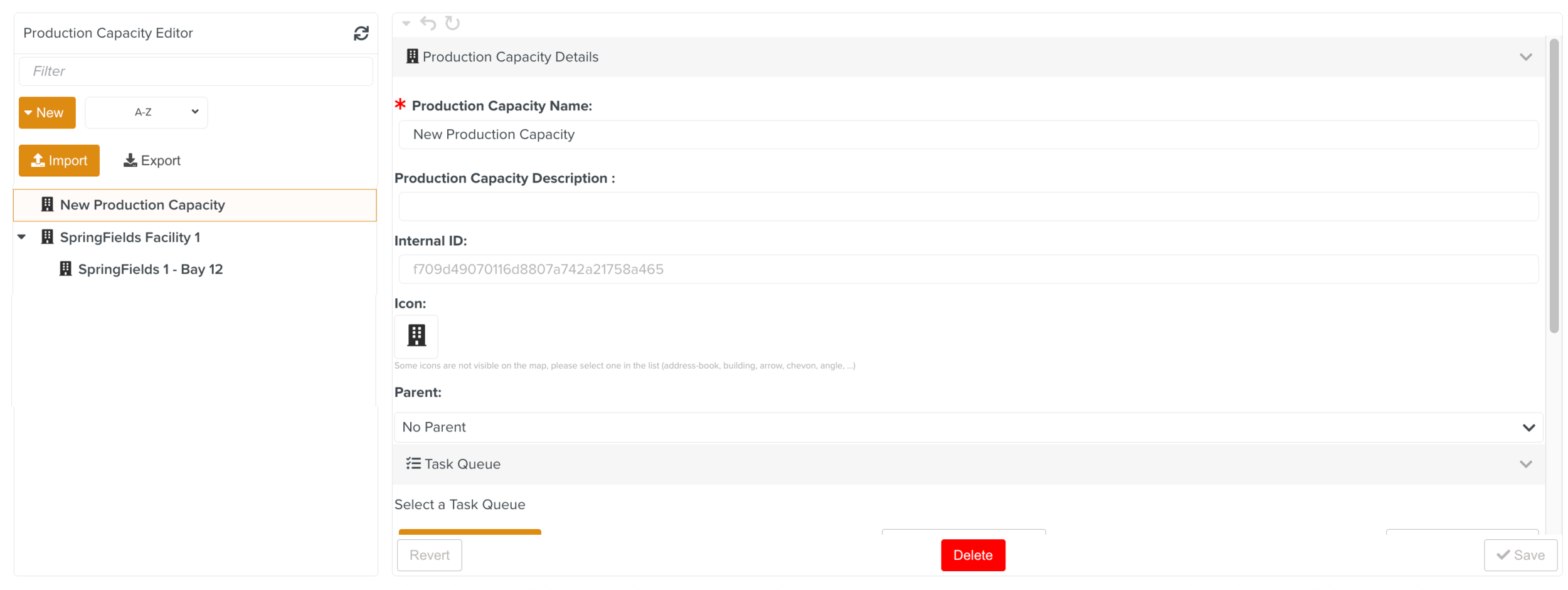
Edit the Production Capacity details as required.
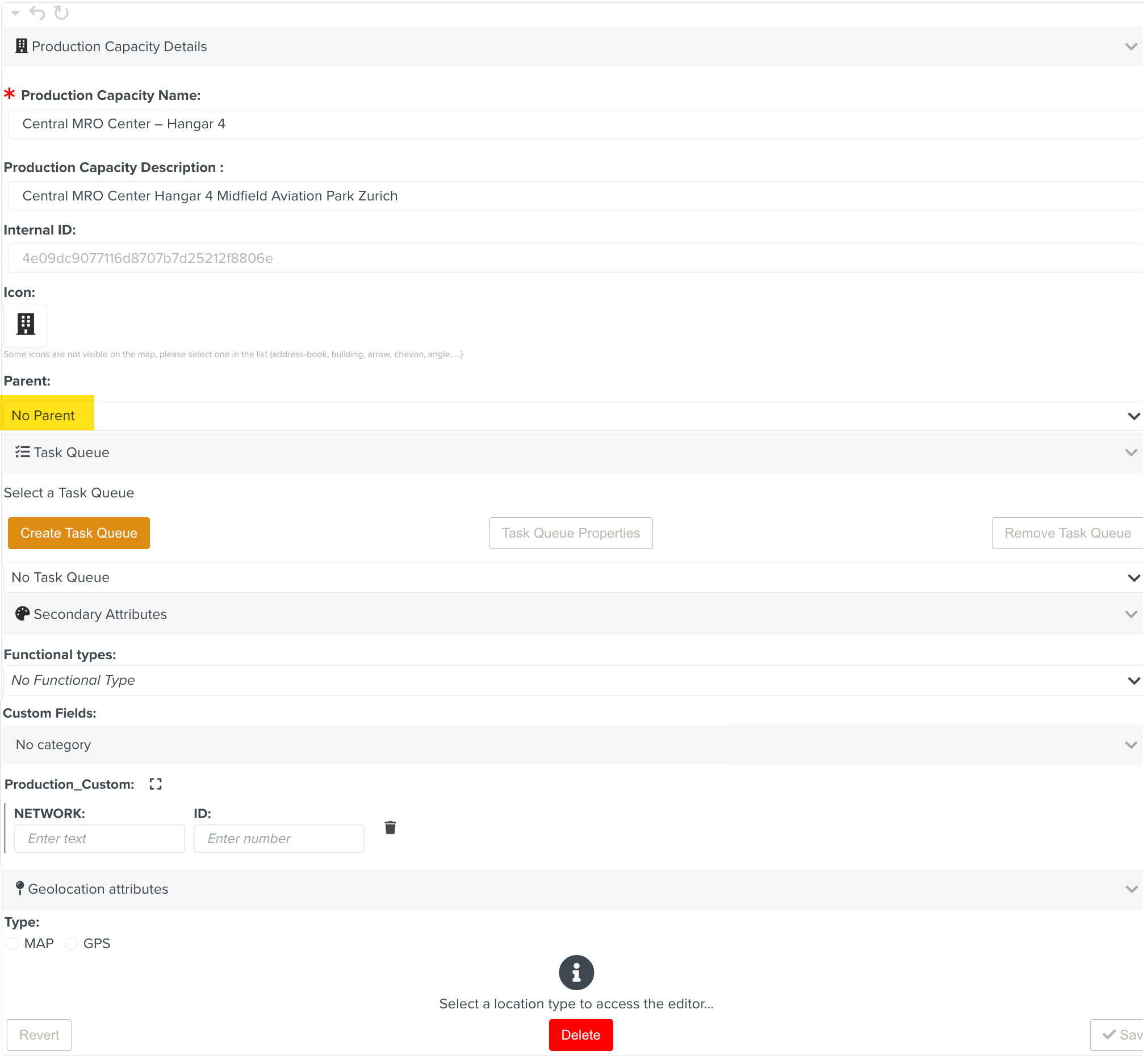
Note
A Production Capacity element does not have a parent. If a parent is added, it is converted into a Sub Production Capacity element.
Link a Task Queue to the Production Capacity. Click to create a Task Queue or select an existing one.

Note that the newly created Task Queue contains the Production Capacity name. You can remove a Task Queue by clicking .

You can specify the Secondary Attributes - Functional Types and Custom Fields, and Geolocation Attributes for the Production Capacity.
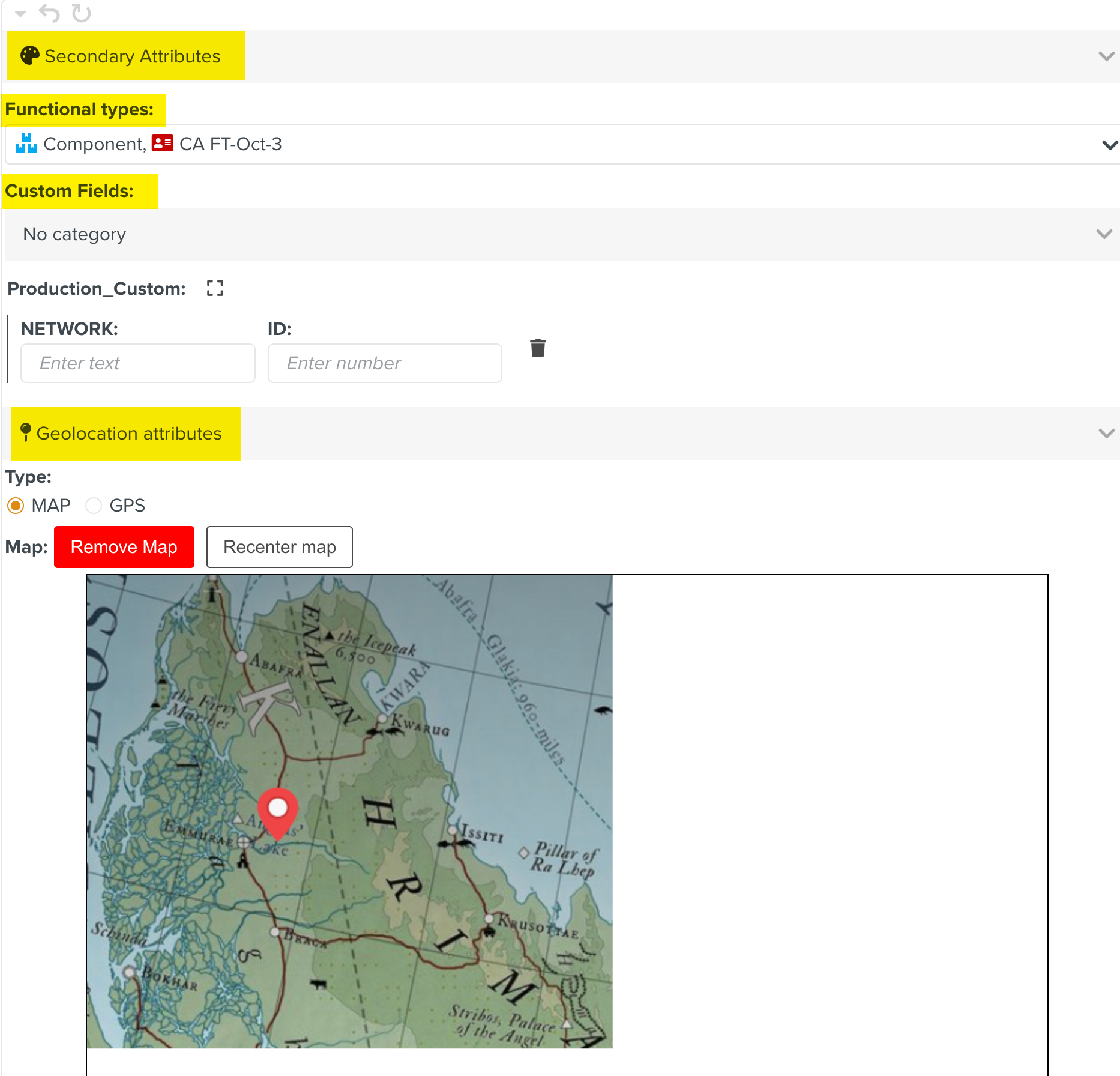
[Optional] Enter the Custom Fields values.
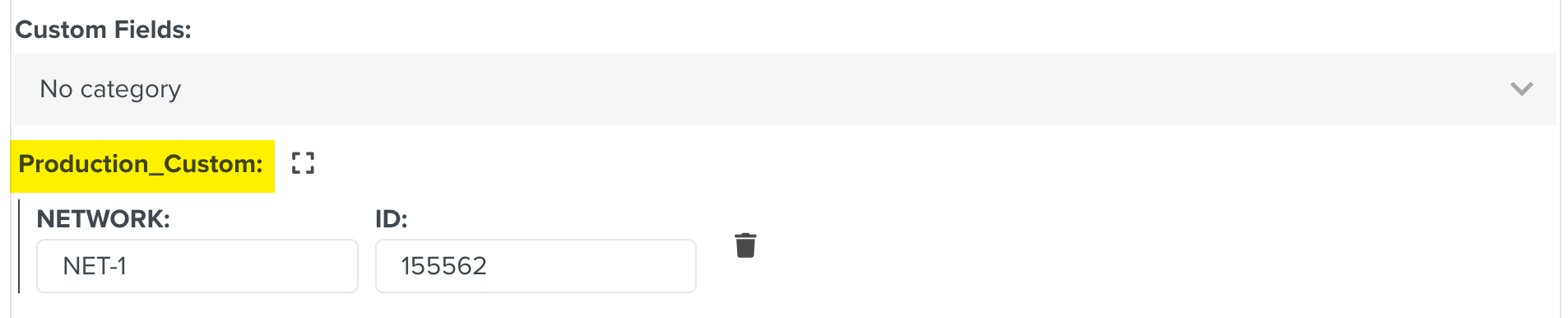
Note
All Custom Fields within the Production Capacity scope are displayed.
[Optional] Select the Functional types to be used in the Production Capacity.
[Optional] Enter the Geolocation attributes. You can specify the GPS coordinates or upload a map as a .PNG or .JPG file.
Click .
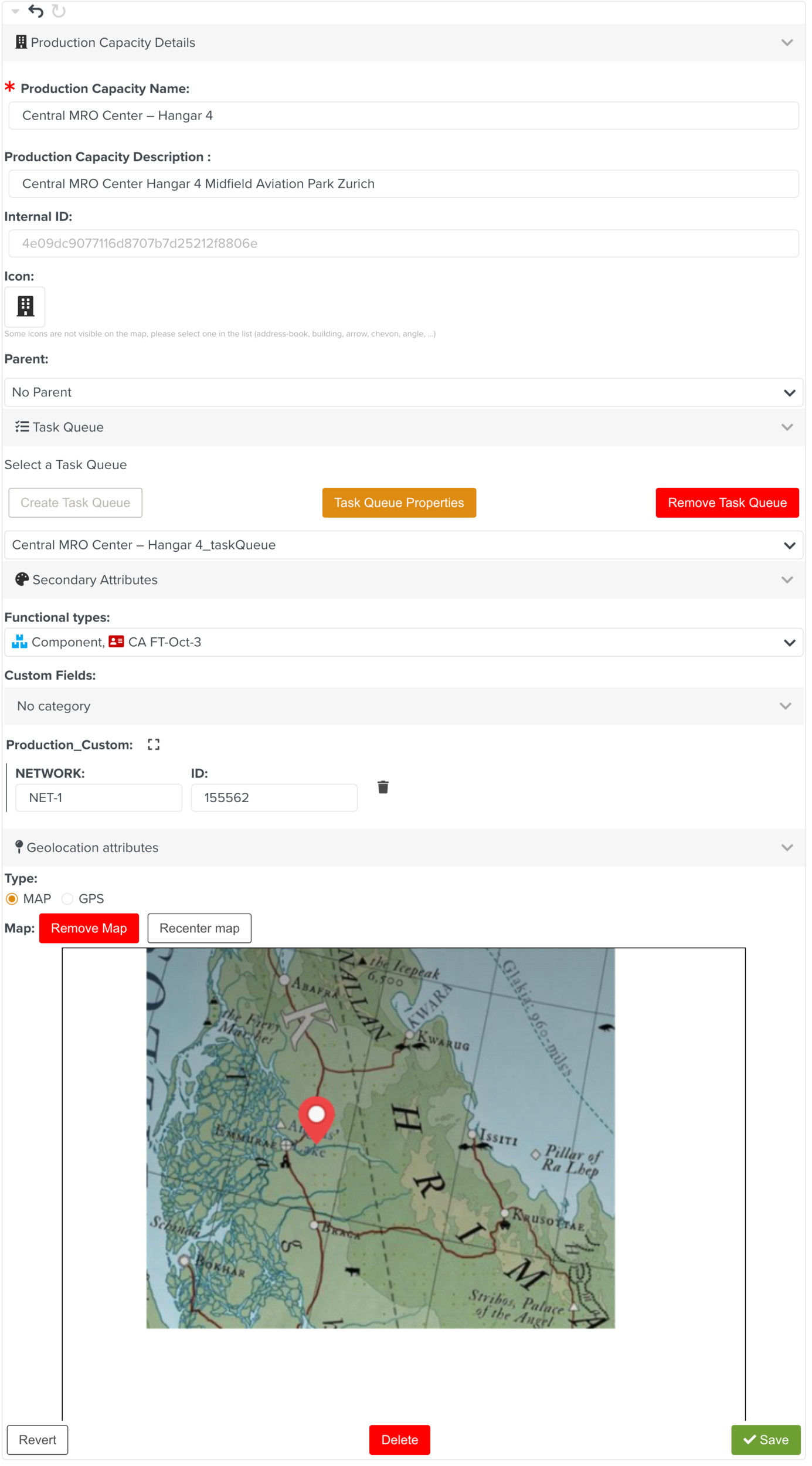
You have successfully defined a Production Capacity element.
A Sub Production Capacity is nested under a Production Capacity or another Sub Production Capacity.
Defining a Sub Production Capacity is similar to defining a Production Capacity. The differences are highlighted below.
Select the option highlighted below.
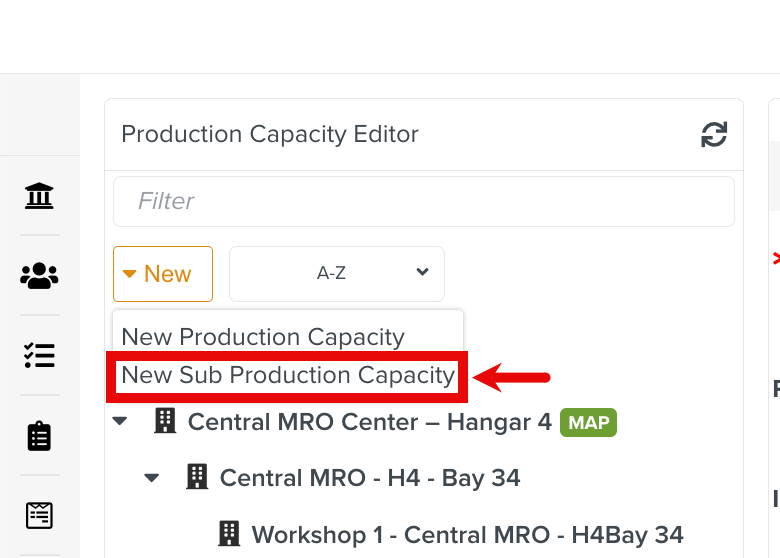
A new Production Capacity element is created. Edit the fields as detailed in the procedure to create a Production Capacity.
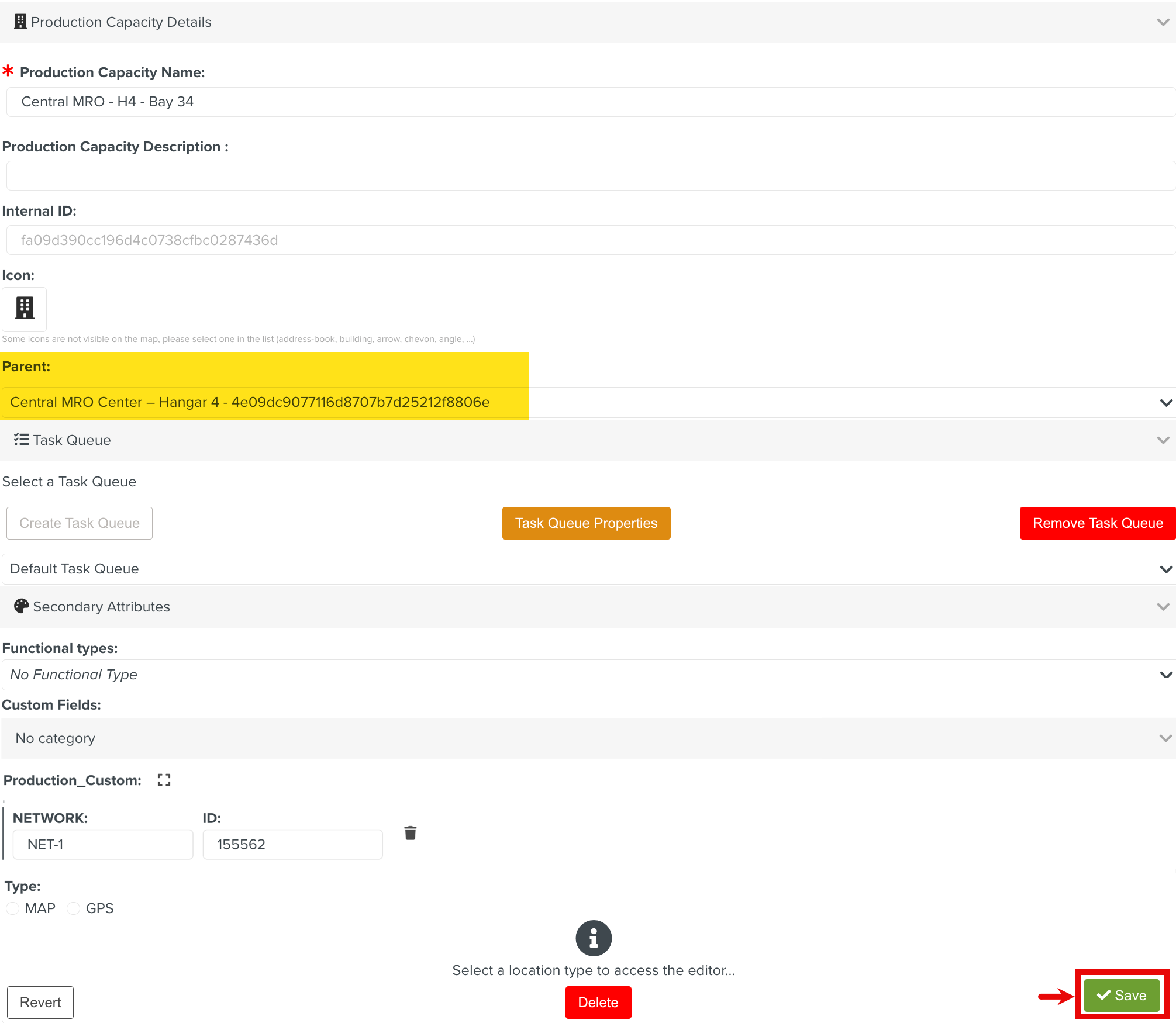
Select the Parent from the dropdown list. It can be a Production Capacity or a Sub Production Capacity.

The current Sub Production Capacity will be nested under the Parent element.
Click .
The Sub Production Capacity is listed under its Parent as shown below.
 |