Raising an Incident on the Application
You can raise an Incident to report an event that hinders the completion of a Task or an action.
You must have the appropriate access rights to Raise an Incident.
Incidents can be raised in the following three contexts:
Global Incident
Task Incident
Runtime Step Incident
To report an event that is not related to the Task directly, but blocks it, you can raise a Global Context Incident.
To raise a Global Incident:
Click Tools.
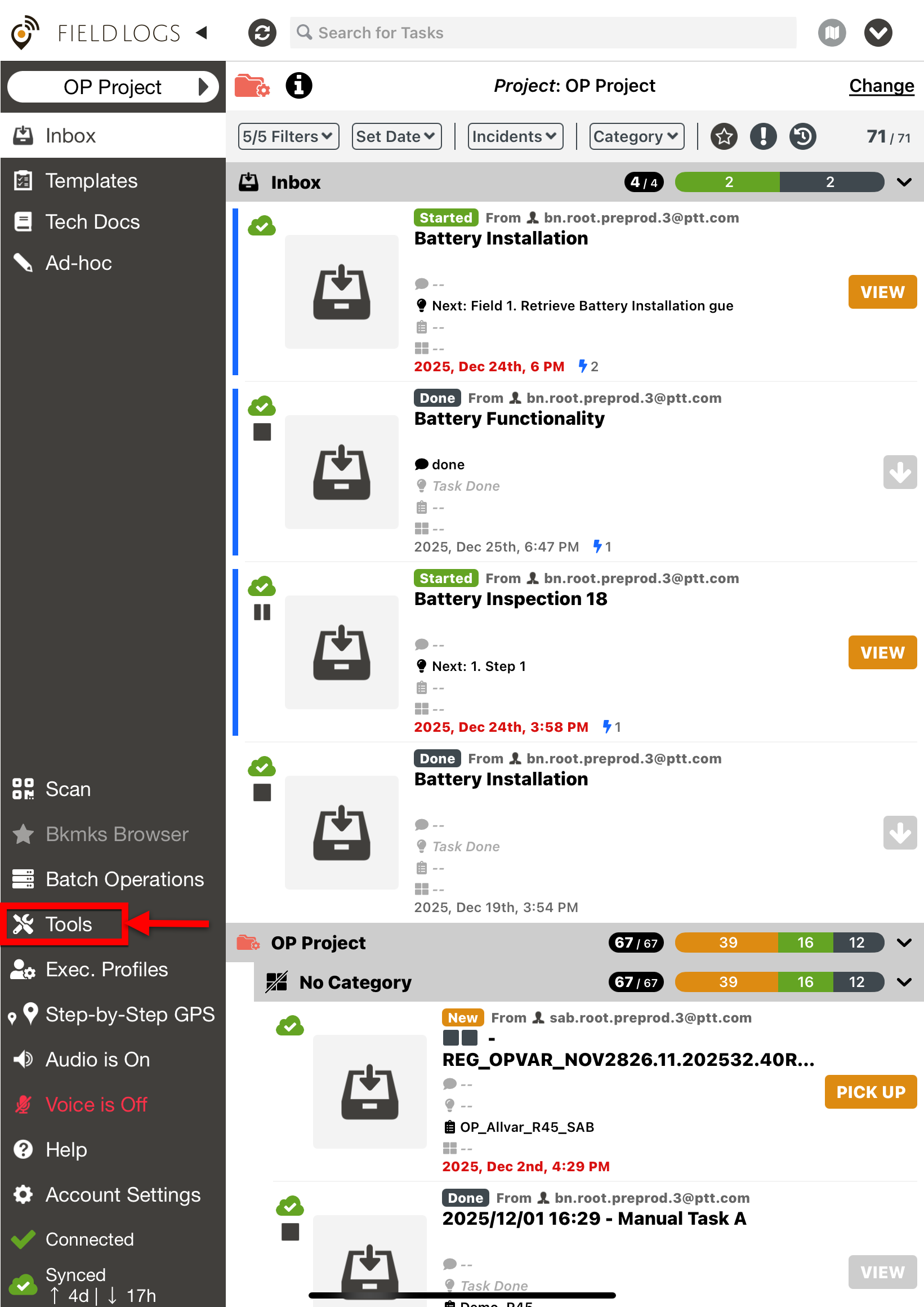
The dialog Tools appears.
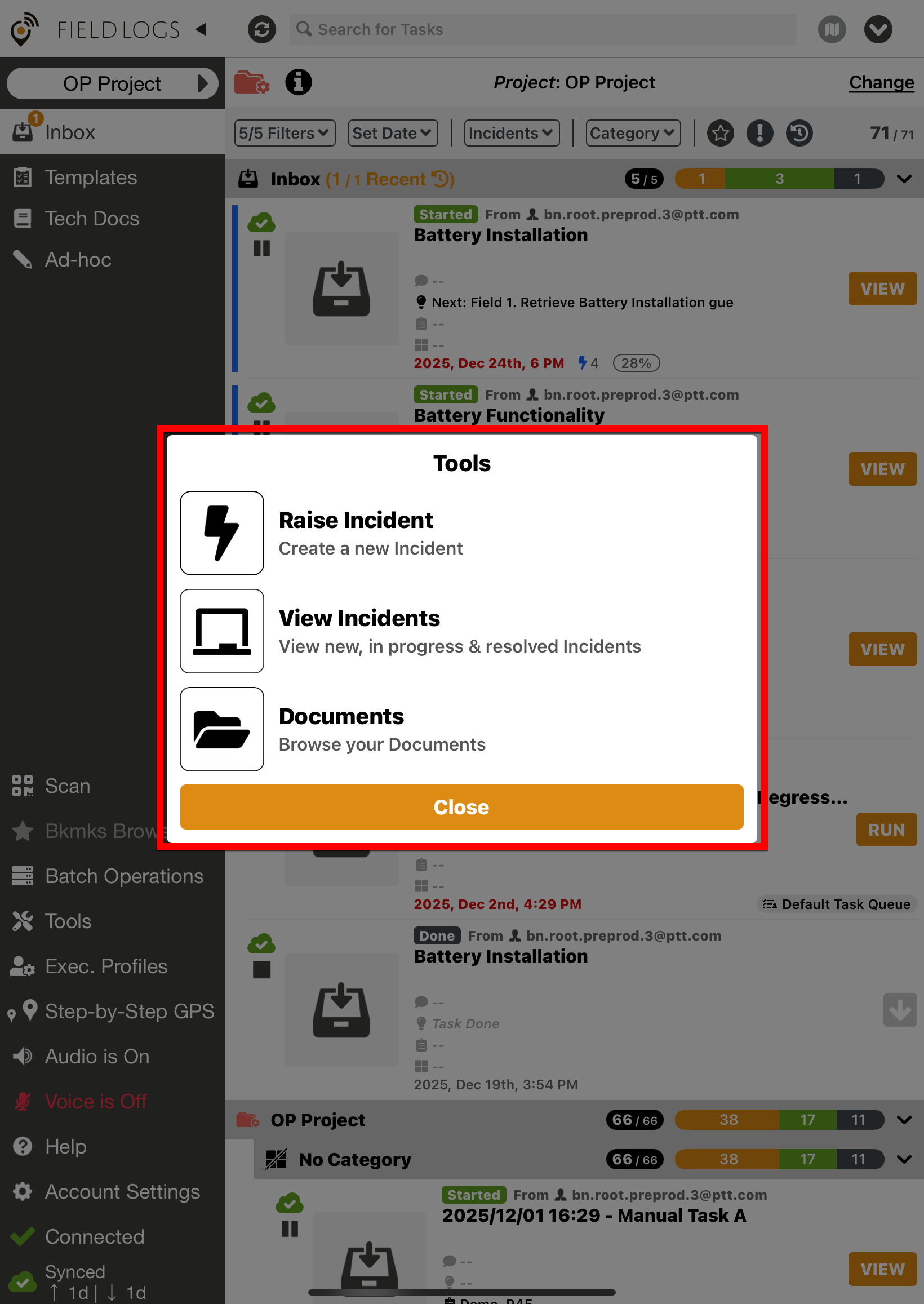
Click Raise Incident.
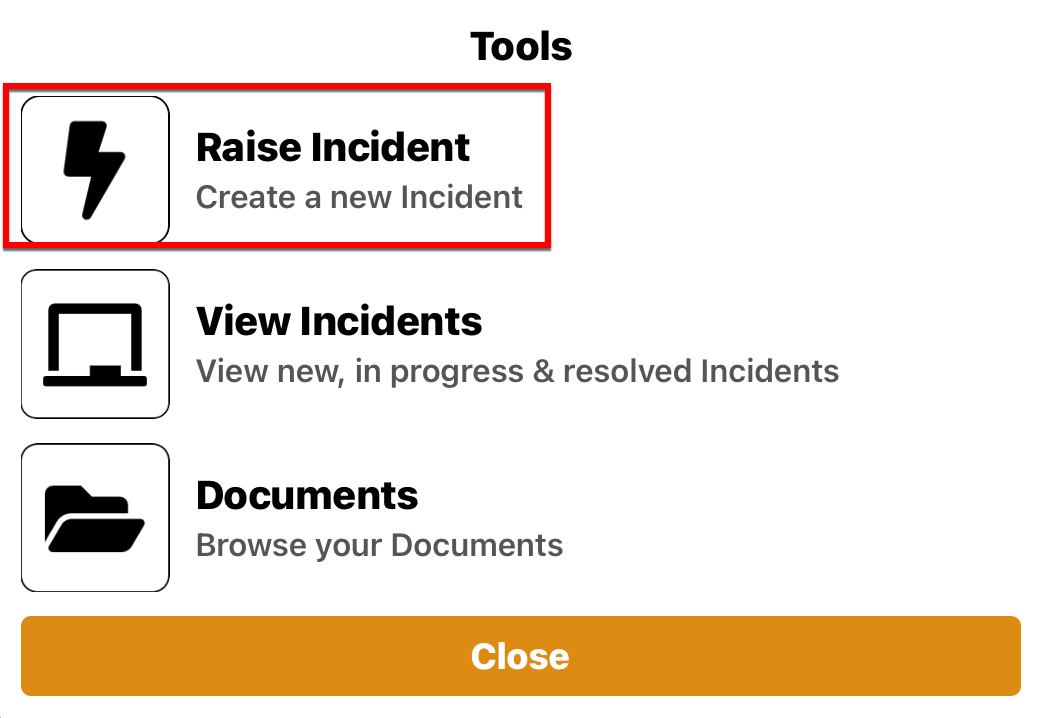
The dialog Raise Incident appears.
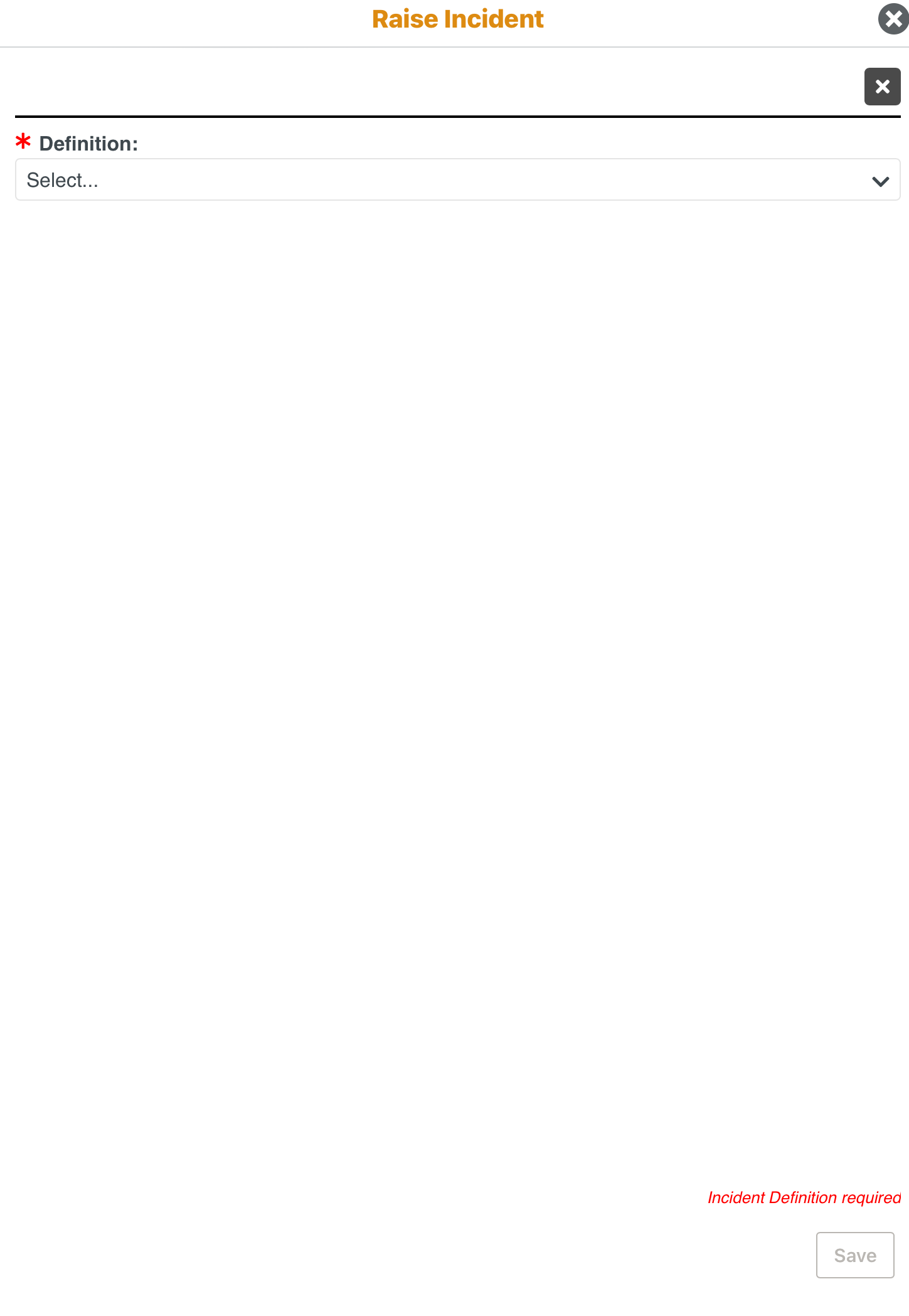
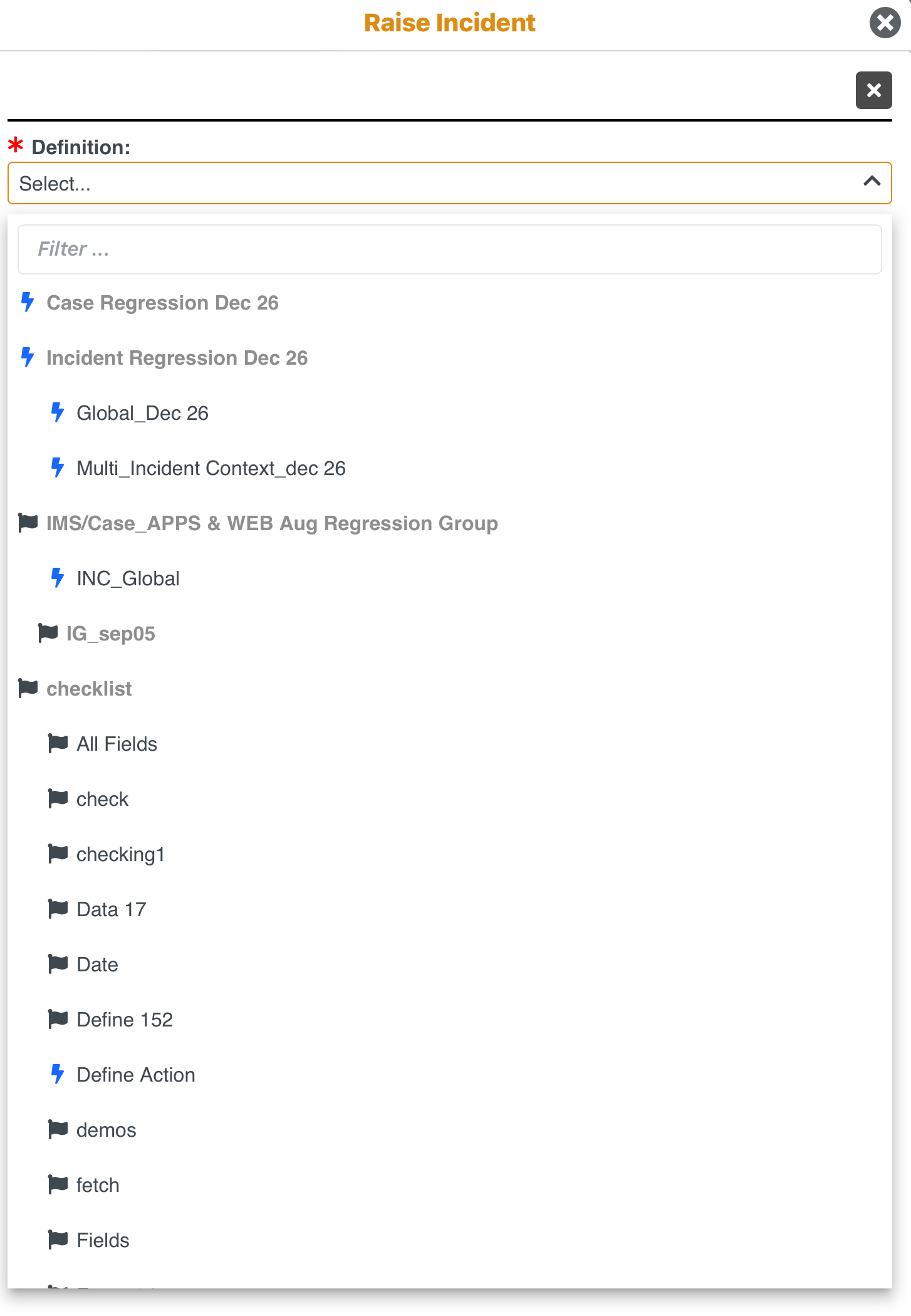
Select the required Incident. The Global Context Incidents are displayed in the dropdown under their respective Incident Groups in a hierarchical structure.
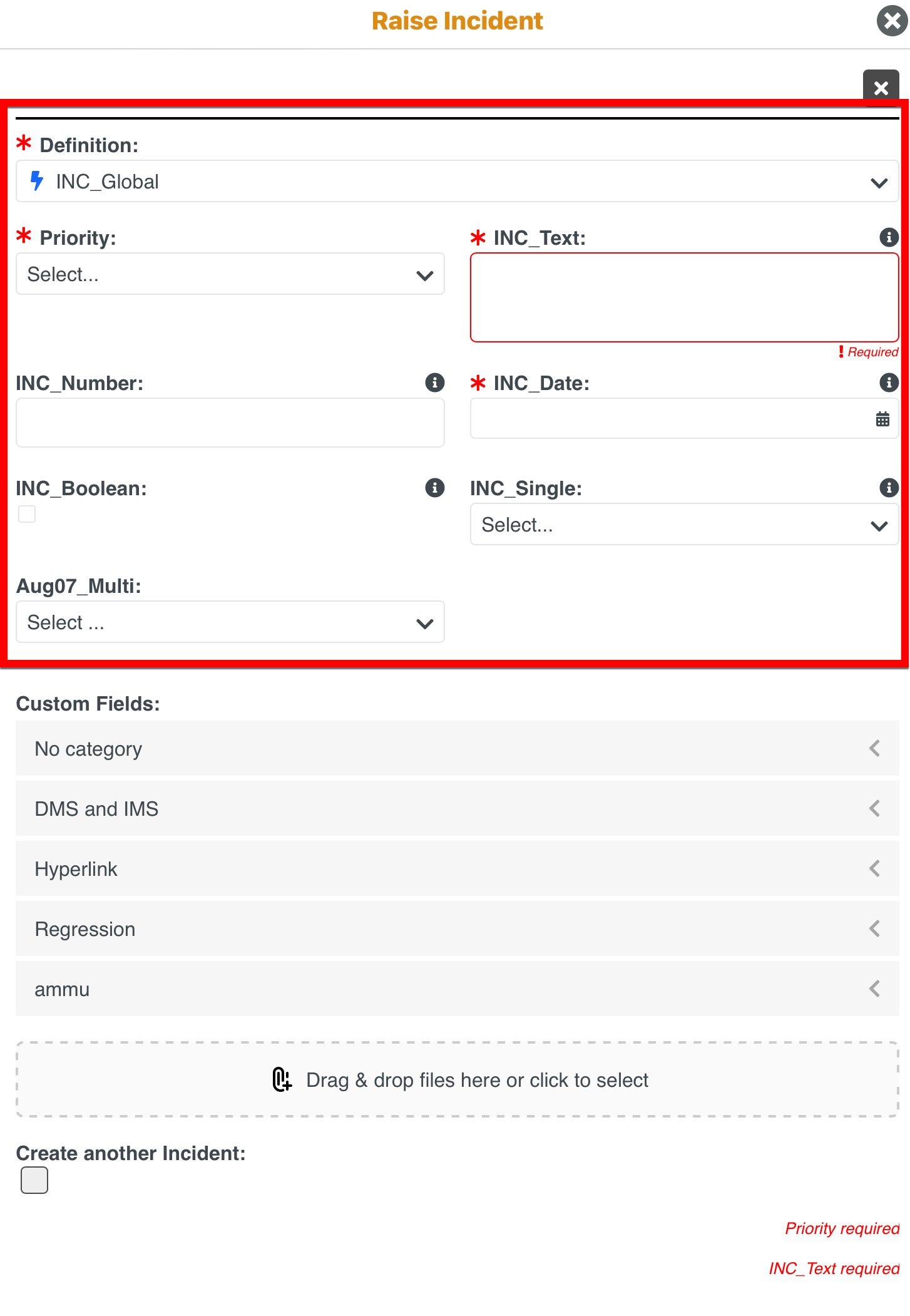
The fields configured for the selected Incident are displayed.
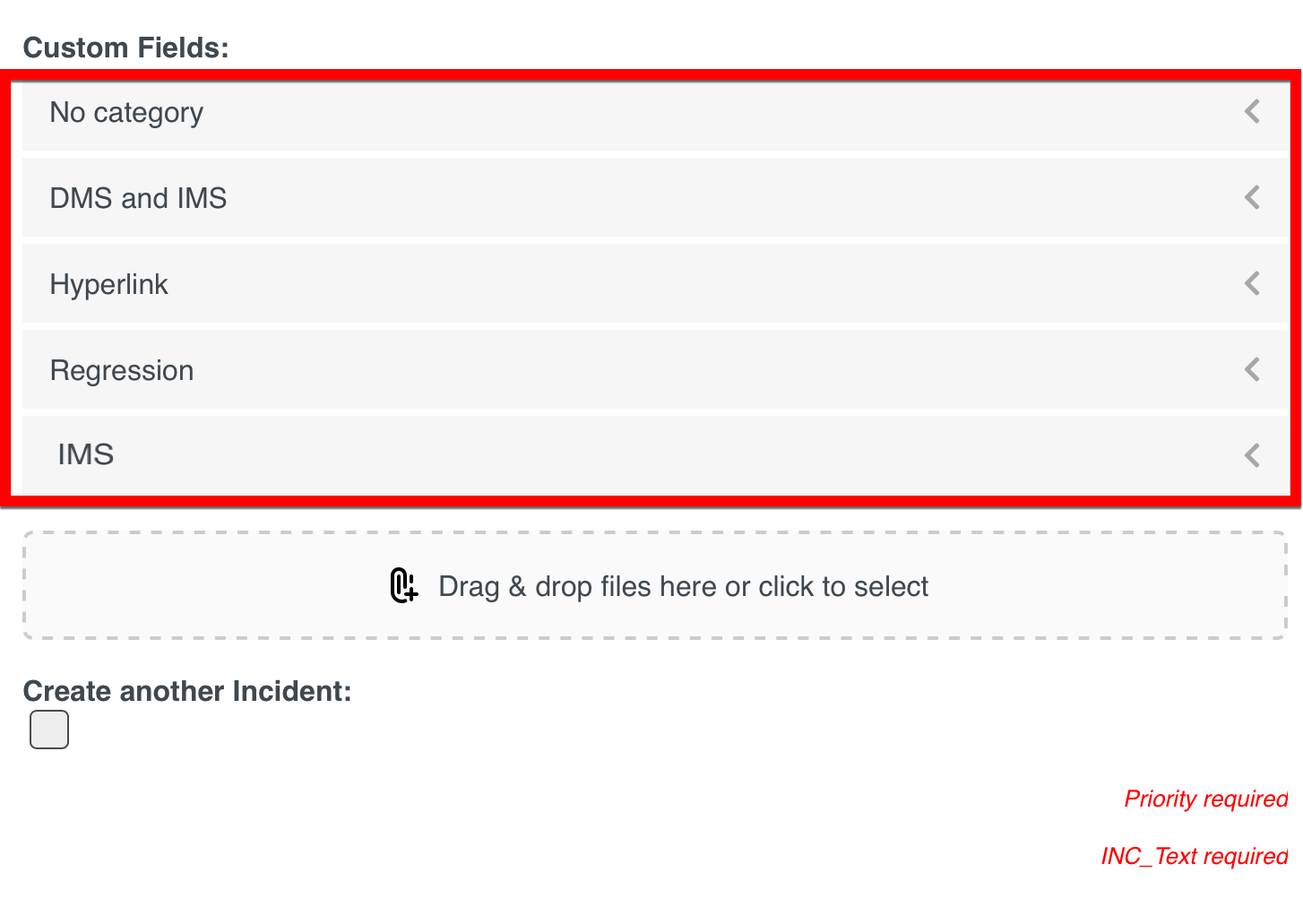
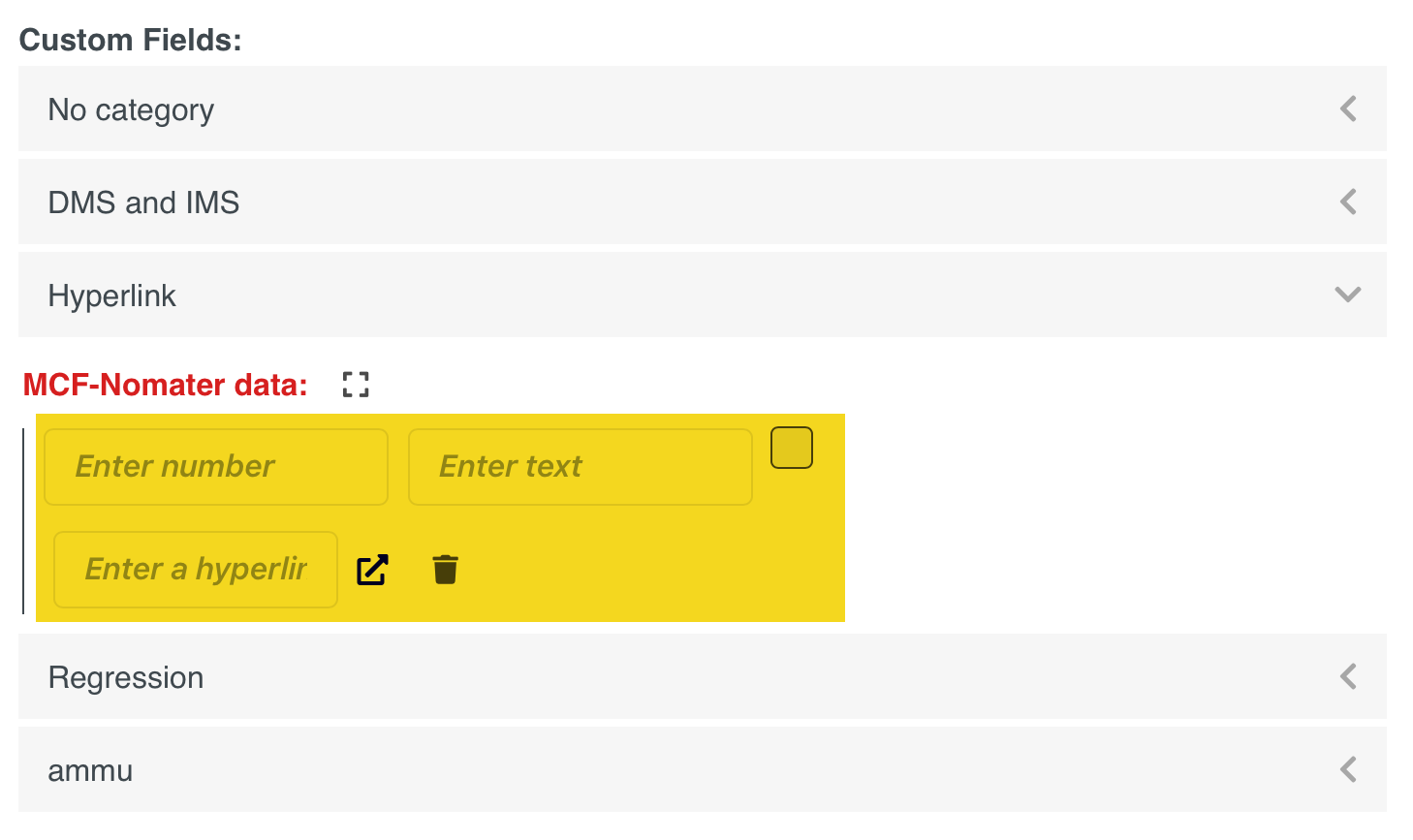
[Optional] Fill in the details for the Custom Fields associated with the Incident.
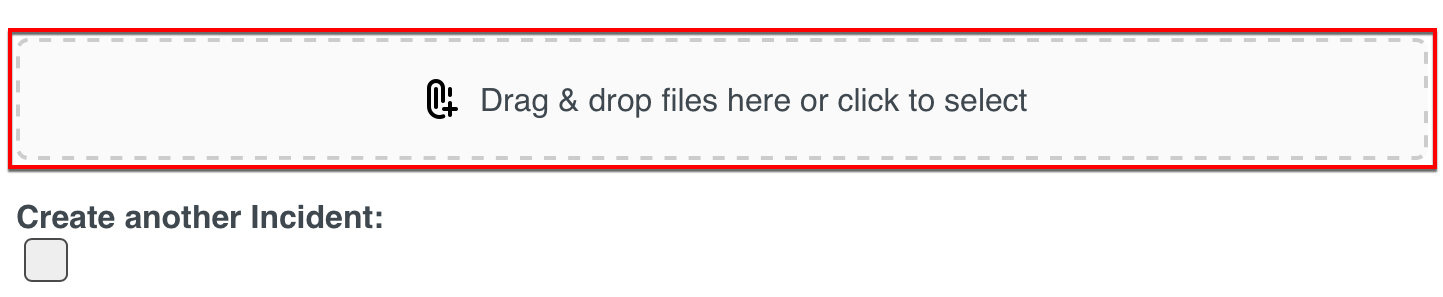
[Optional] Add images or files to the Incident as shown below.
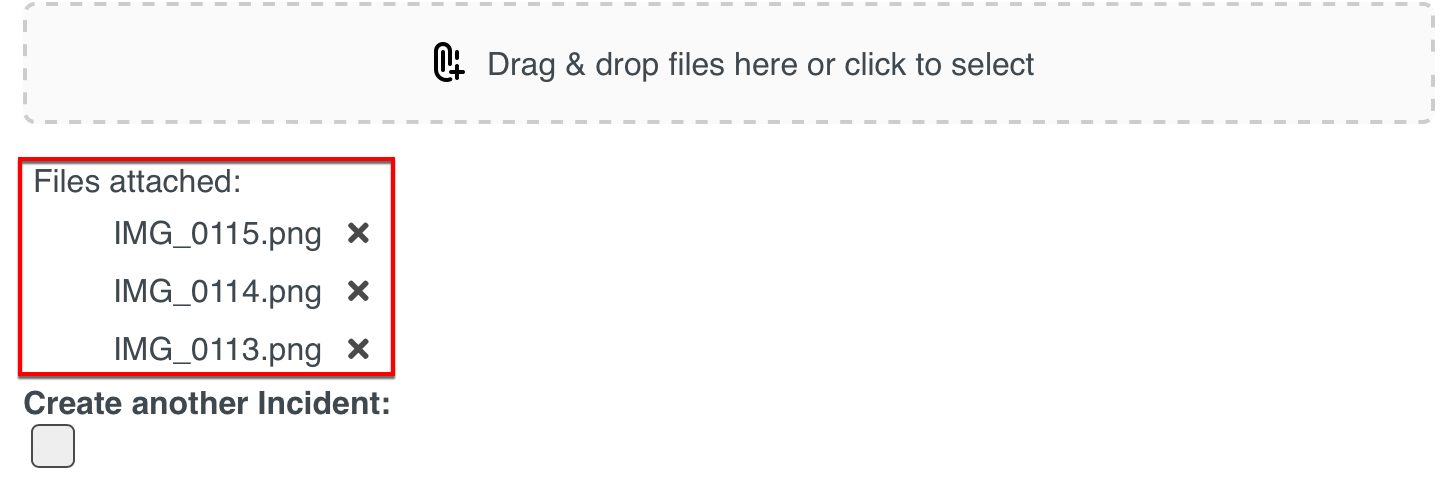
You can remove the added files as shown below.
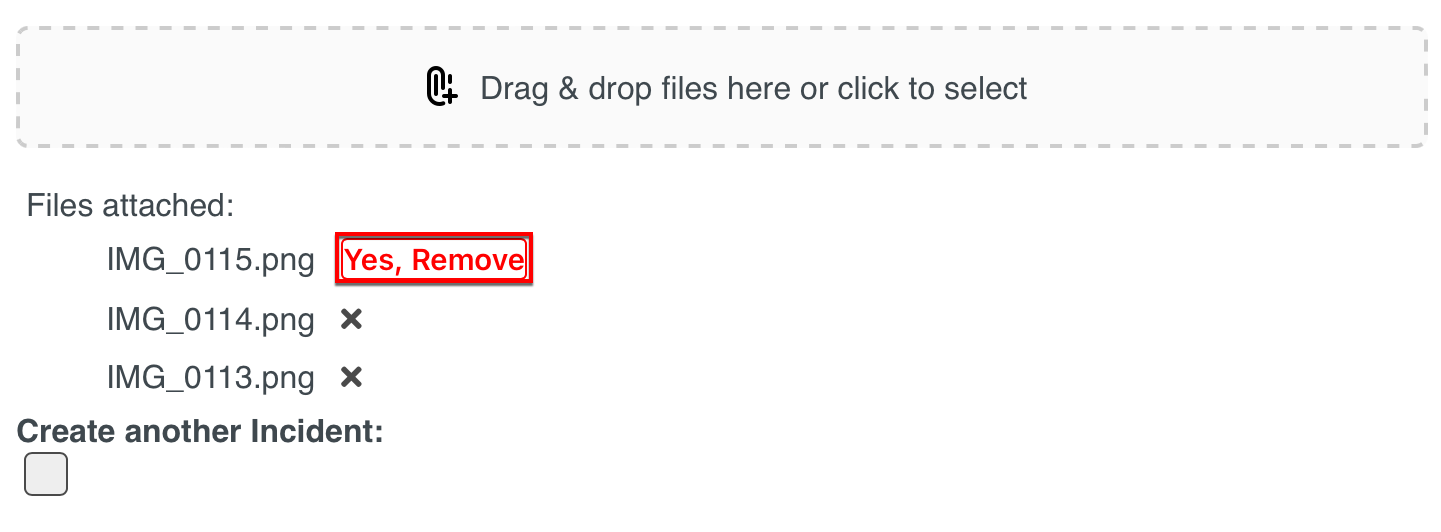
Note
All types of documents and media file formats are supported. The file size should not exceed 30 MB.
Click Save.
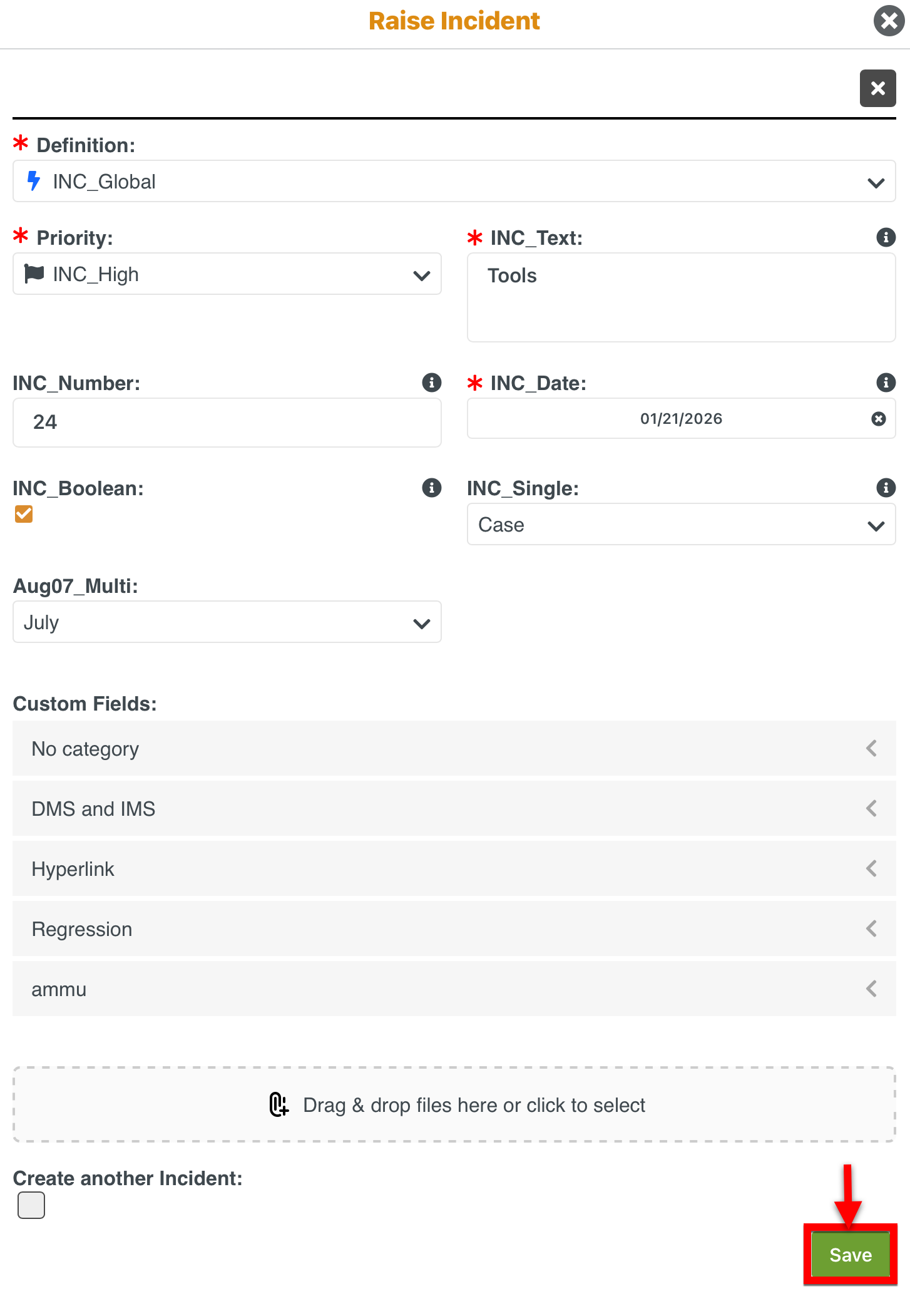
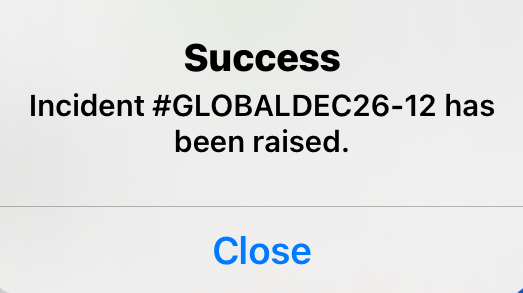
A Global Incident is raised.
To report an event while viewing a Task, you can raise a Task Context Incident.
You can raise Incidents on a Task.
Go to
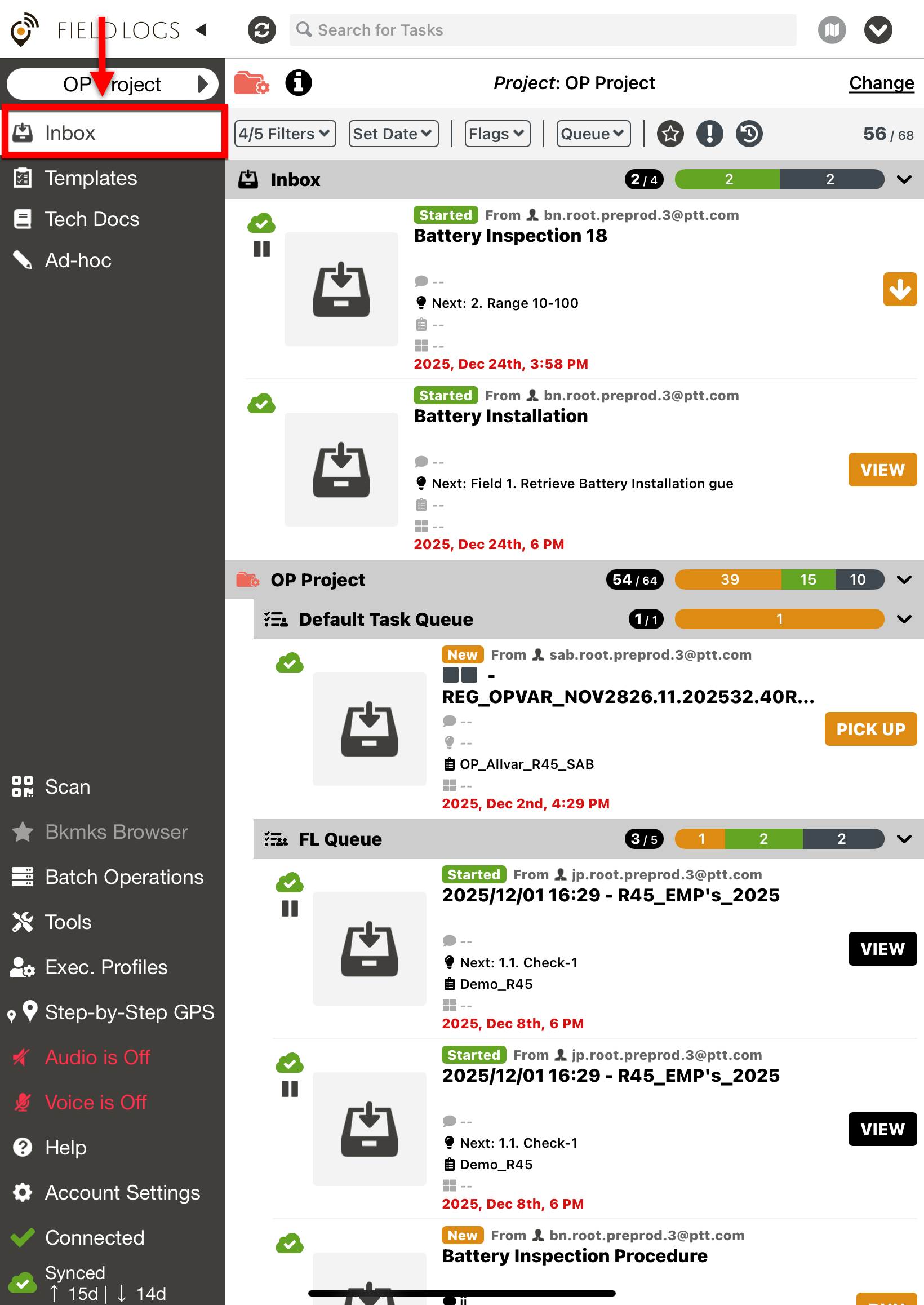
Tap the required Task. The contextual menu is displayed as shown below.
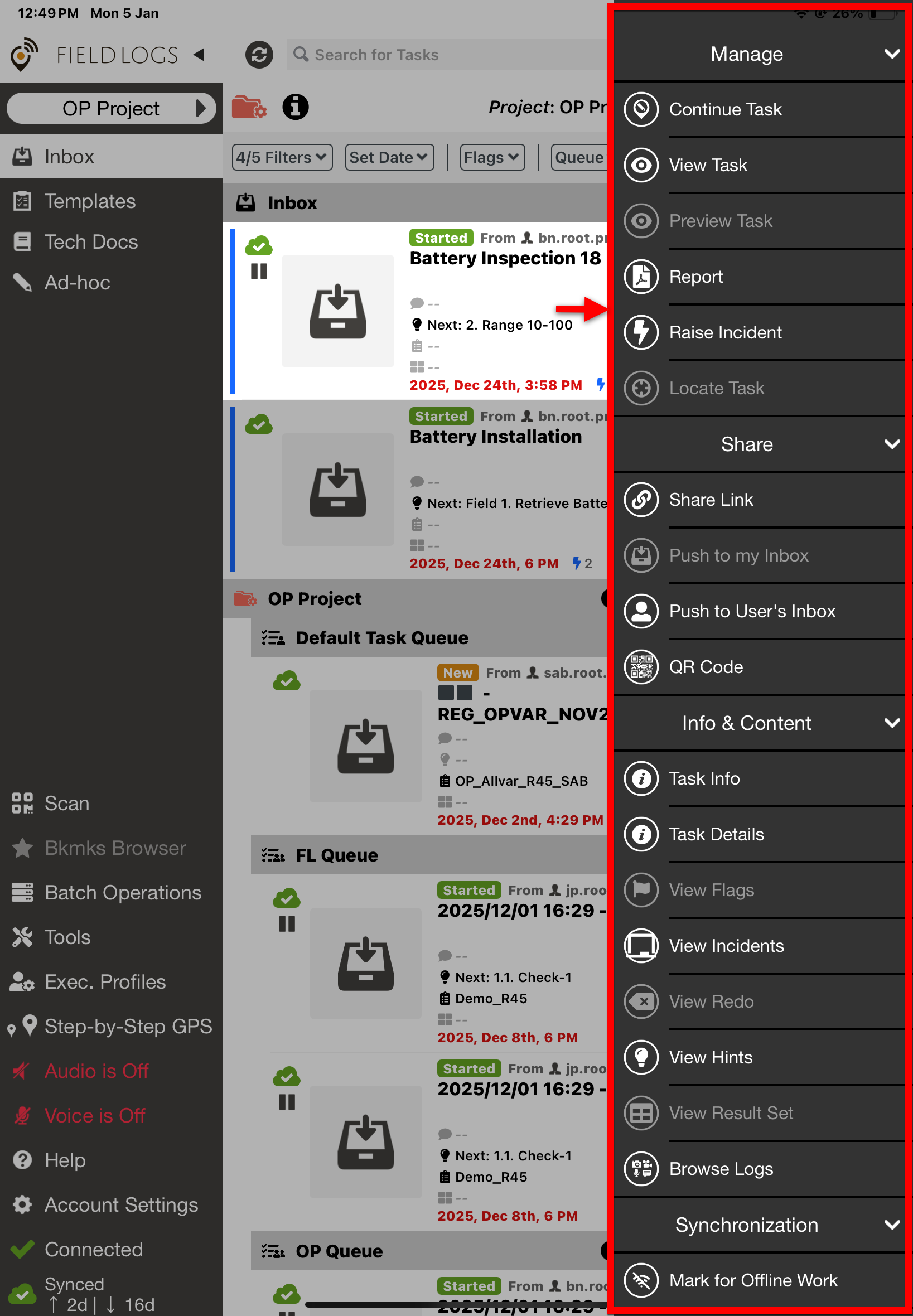
Click Raise Incident.
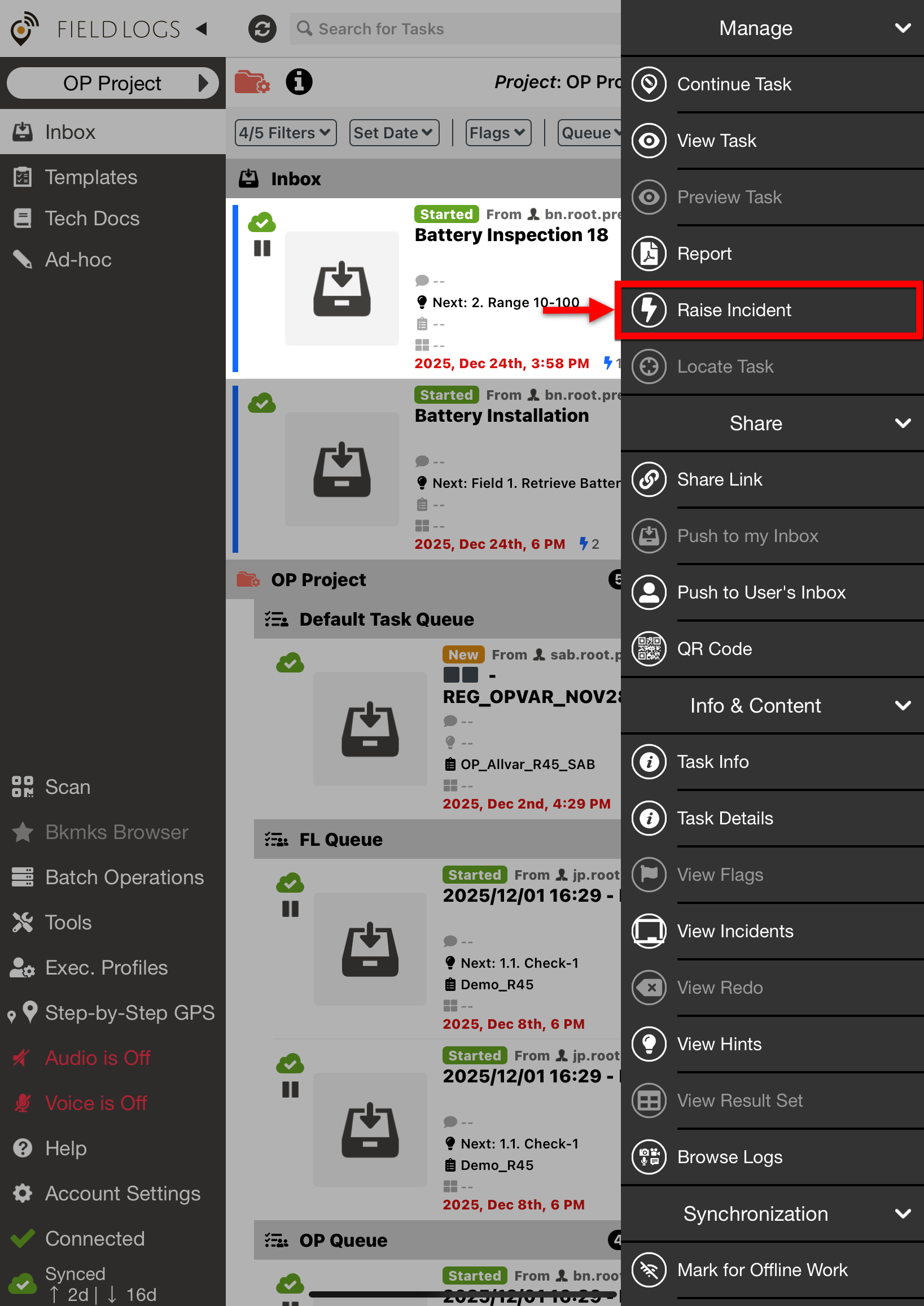
The dialog Raise Incident appears.
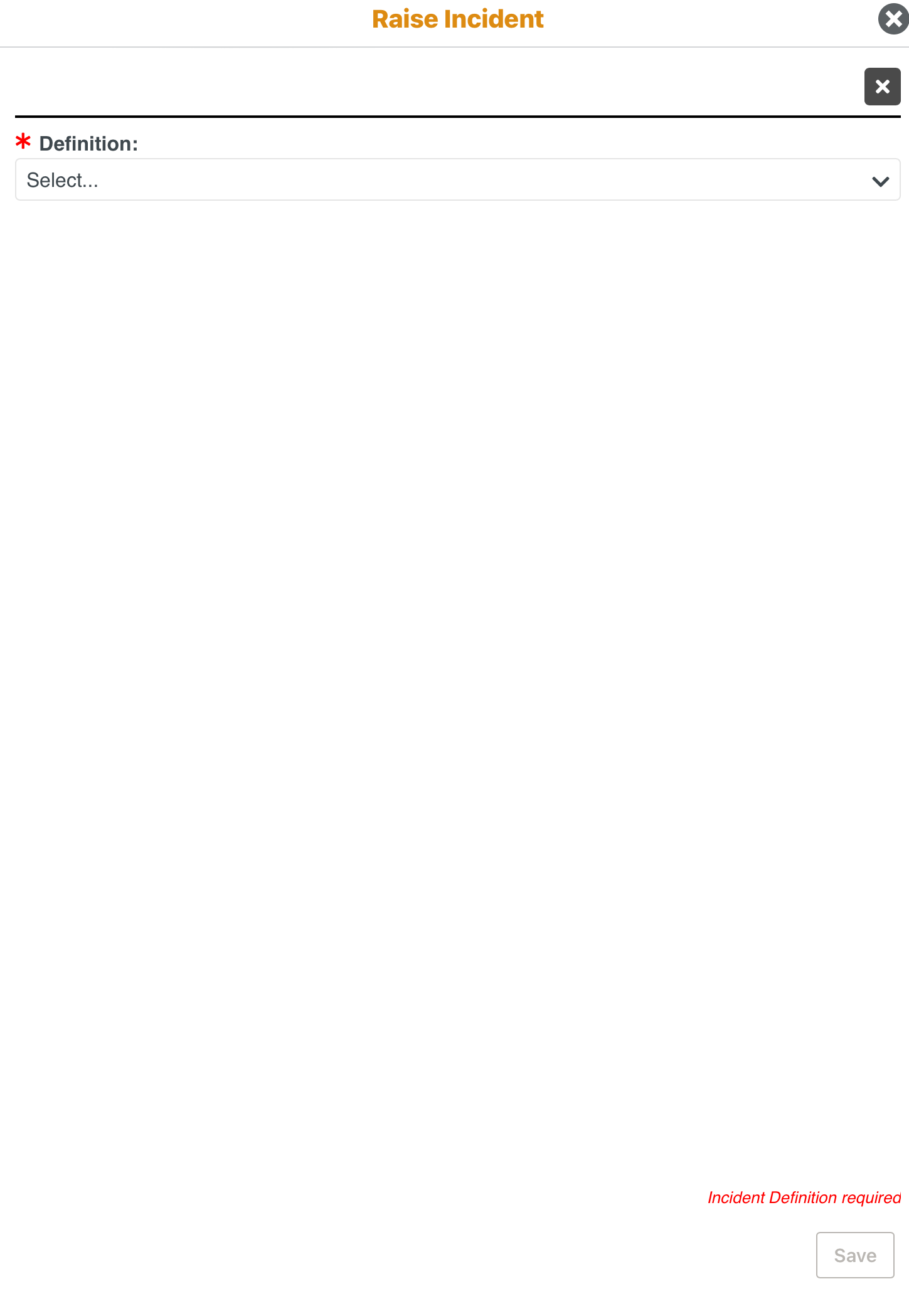
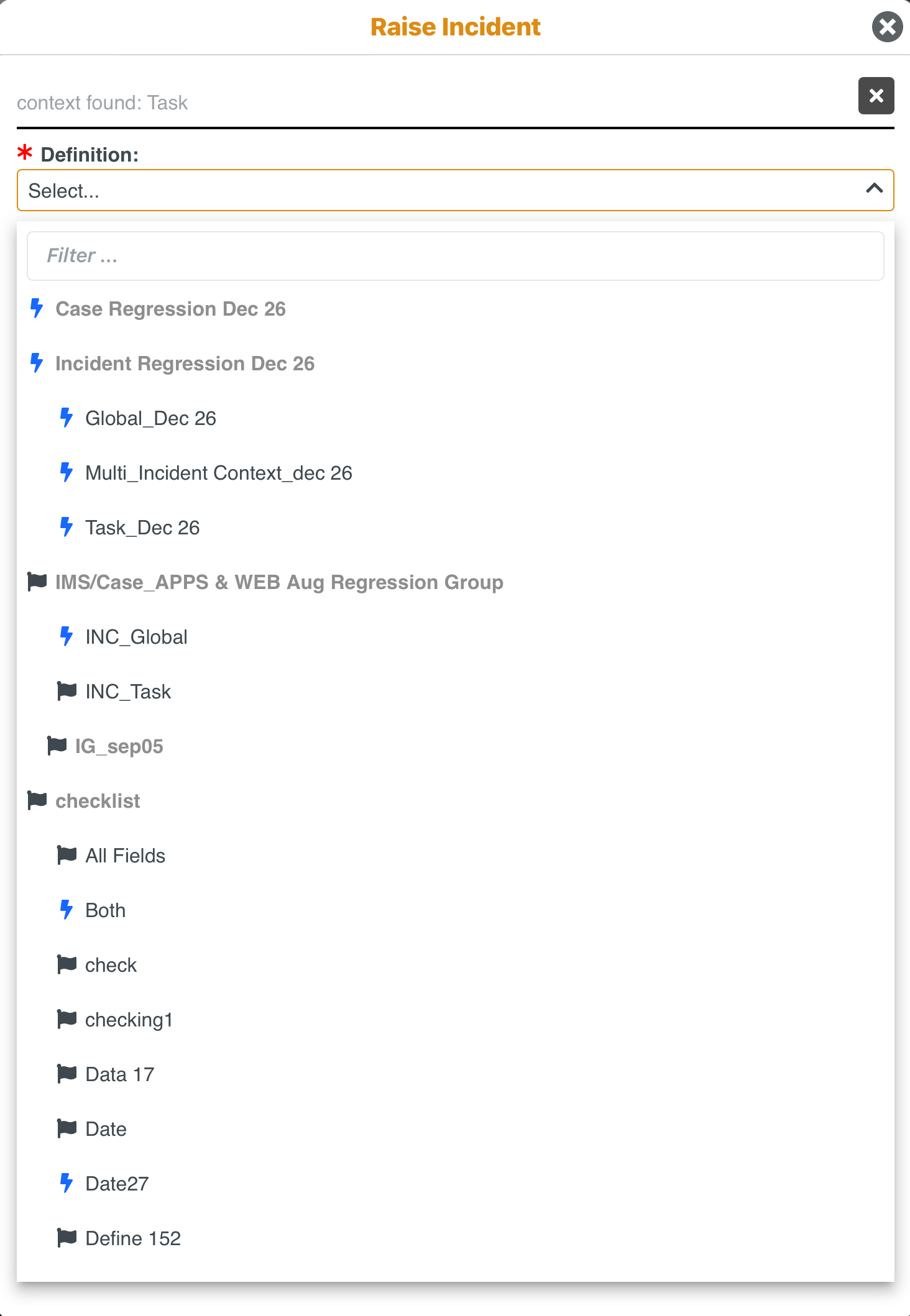
Select the required Incident. The Incidents are displayed under their respective Incident Groups in a hierarchical structure.
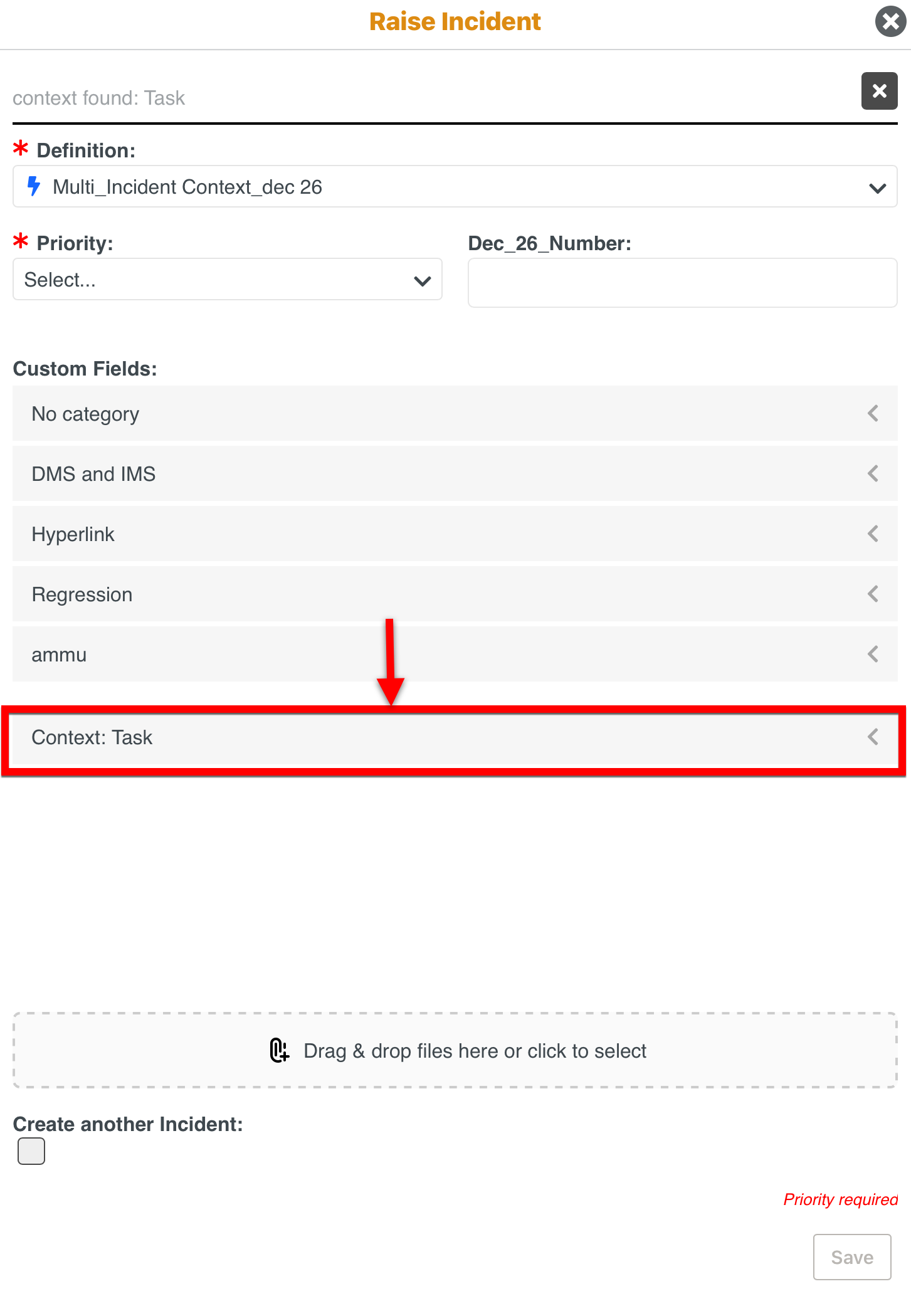
[Optional] Fill in the details for the Custom Fields associated with the Incident.
Note
All the Custom Fields that are defined for Incidents are displayed.
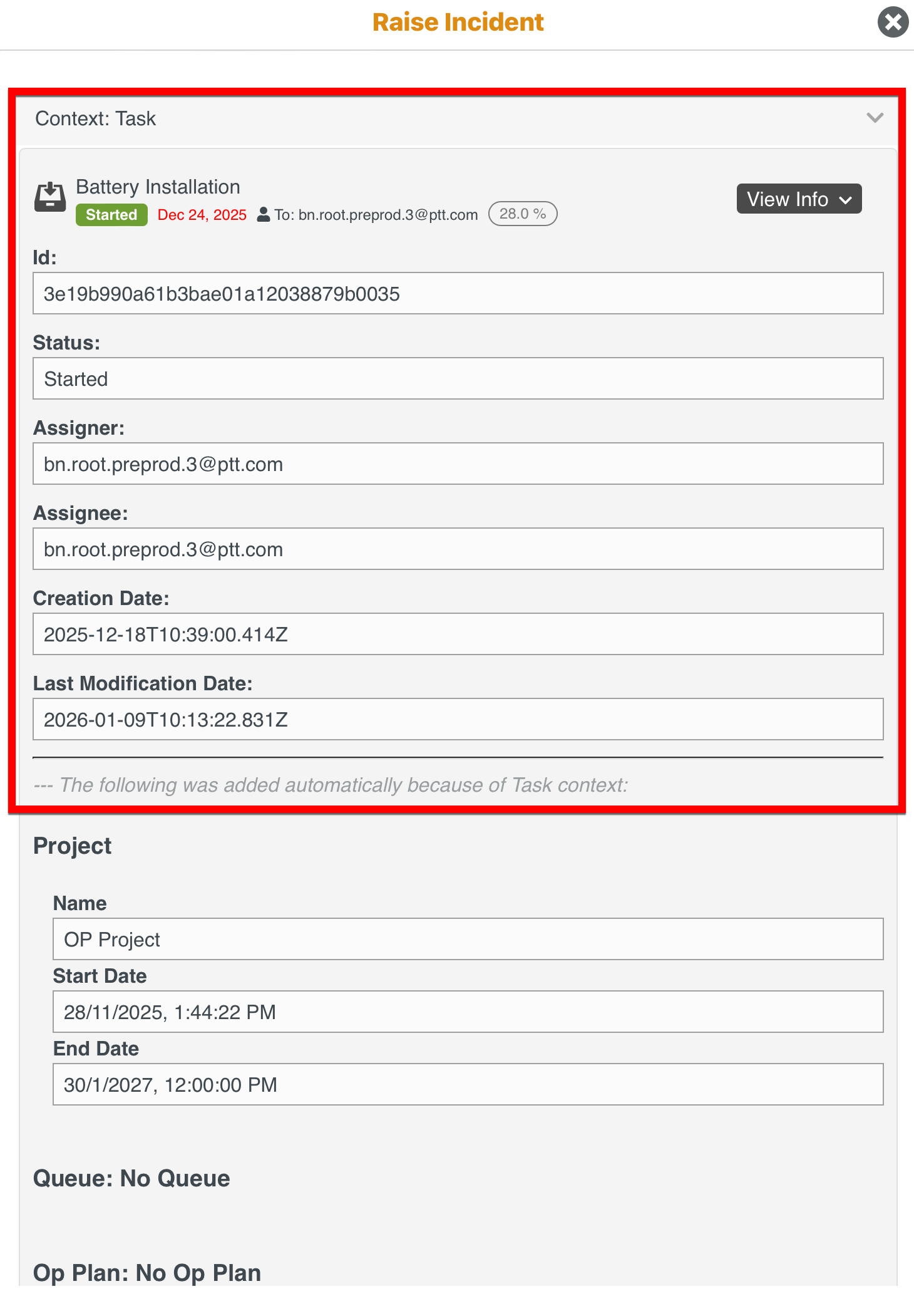
Click Context:Task to view the Task details.
The details of the Task are displayed.
[Optional] Add images or files to the Incident as shown below.
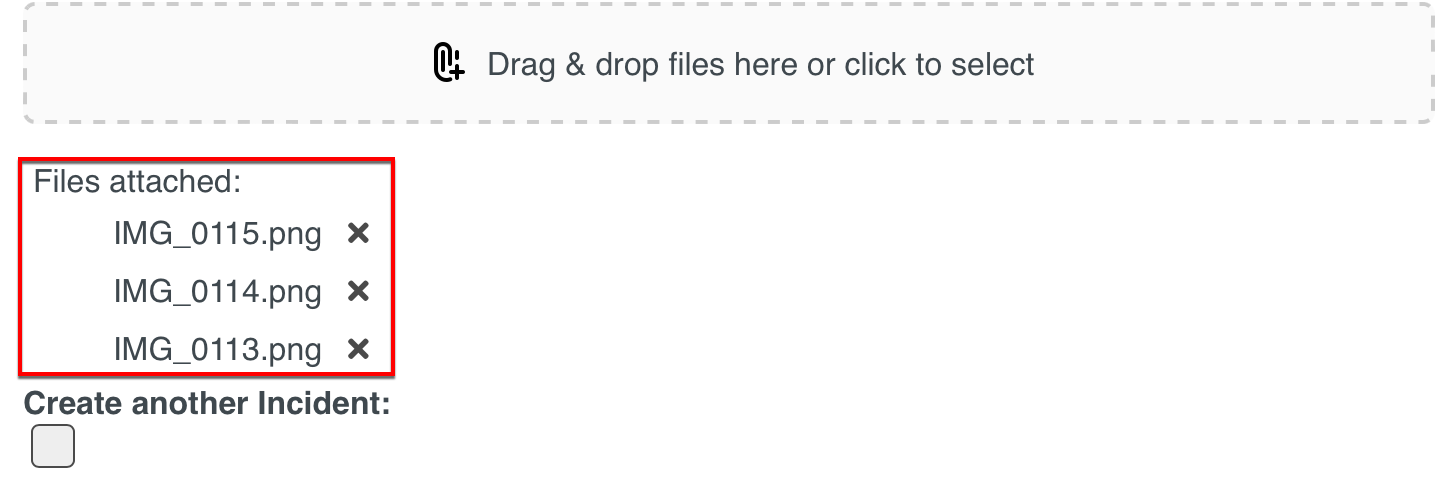
You can remove the added files as shown below.
Note
All types of documents and media file formats are supported. The file size should not exceed 30 MB.
Click Save.
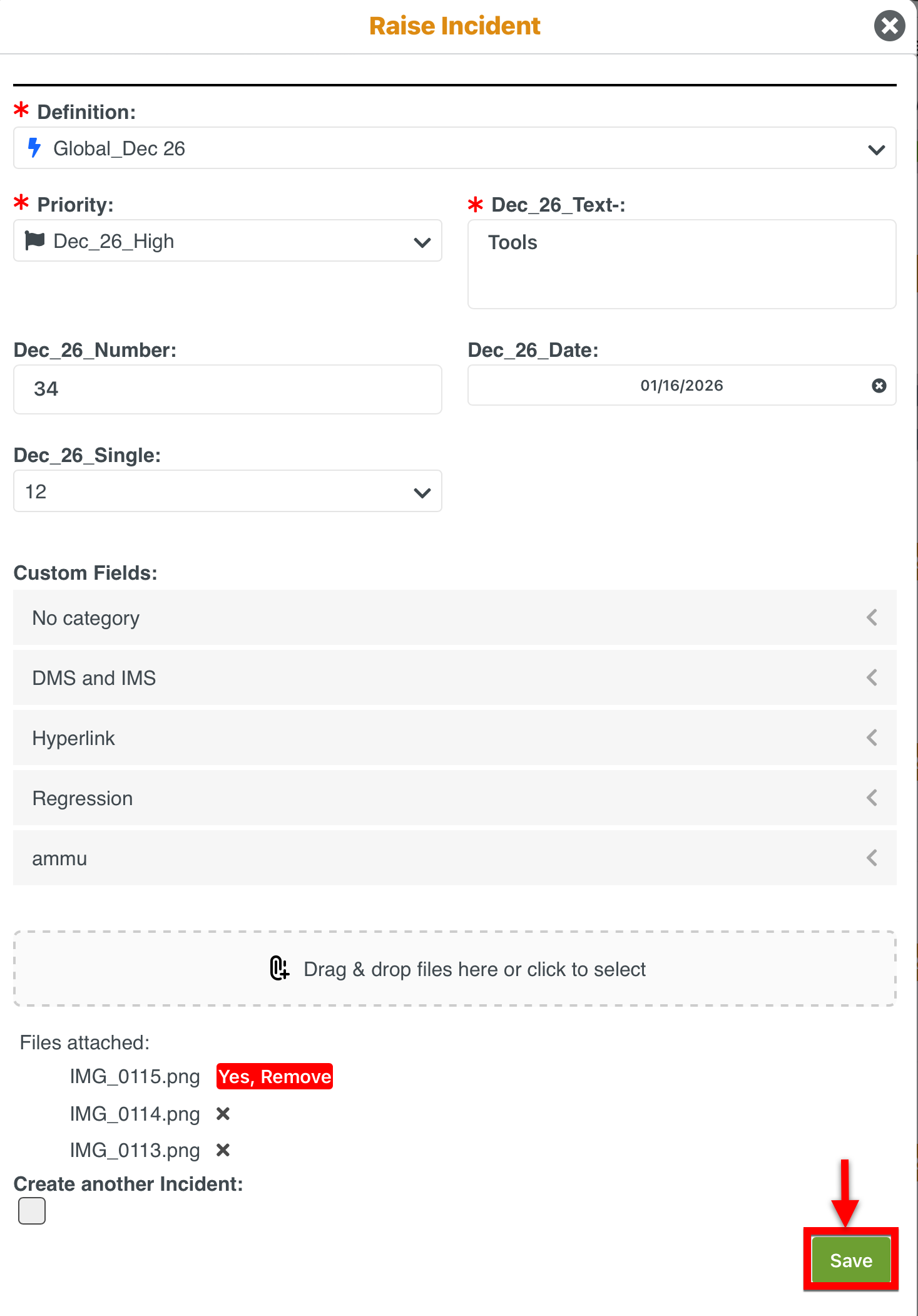
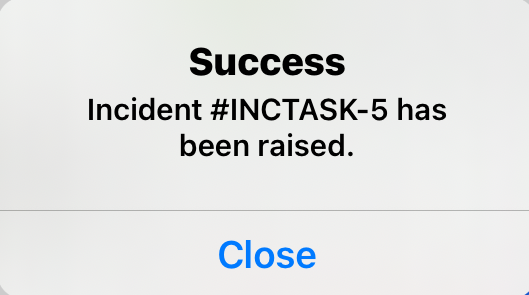
A Task Incident is raised.
You can view all the Incidents raised on a Task from the Inbox or from the Task contextual menu.
To report an event while viewing or executing a Step in a Task, you can raise a Runtime Step Context Incident.
To raise a Runtime Step Incident:
Click the required Step. The contextual menu opens.
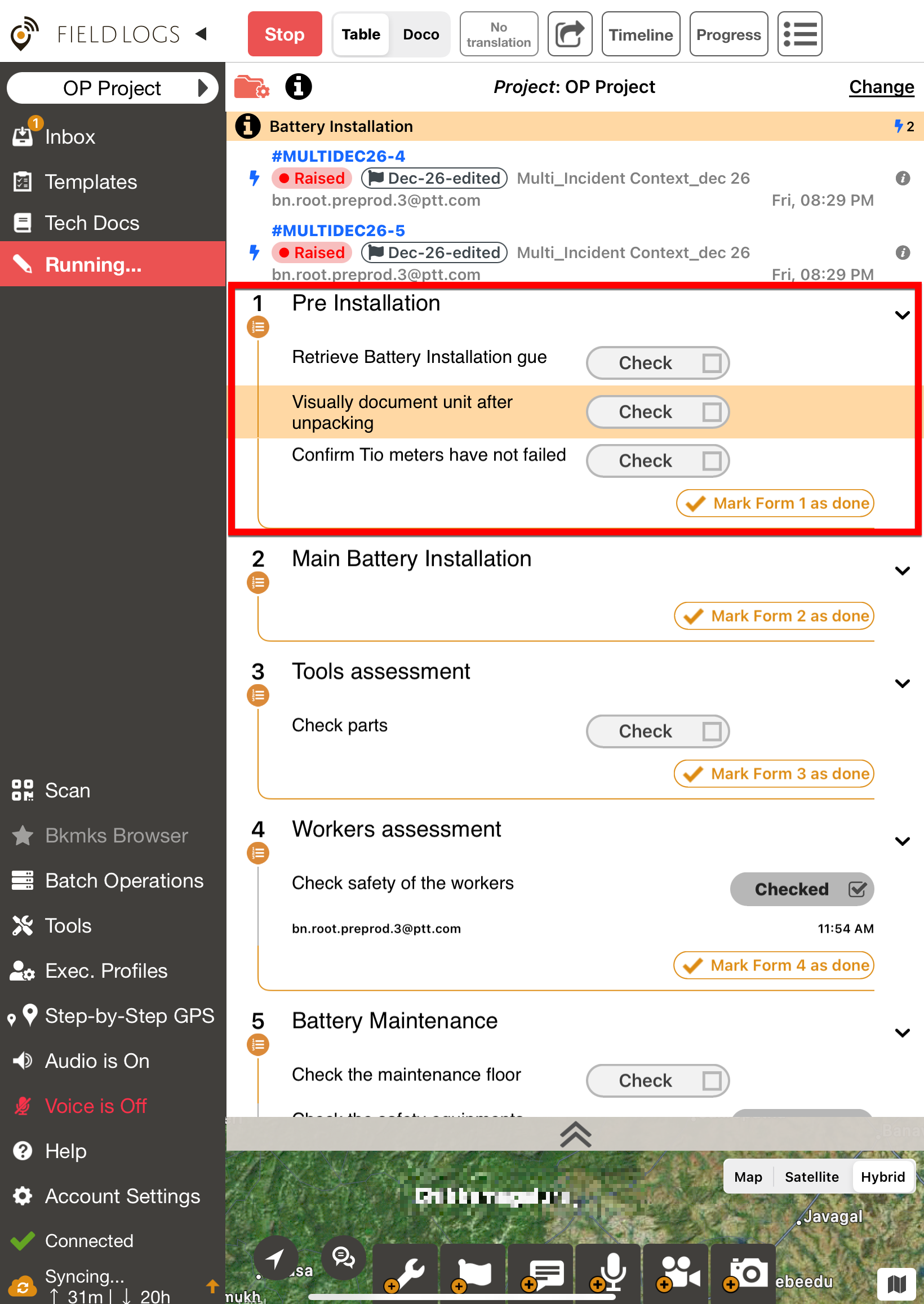
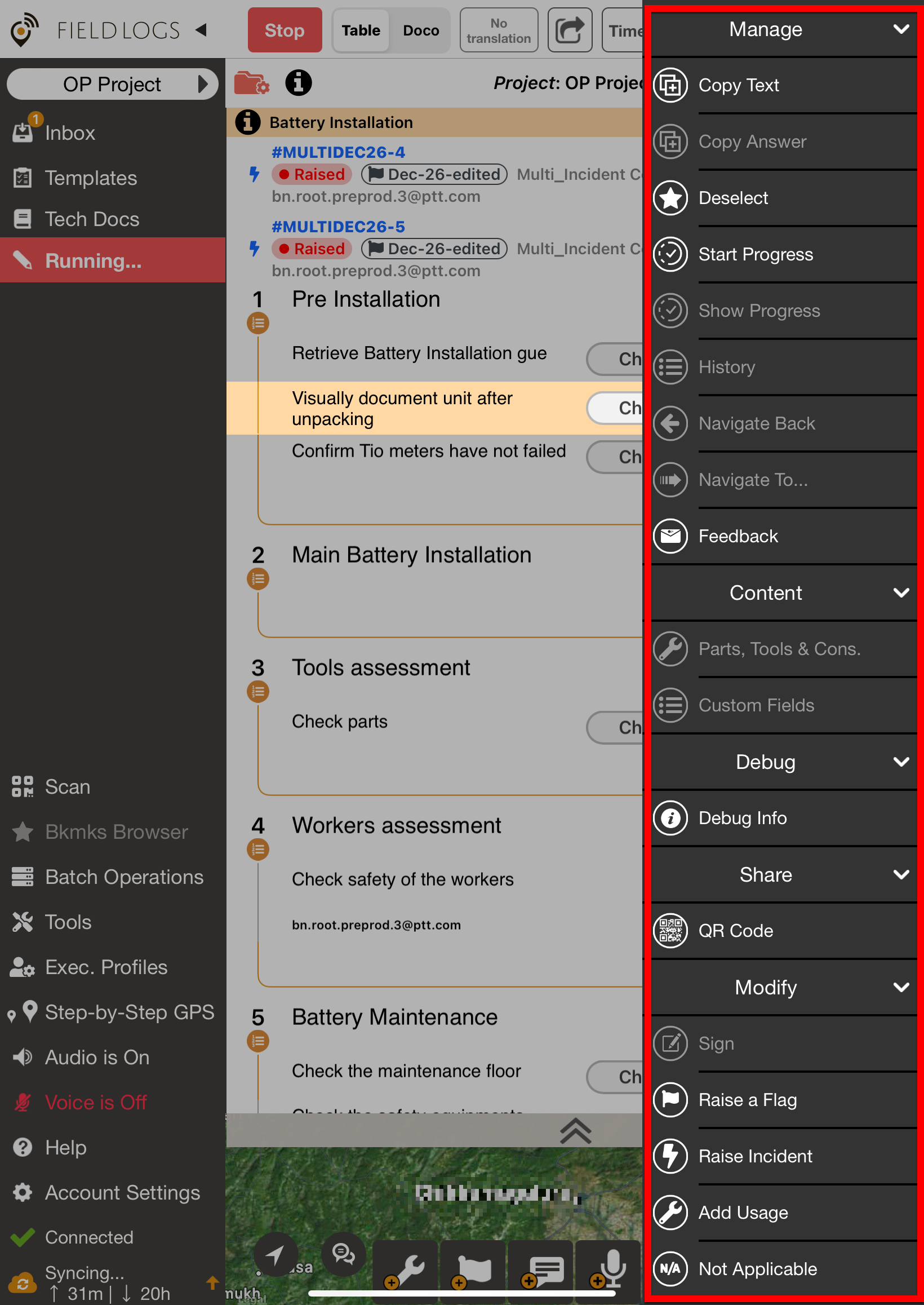
Click Raise Incident.
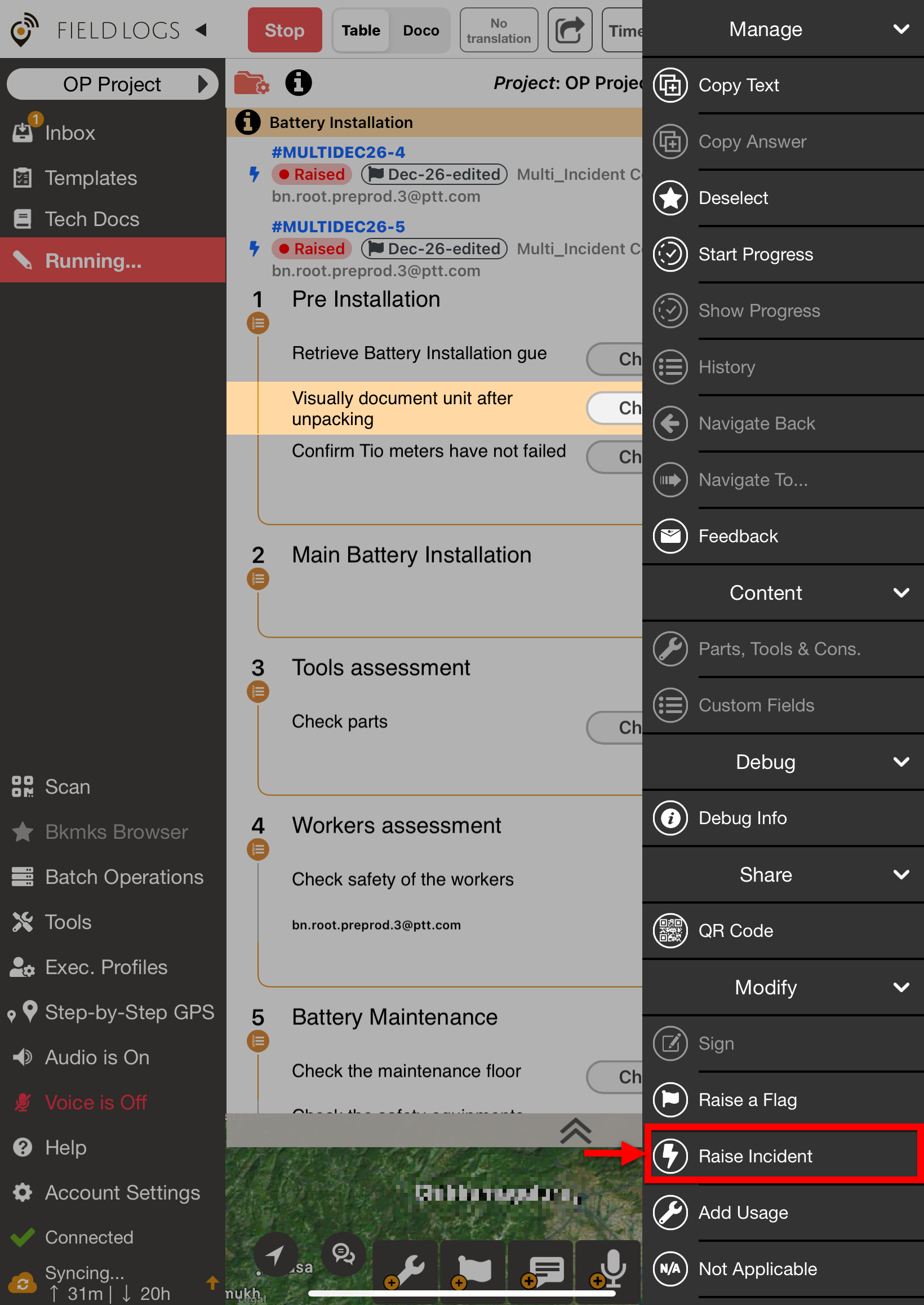
The dialog New Incident appears.
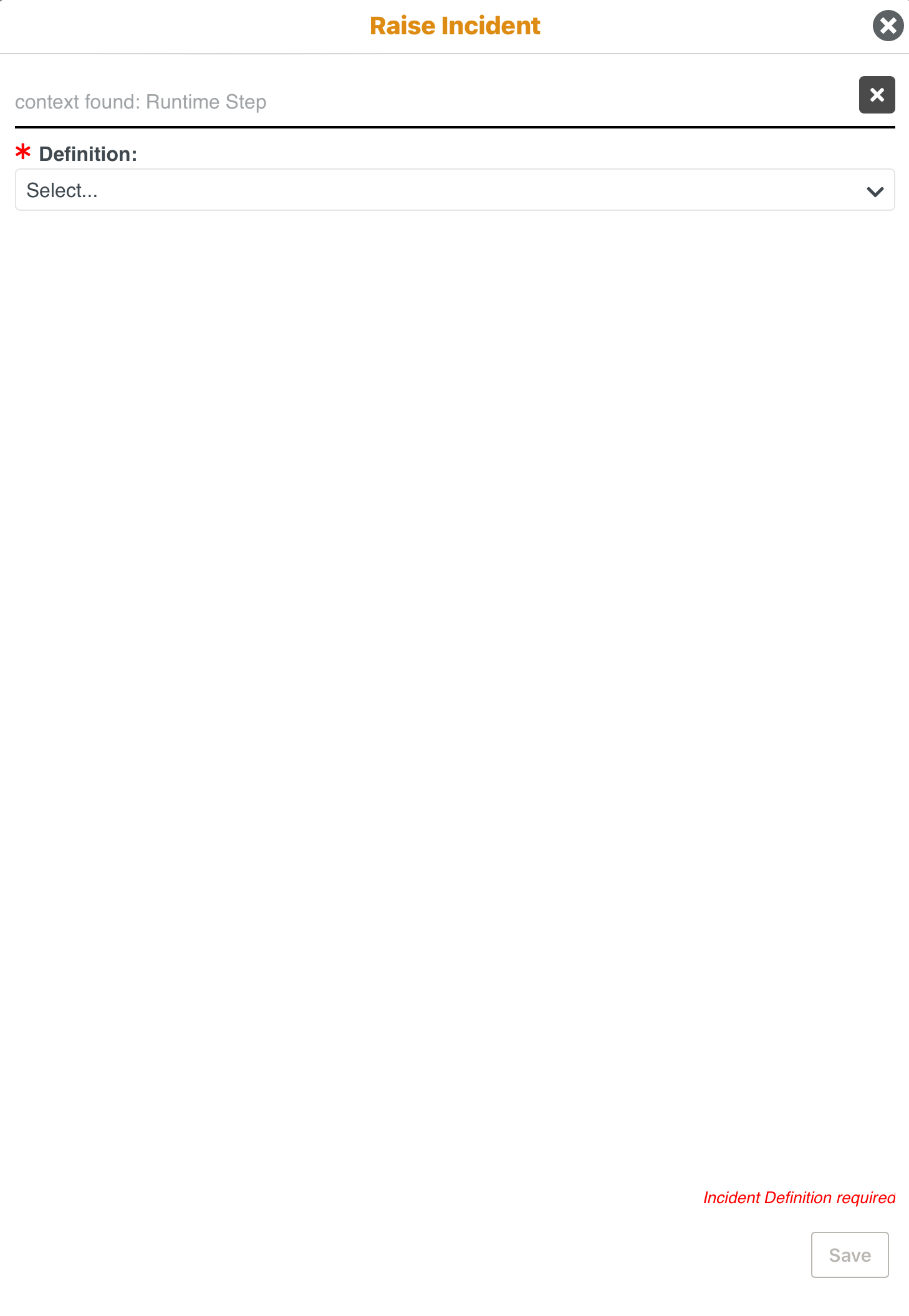
The Incident Context is displayed as Runtime Step.
Select the required Incident. The Incidents are displayed under their respective Incident Groups in a hierarchical structure.
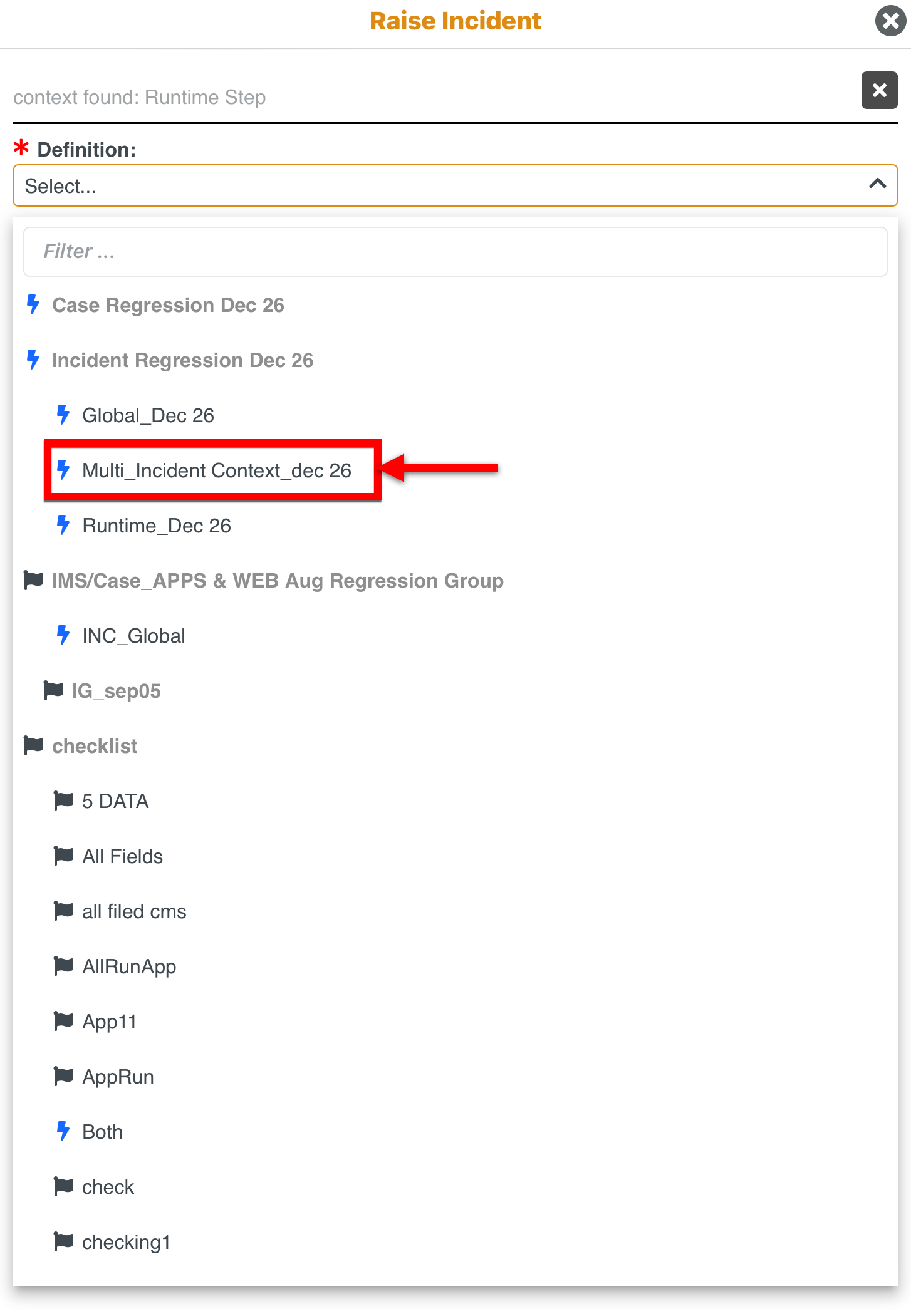
The fields that are configured for the Incident are displayed.
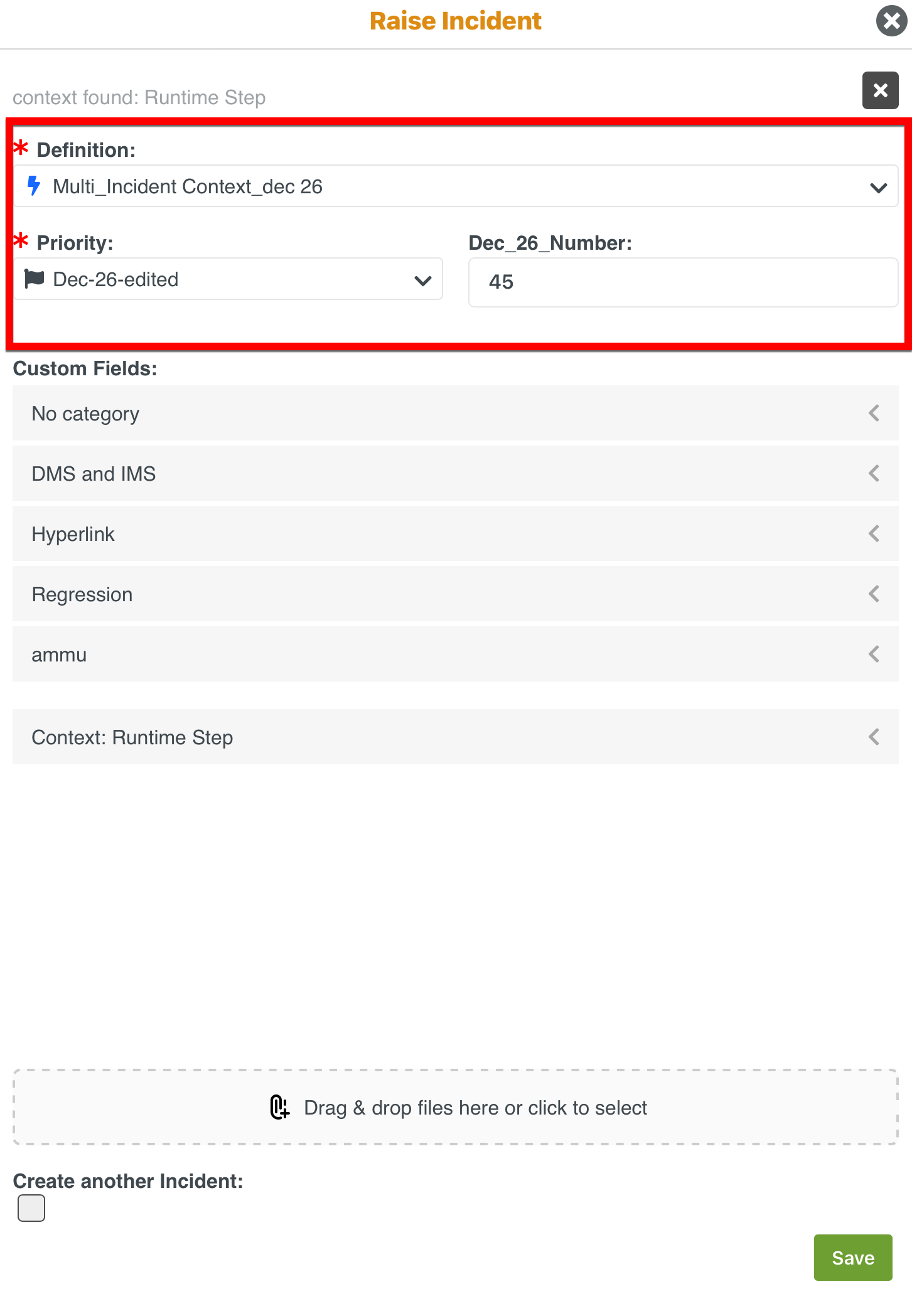
[Optional] Fill in the details for the Custom Fields associated with the Incident.
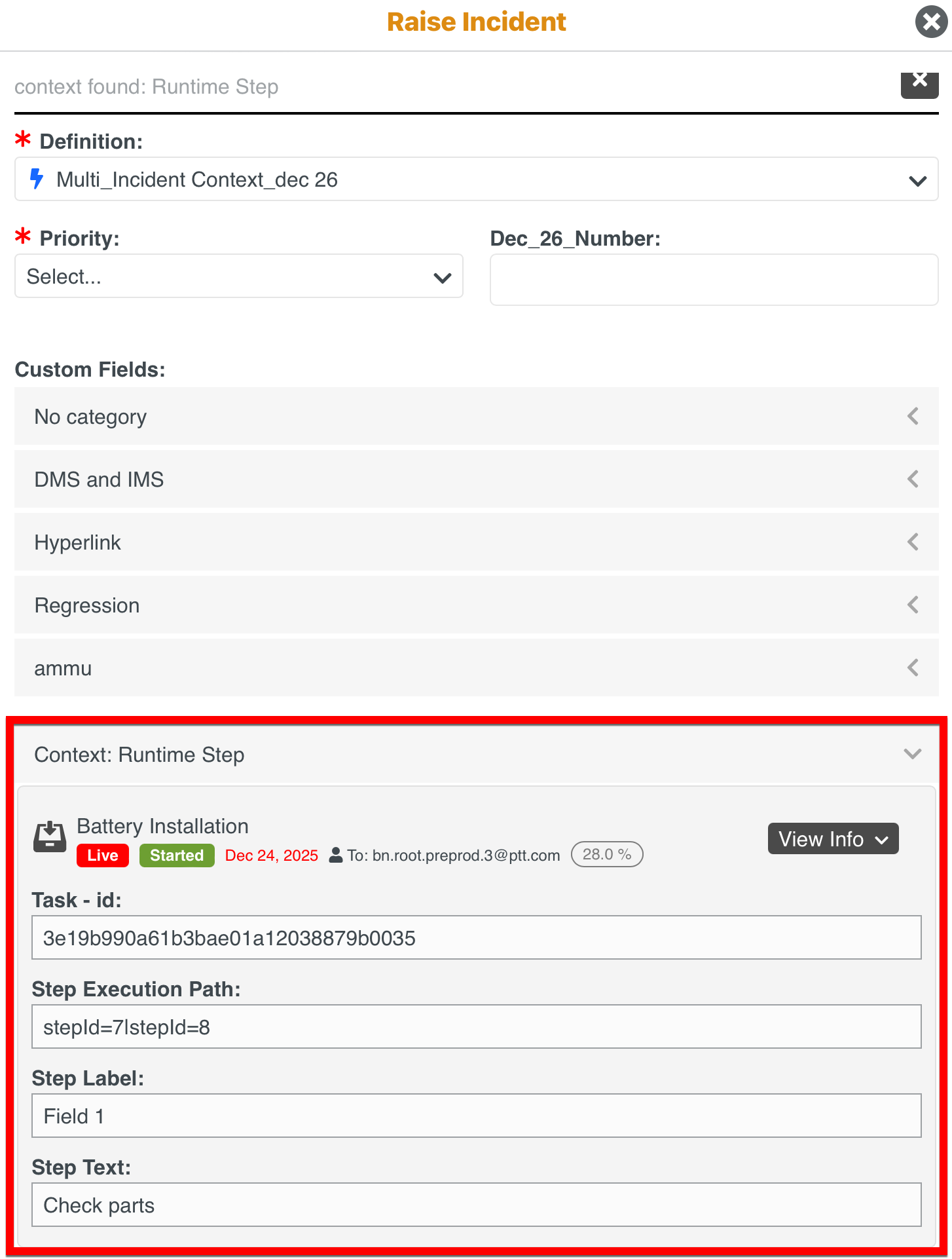
Click Context:Runtime Step to view the task details.

The details of the Runtime Step are displayed.
[Optional] Add images or files to the Incident as shown below.
You can remove the added files as shown below.
Note
All types of documents and media file formats are supported. The file size should not exceed 30 MB.
Click Save.
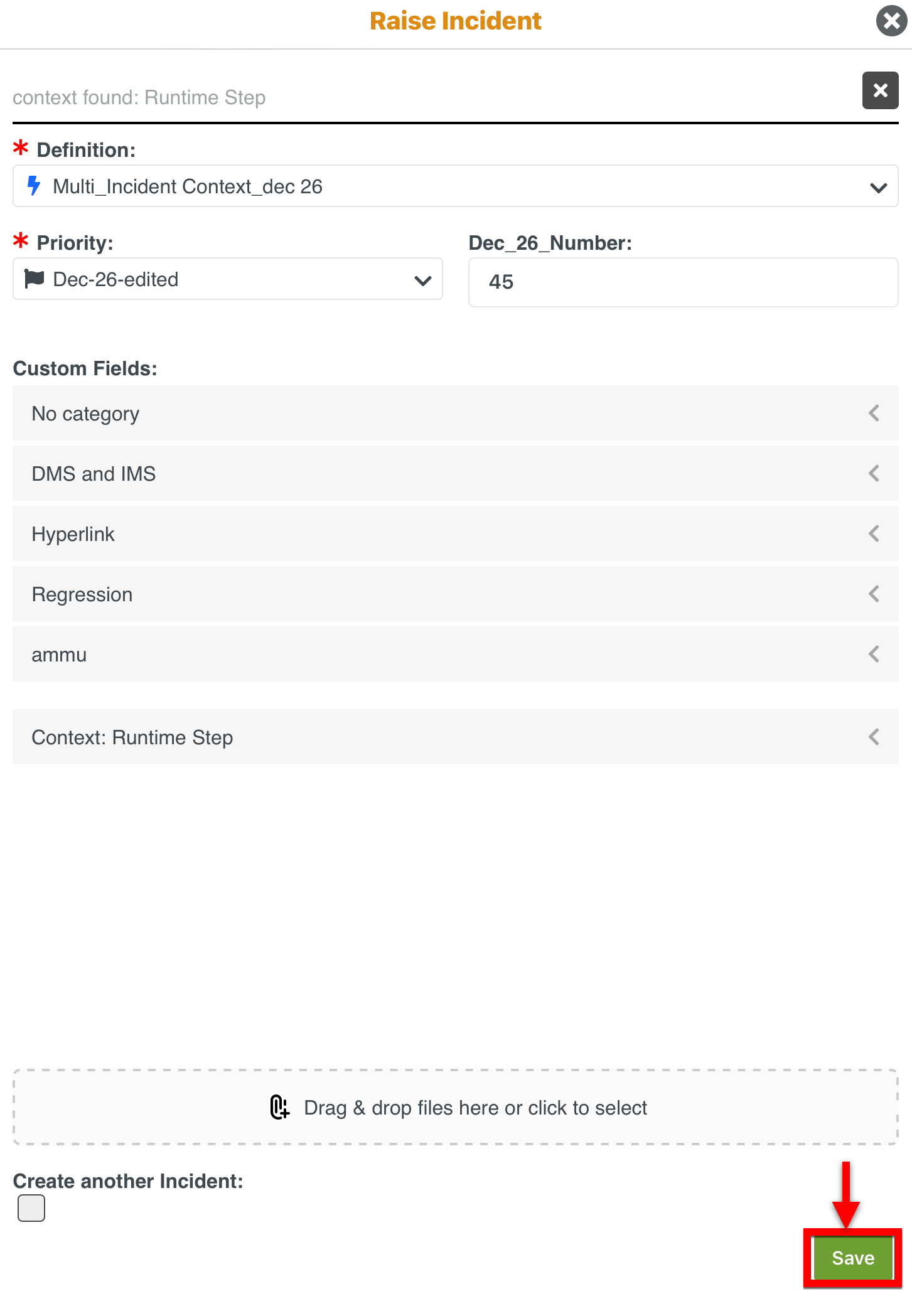
A Runtime Step Incident is raised.
