Enterprise Settings for Template Generation/Regeneration through Screening
Templates impacted by Screening can be auto-regenerated. Using the Enterprise Settings, you can define which Templates can be regenerated, the version increment logic, and the Edition Goal of the Template regeneration.
The Enterprise Settings for Template auto-regeneration are listed below:
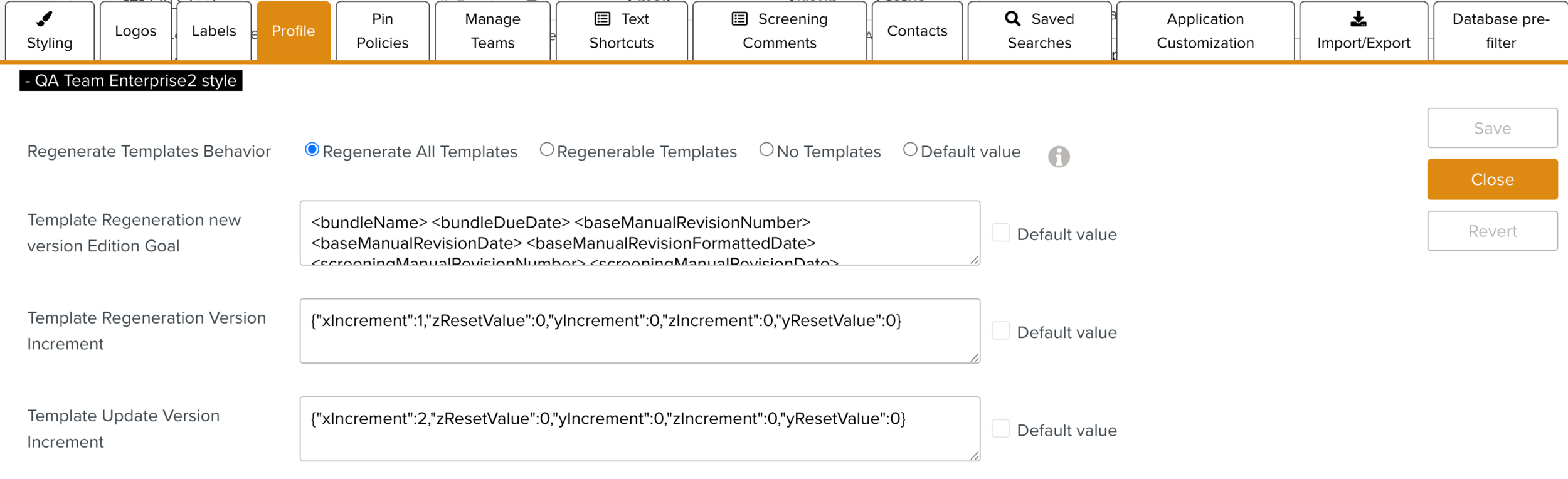 |
Using this setting, you can define which Templates should be auto-regenerated.
 |
The available options for the setting are highlighted below:
Behavior | Description | ||
|---|---|---|---|
Regenerate All Templates | When this option is selected, all the impacted Templates in a Documentation Bundle are auto-initiated for regeneration.
| ||
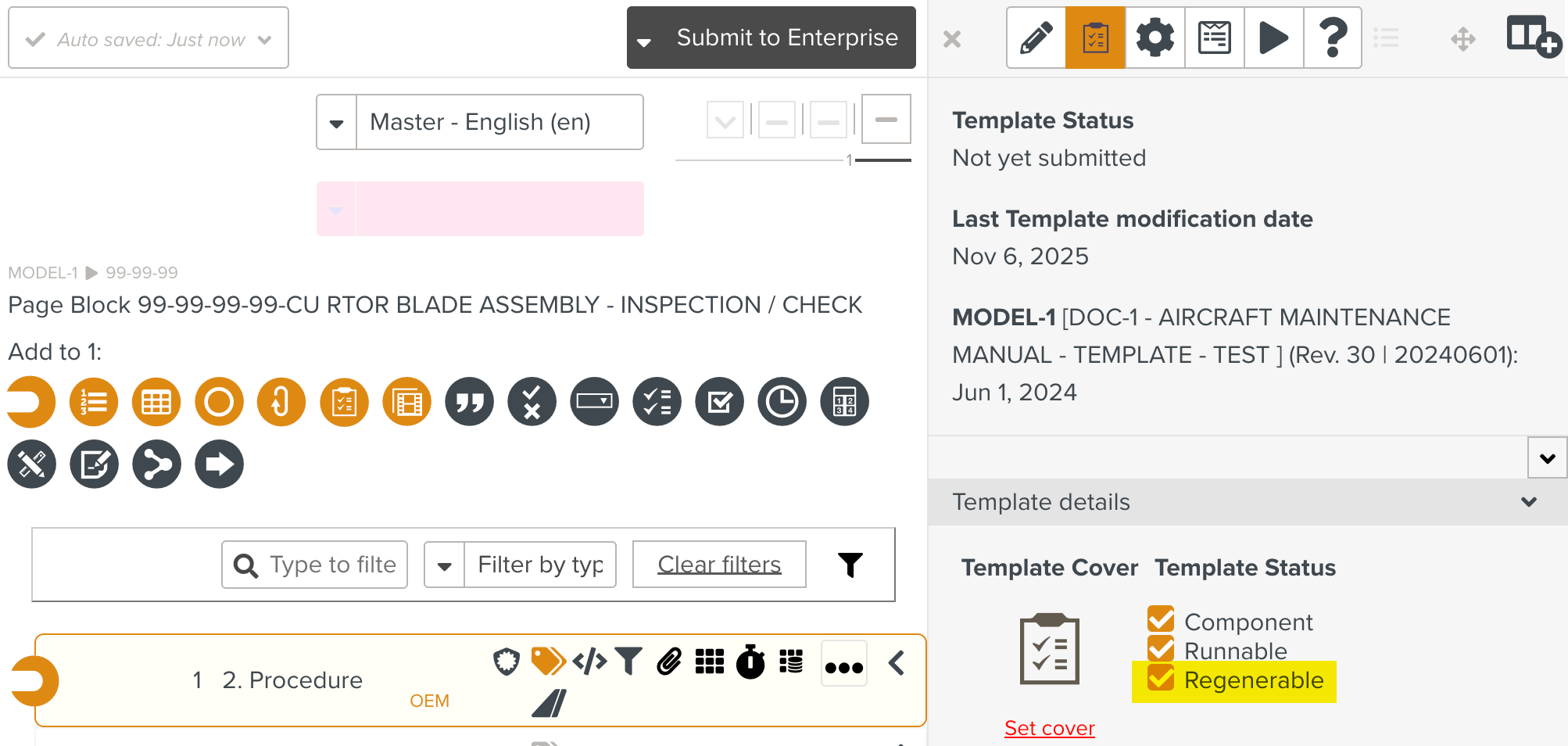
Regenerable Templates | When this option is selected, only the impacted Templates in a Documentation Bundle that are marked as Regenerable are auto-initiated for regeneration.
A Template marked as Regenerable in the Templates Information Editor is shown below.
| ||
No Templates | When this option is selected, no impacted Templates are automatically regenerated.
| ||
Default Value | The Default value is No Templates. When this option is selected, no impacted Templates are automatically regenerated.
|




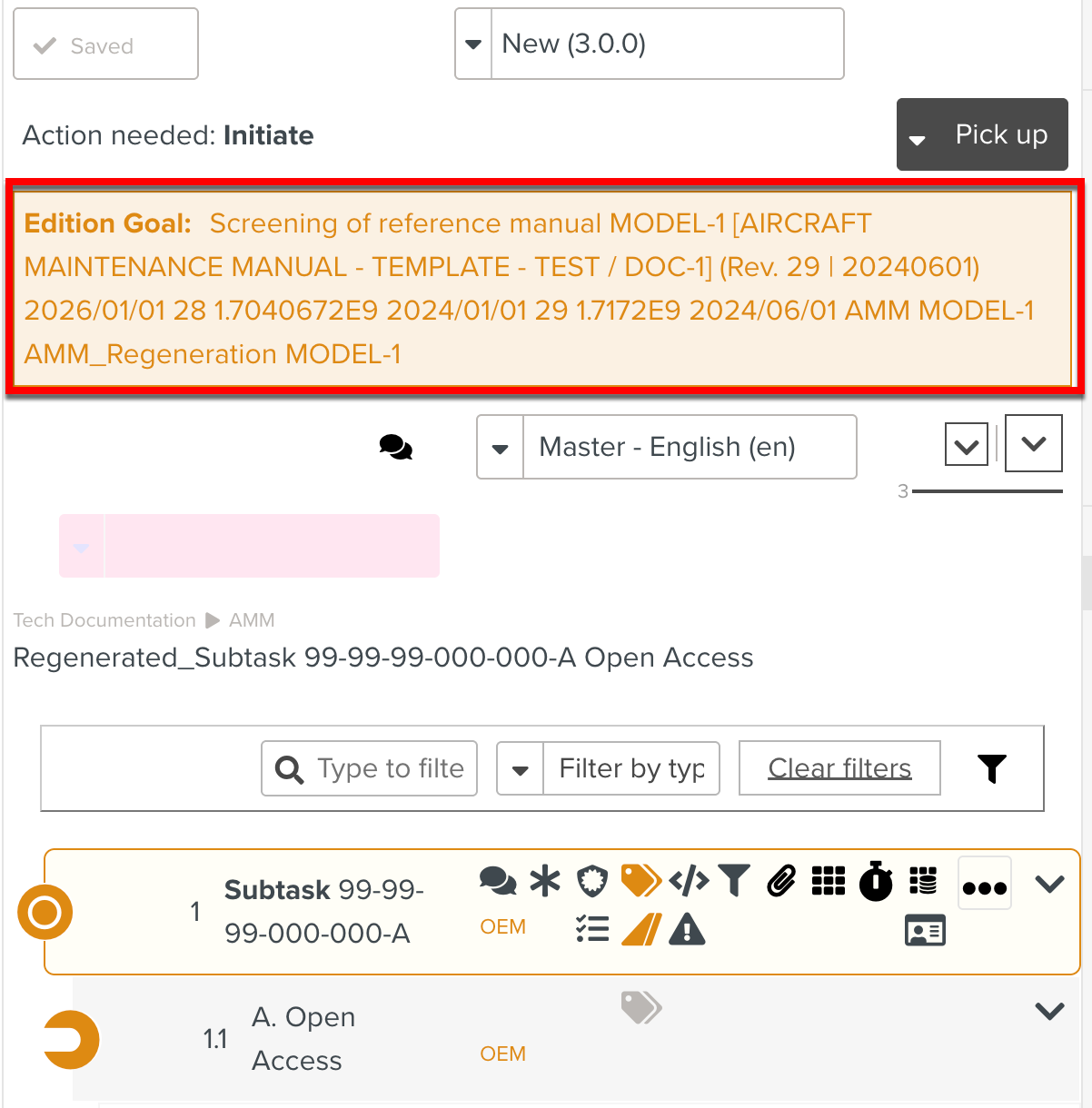
You can pre-define the text to be used as the Edition Goal for the Templates auto-regeneration, with variables referencing the Manuals.
 |
 |
The variables that can be used are listed below:
Variables | Description |
|---|---|
<bundleName> | Name of the Documentation Bundle |
<bundleDueDate> | Due Date of the Documentation Bundle |
<baseManualRevisionNumber> | Revision Number of the Base Manual |
<baseManualRevisionDate> | Revision Date of the Base Manual in number format |
<baseManualRevisionFormattedDate> | Revision Date of the Base Manual in readable format |
<screeningManualRevisionNumber> | Revision Number of the Screening Manual |
<screeningManualRevisionDate> | Revision Date of the Screening Manual in number format |
<screeningManualRevisionFormattedDate> | Revision Date of the Screening Manual in readable format |
<contentType> | Content Type of the Manual Describer |
<model> | Model of the Manual Describer |
<describerName> | Name of the Manual Describer |
<modelLabel> | Model Label of the Manual Describer |
<manufacturer> | Manufacturer of the Manual Describer |
<customerCode> | Customer Code of the Manual Describer |
<customerName> | Customer Name of the Manual Describer |
The default value is Content Automatically Regenerated. You can also define some meaningful text as the Edition Goal.
You can a define a JSON that determines the version increment for the Templates Regeneration (format: x.y.z).
 |
The different version components x, y, and z can be incremented or reset to a specified value. Resets of y and z are applied before the increments.
In this example, the JSON defined is {"xIncrement":1,"zResetValue":0,"yIncrement":0,"zIncrement":0,"yResetValue":0}. When applied to an existing Template version 2.1.9, the regenerated Template version becomes 3.0.0.
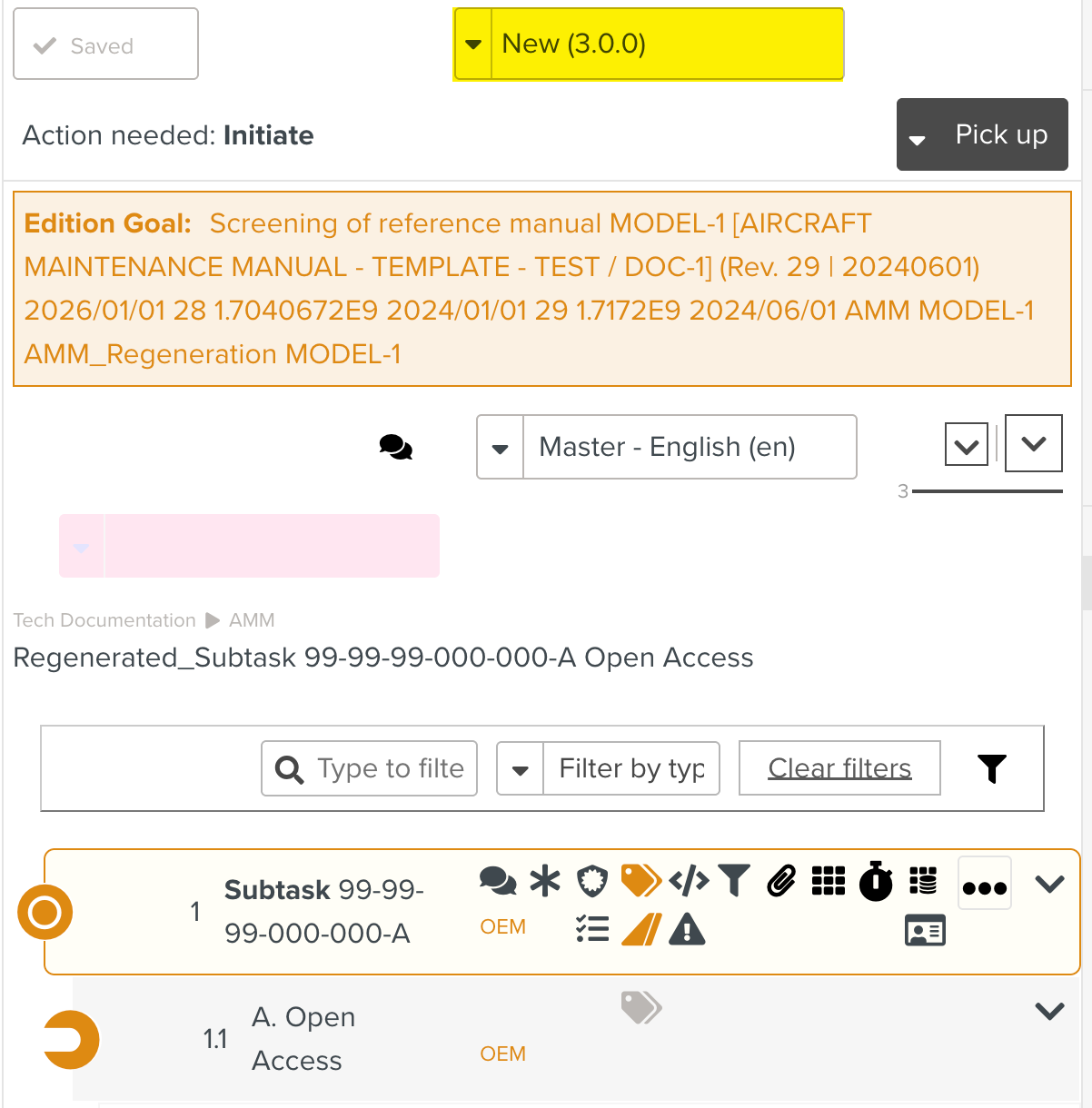 |
The logic on how the version 3.0.0 resulted is explained in the below table:
Components & Values | Description | Result |
|---|---|---|
"yResetValue":0 | Resets the value of y to 0 | y=0 |
"zResetValue":0 | Resets the value of z to 0 | z=0 |
"xIncrement": 1 | Increments the value of x (2) by 1 | x=2+1=3 |
"yIncrement":0 | Increments the reset value of y by 0 | y=0+0=0 |
"zIncrement":0 | Increments the reset value of z by 0 | z=0+0=0 |
The default value is {"xIncrement":0,"yIncrement":0,"zIncrement":1}.
You can define a JSON that determines the version increment of Template updates initiated when is clicked on a Documentation Bundle.
 |
The increment works exactly like the Template Regeneration Version Increment.
The default value is {"xIncrement":0,"yIncrement":0,"zIncrement":1}.