Creating a Report Model for HTML and PDF Reports
To generate a report for a job or a template, you must first create a report model. The report model structures the data of the job and the information about the template.
When generating a report, you can use an .ftl file only or an archive. The archive must contain the following items:
A document called
main.ftl;A file called
fontsthat include the fonts used in the report;If required, files that contain the pictures.video/audio used in the report.
Important
Knowledge of FreeMarker is required to create HTML and PDF reports.
To create a report model, you must create an .ftl document and use queries to call the required data. This document contains three sections:
The section
<head>, which contains the css of the output;The section
<#macro>, which contains the definition of the macros used in the body;The section
<body>, which contains all the content of your report (header, body and footer), queries and macros.
The FreeMarker tags that you will mostly use are:
<#if>to define an expression which evaluates a condition;<#case>to define a case;<#list>to define a list of items;${object.attribute}to insert the value of an attribute.
Tip
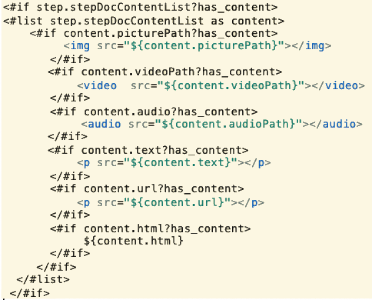
Here is an example of how to define a list:
You can query data from:
A template
templateA job
jobA step from a template
stepA step from a job
executedStep
Behind the object, you must add an attribute to call a specific type of data. To make a query, use this syntax in the .ftl document:
object.attribute
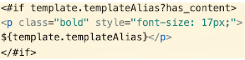
For example, to get the title of a template:
Template queries
Attribute | Description |
|---|---|
templateAlias | Inserts the title of the template. |
templateCover | Inserts the template cover. |
publisher | Inserts the name of the member who published the template. |
version | Inserts the version number of the template. |
publicationDate | Inserts the date of publication of the template. |
generationDate | Inserts the date when the report was generated. |
suite | Inserts the suite of the template. |
package | Inserts the package of the template. |
stringVar | Inserts the value of the string type variable. |
numberVar | Inserts the value of the number type variable. |
integerVar | Inserts the value of the integer type variable. |
dateVar | Inserts the value of the date type variable. |
formatGenerationDate("yyyy-MM-dd hh:mm a zzz") | Inserts the template generation date with a customizable date format (Java format). |
template.publicationId | Inserts the template publication ID. |
manualRefInfo | Inserts a list with manual revision information. |
enterpriseLogo | Inserts the enterprise logo. |
reportGenerator | Inserts the user that generated the report. |
documentationPrivateKey | Inserts the private key of the template. |
documentationPublicKey | Inserts the public key of the template. |
model | Inserts a list with template model. |
docType | Inserts a list with template doc type. |
docName | Inserts a list with template doc name. |
formattedLastModificationDate | Inserts the last modification date of the template. |
Example:
Job queries
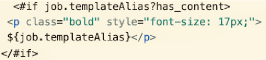
Job queries use the same attributes as template queries:
Attribute | Description |
|---|---|
jobAlias | Inserts the title of the job. |
templateTitle | Inserts the title of the template. |
externalId | Inserts the external template ID. |
startDate | Inserts the start date of the job. |
dueDate | Inserts the due date of the job. |
jobInitiater | Inserts the user who started the task. |
Example:
Template steps queries
Attribute | Description |
|---|---|
id | Inserts the label of a step. |
label | Inserts the label of a step. |
doco | Inserts a list of documentation in a step. |
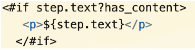
text | Inserts the text of a step. |
subSteps | Insert the list of substeps of a step. |
stepDocContentList | Inserts a list of documentation added to the steps of the template. |
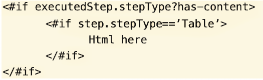
stepType | Inserts the type of step. |
allSubSteps | Inserts a list of all the steps of the template. |
stepChildrenNumber | Inserts the number of children steps of a step. |
facets | Inserts a list of facets. |
objectData | Inserts a list of object data. |
intendedTime | Inserts the step estimated duration of a step. |
requiredBlocking | Inserts the step status:
|
isPinRequired | Inserts the PIN status:
|
isAudioRequired | Inserts a boolean:
|
isPictureRequired | Inserts a boolean:
|
isVideoRequired | Inserts a boolean:
|
isCommentRequired | Inserts a boolean:
|
label | Inserts the position/number of a step. |
Example:
Job steps queries
Attribute | Description |
|---|---|
subSteps | Inserts the list of substeps of a step. |
executionPath | Inserts the unique id of a step, in the context of a loop for example. |
signature | Inserts the identity of the member who entered his PIN. |
signatureAuthor | Inserts a list of users who entered their PIN. |
signatureDate | Inserts a list of dates when PIN have been entered. |
tags | Inserts the list of tags of the step. |
answer | Inserts the answer of a step as a non-formatted answer. |
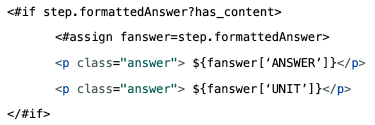
formattedAnswer | Inserts the formatted answer of a step. The non-formatted answer is replaced by the value associated with it (see the section Formatted answers at the end of this topic). |
owner | Inserts the name of the member who answered the step. |
blogs | Inserts the list of log items for this step. |
blogItemList | Inserts the list of items added as a log to a step, when the job is running (picture, video, comment, audio). |
runTimeStepDocContent | Inserts the list of documentation items attached to a step, in the template definition. |
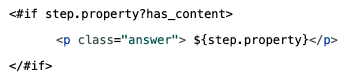
property | Inserts the url of a step, in a step of type media for example. (see below) |
iterationsCount | Inserts the total number of iterations in a Loop step. |
iterationIndex | Inserts the id of an iteration from a Loop. |
columnsCount | Inserts the total number of columns in a Table step. |
rowIndex | Inserts the total number of rows in a Table step. |
stepValidationDate | Inserts the step validation date. |
blogItem.title | Inserts the blog title. |
blogItem.owner | Inserts the blog owner. |
blogItem.date | Inserts the blog date. |
Example:
Others
When you use the attribute .blogItemList, you can use the following attributes to organize the data called:
Attribute | Description |
|---|---|
picturePath | Inserts the path of the picture. |
videoPath | Inserts the path of the video. |
audioPath | Inserts the path of the audio file. |
comment | Inserts the comment. |
title | Inserts the title of the log. |
When you use the attribute .stepDocContentList, you can use the following attributes to organize the data called:
Attribute | Description |
|---|---|
picturePath | Inserts the path of the picture. |
videoPath | Inserts the path of the video. |
audioPath | Inserts the path of the audio file. |
comment | Inserts the comment. |
title | Inserts the title of a picture or a video. |
url | Inserts an url. |
html | Inserts html document. |
filePath | Inserts the path of the file. |
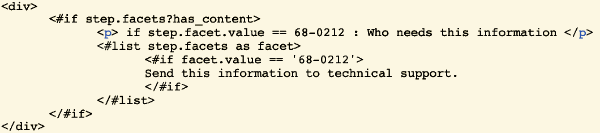
When you use the attribute .facets, you can use the following attributes:
Attribute | Description |
|---|---|
value | Returns the value of a facet. |
attribute | Returns the attribute of a facet. |
class | Returns the class of a facet. |
visibility | Returns the information if the facet is visible or not on runtime. |
Example:
When you use the attribute .objectData, you can use the following attribute:
Attribute | Description |
|---|---|
text | Inserts the text of the object data. |
When you use the attribute .stepType, it returns as an answer the following attributes:
Attribute | Step type |
|---|---|
LOOP | Loop |
TABLE | Table |
YES/NO | Yes/No/NA |
BOX | Check |
DATE | Date/Time |
MULTICHECK | Multi-choice |
MULTICHECK | Multi-check |
NUMERIC | Numeric |
FORM | Form |
SIGNATURE | Signature |
INPUT | Free text |
MASTER_DATA | Master Data Selector |
LABEL | Label |
GOTOGPS | Goto |
MEDIA | Media |
TASK | Task |
DRAWING | Drawing |
SUBTEMPLATE | Component |
Note
You can use the attributes above in queries.
Tip
In the step type , use the attribute property to insert the url of the media. The attribute property is only used in this context.
Formatted answers
When you make queries, the steps , , , and can have:
A non-formatted answer (attribute
.answer),
Or a formatted answer (attribute
.formattedAnswer).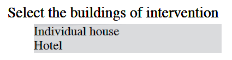
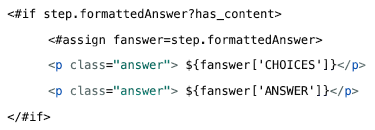
When you use the attribute .formattedAnswer, you can use the following attributes to define what information to display in the report:
In step types , , :
Use [‘ANSWER’] to insert the answer to the step.
Use ['CHOICES’] to insert the possible choices available for the step.
In step type :
Use [‘ANSWER’] to insert the answer to the step.
Use [‘MIN'] to insert the minimum value given in this step.
Use [‘MAX'] to insert the maximum value given in this step.
Use [‘UNIT'] to insert the unit defined in this step.