Launching a Template Tryout from the Publication Lifecycle
A Template can be validated either before publication or as part of the publication workflow. Using the Tryout feature, a Template can be assigned to a user for validation. You can also start a Tryout directly during the Template Publication process. This behavior is supported through the use of Custom Lifecycle.
A Tryout can be automatically started from the Template Publication Lifecycle to run a trial execution using the Tryout Lifecycle. This enables different users to complete the required actions and share feedback, ensuring the Template meets specifications before being published to Enterprise. It also facilitates feedback validation and review based on which changes can be incorporated to the Template.
The following flowchart presents the Template publication workflow from which Tryout process is initiated.
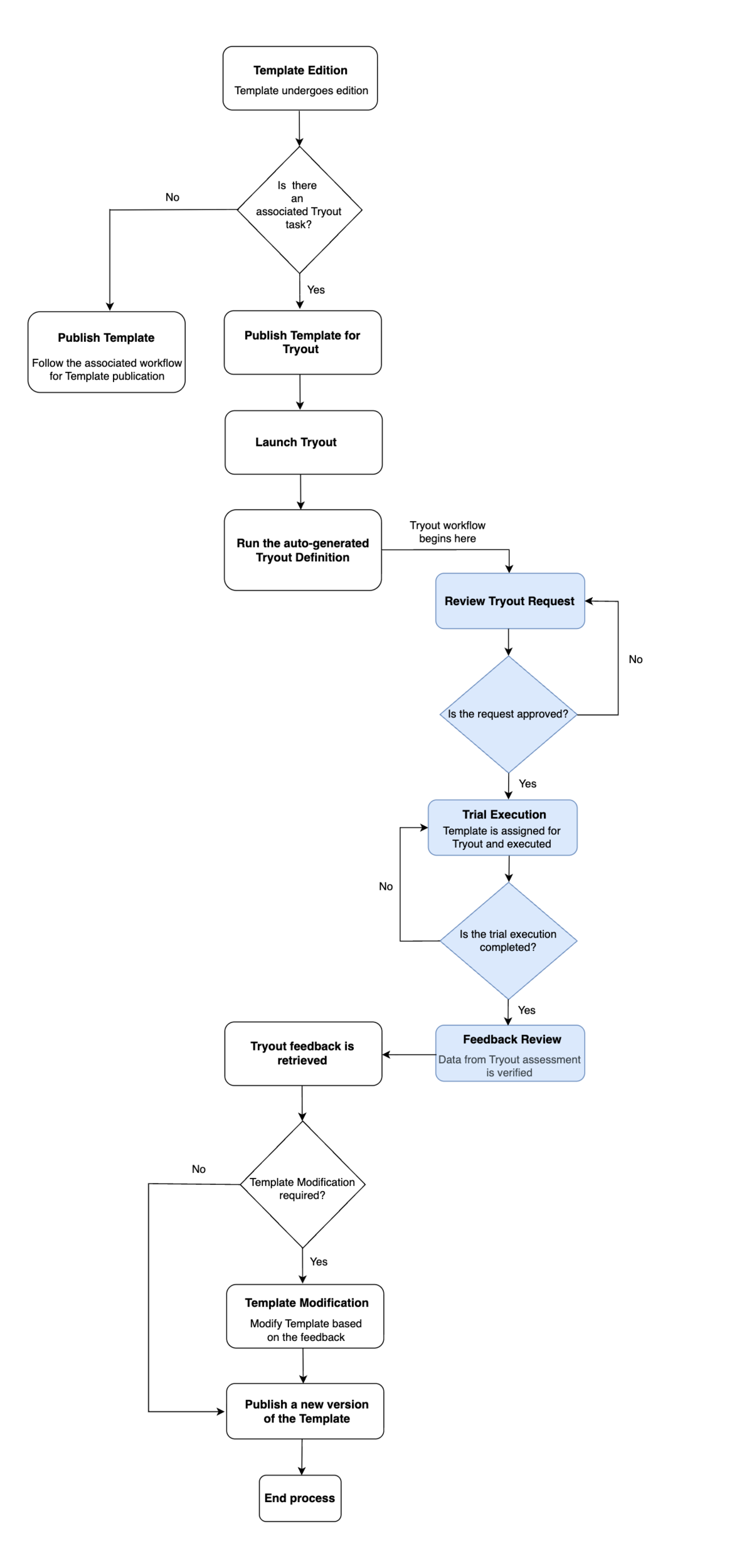 |
The Lifecycle of the process below outlines each stage of the workflow. These stages can be customized to meet the specific requirements of your organization.
Template Publication Lifecycle
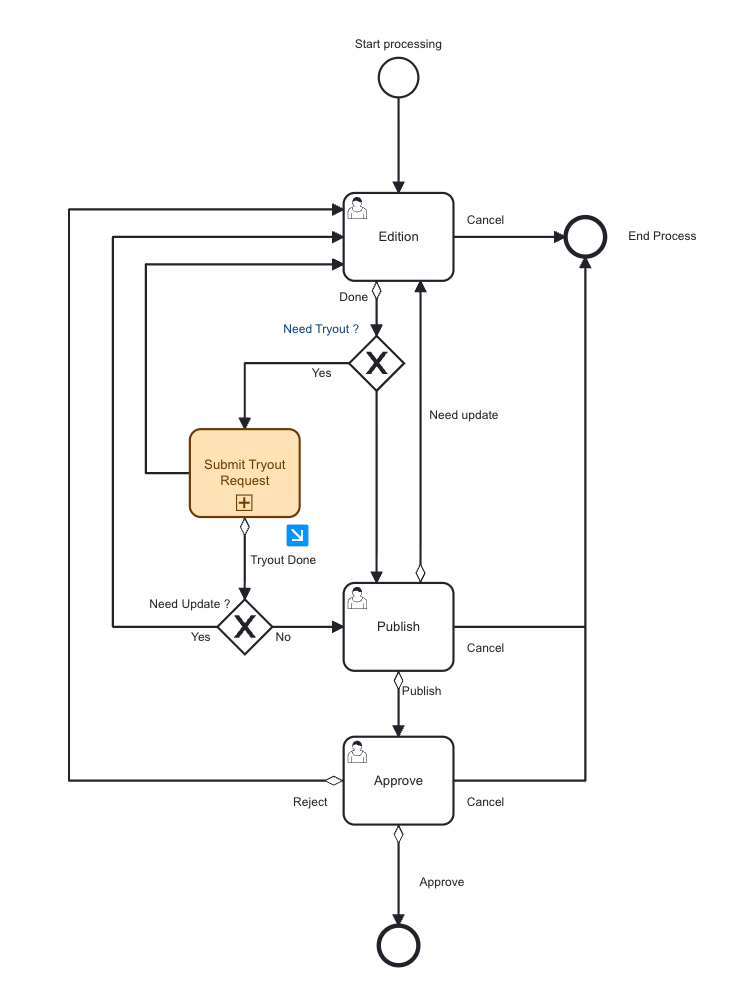 |
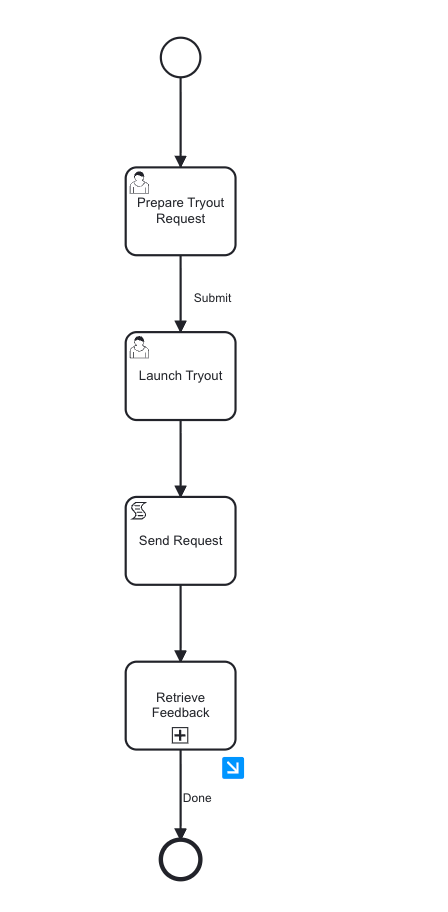
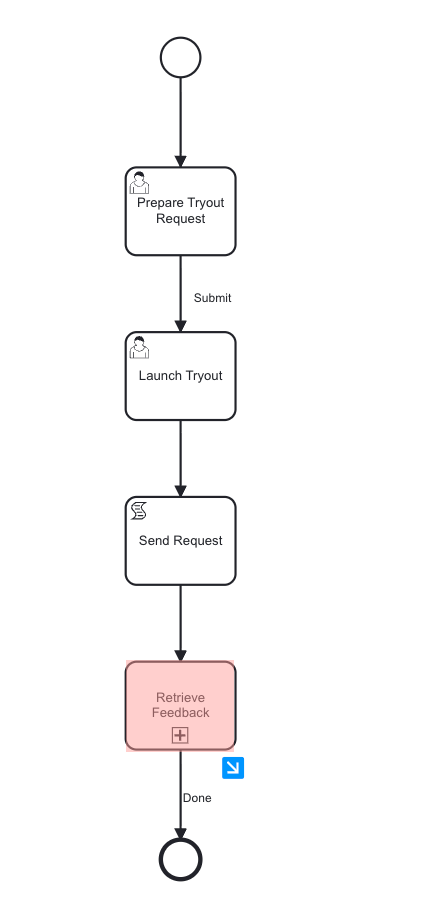
Sub-process - Submit Tryout Request
 |
Important
The Lifecycle provided is only an example. Customizable Lifecycles can be built based on specific requirements.
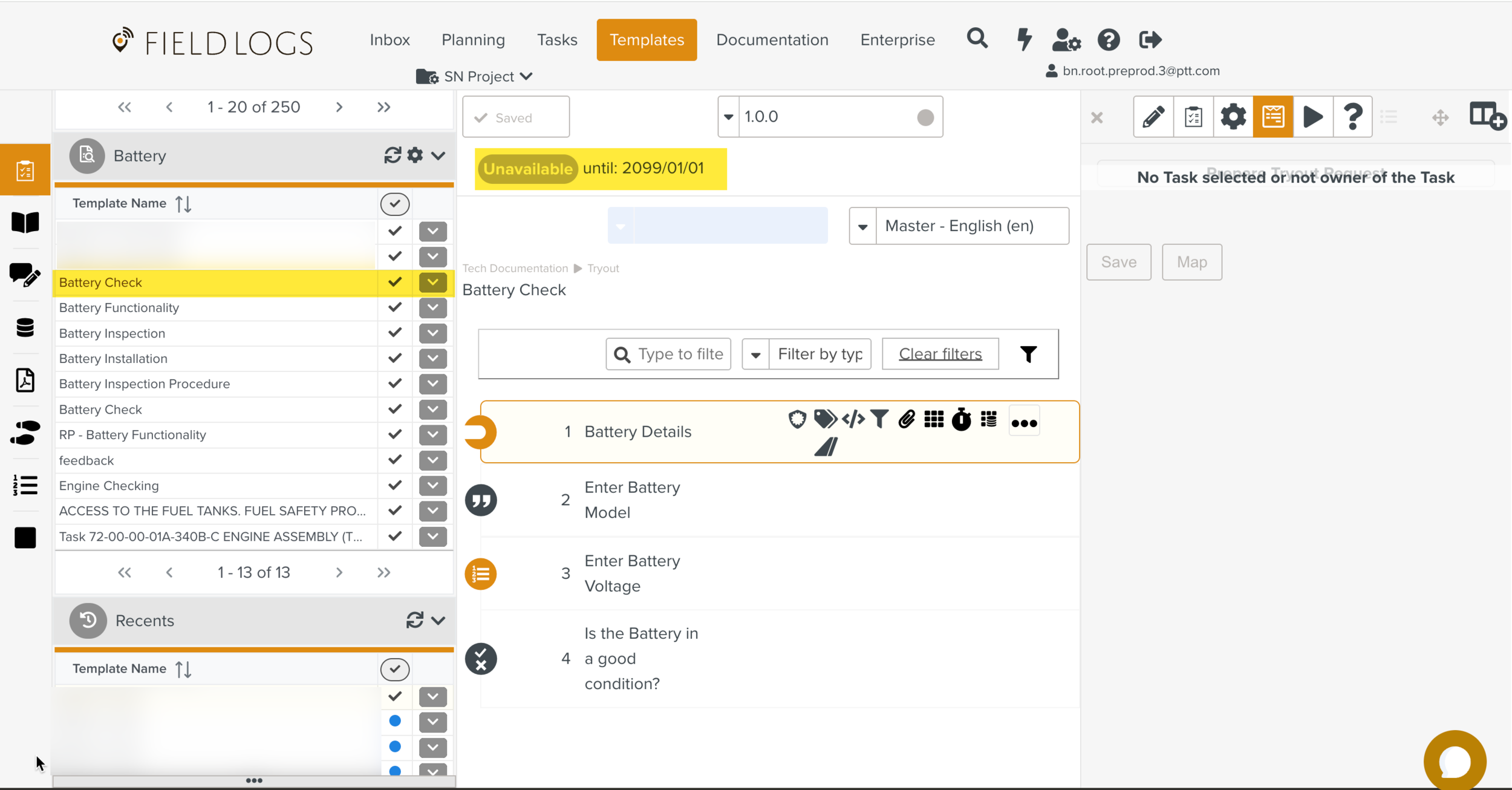
After the Template Edition stage, if a Tryout is required, the Submit Tryout Request sub-process begins. In the sub-process, the Tryout task Prepare Tryout Request publishes a version of the Template for Tryout. This published version is automatically set as Unavailable as shown below.
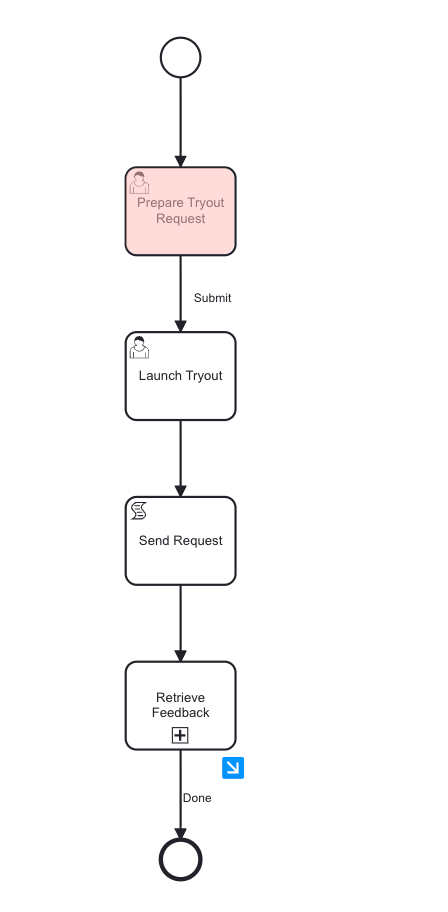 |
 |
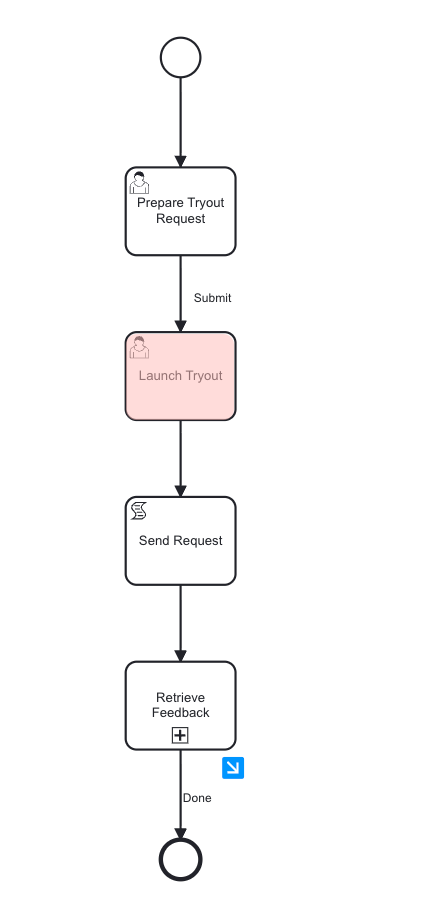
Now, the process moves to the next stage Launch Tryout.
 |
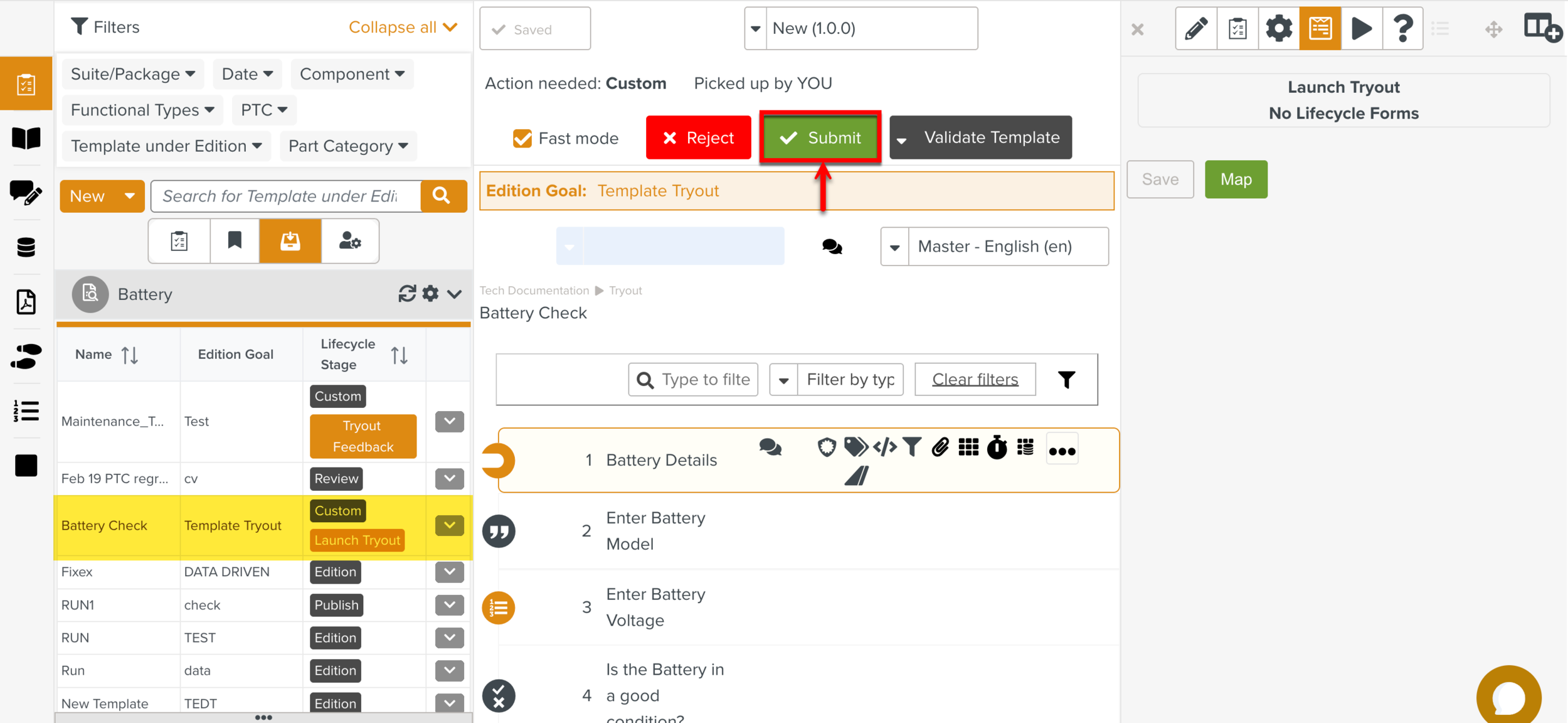 |
When the Tryout is launched, Tryout definition is auto-generated through a script in Send Request.
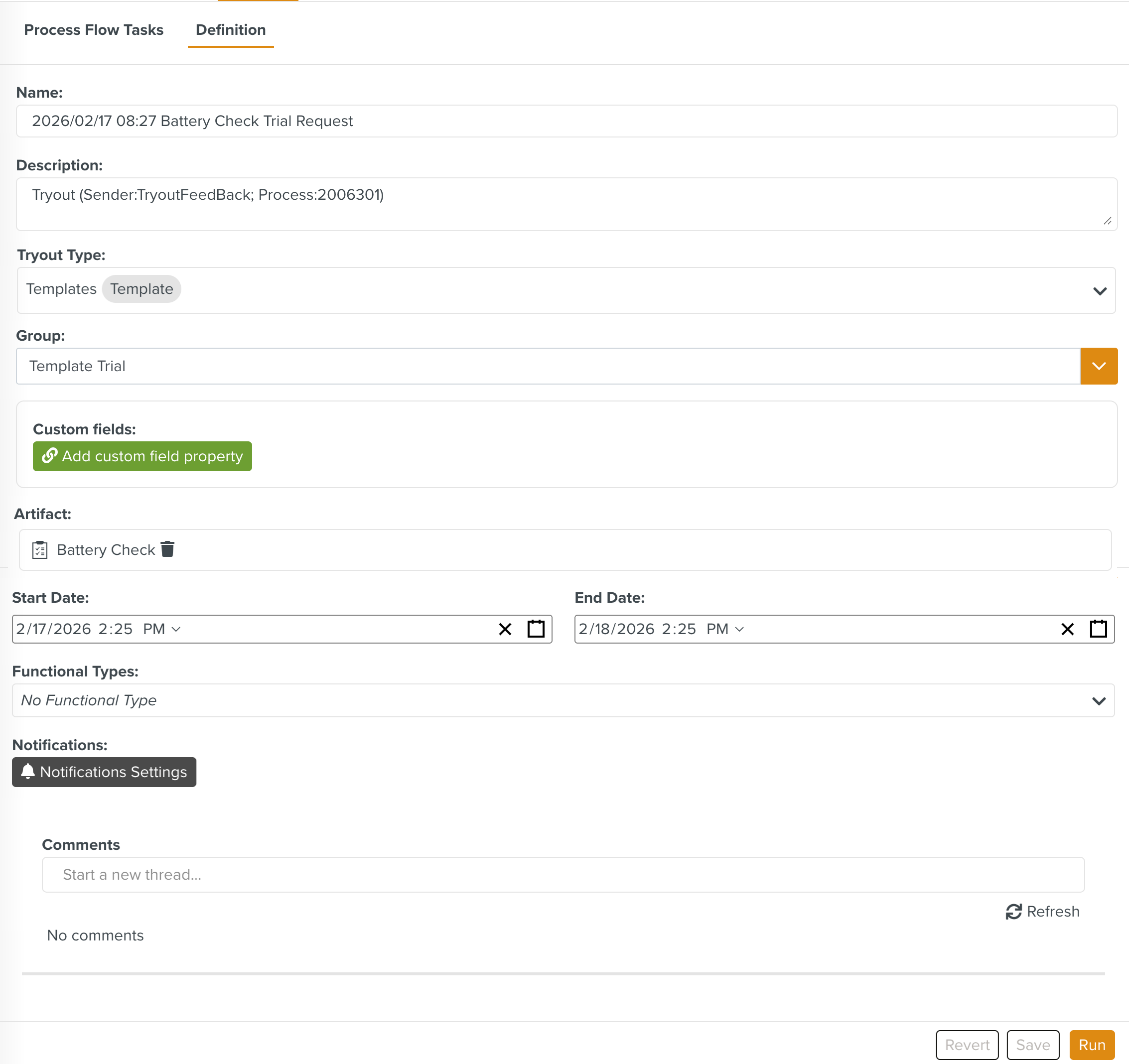 |
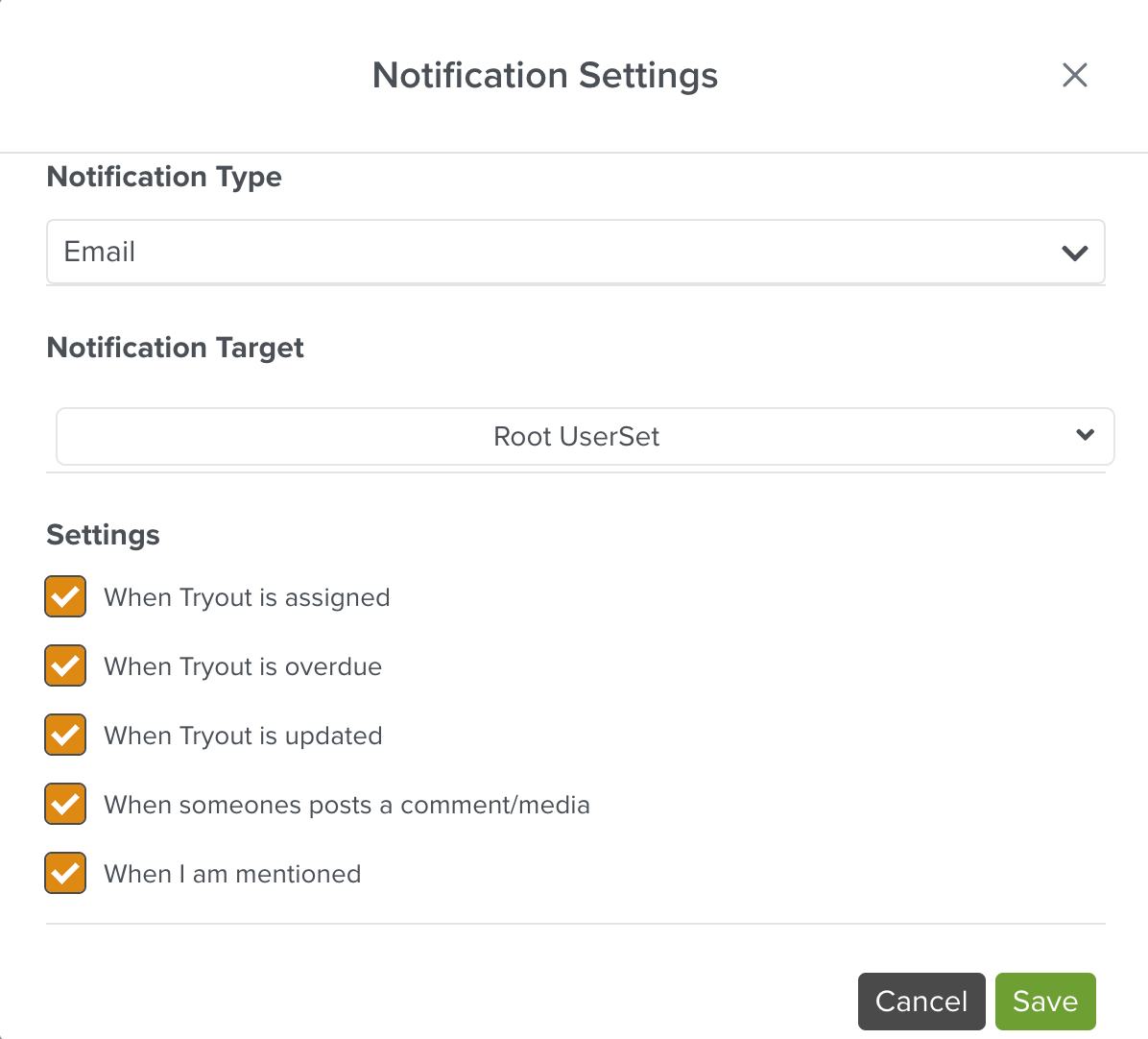
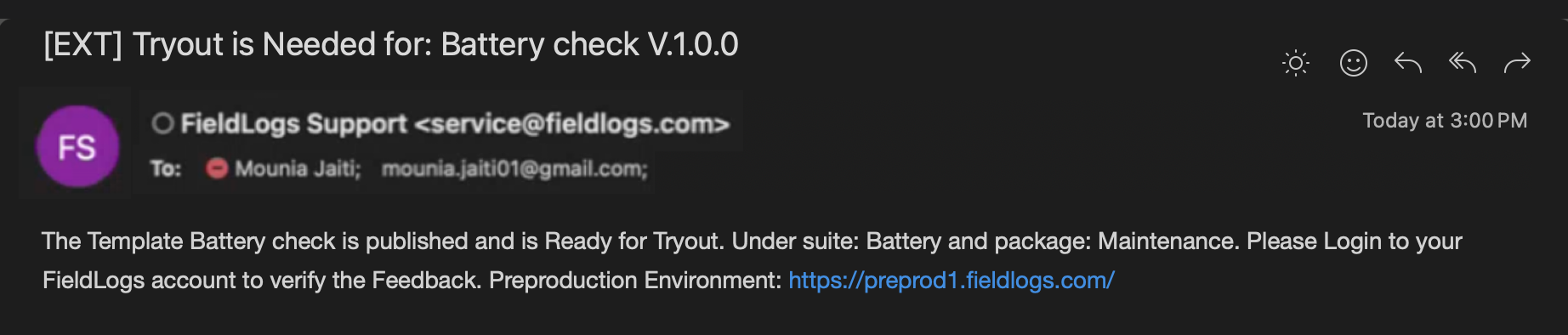
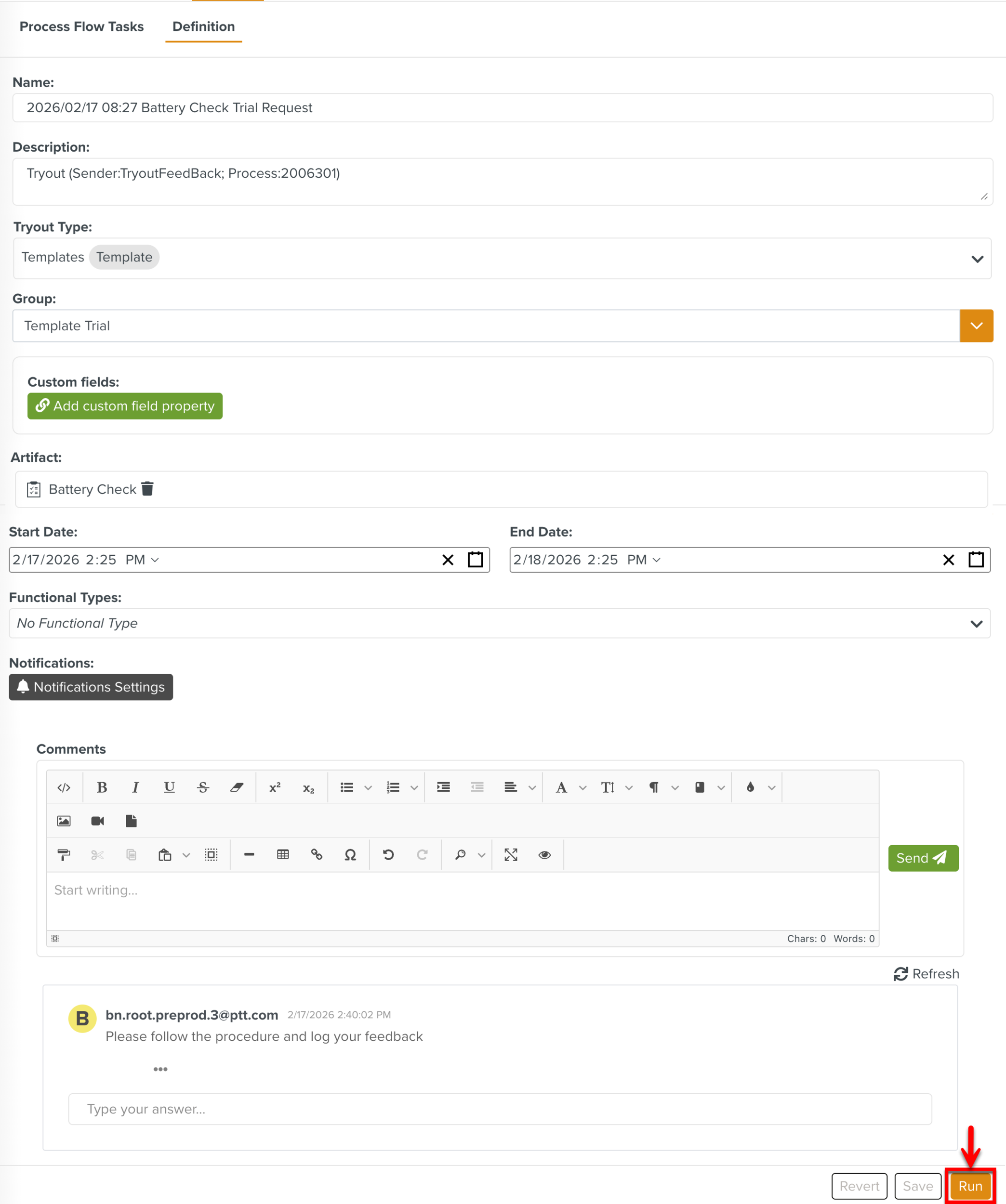
The field values are automatically populated based on the script instructions. The Tryout Definition is linked to the defined Tryout Type and the current Template being published. Custom Fields and comments can be added to the Tryout Definition. Email or In-App Notifications can be configured to alert different teams when specific actions occur.
 |
 |
Once all the data is verified, the Tryout Definition can be run to create a Process Flow Task for the Template Tryout.
 |
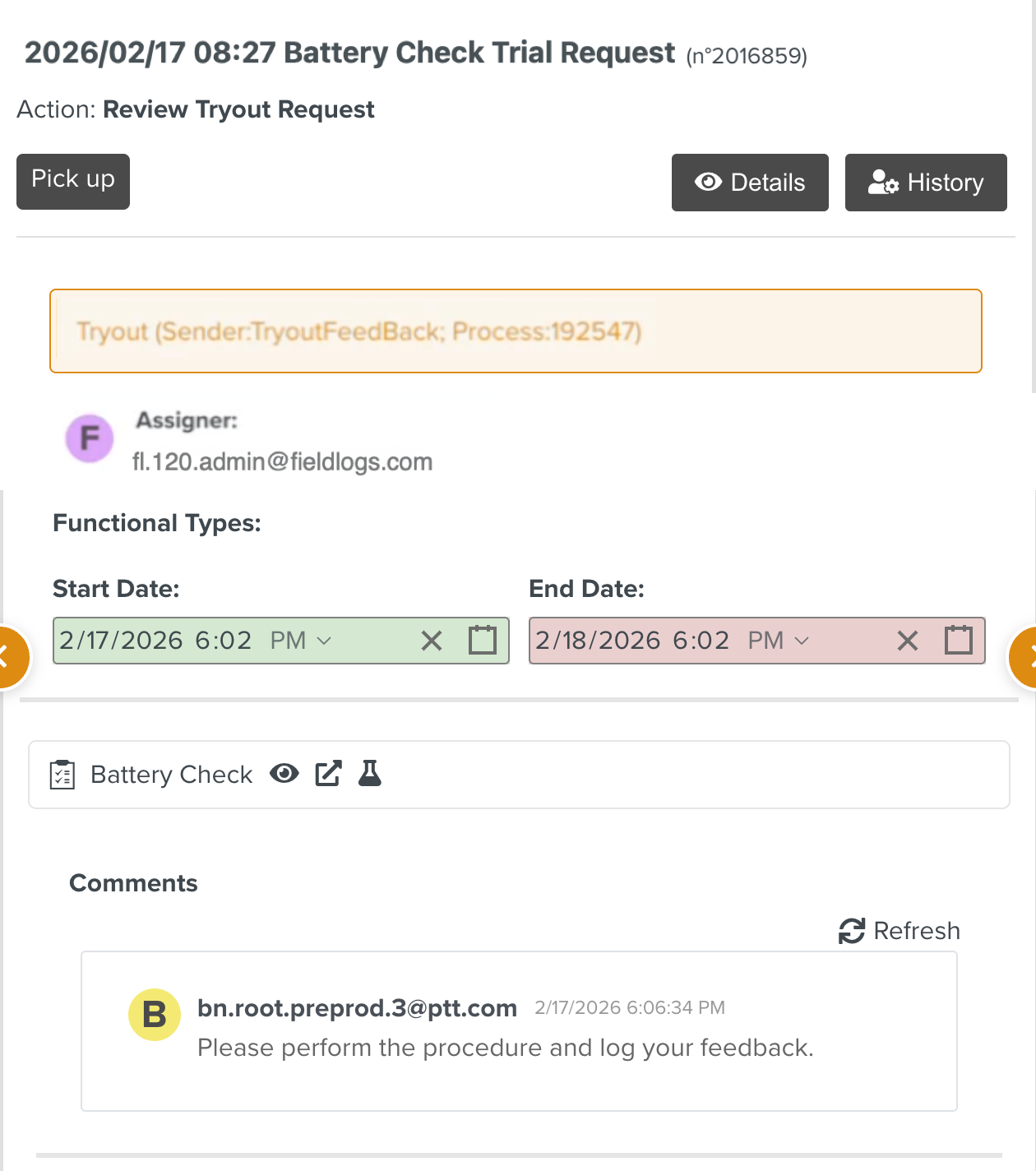 |
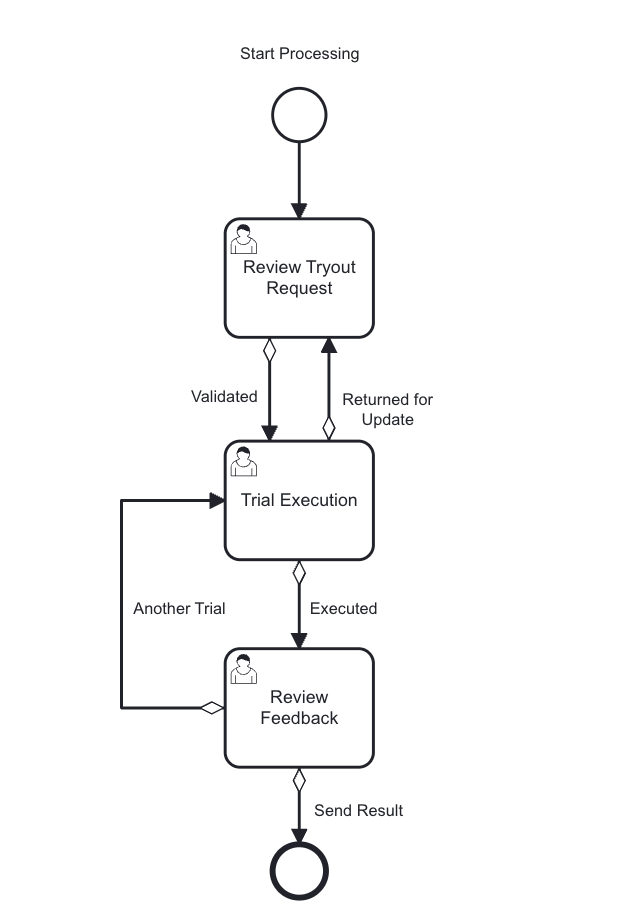
This starts the Tryout Lifecycle for the validation of the Artifact which is a Template. The Tryout Lifecycle associated with the Process Flow Task includes different stages of the Tryout process as shown below.
 |
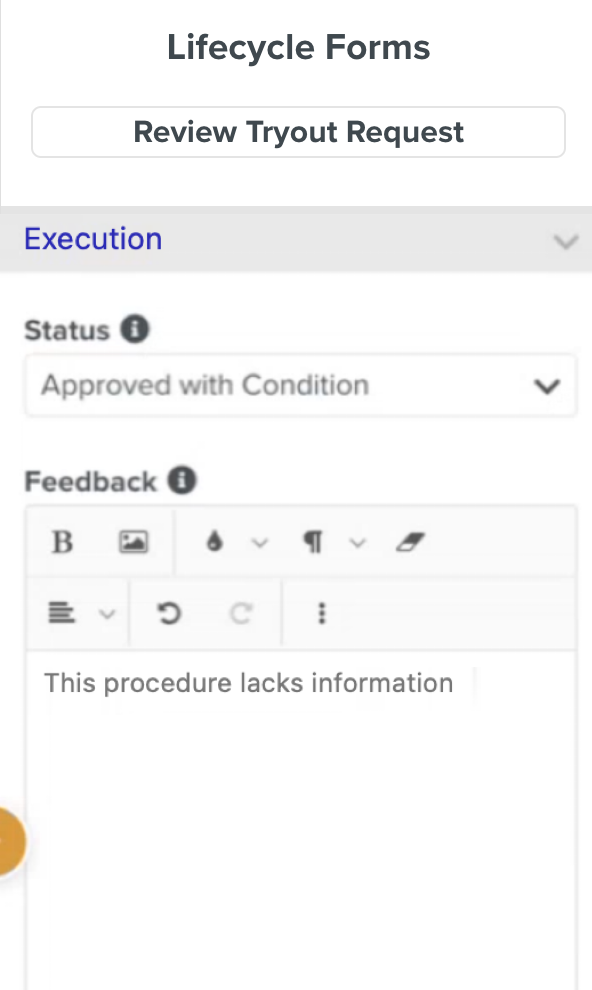
The Tryout Manger can review the Tryout request, enter the inputs in the Lifecycle Forms (if attached) and perform the required action.
 |
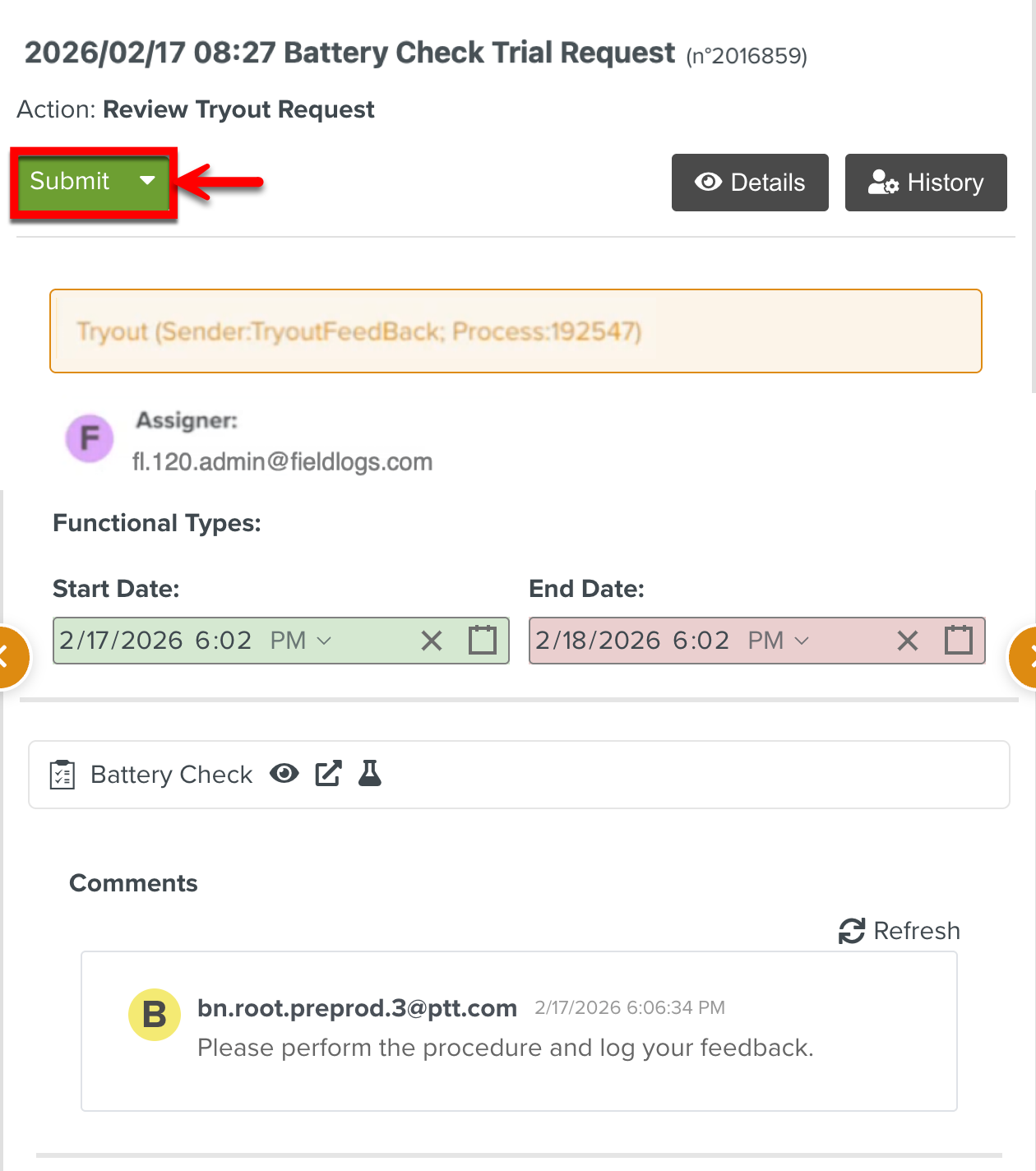 |
Once the Tryout request is approved, the Tryout Manager assigns the Template for execution to the respective Field Employee using the Assign option available on the associated Template.
 |
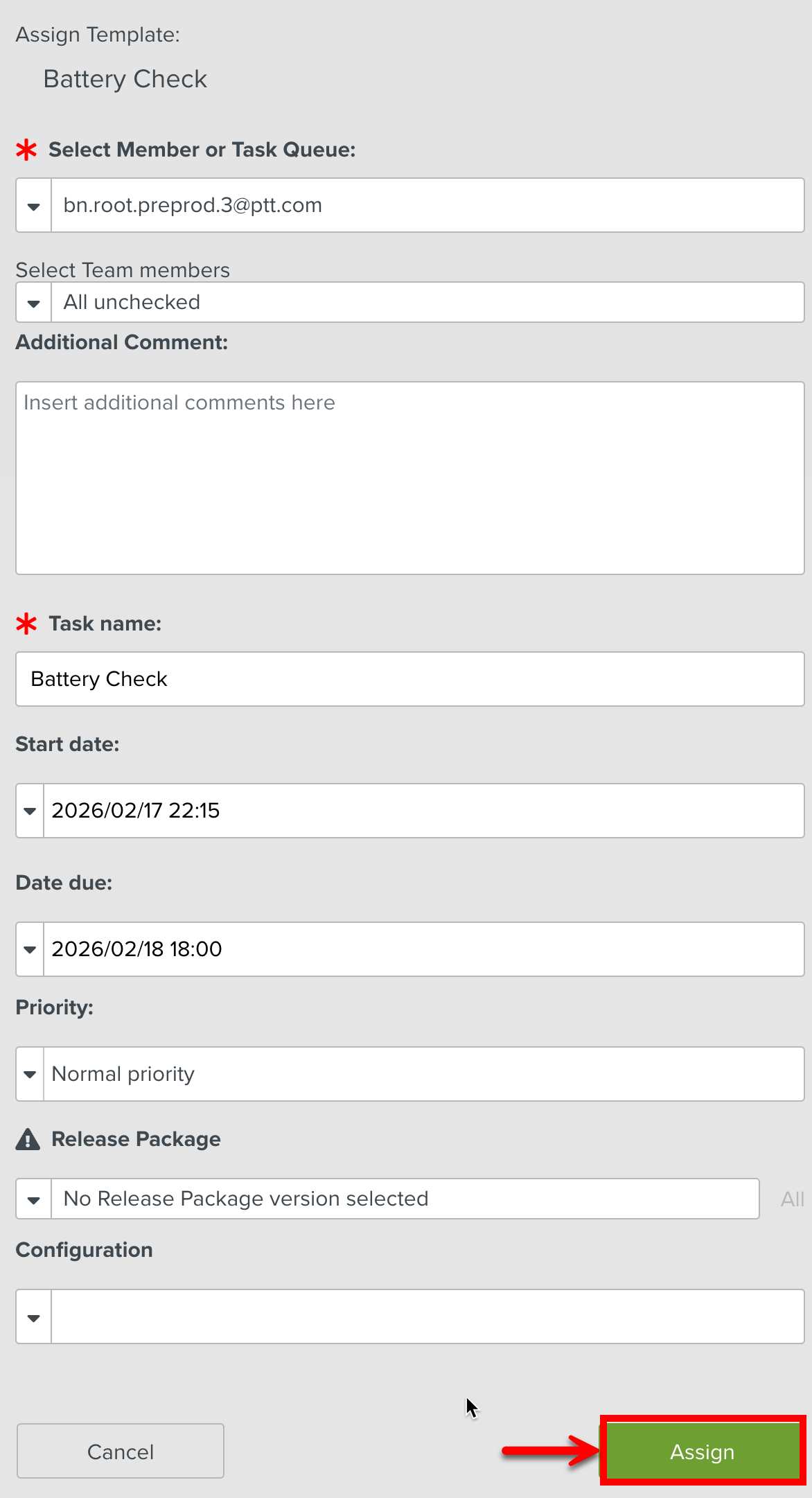 |
The Task appears in the Inbox and Planning sections of the Field Employee for execution. When the Task execution is completed, the execution feedback from the Field Employee is shared to the Tryout Managers for review. Once the Review Feedback is approved, the Template Tryout process is completed and the Process Flow Task is automatically removed.
Now, the process moves to the Retrieve Feedback stage in the Publication Lifecycle sub-process. The feedback of the Template Tryout is retrieved and reviewed by the Engineers for further decisions.
If the Template does not require any modification, the process is moved to next stage Publish and the latest version of the Template is published.
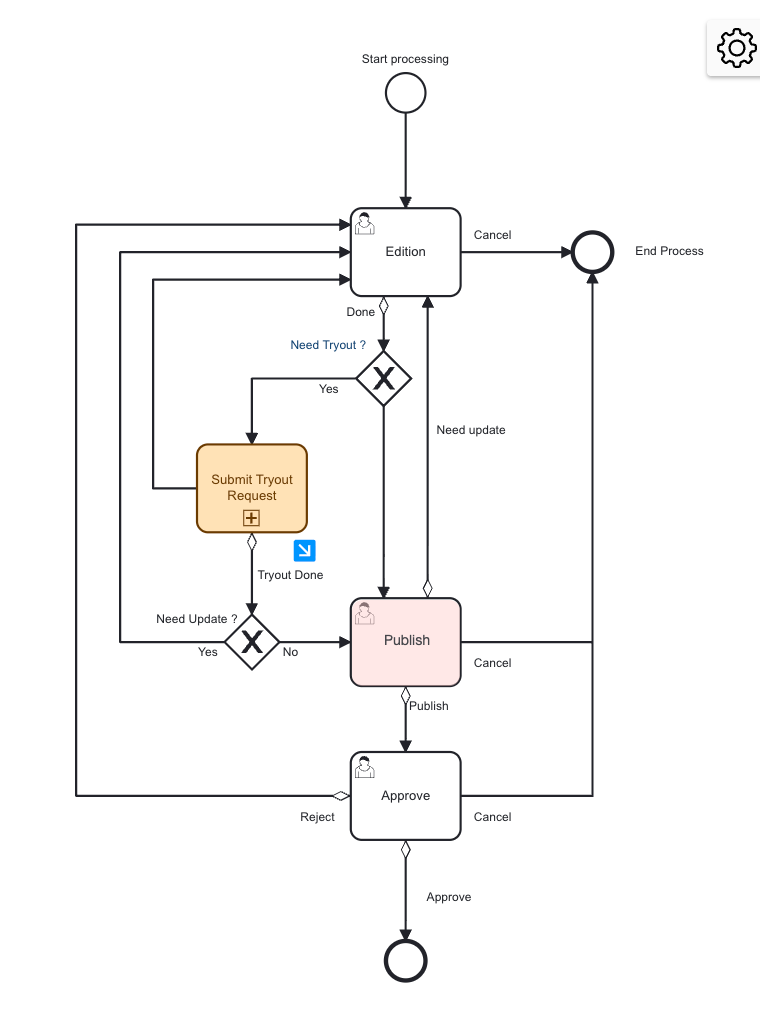 |
If the Template needs modification, it moves to the Edition stage again for modification.
The Process Dashboard provides a comprehensive history of the process, while the attached Lifecycle Forms offer an overview of the inputs and the feedback shared. Template Reports could also be attached to the Lifecycle Forms to facilitate feedback exchange.
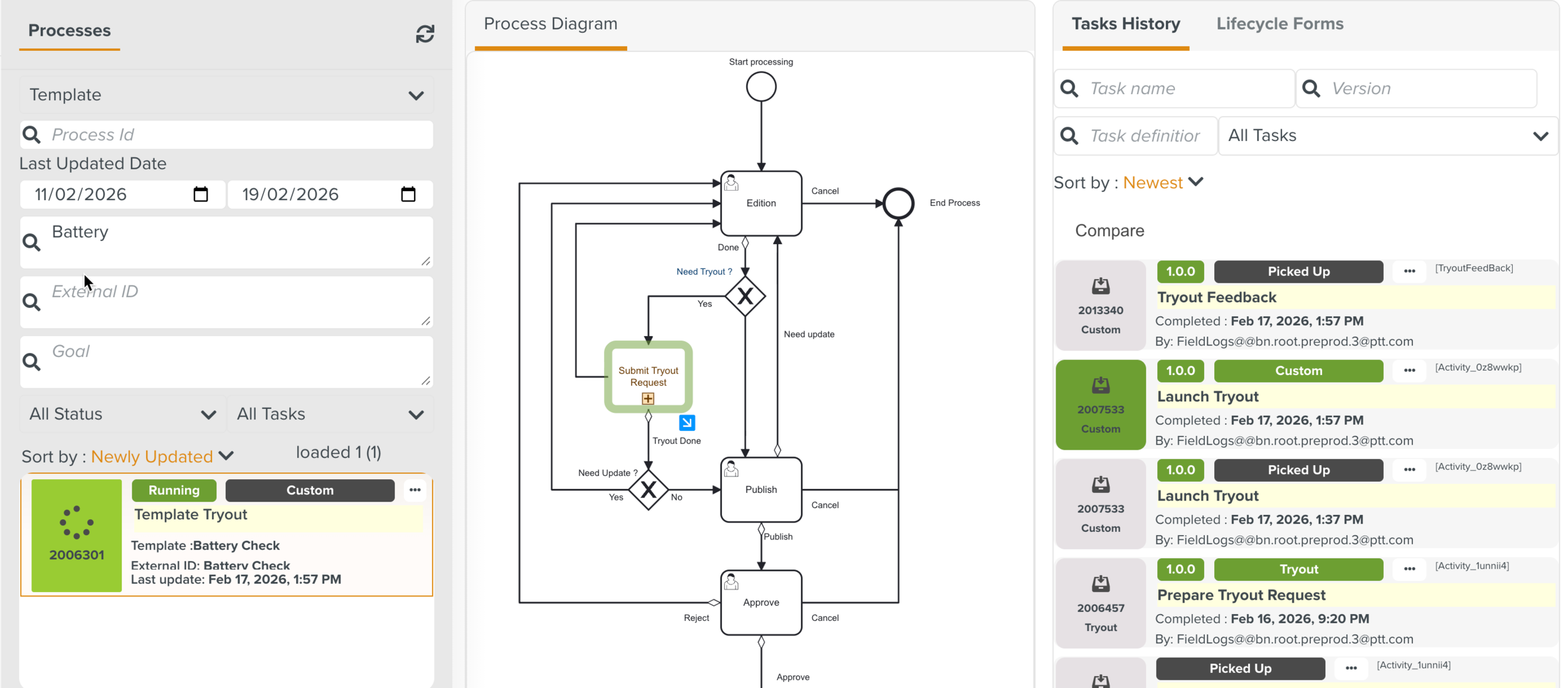 |
Based on the feedback and comments, the Template is modified and published to the Enterprise.