Planning
The Planning section allows users to view and perform Task-related actions on the Tasks.
The Planning screen appears as shown below.
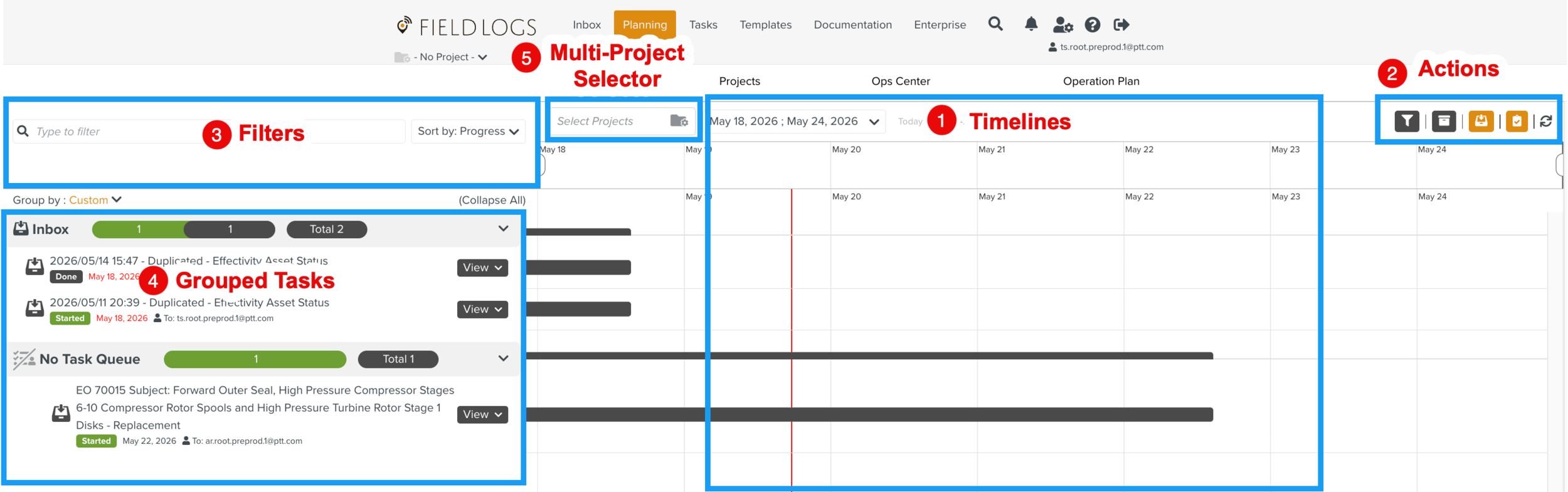
The screen can be divided into four main areas as follows:
Based on the grouping and sorting settings, Tasks appear under their corresponding Projects, Operation Plans, Task Queues, and other categories.
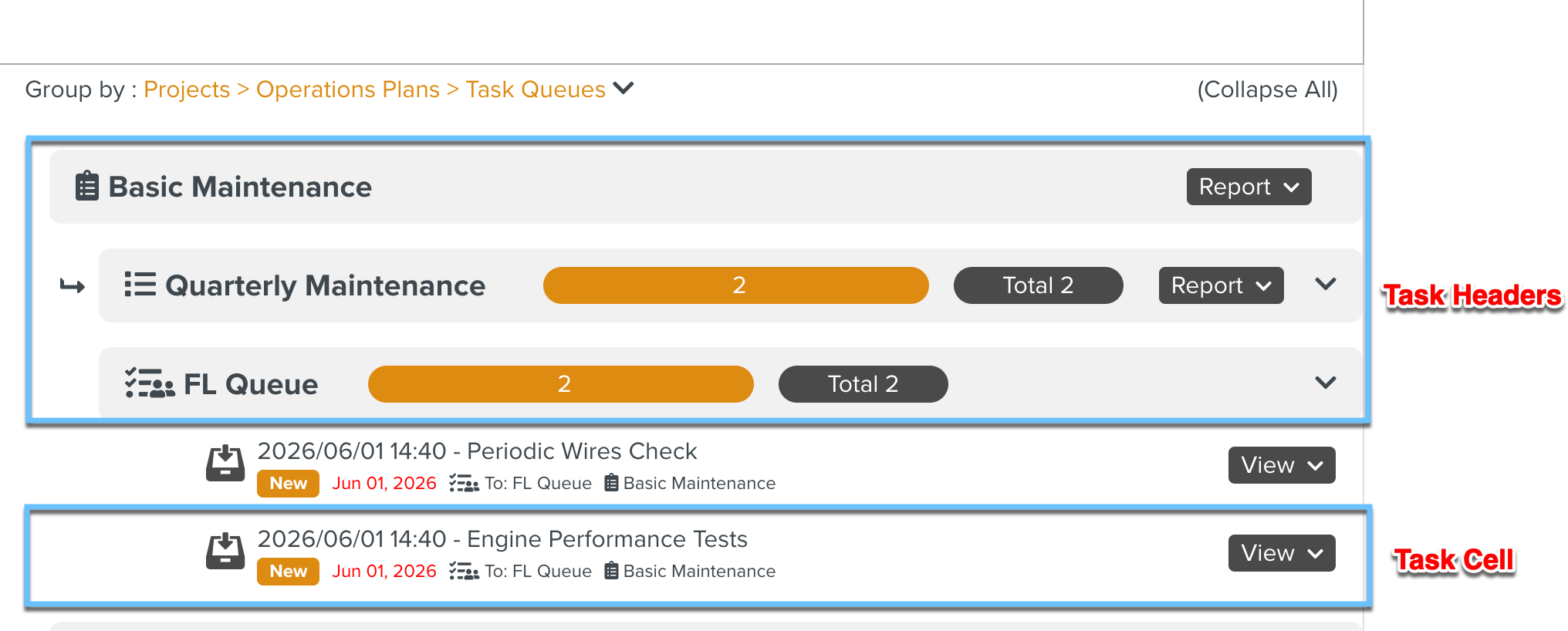 |
On the Task headers, you can find the following details and options:
Number of Total Tasks.

Number of Tasks in each status.

Each Task status is color coded as listed below:
Orange – New Tasks
Green – Started Tasks
Black – Completed Tasks
Red – Error
Grey – Blocked Tasks
button is displayed on the Operation Plan header level.
Note
This button is available only on the Operation Plan and Counter header levels when the Tasks are grouped by Operation Plans.
When you expand the button, the following options are available.
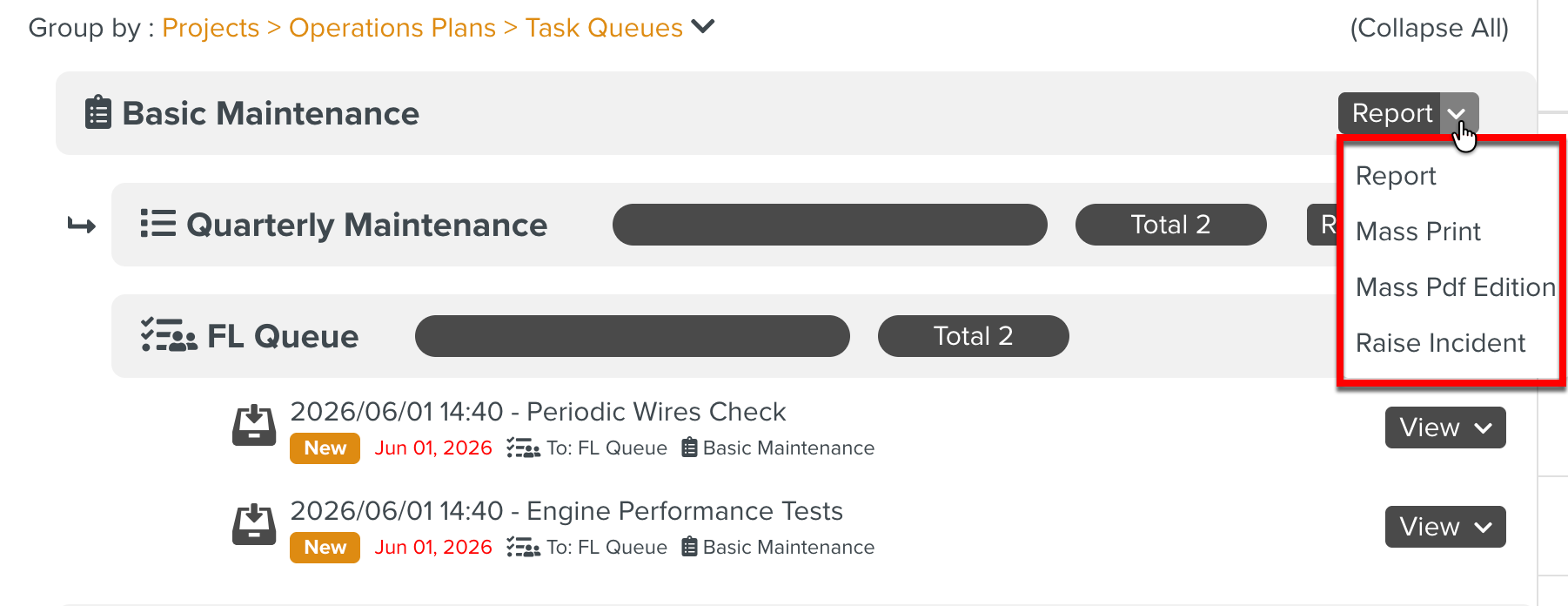
Options
Description
Report
Generate Operation Plan Execution reports.
Mass Print
Generate reports of all Templates/Tasks associated with an Operation Plan.
Mass Pdf Edition
Retrieves the variable values of an operations plan and counter levels.
Raise Incident
Raise an Operation Plan context Incident.
On each Task cell, the following information is provided as shown:
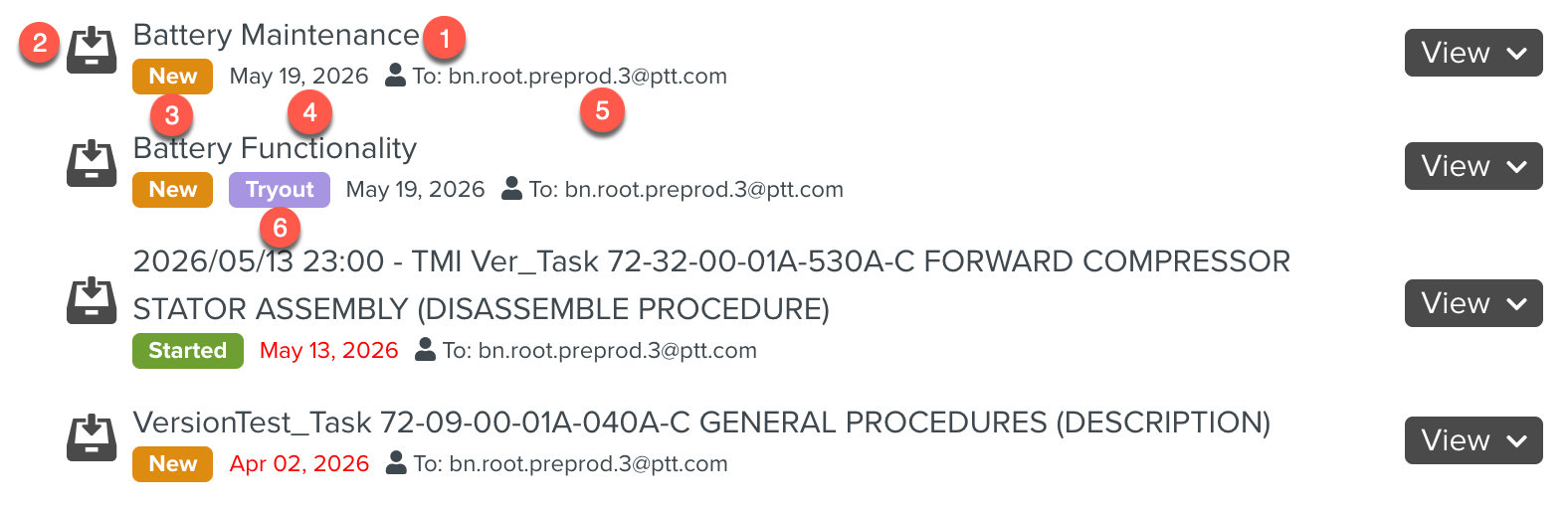 |
The title of the Task or the Job.
Task Image: The picture associated with a Task.
Status: Indicates the current status of the Task. The status of the Task can be one of the following:
- The Assignee has not seen or started the Task.
- The Assignee has run the Task.
- The Job is completed and the Task is marked as Done.
- The Task is in error.
Date: Date of assignation of the Task.
Assignee: User to whom the Task is assigned.
Tryout label: Tryout label is displayed if a Task is assigned for Tryout from the Templatessection or Tryout Process Flow Tasks.
Hovering over the label displays the Tryout name. You can click on the Tryout name to view the Tryout definition and Process Flow Tasks in the Tryouts section.
As part of Planning, you can assign Tasks.
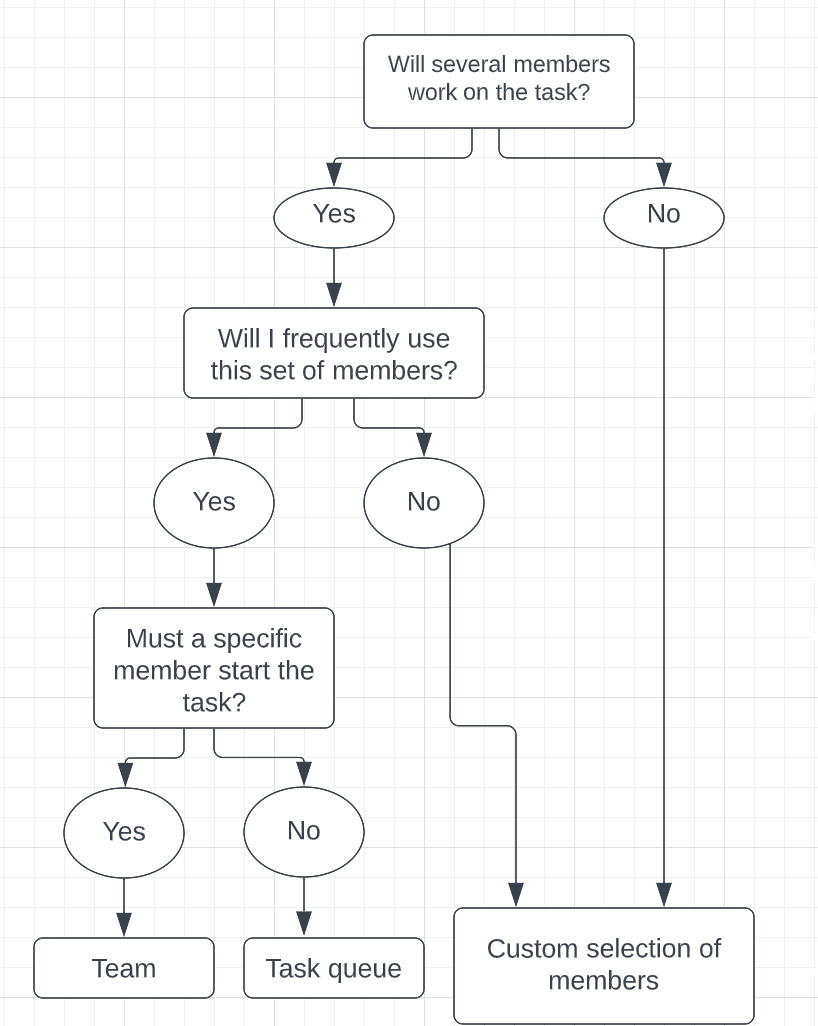
A Task can be assigned to one of the following Assignees:
You can choose the right Assignee based on the following diagram.
 |