Creating Custom Functions
Note
To view the Enterprise menu, the user must be associated with a Security Role that has the appropriate access rights.
Custom Functions are user-defined JavaScript functions that are executed on the backend. These functions can be used to call an external system to retrieve/validate data.
You must have the appropriate access rights to use Custom Functions. You must be part of the User Set associated with a Custom Function to view it.
You can build the required business logic using Custom Functions. These Custom Functions can accept arguments and return values.
Creating a Custom Function
A Custom Function must be defined before it can be used.
To create a Custom Function:
From the main menu, go to > > .
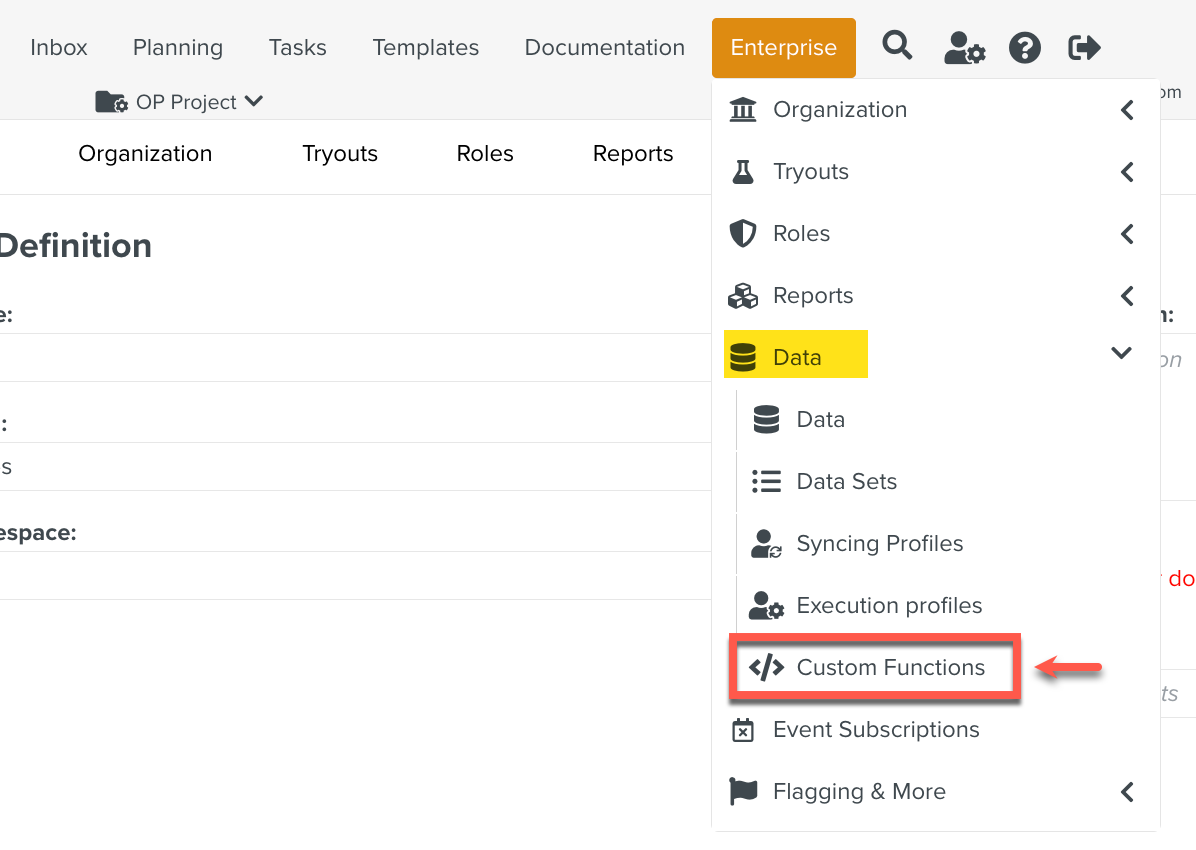
Click .
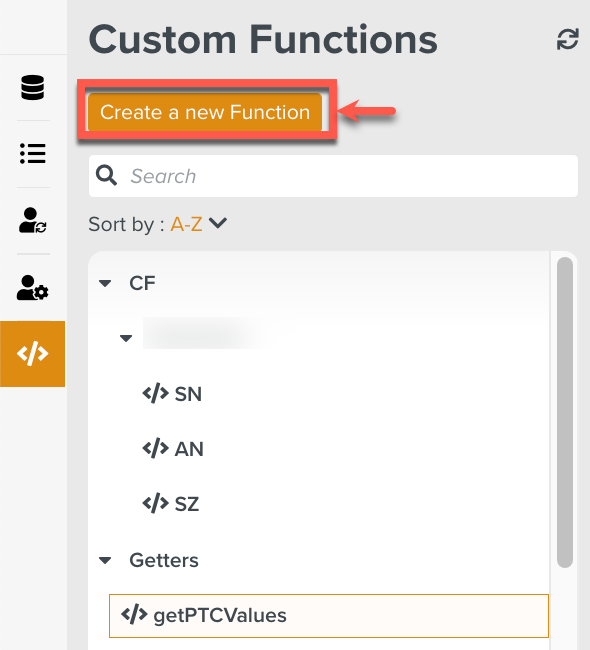
The Create a new Function dialog appears.
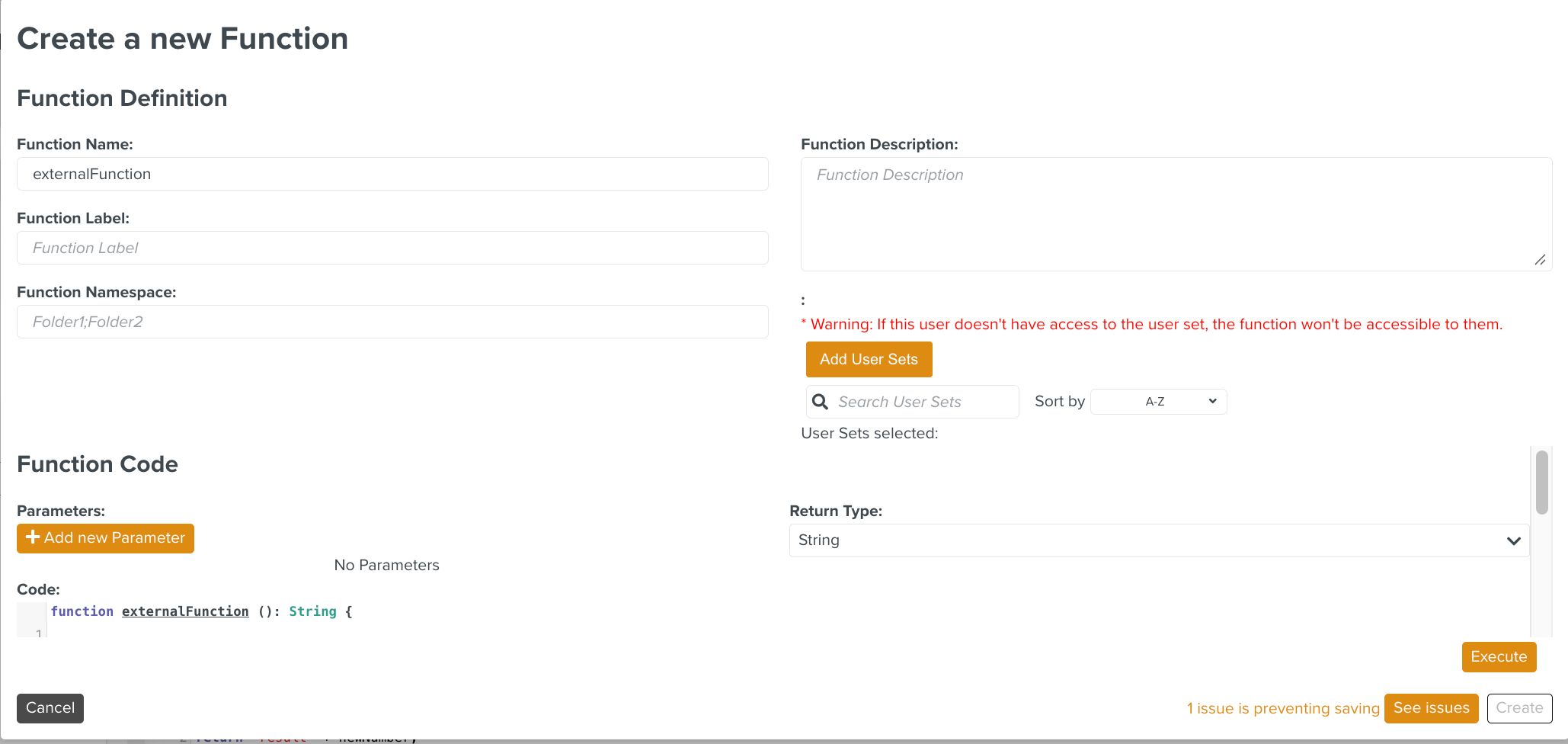
Enter the Function Name.
Enter the Function Label.
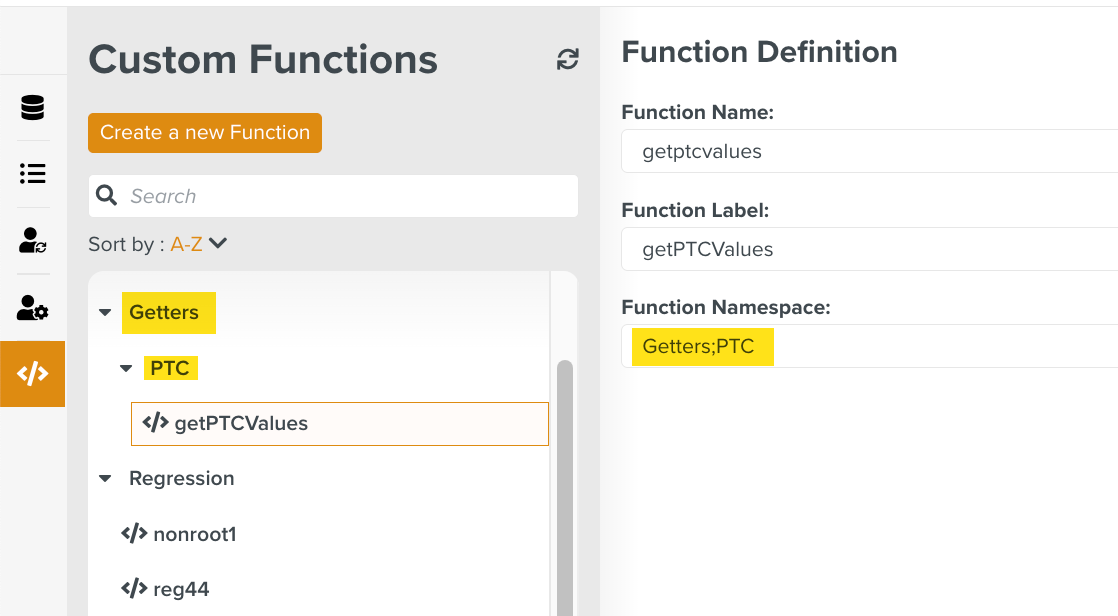
Enter the Function Namespace. The Namespace organizes the Custom Functions.
Enter the required Function Code.
[Optional] Click
 to add parameters.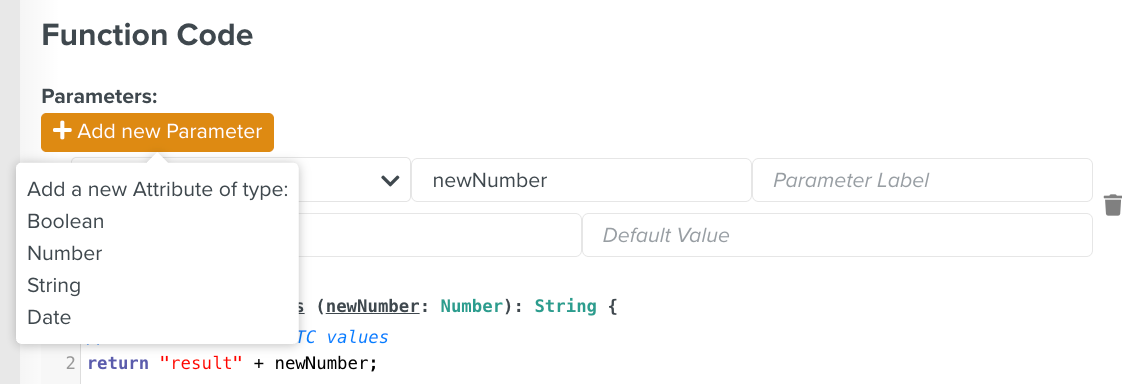
You can add a label, description, and a default value for the parameter.

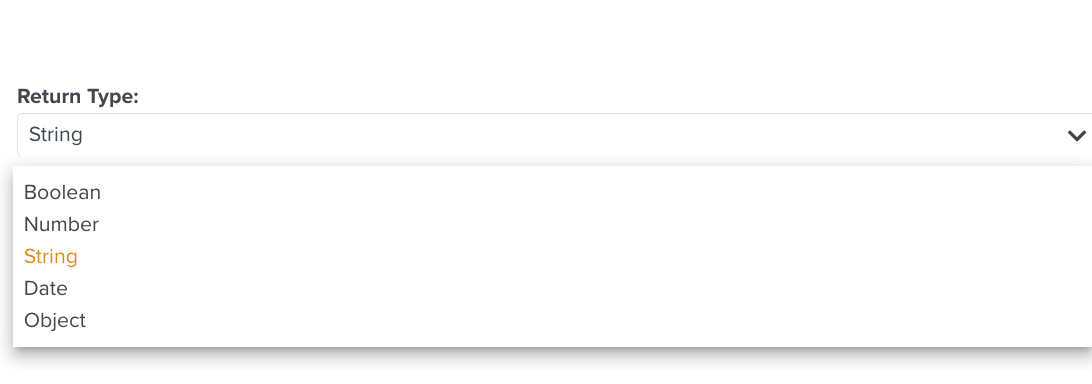
[Optional] Customize the Return Type.
[Optional] Enter the Function Description.
Click
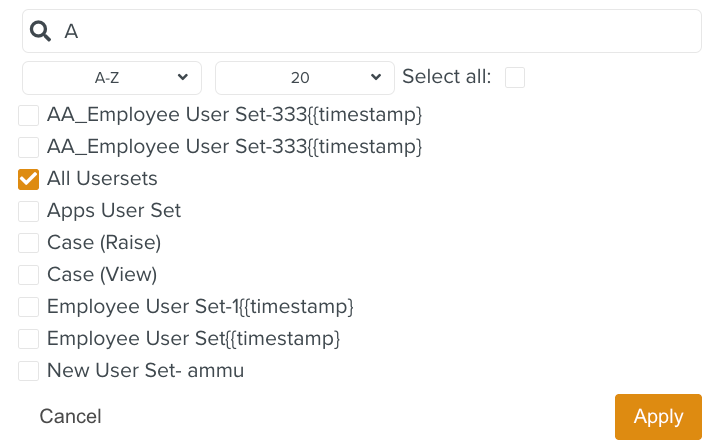
 to associate User Sets with this Custom Function.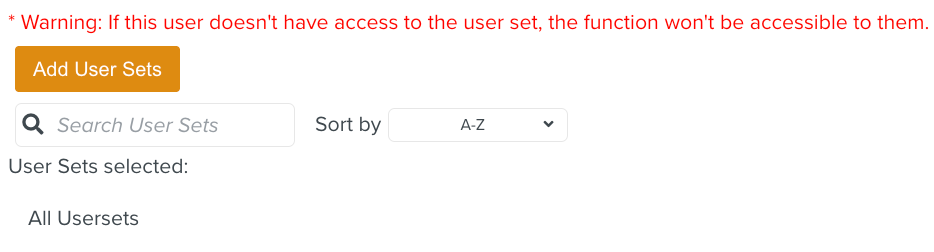
Note
Only users who are part of the added User Sets can access this Custom Function.
Click .
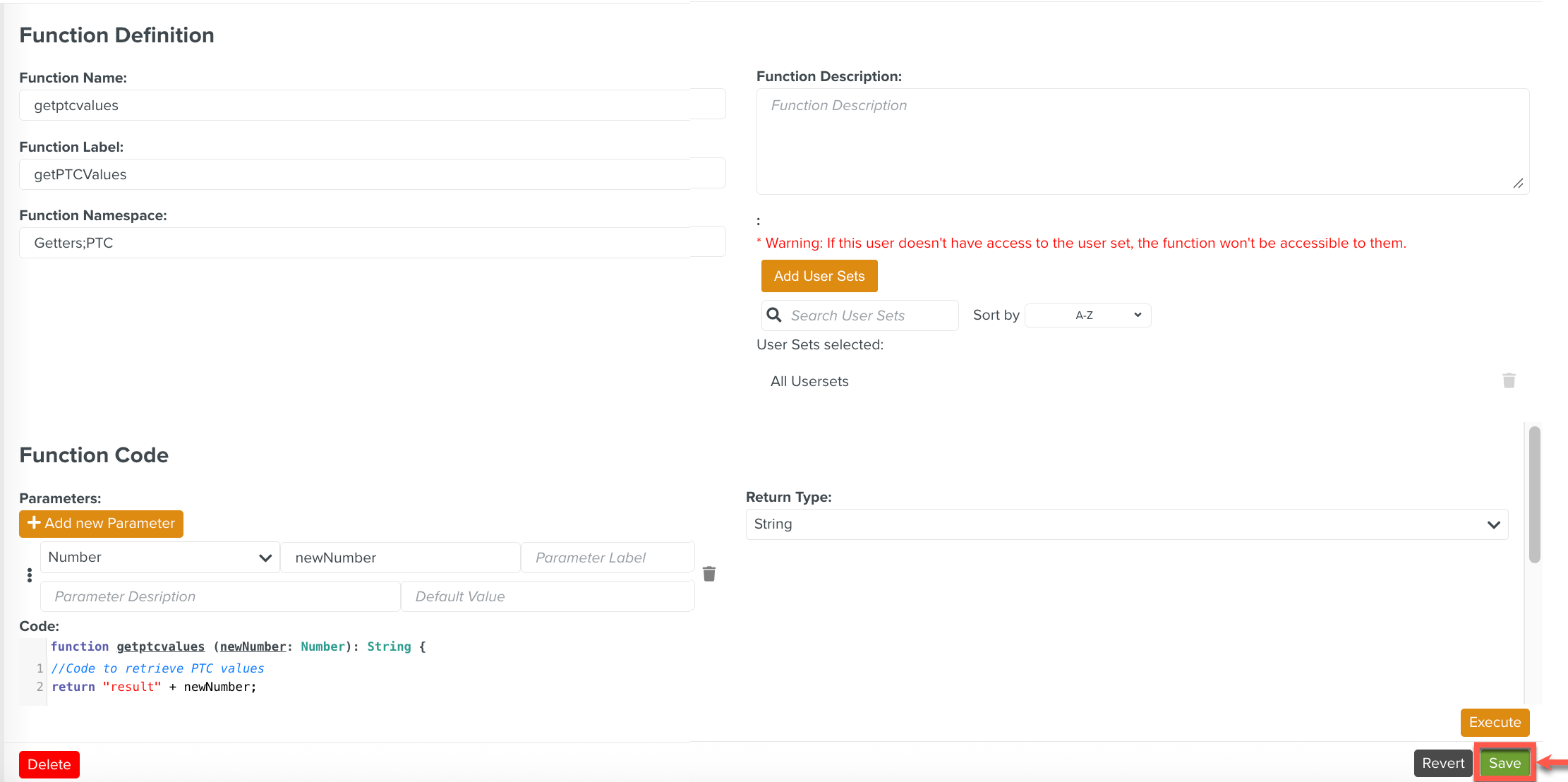
The Custom Function is created. Note that the Custom Function is created in the specified Namespace.
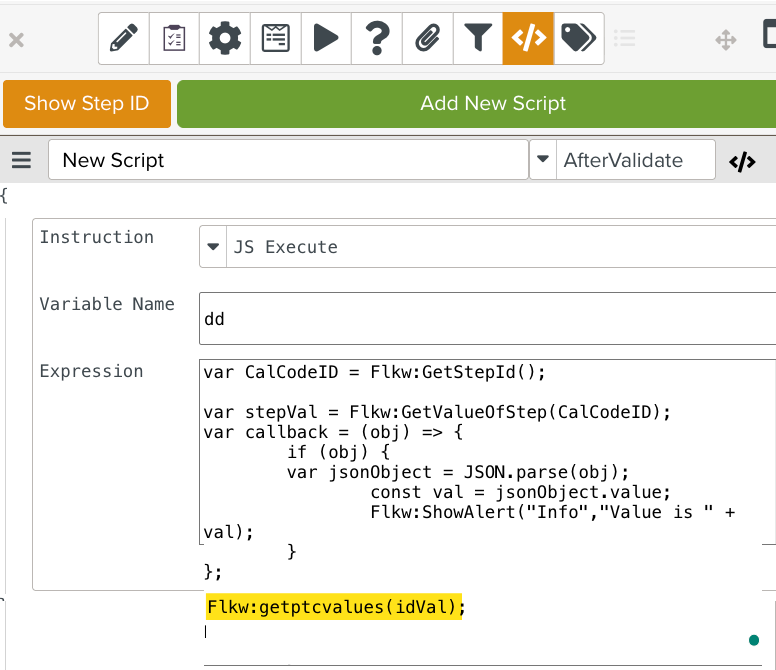
This Custom Function can then be used in scripts as a FieldLogs keyword. The FieldLogs keyword prefix Flkw: is followed by the Function Name. The example below shows the Custom Function getptcvalues used in a script.
 |