Changing UI Colors
In FieldLogs, you can change all the colors of the UI elements. You can customize your Enterprise with the colors of your organization.
To change the colors of the UI elements:
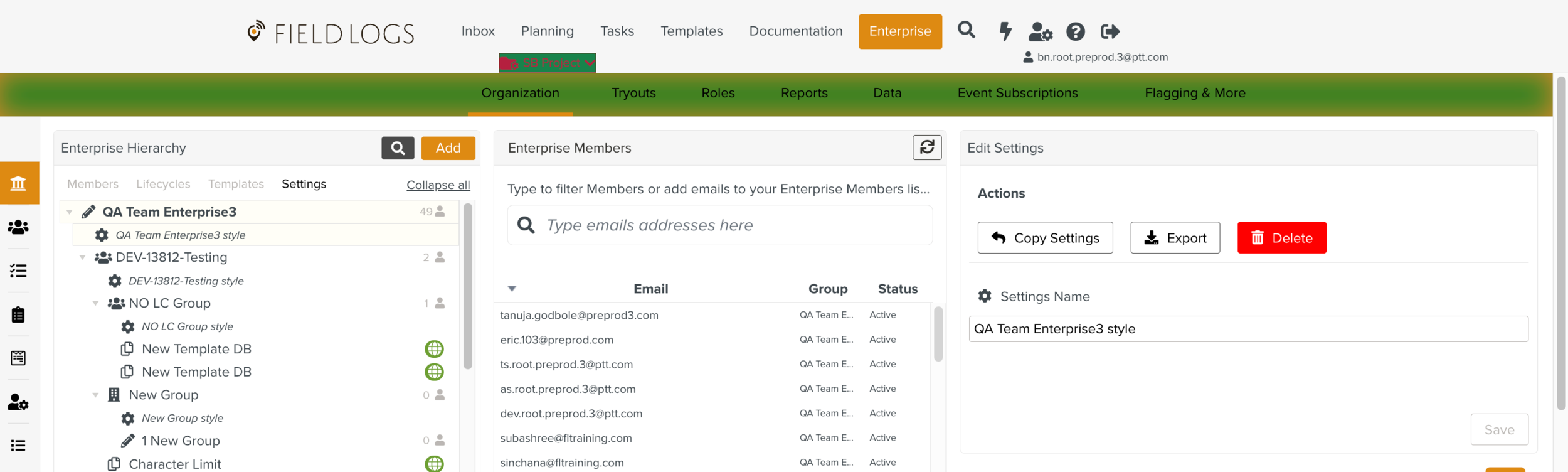
In the section , go to the tab >

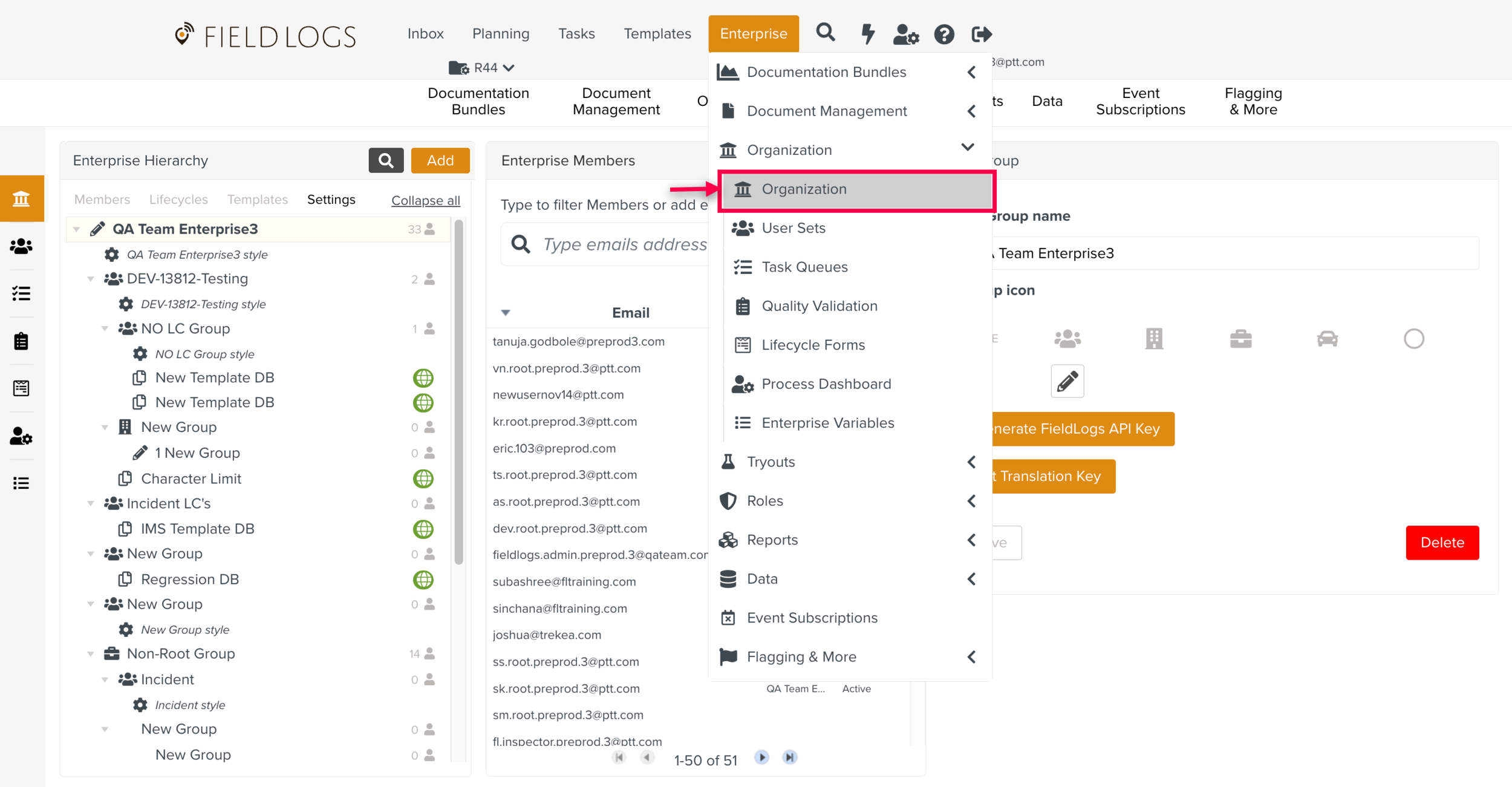
Go to the Styling tab.

Select an interface element in the list or use the pipette
 on the UI.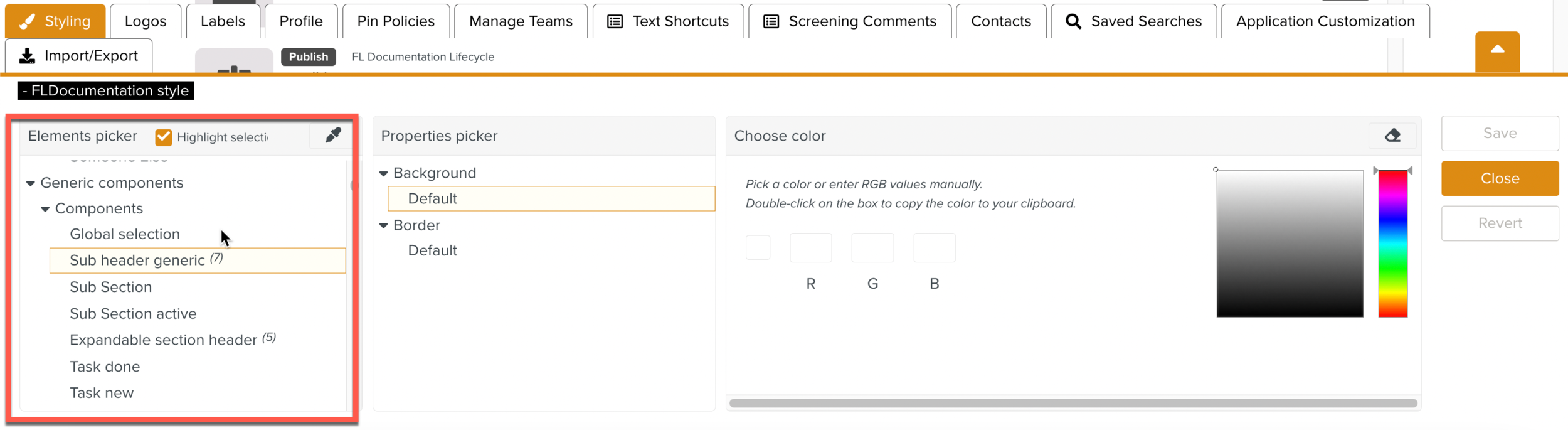
The selected element is highlighted if it is present in your view of FieldLogs.

Tip
You can navigate through FieldLogs. The panel remains open.
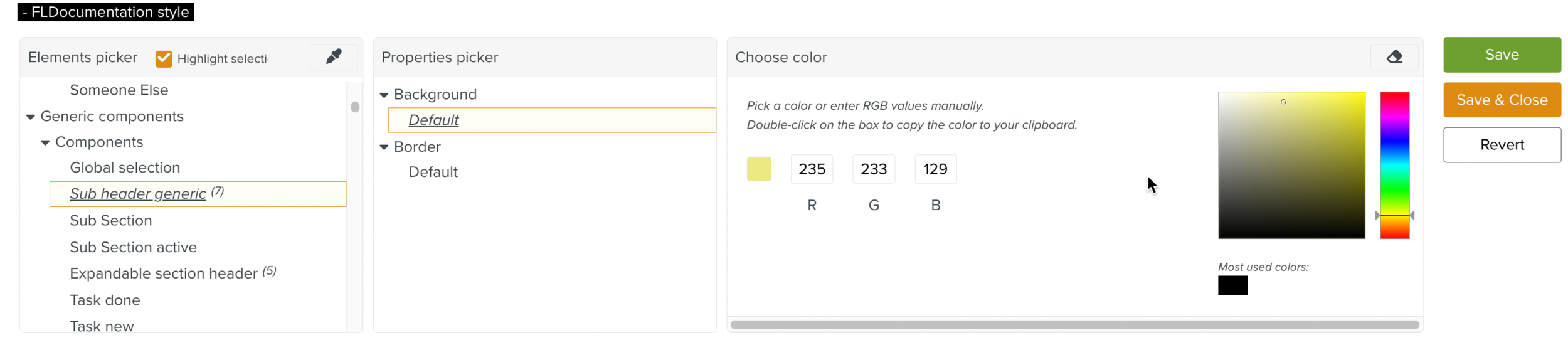
Select the aspect of the UI that needs to be changed. Background Text or Border.
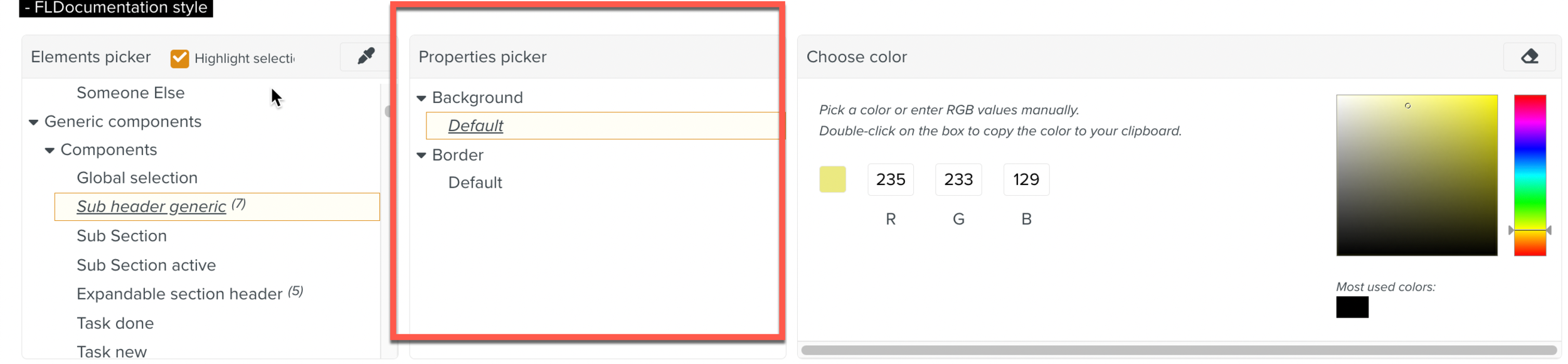
Choose a color. You can enter the RGB value or use the color chart.
Tip
To reinitiate the color, click on the
 button.
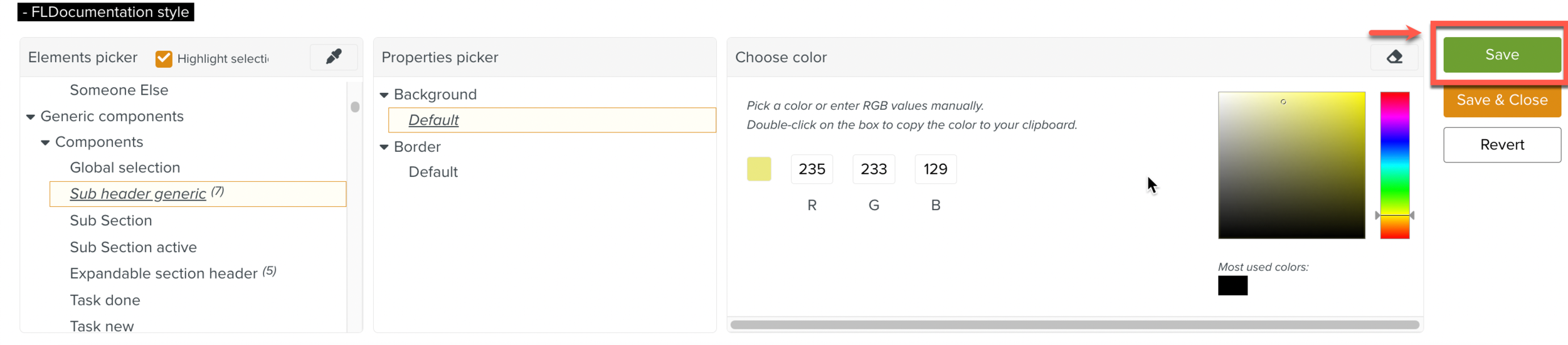
Click .
[Optional] Click
 to remove the applied styling.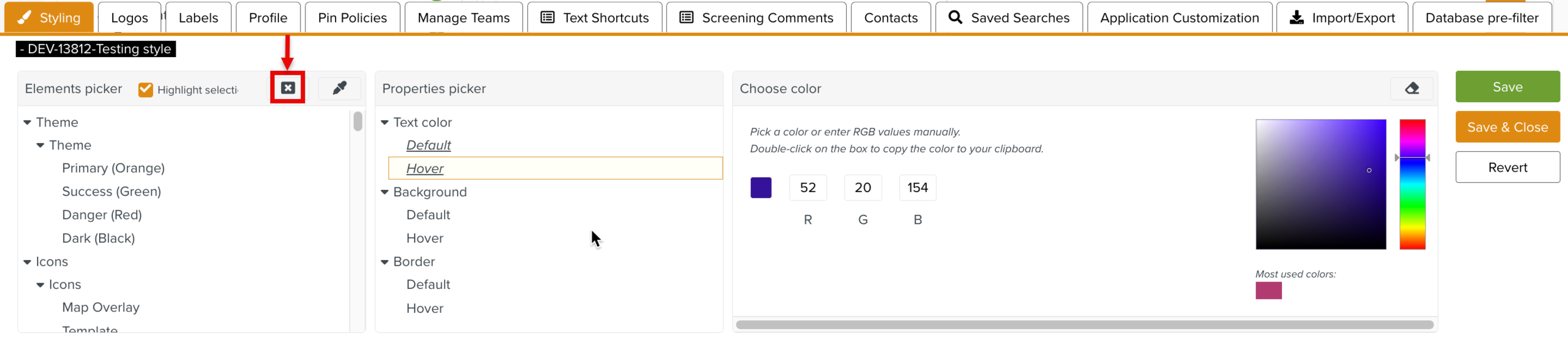
When you click
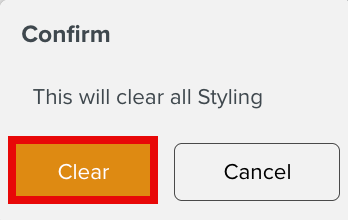
 , a confirmation pop-up appears. Click Clear to remove all the applied styling.