Tracking Time on Tasks using the App
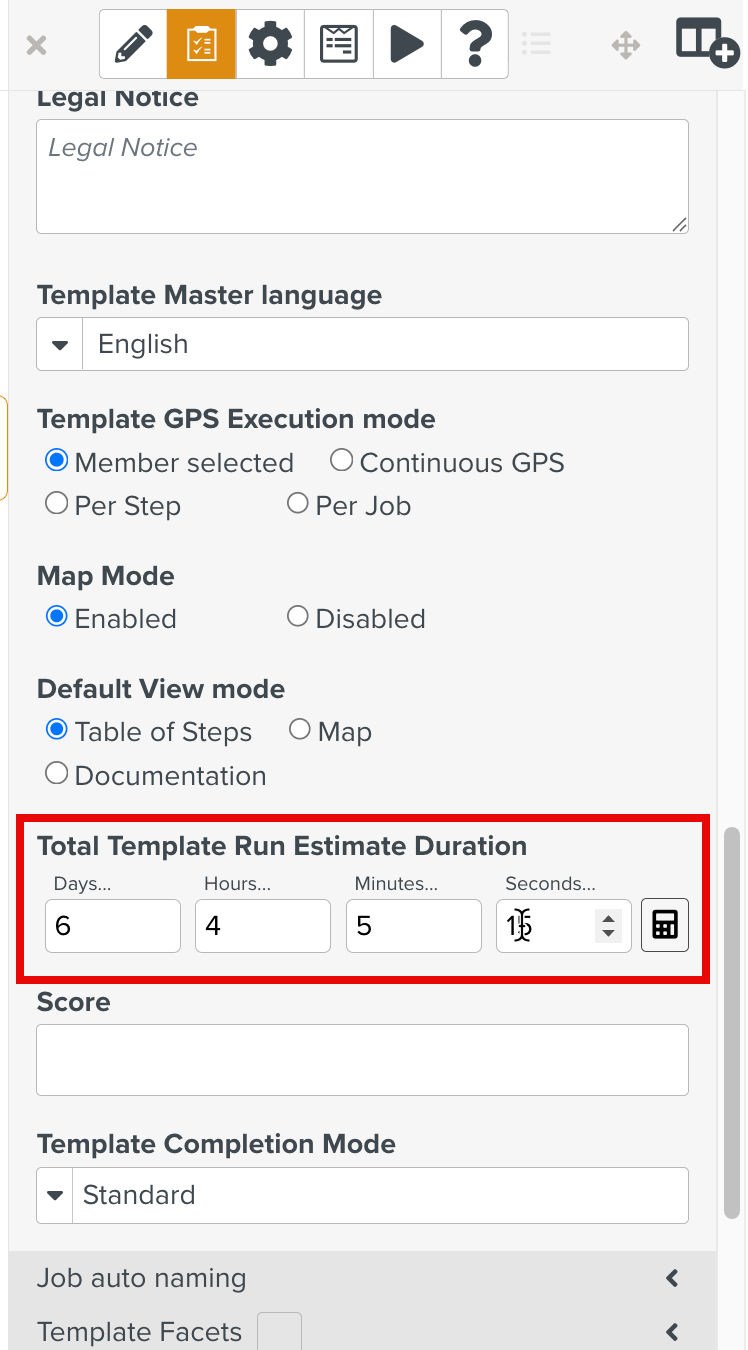
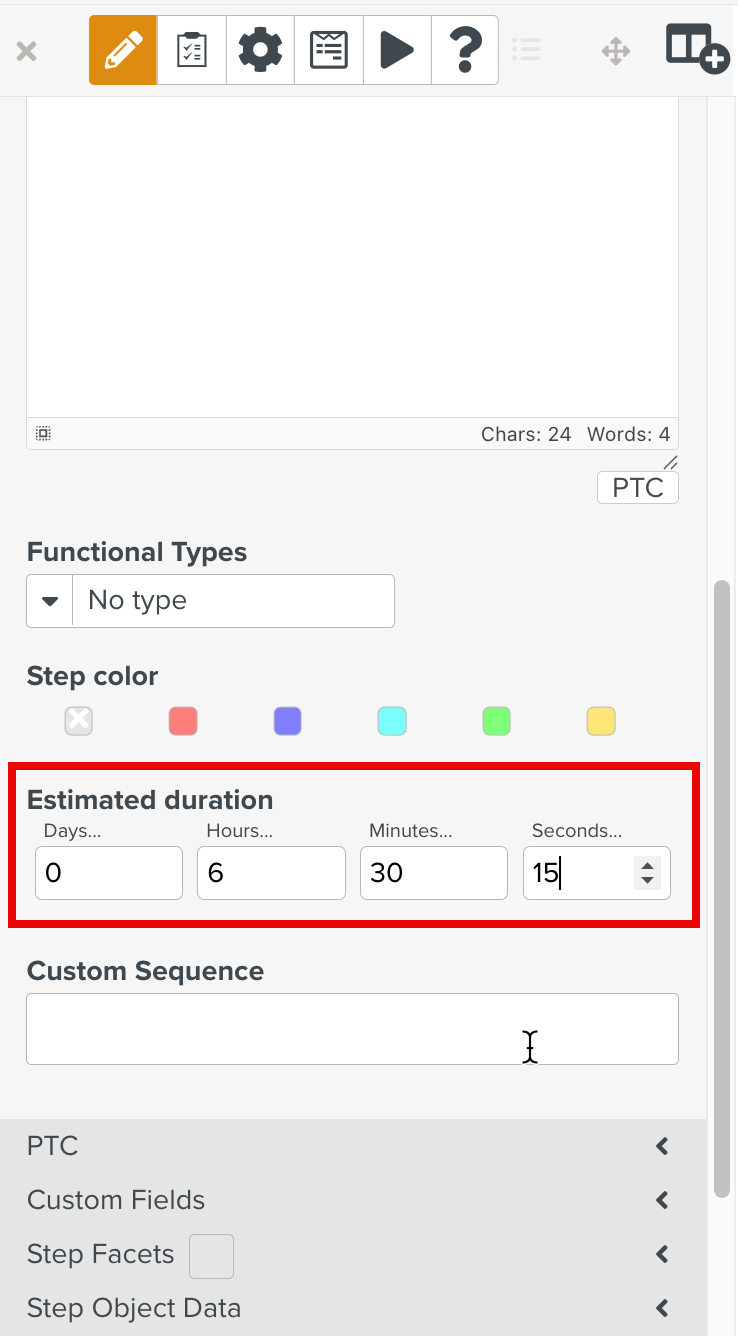
Time spent on executing a Task can be tracked. Time tracking can only be done on a Task if the associated Template has the Estimated Duration set. The Estimated Duration can also be set on a Step as shown below.
 |
 |
During Task execution, you can track the time spent on Steps and on the Task.
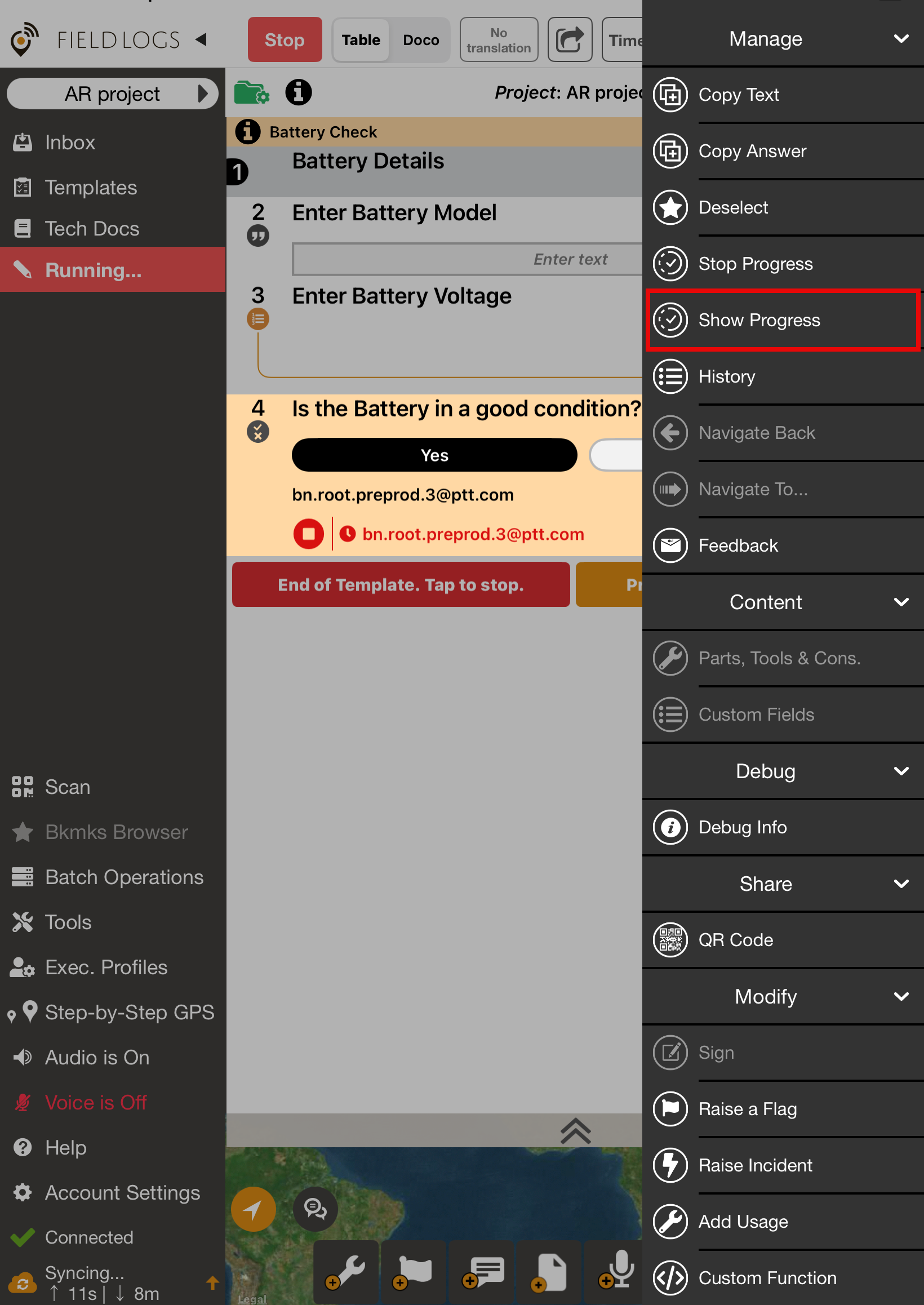
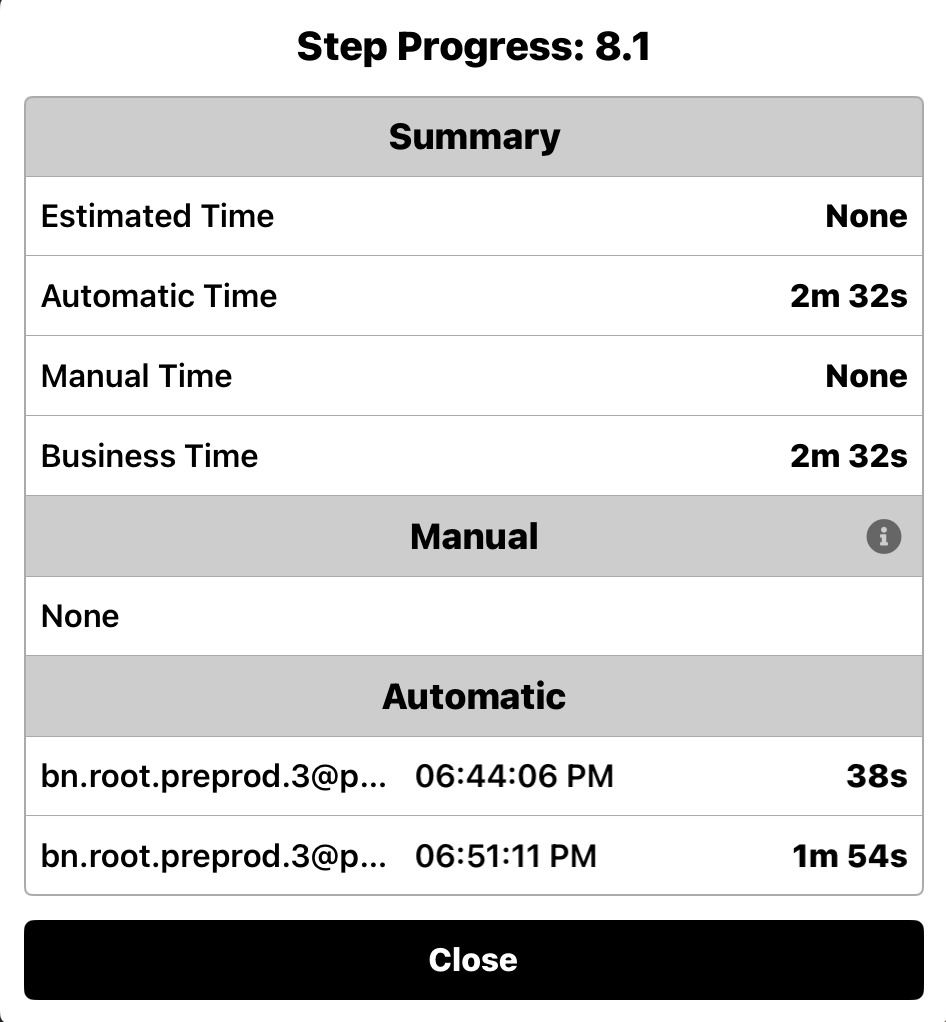
To view the Time Tracked on a Step, tap Show Progress from the contextual menu.
 |
 |
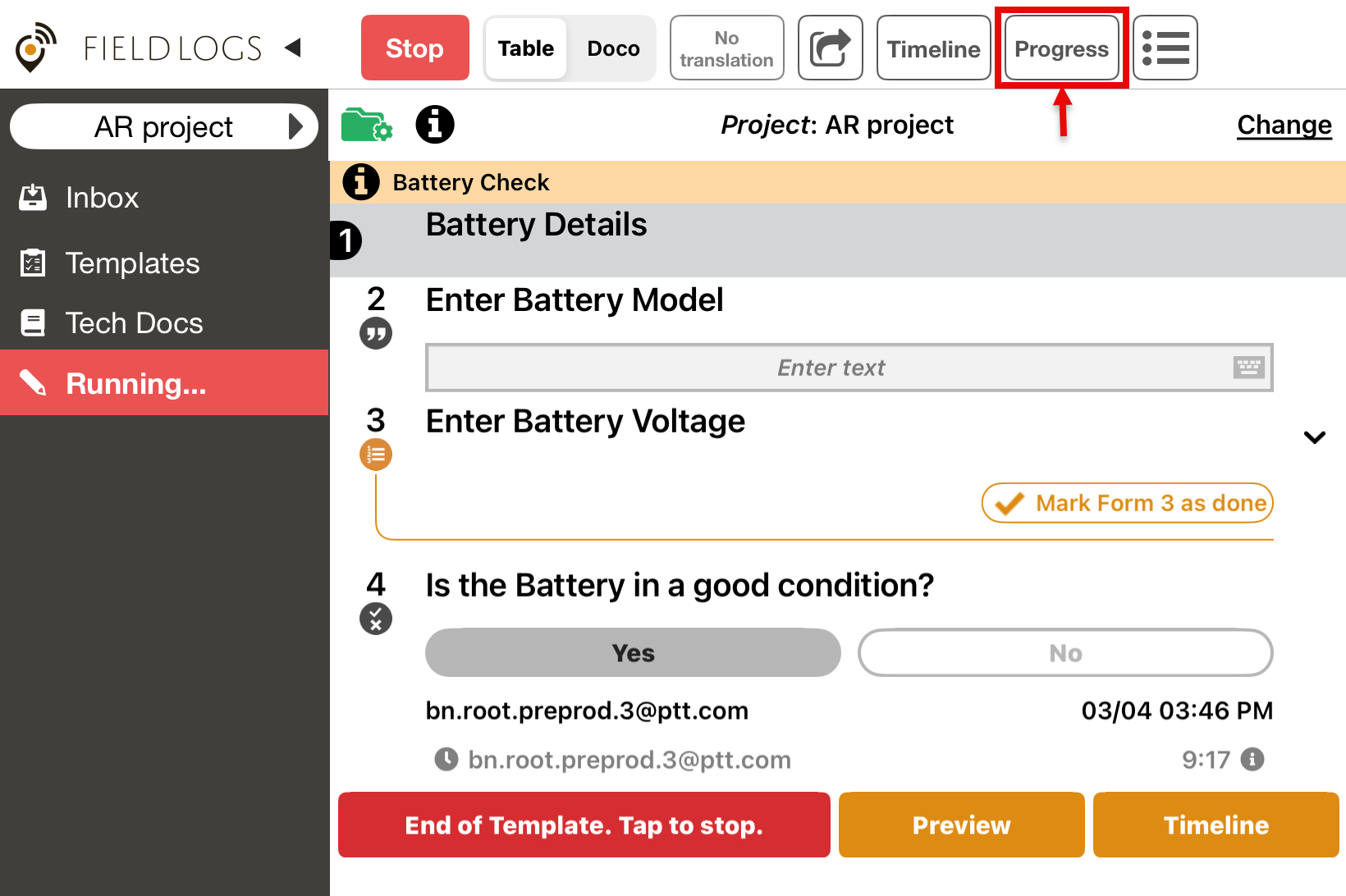
To view the Time Tracked on a Task, tap as highlighted below.
 |
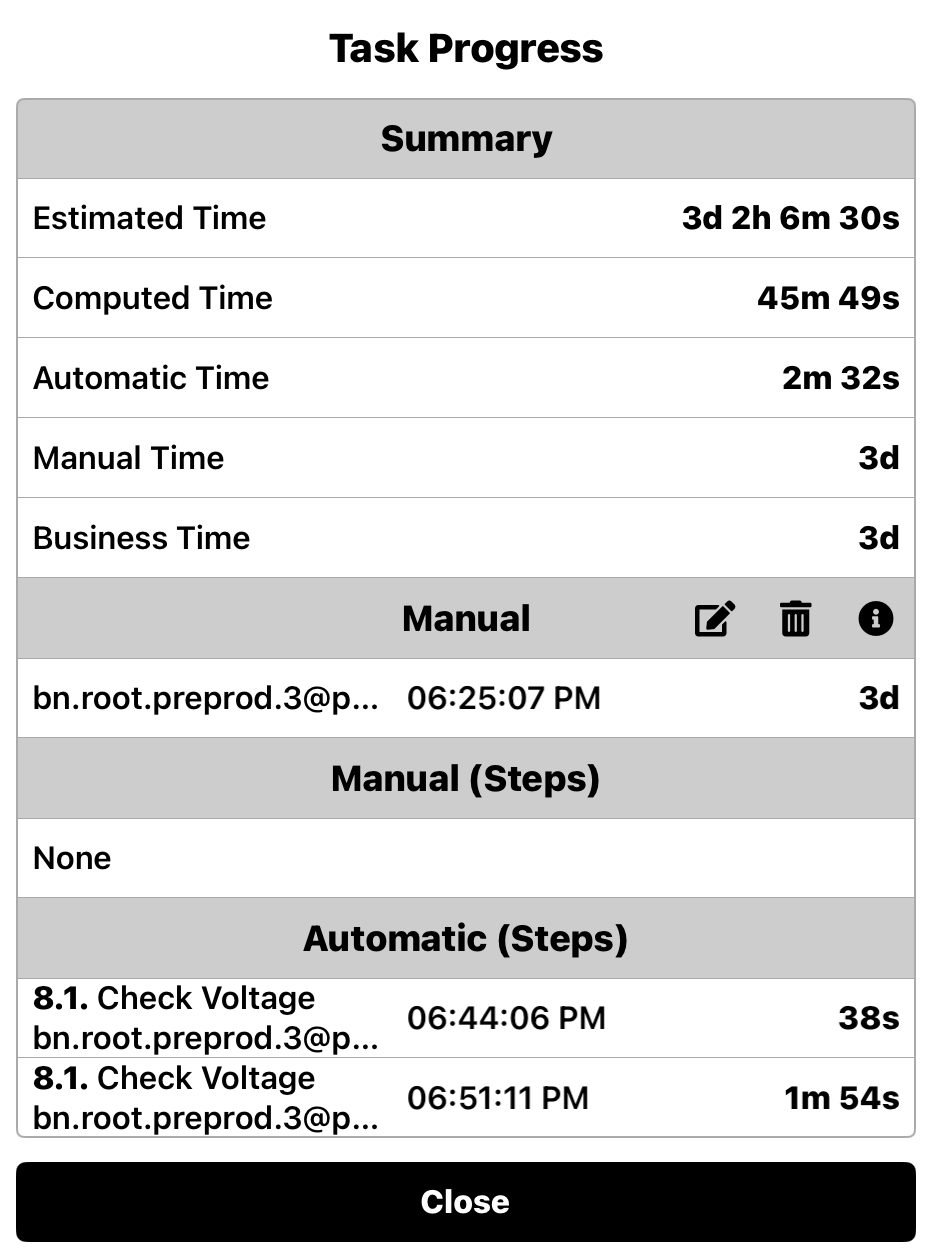 |
The Task Progress summary lists the following Times:
Estimated Time: Estimated Time(s) on the Steps and/or Task is defined in the Template.
Computed Time: Cumulative time of all acquisition intervals.
Let us consider that two users need to work on a Task.
User 1 starts the Task and works on it for 5 minutes.
User 2 resumes the same task the next day and works for 10 minutes.
The Computed Time is the total time. 5 minutes (User 1) + 10 minutes (User 2) = 15 minutes.
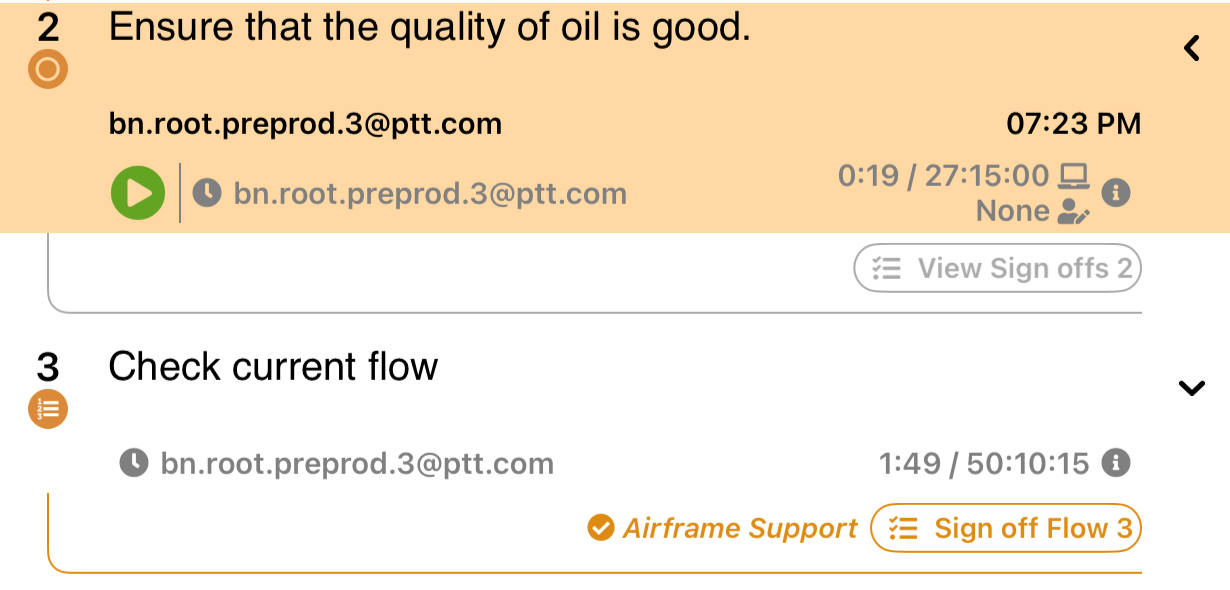
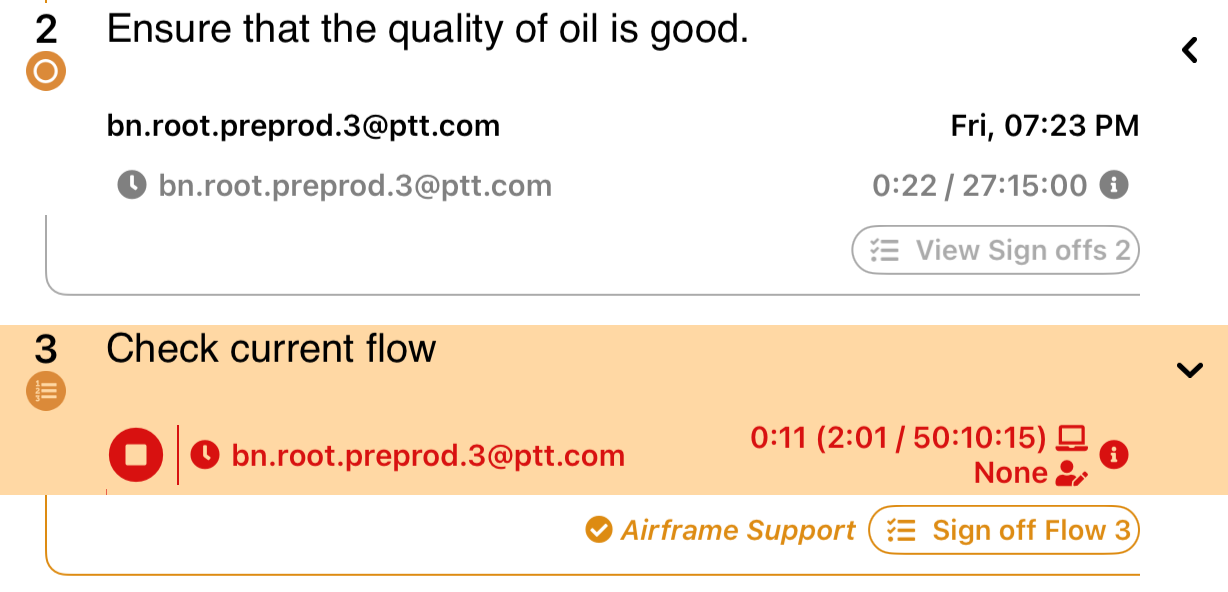
Automatic Time: If the Estimated time has been set on a Step, time tracking starts automatically when the user starts working on the Step. If the user then switches to another Step, time tracking stops automatically.
In the example below, an estimated time is assigned to Step 2. When the user begins working on Step 2, the automatic timer starts. The timer stops automatically when the user switches to a different step.
If a Parent Step has Estimated Time set, Time tracking starts when you start working on any of its child Steps.
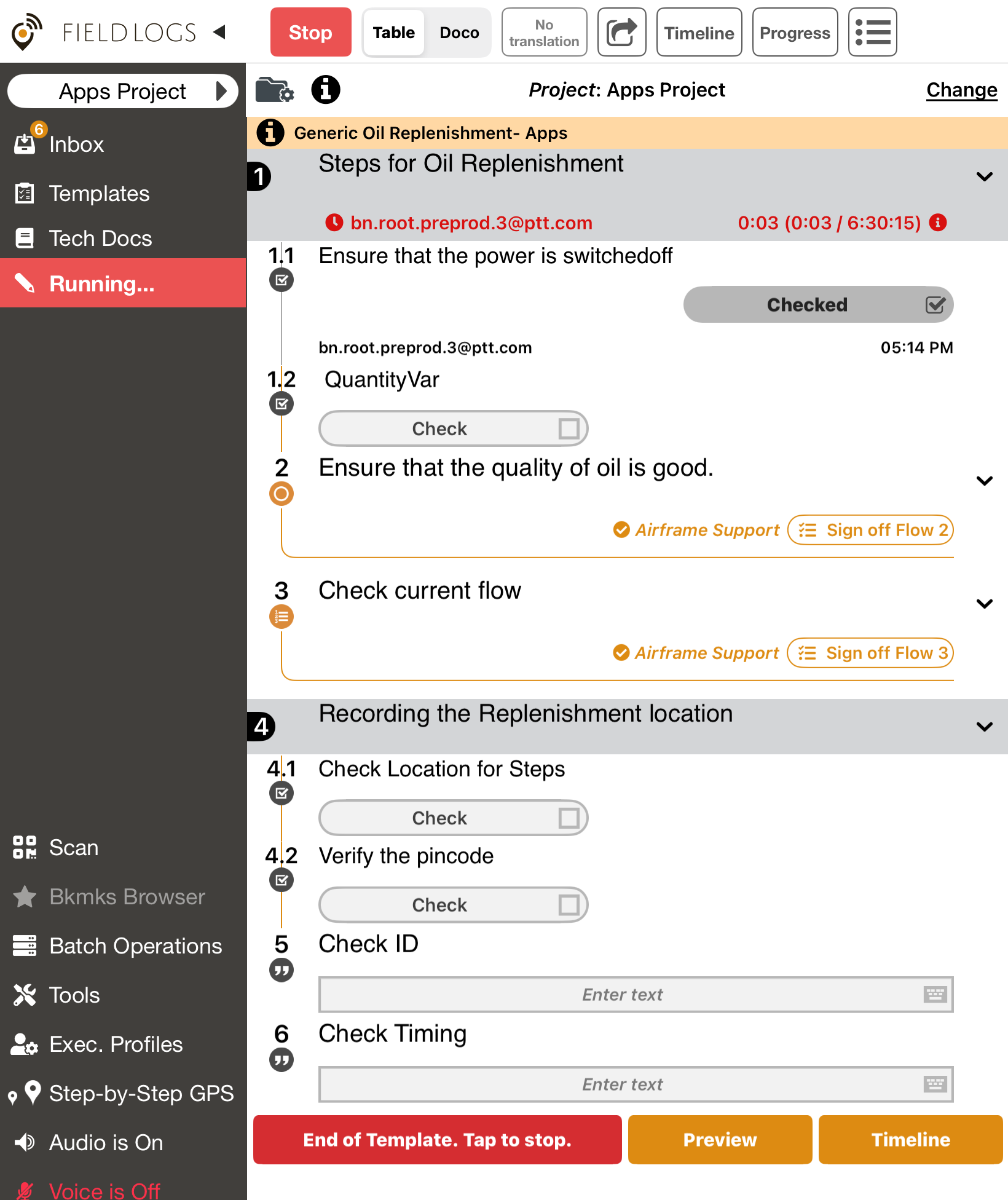
In the example below, Estimated duration is set on Step 1. When the user starts working on child step 1.1, Time tracking starts as shown.
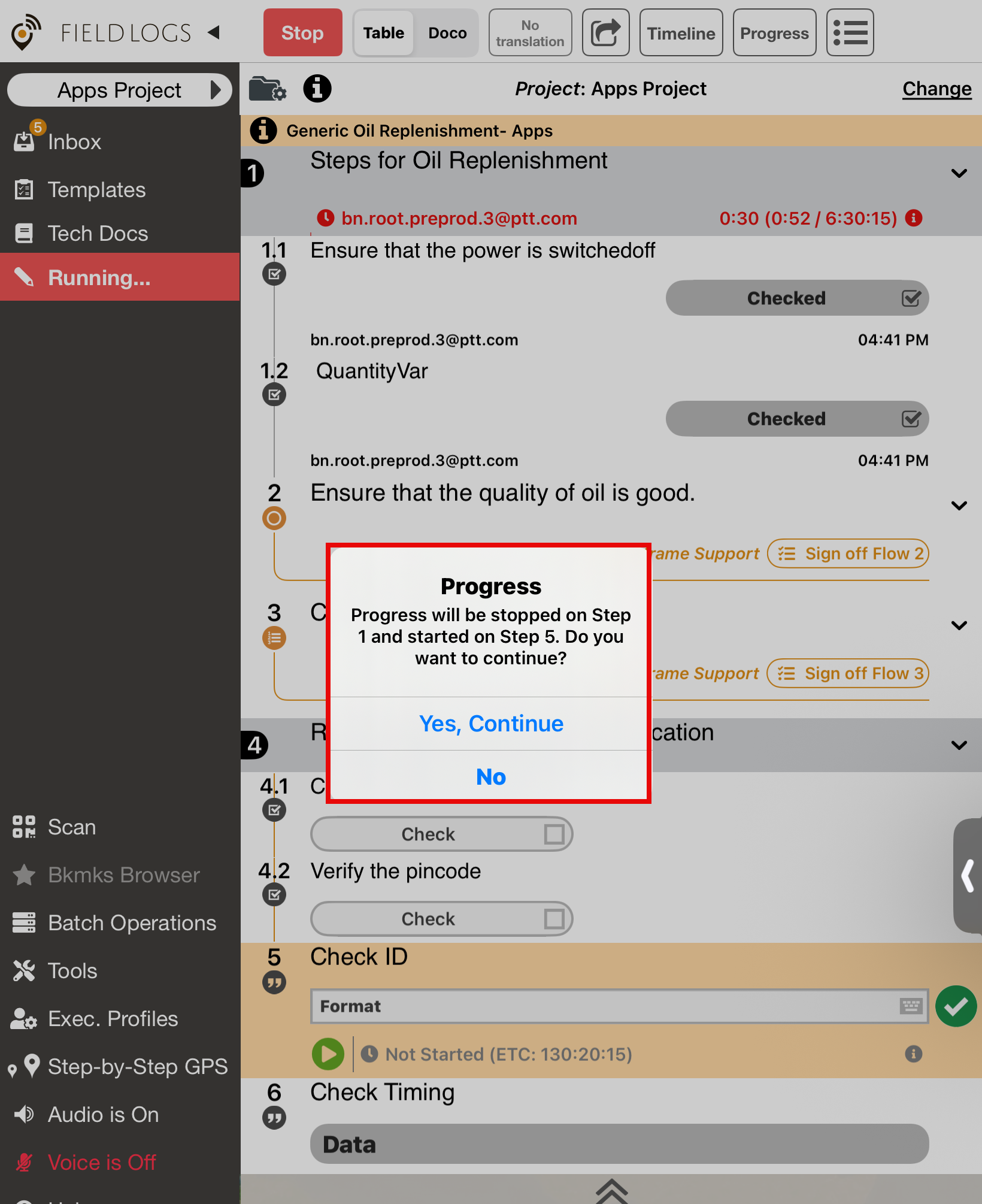
When the user switches to step 5, which also has Time tracking enabled, the following message appears.
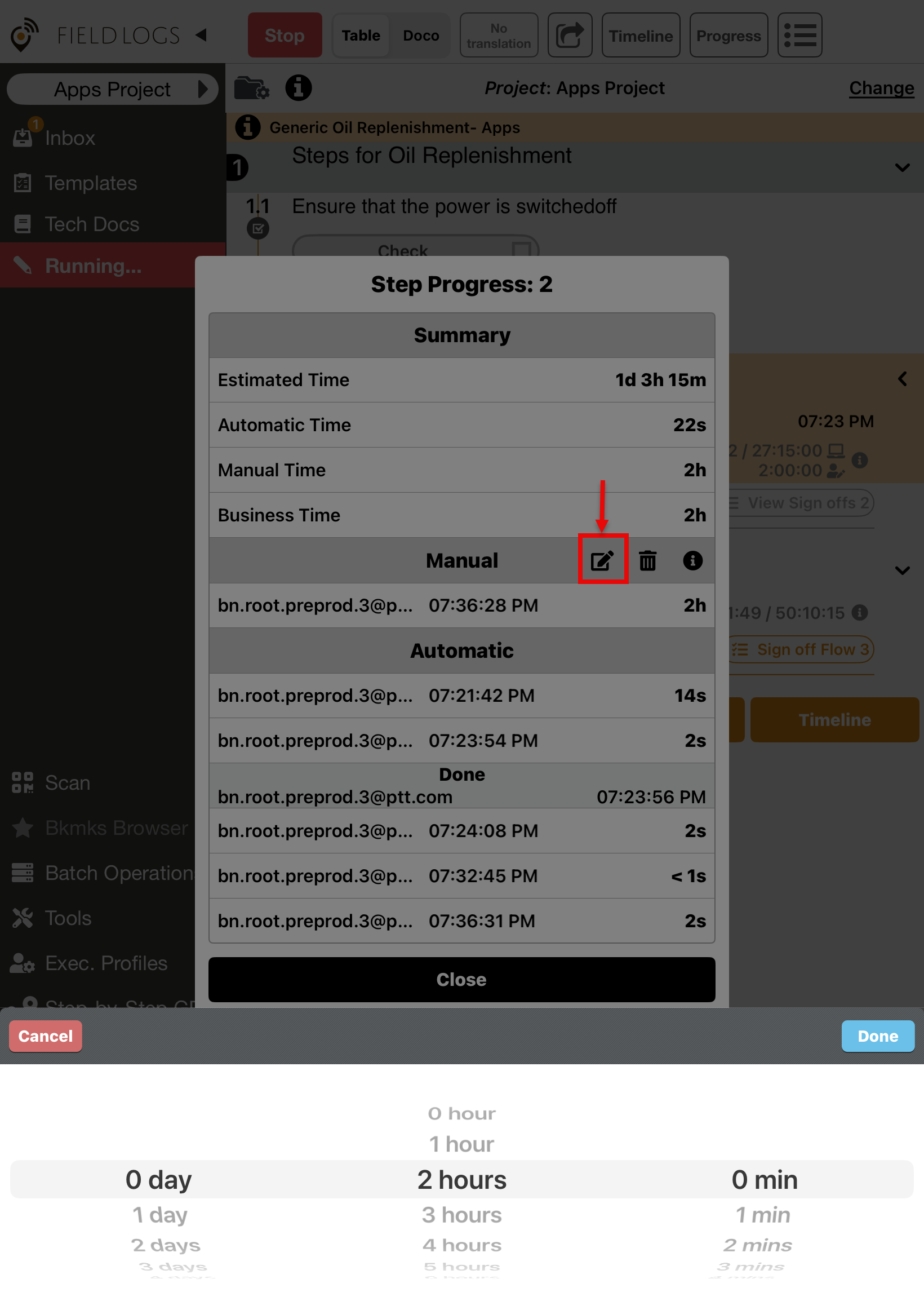
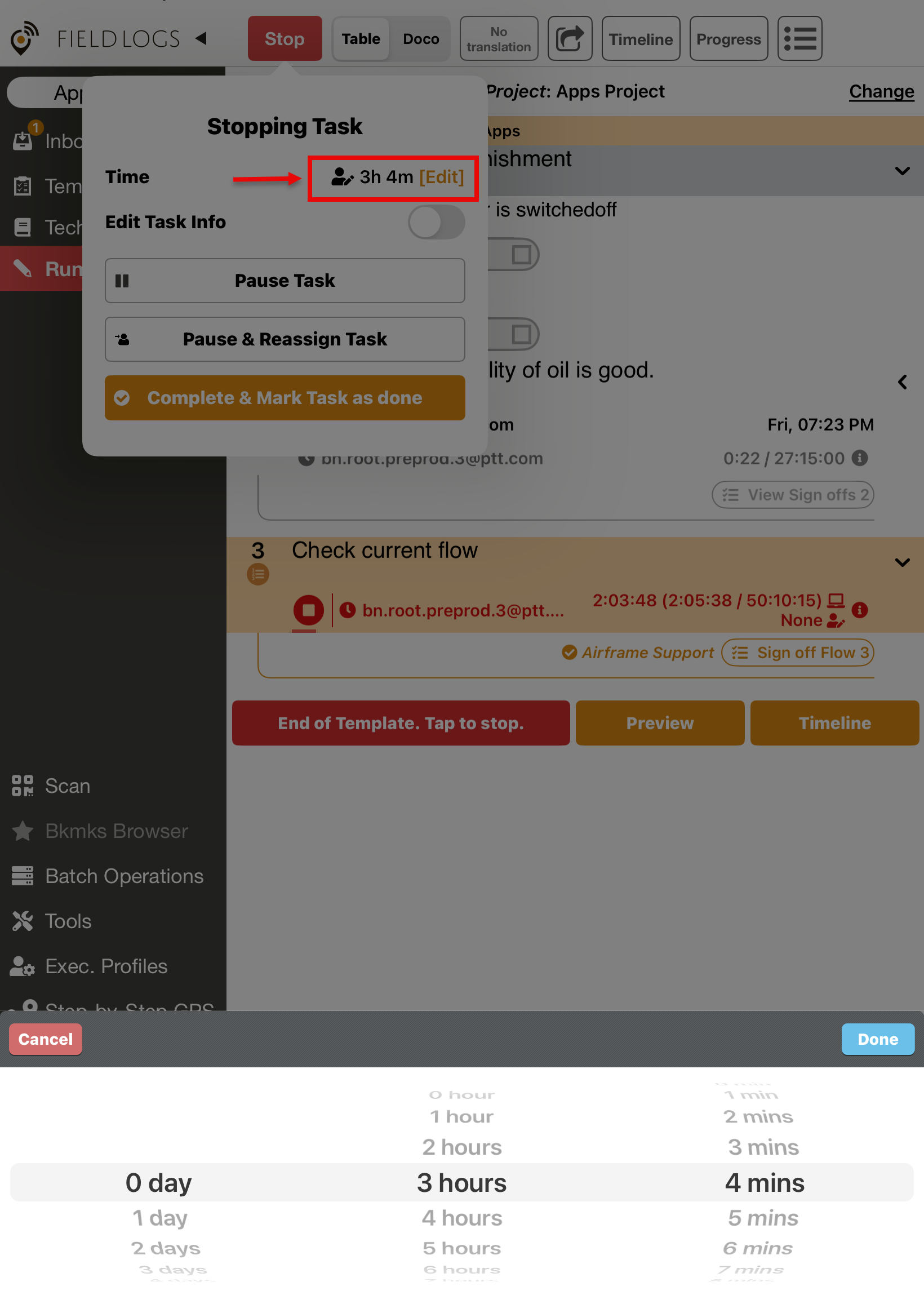
Manual Time: Time entered manually when the user overrides or adjusts the recorded duration. Manual time can be set at both the Step level and the Task level.
At the Step level, the manual time can be set at the Step Progress and Signoff screen.
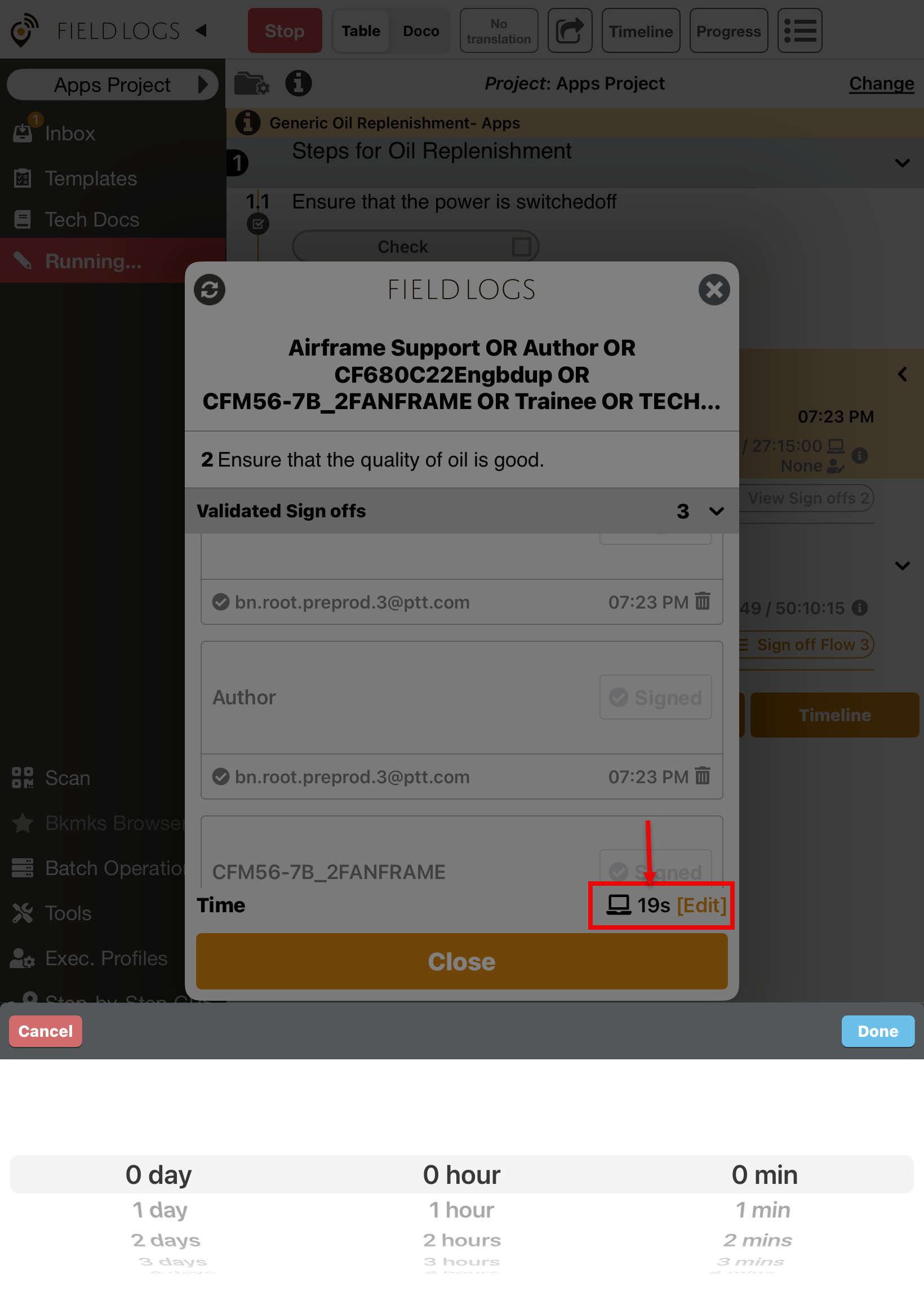
At the Task level, the manual time can be set at the Task Progress and near Stop button
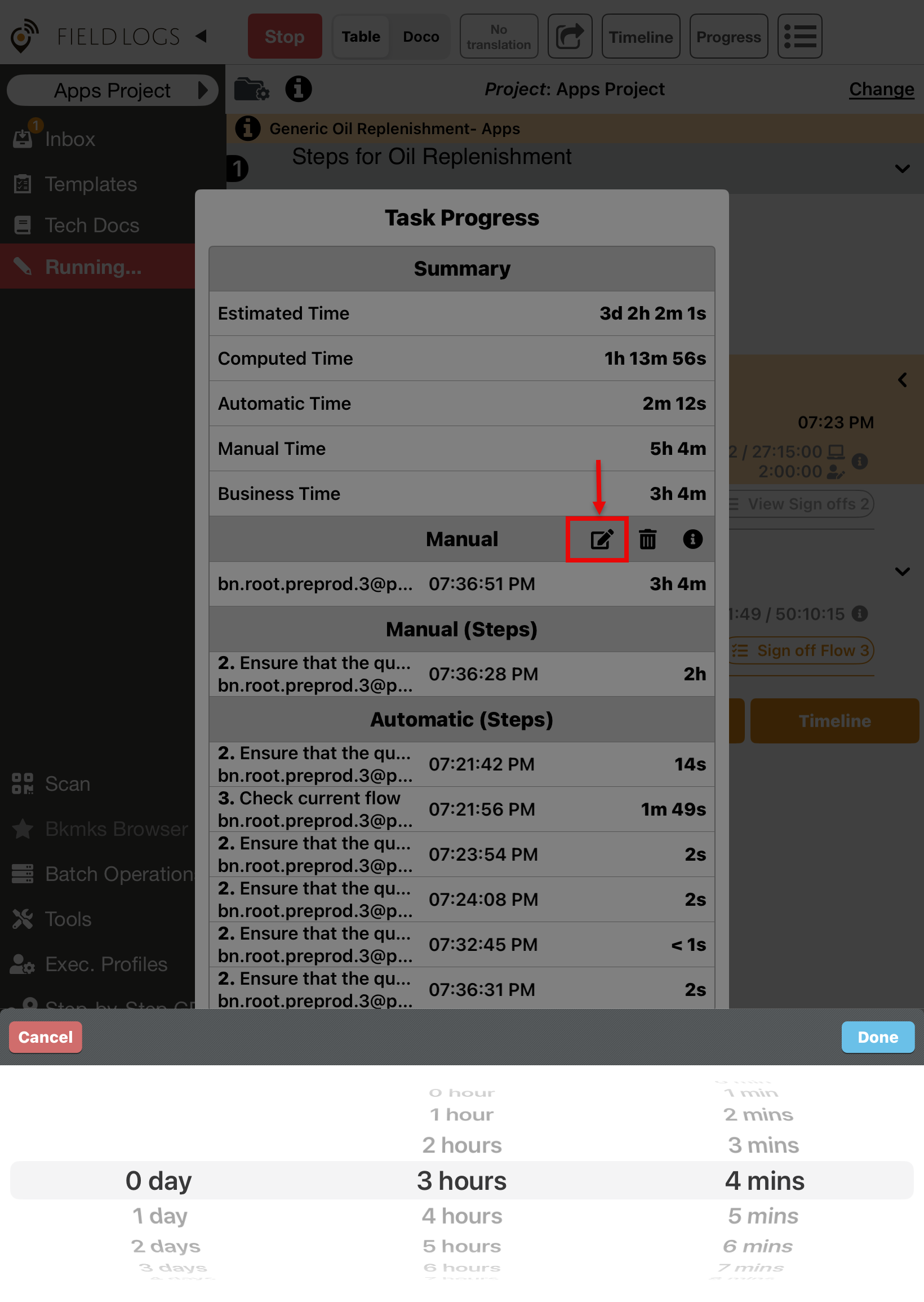
Business Time: Business Time represents the total accumulated duration derived from all the different Time types combined.
Step 1
Automatic time recorded = 5 minutes
Manual time entered = 10 minutes
Step 2
Automatic time recorded = 3 minutes
Manual time= 0
Manual time is of higher priority than Automatic time.
Buisness Time
10 min (Step 1) + 3 min (Step 2) = 13 minutes