Viewing Raised Incidents on the Application
You must have the appropriate access rights to view the raised Incidents on the application:
All the Incidents raised on the application can be viewed as a list.
To view all Incidents:
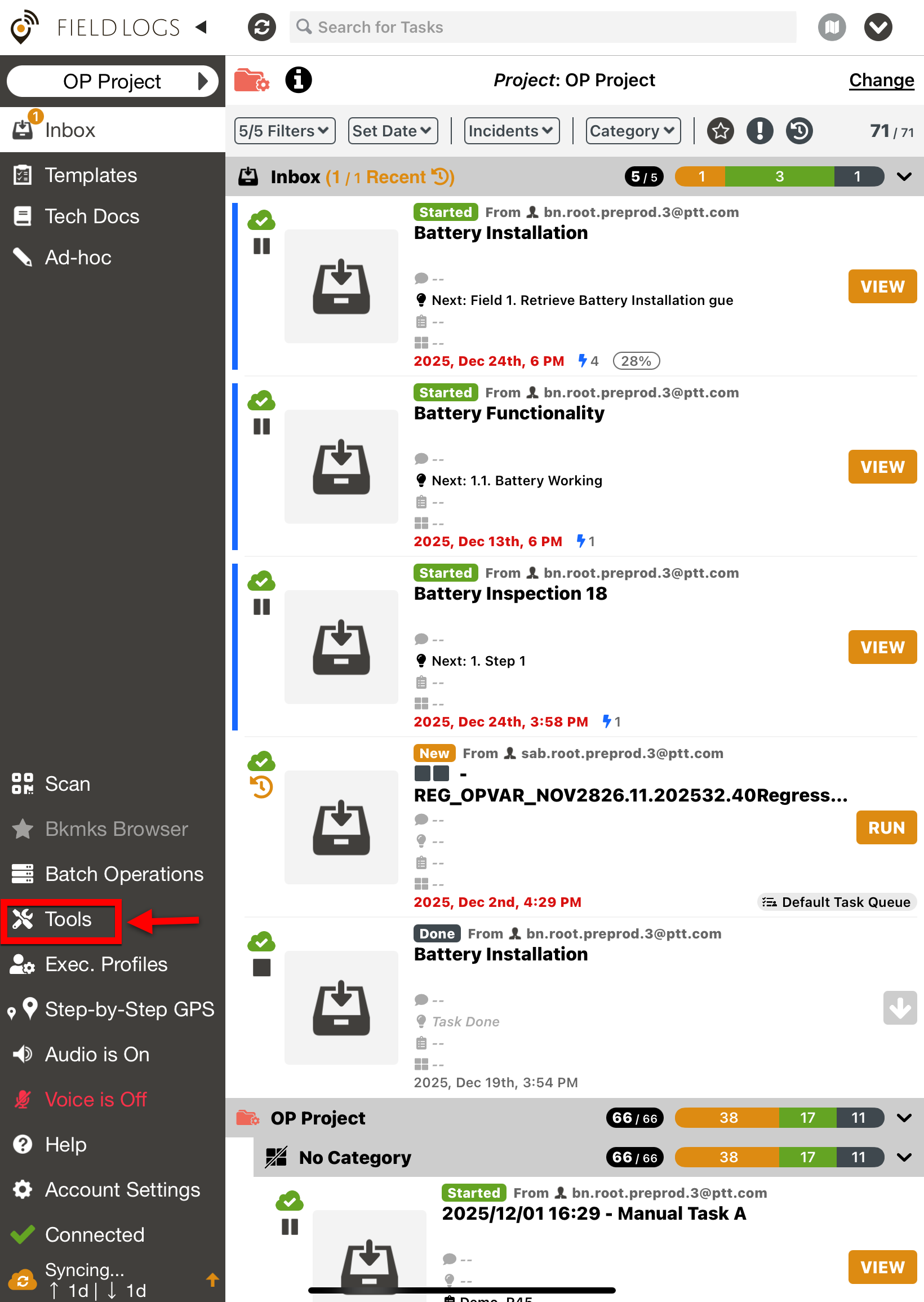
On the left panel, click on Tools.
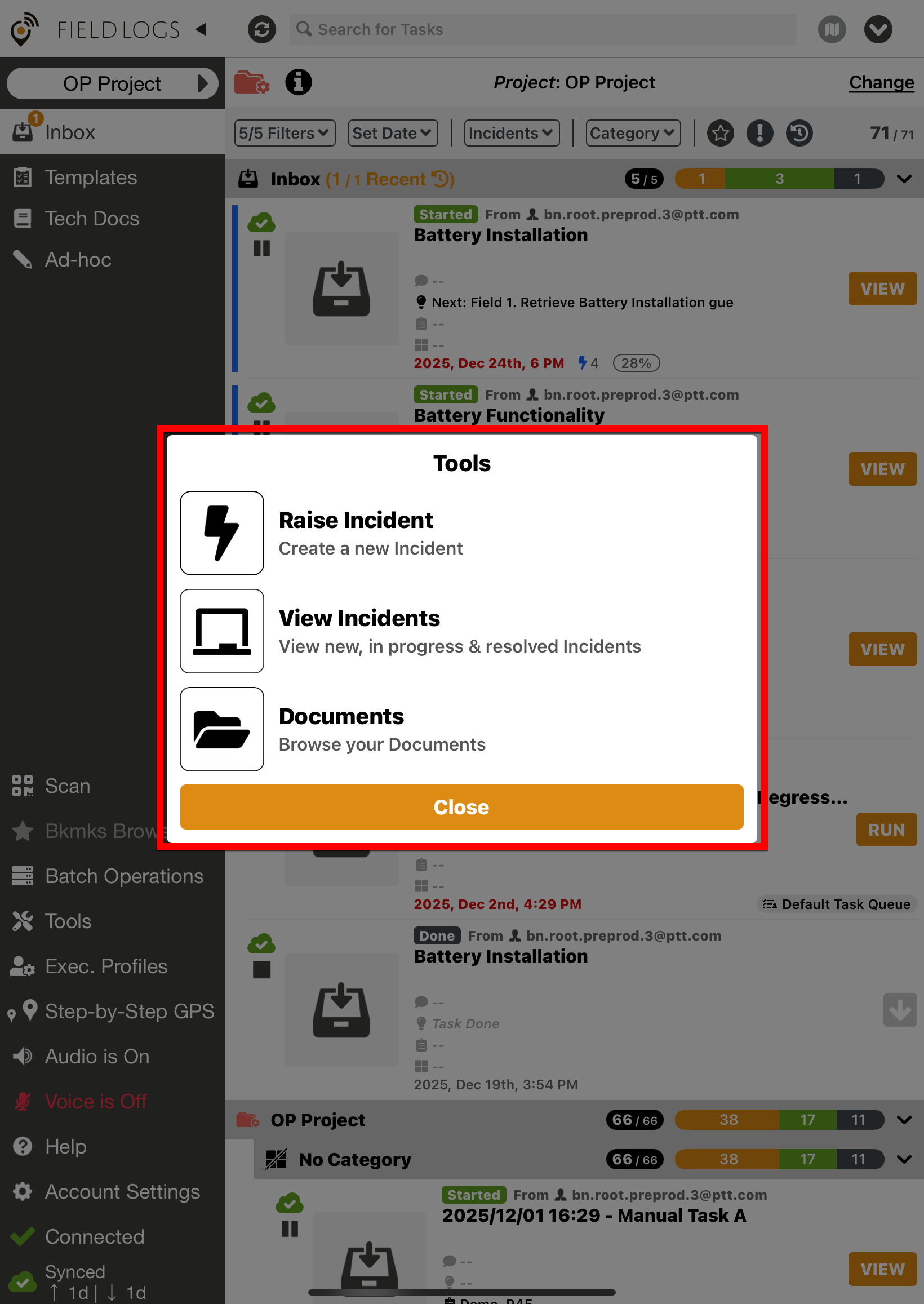
The dialog Tools appears.
Click .
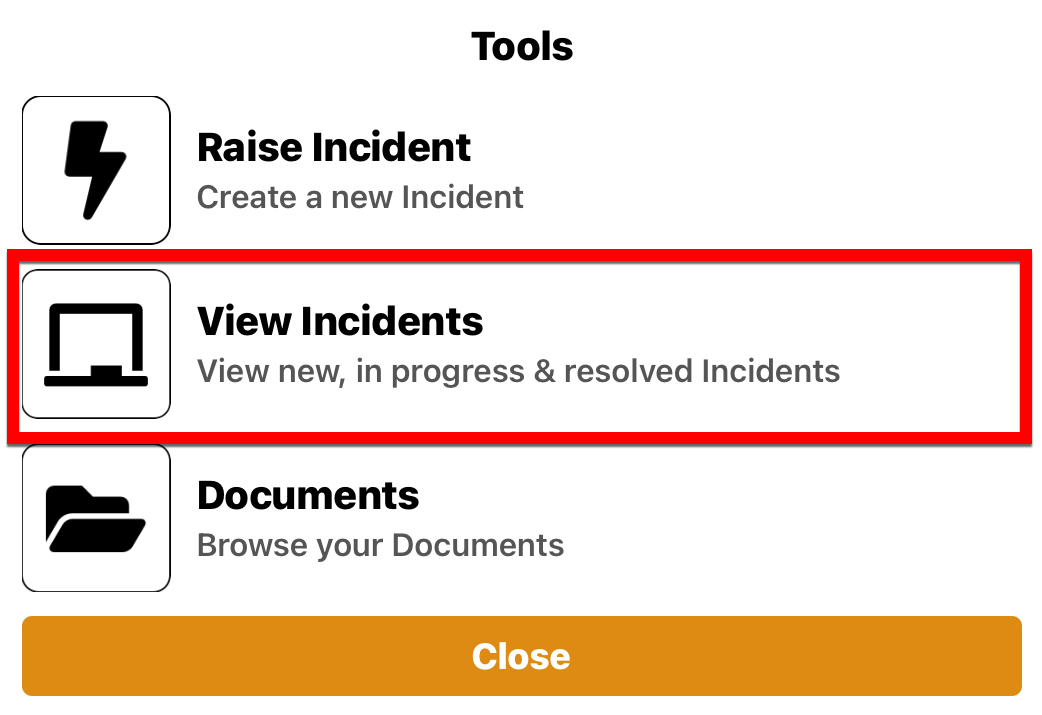
The dailog appears.
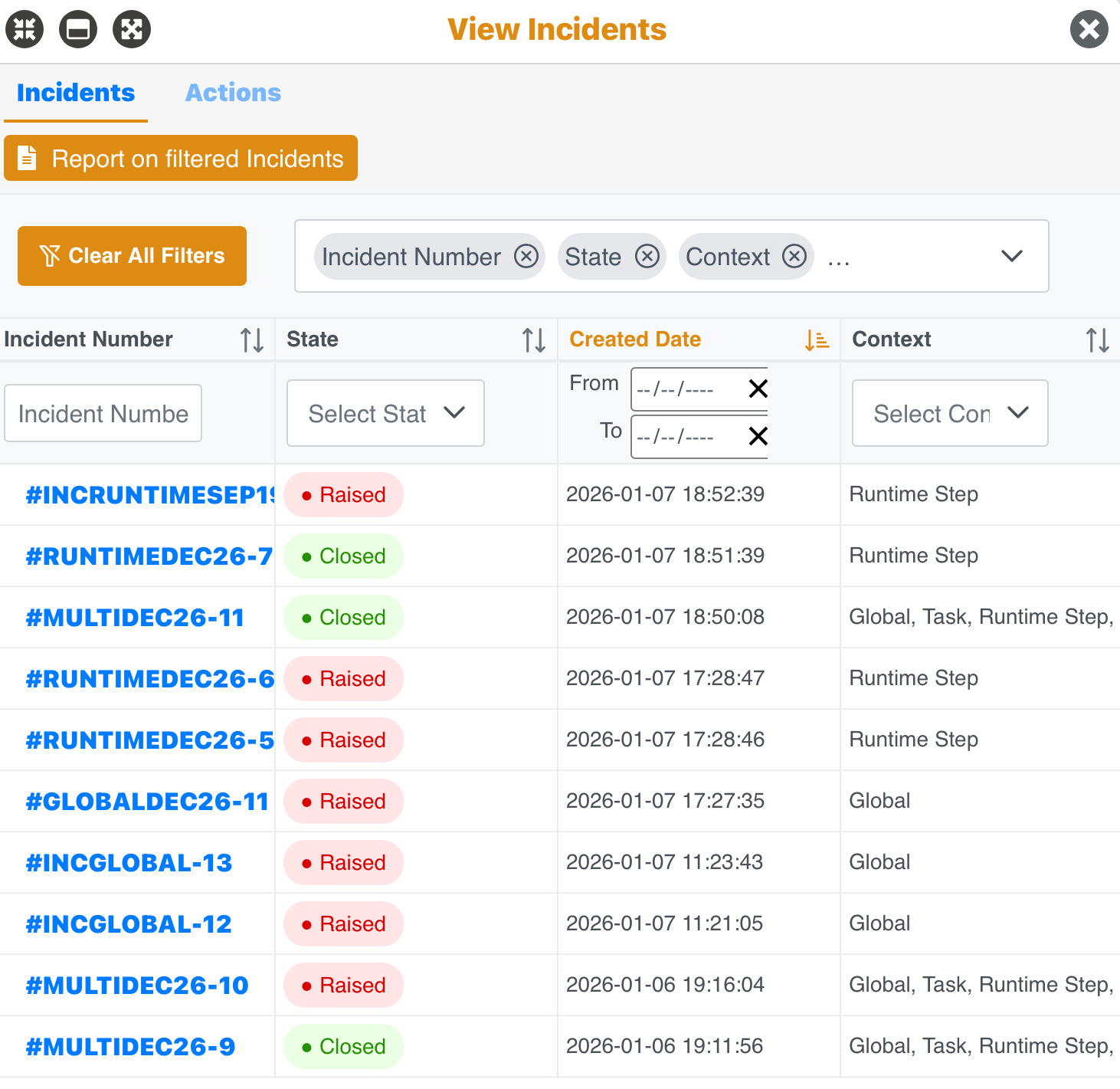
All Incidents raised across different contexts can be viewed here.
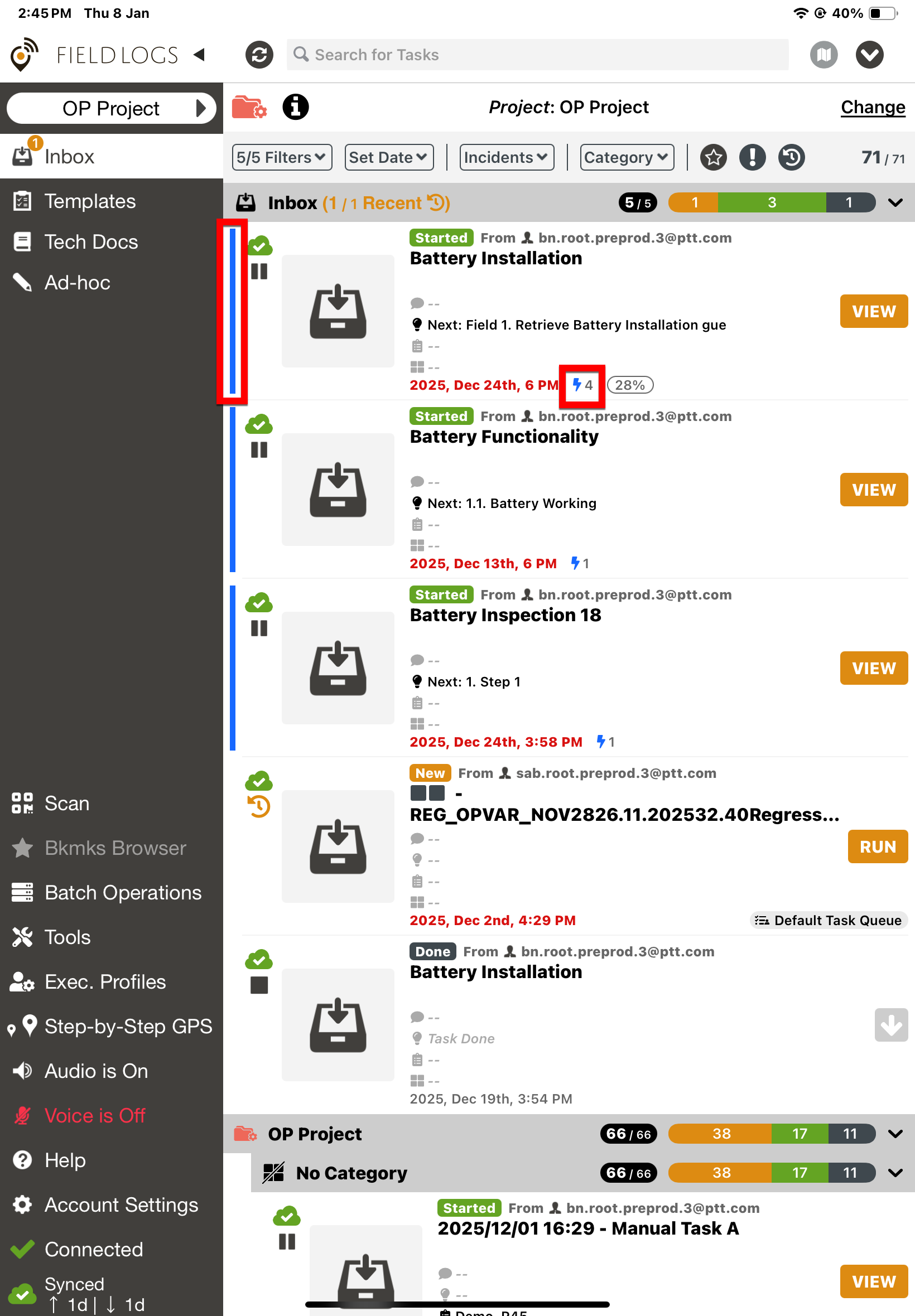
Incident indicators help us identify when a Task or step has associated active Incidents
Thunderbolt icon: Appears on Tasks with active Incidents. Tap the icon to open the list of Incidents for that Task.
Left-side color bar: Changes to blue when at least one Incident is linked to the Task.
Note
When offline, Indicators are displayed. but the incident details cannot be accessed.
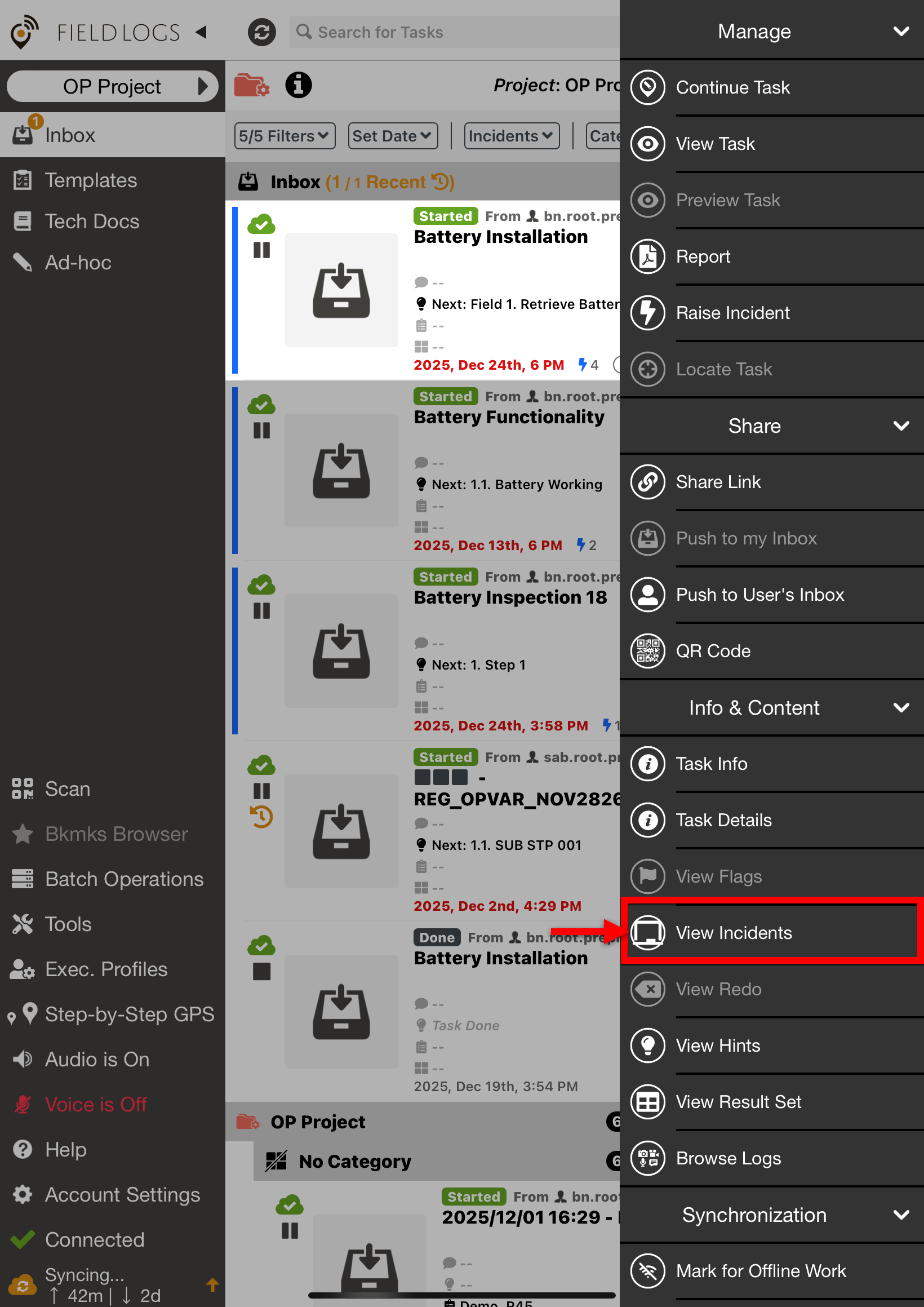
When you select the required Task, the contextual menu is displayed.
 |
Click View Incidents , to view any Incidents including closed ones.
 |
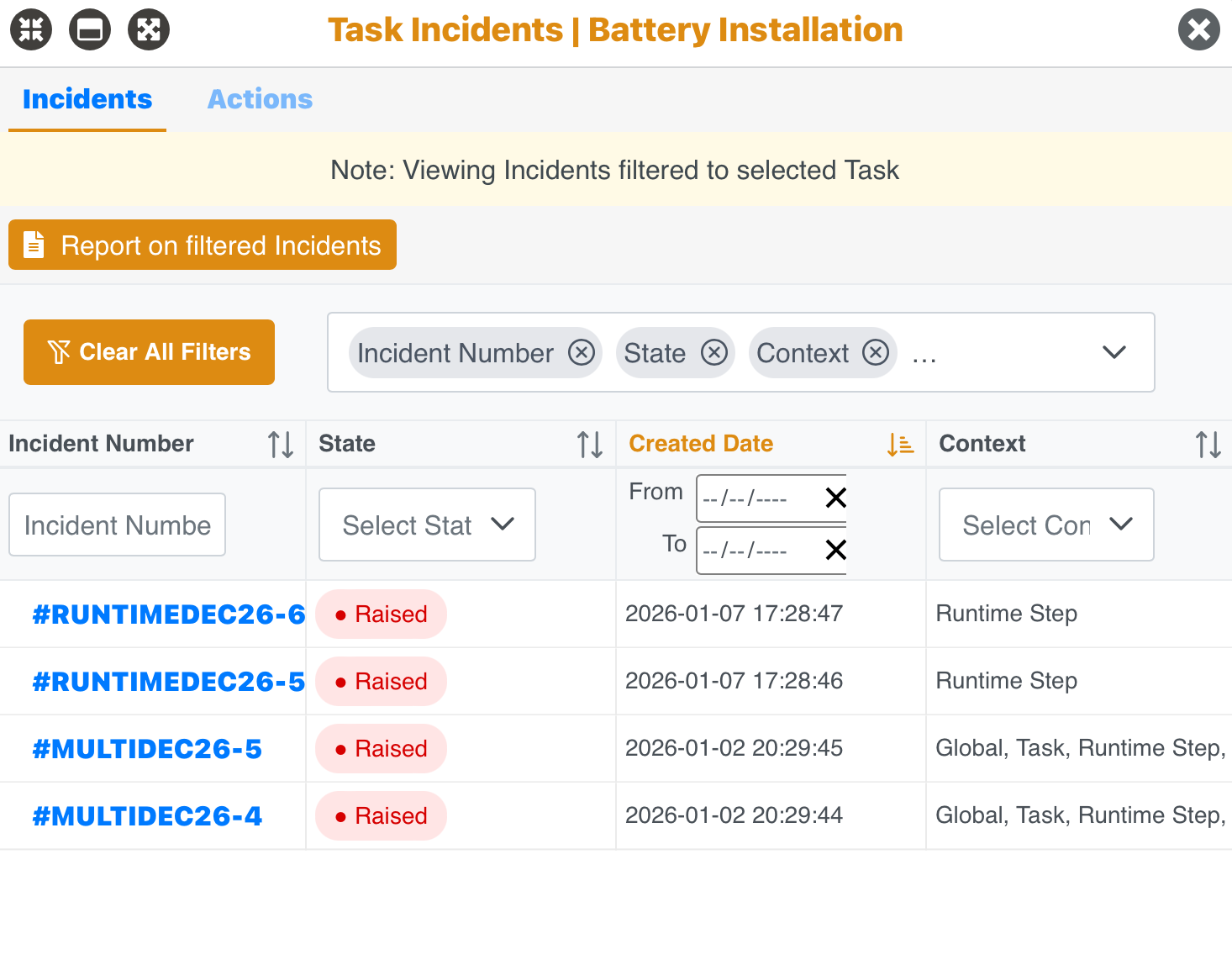
The list of all Incidents are displayed as shown below.
 |
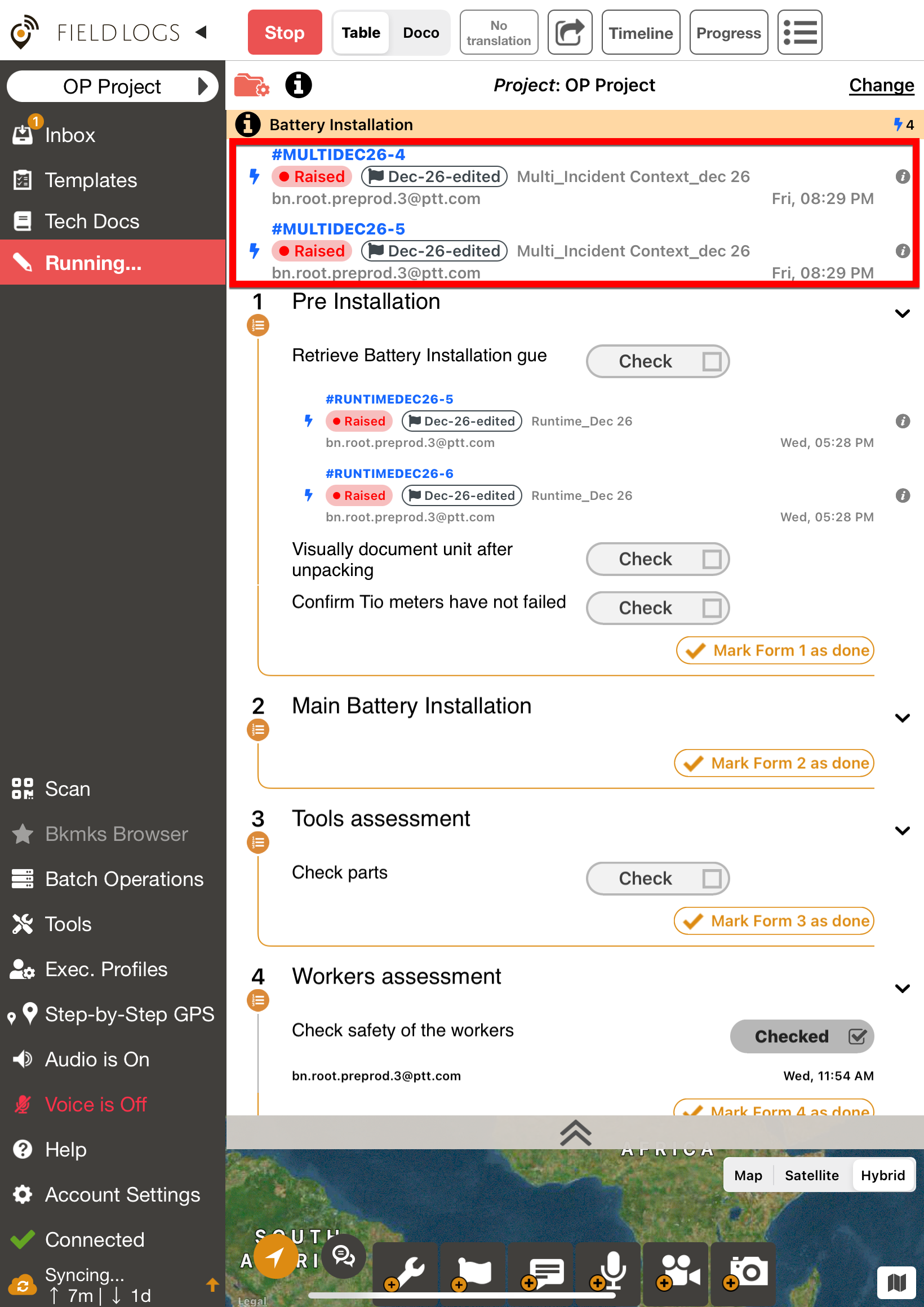
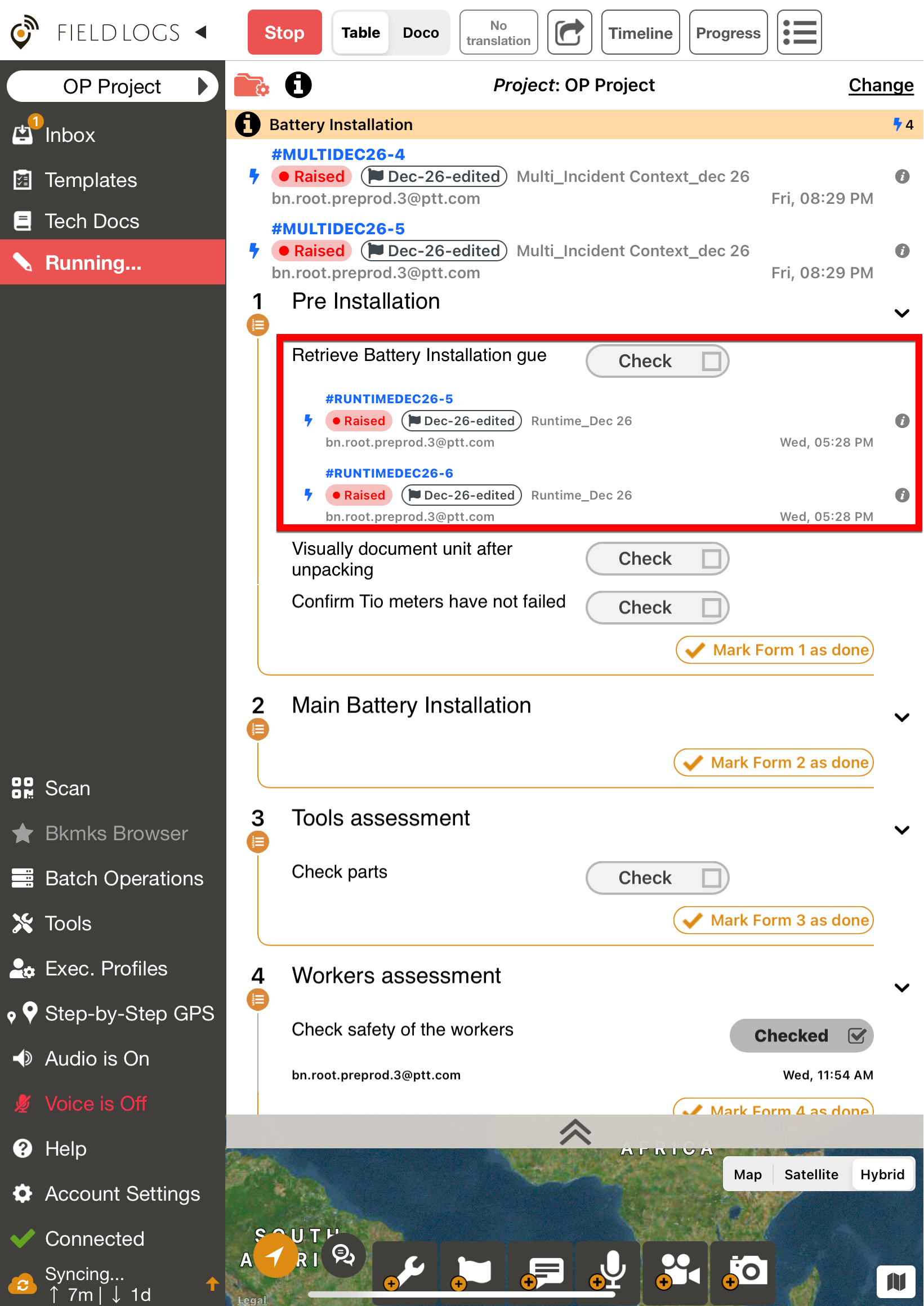
You can view the active Task-level Incidents and Runtime Step-level Incidents linked to individual Steps during Runtime.
Task‑level Incidents appear at the top of the screen during runtime.
Runtime Step‑level incidents are displayed inside their respective steps.
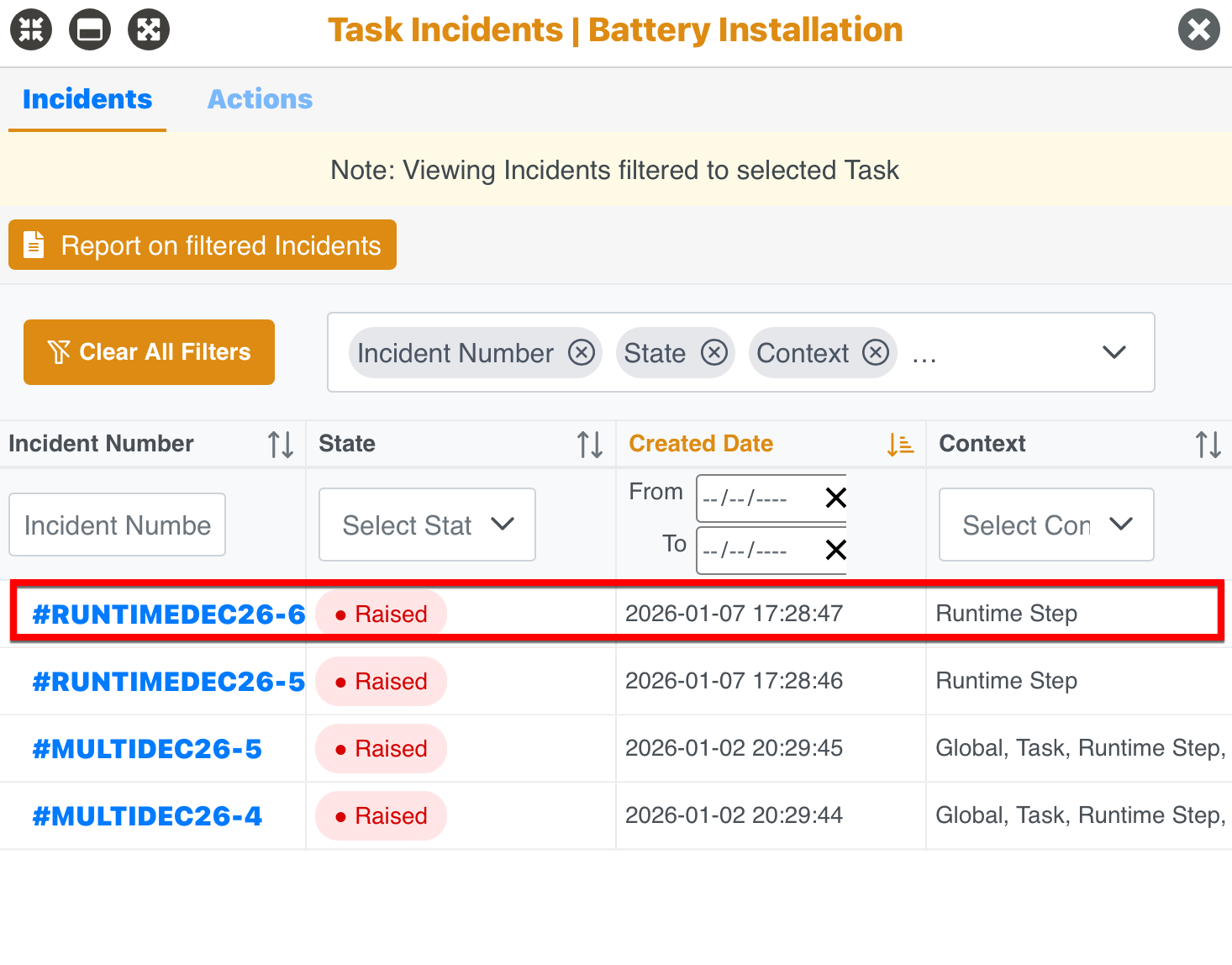
Click on any Incident to view its details.
 |
The Incident Details dialog appears.
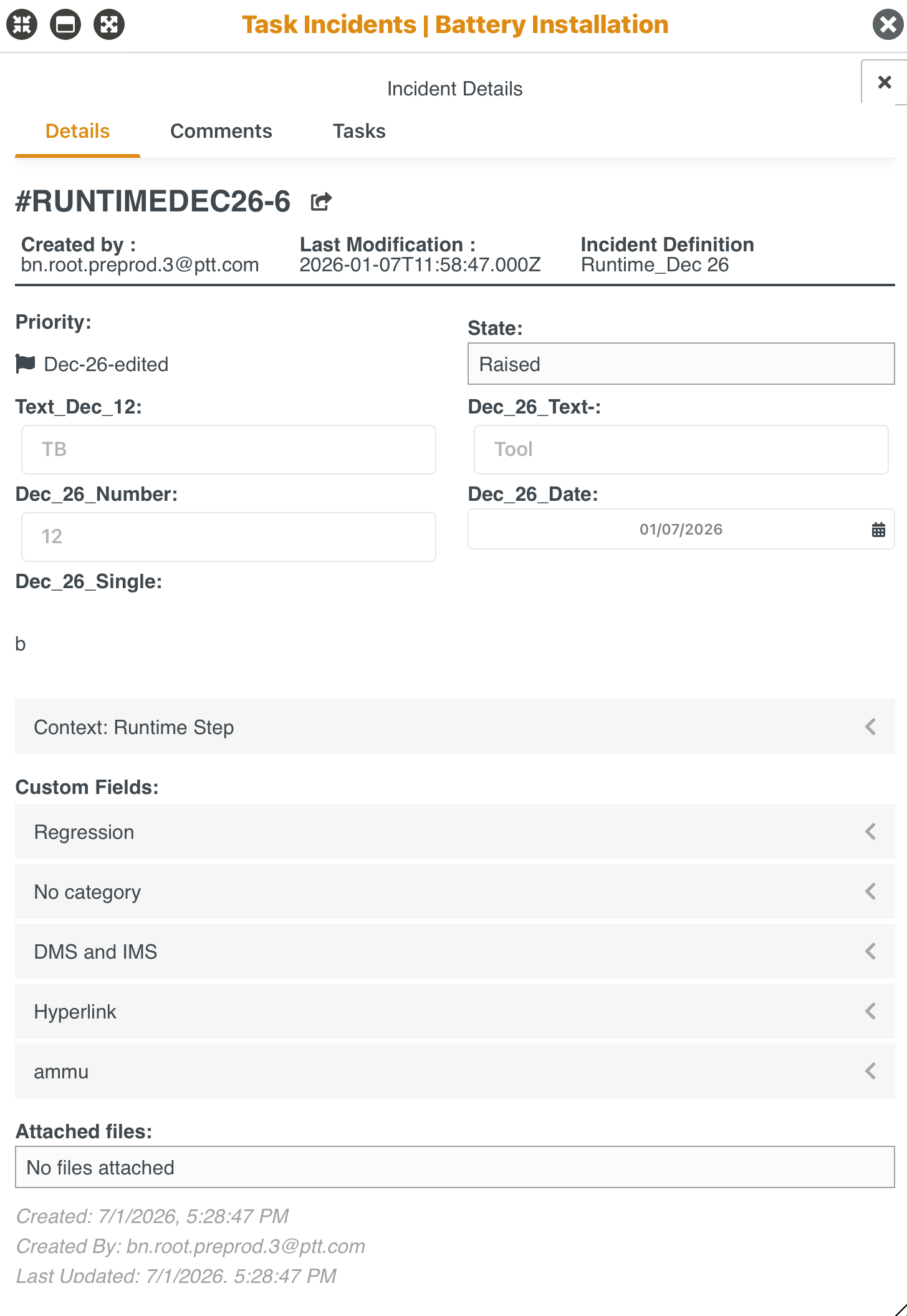 |
The Incident Details dialog has 3 tabs as highlighted below.
 |
Details: Displays all the details of an Incident.
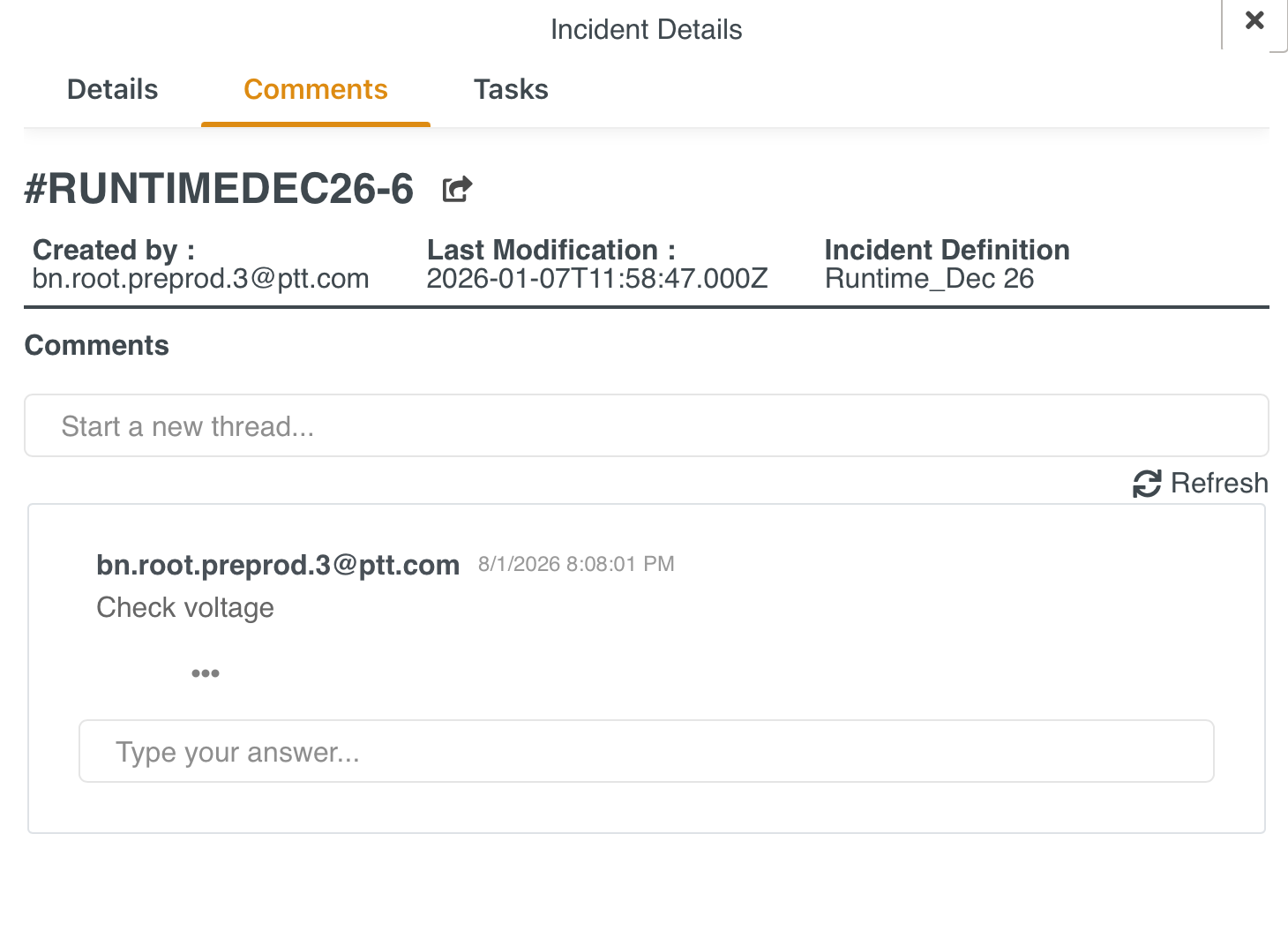
Comments: Allows you to add/edit comments in an Incident. You can also add attachments to a comment. The comment trail on the Incident can also be seen.
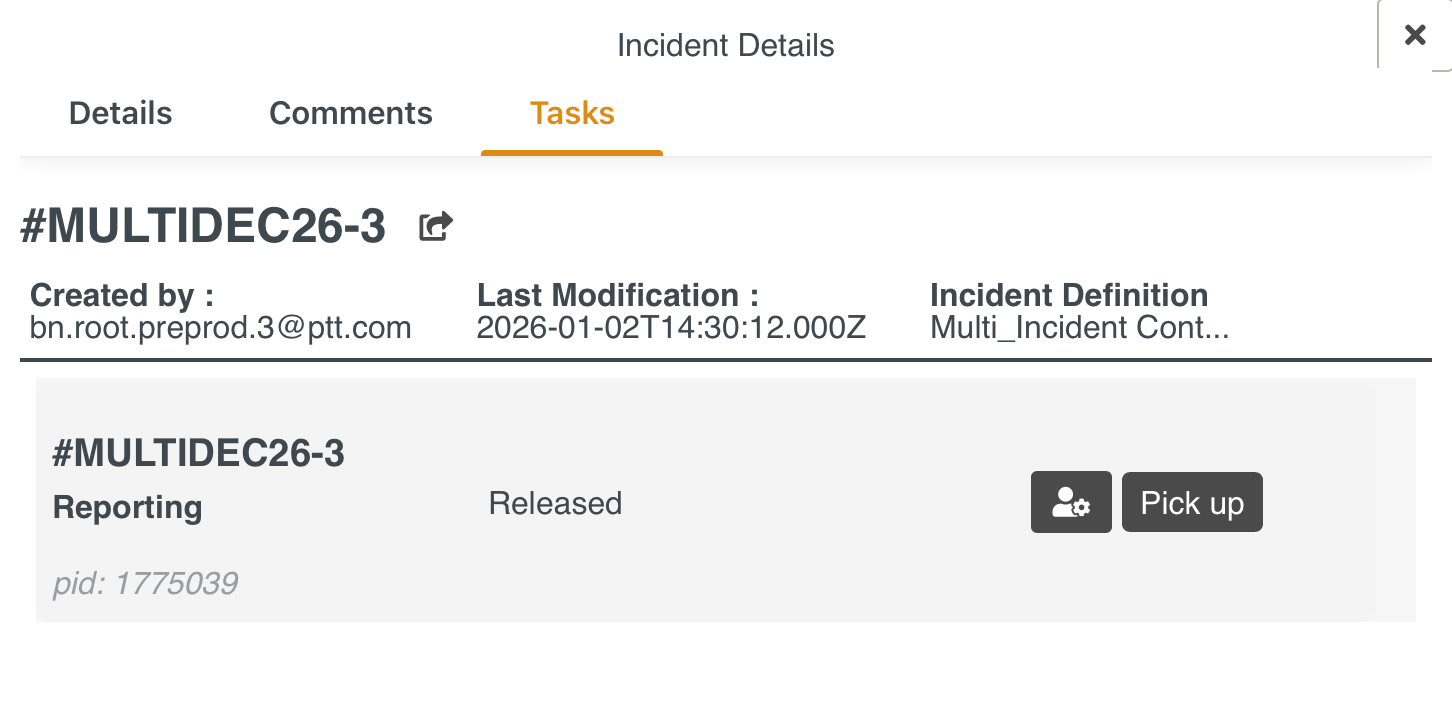
Tasks: Allows you to view Tasks and action in the Incident.
On clicking Details, the following actions and details are available.
Share Link: Allows a user to share an Incident. Only users with access to the Incident Management System can access the Incident using this link.
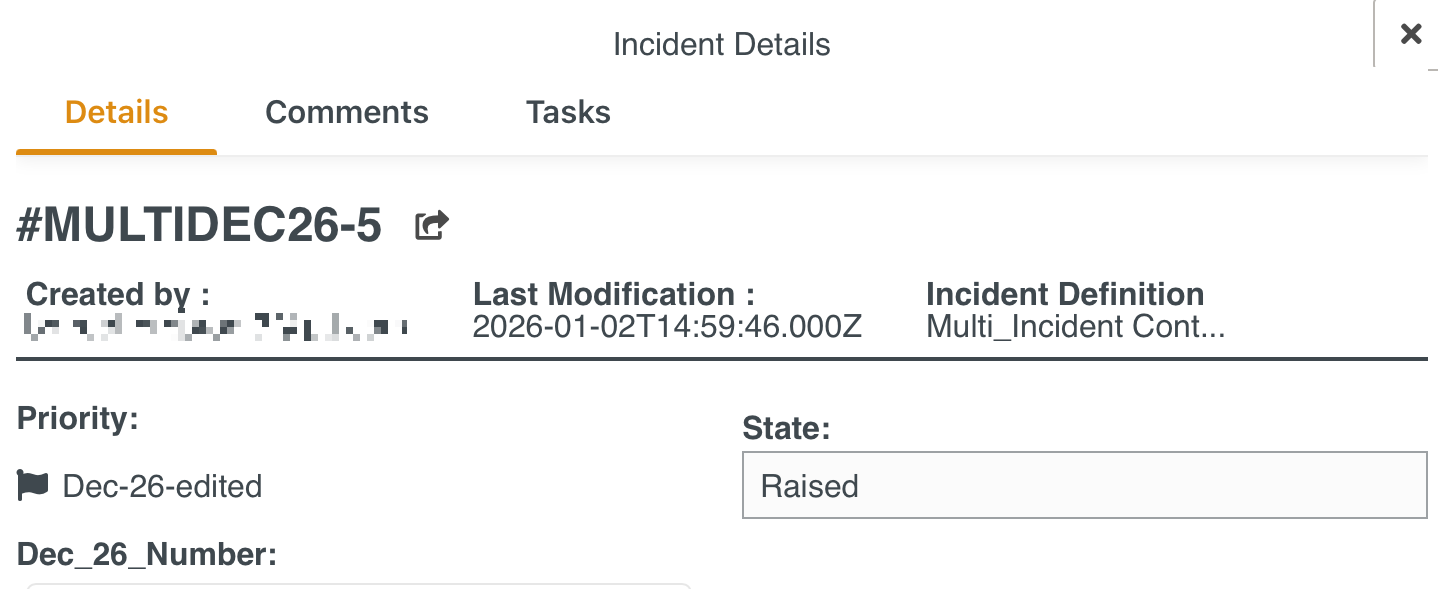
Created by: Displays the details of the user who raised the Incident.
Last Modification: Displays the last modified date and time of the Incident.
Incident Definition: Displays the Incident definition used to raise the Incident.
State: Displays the state of the Incident.
Field Values: Displays the fields and values entered while raising an Incident.
Context: Displays the Context fields selected for the Task.
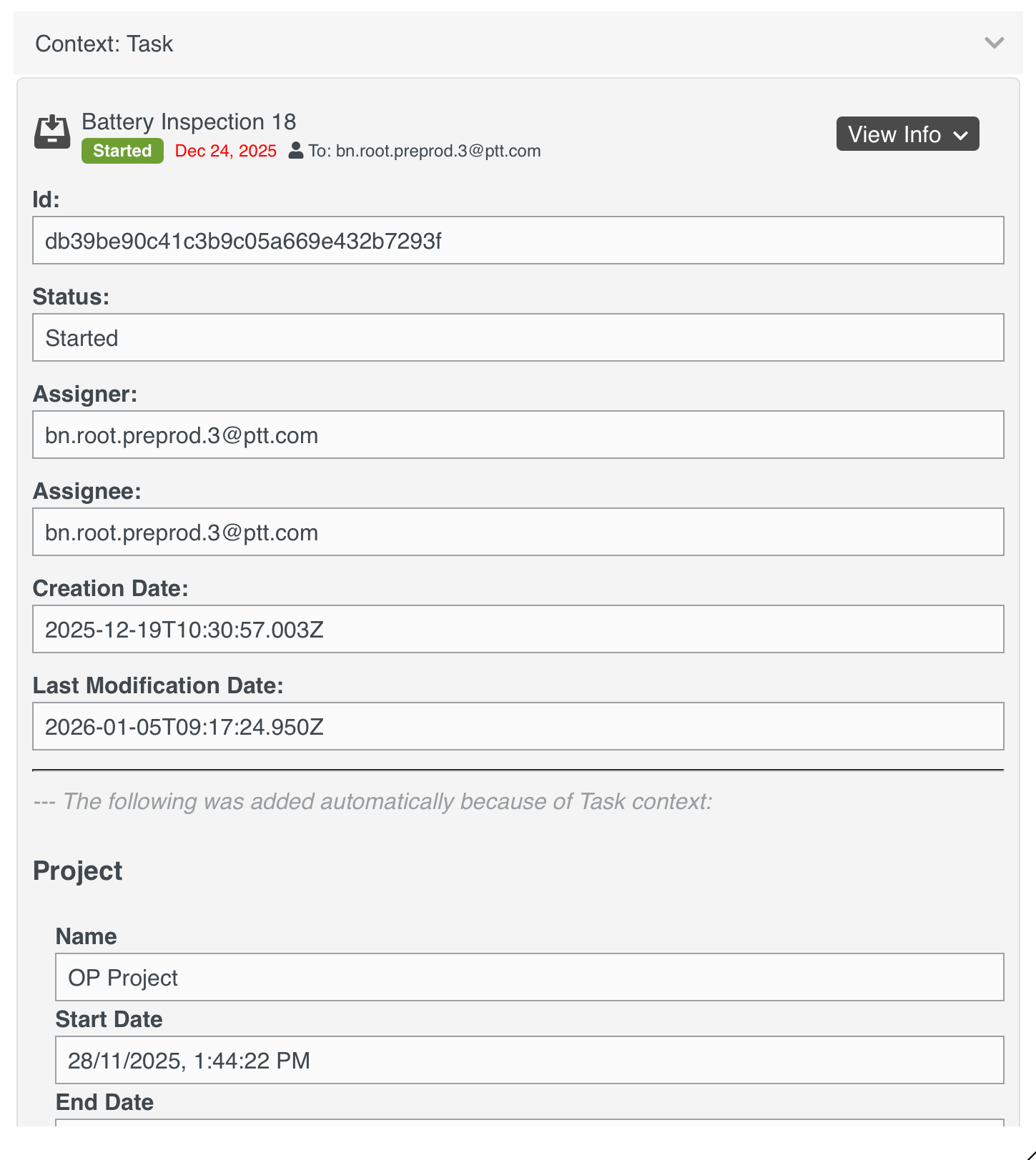
Some additional details of the Task that are automatically displayed for Task Context Incidents are listed below:
Project: The Project Details such as Name, Start Date, and End Date are displayed.
Queue: The Task Queue details such as Name, Description, and Creation Date are displayed.
Op Plan: The Operation Plan details such as Name, Creation Date, Time Zone, and Assigner are displayed.
For each step, you will see the step label, ID, and other relevant details in the context.
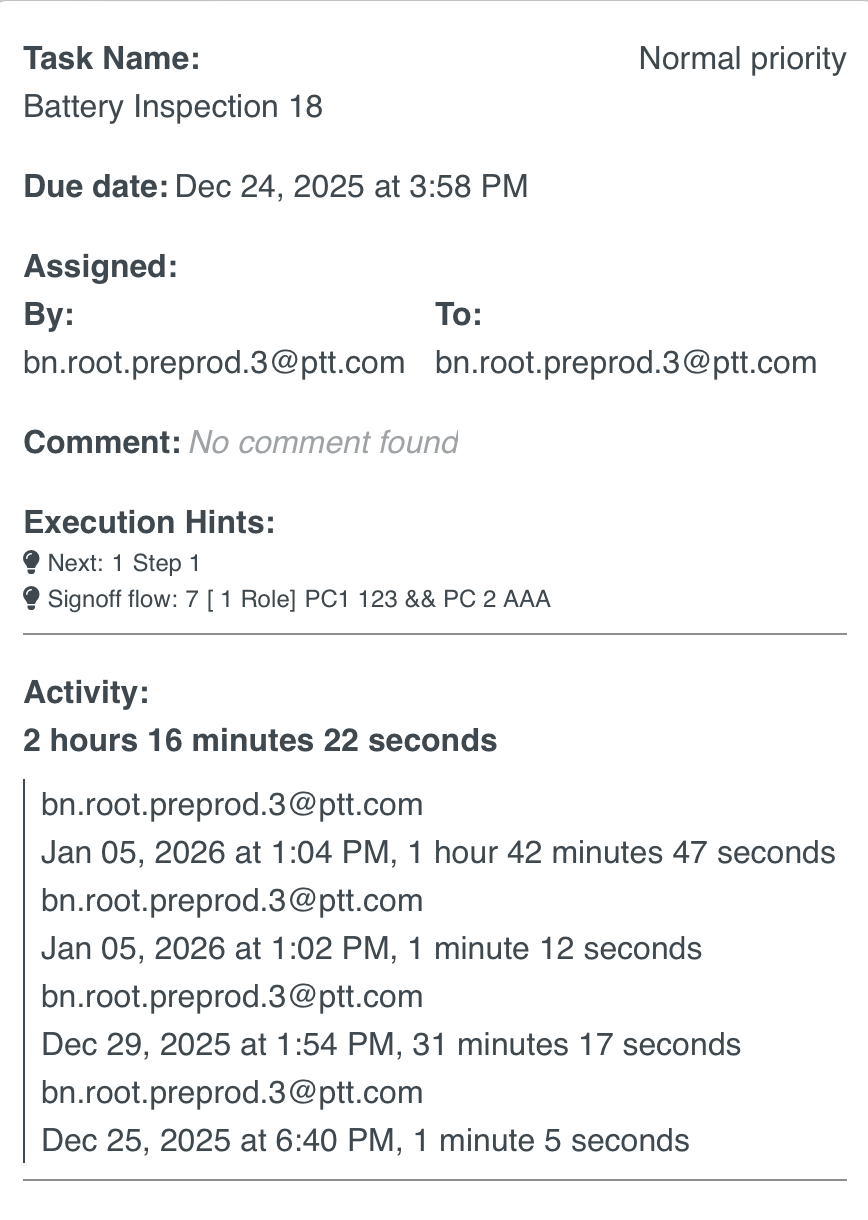
View : If an Incident was raised from a Task or Runtime Step, its context includes a Task Component with a button that allows you to view the Task info.

The View info option displays the information about the Task.
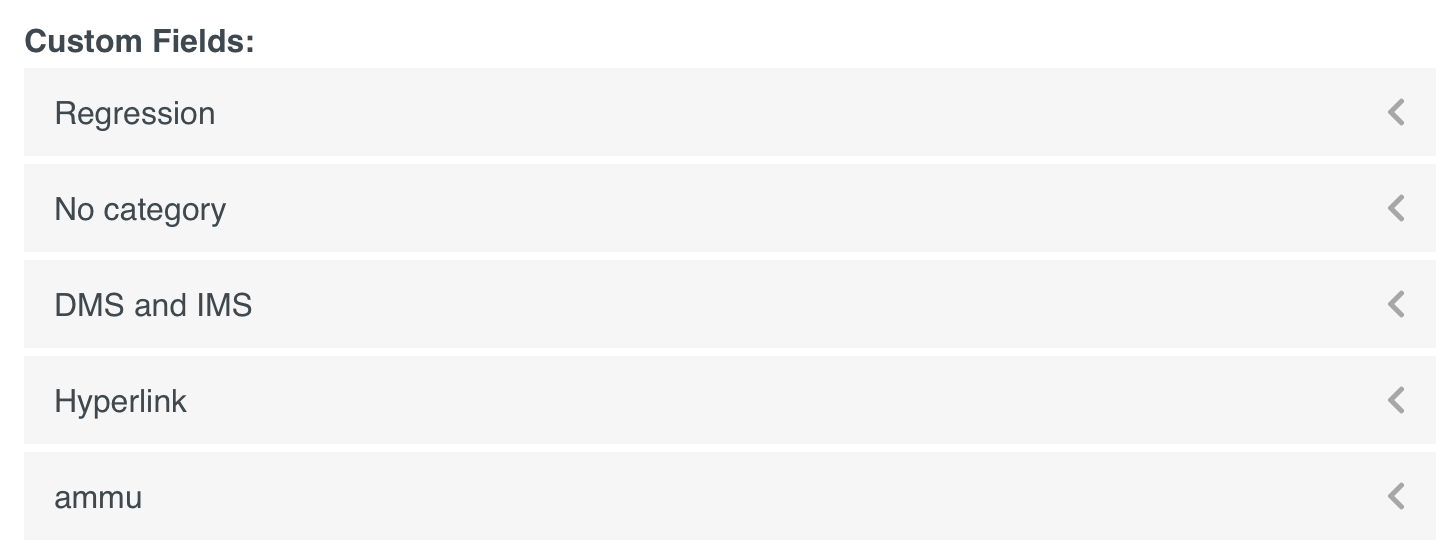
Custom Fields: Displays the Custom Fields available for that Incident.
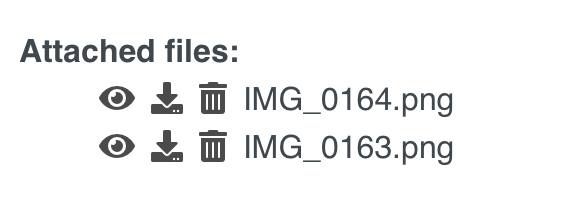
Attach Files: Displays the list of files or images attached to the Incident. You can view, download, and delete the files.
Other details that are displayed are:
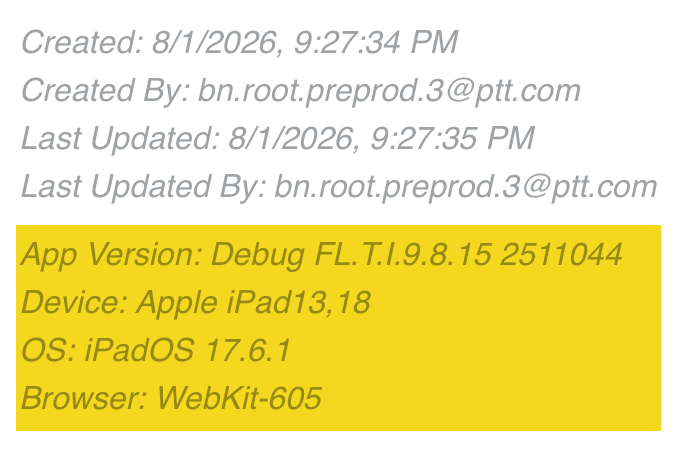
Created: Displays the date and time of raising the Incident.
Created By: Displays the details of the user who raised an Incident.
Last Updated: Displays the last modified date and time of the Incident.
Last Updated By: Displays the details of the user who last modified the Incident.
App Version, Device, OS, and Browser details as shown below.