Adding Access Rights for Custom Functions
To access Custom Functions and perform related tasks, you must be associated with a Security Role that has appropriate Access Rights.
The table below lists the Access Rights and the corresponding actions available.
Securable Objects | Access Rights | Available Actions |
|---|---|---|
Web UI | Custom Functions | Grants access to Custom Functions. |
Custom Functions | Write | Grants access to create Custom Functions. |
All | Grants access to Custom Functions. |
To add the Custom Function Access Right to a Role:
From the main menu, navigate to Enterprise > Roles > Roles.
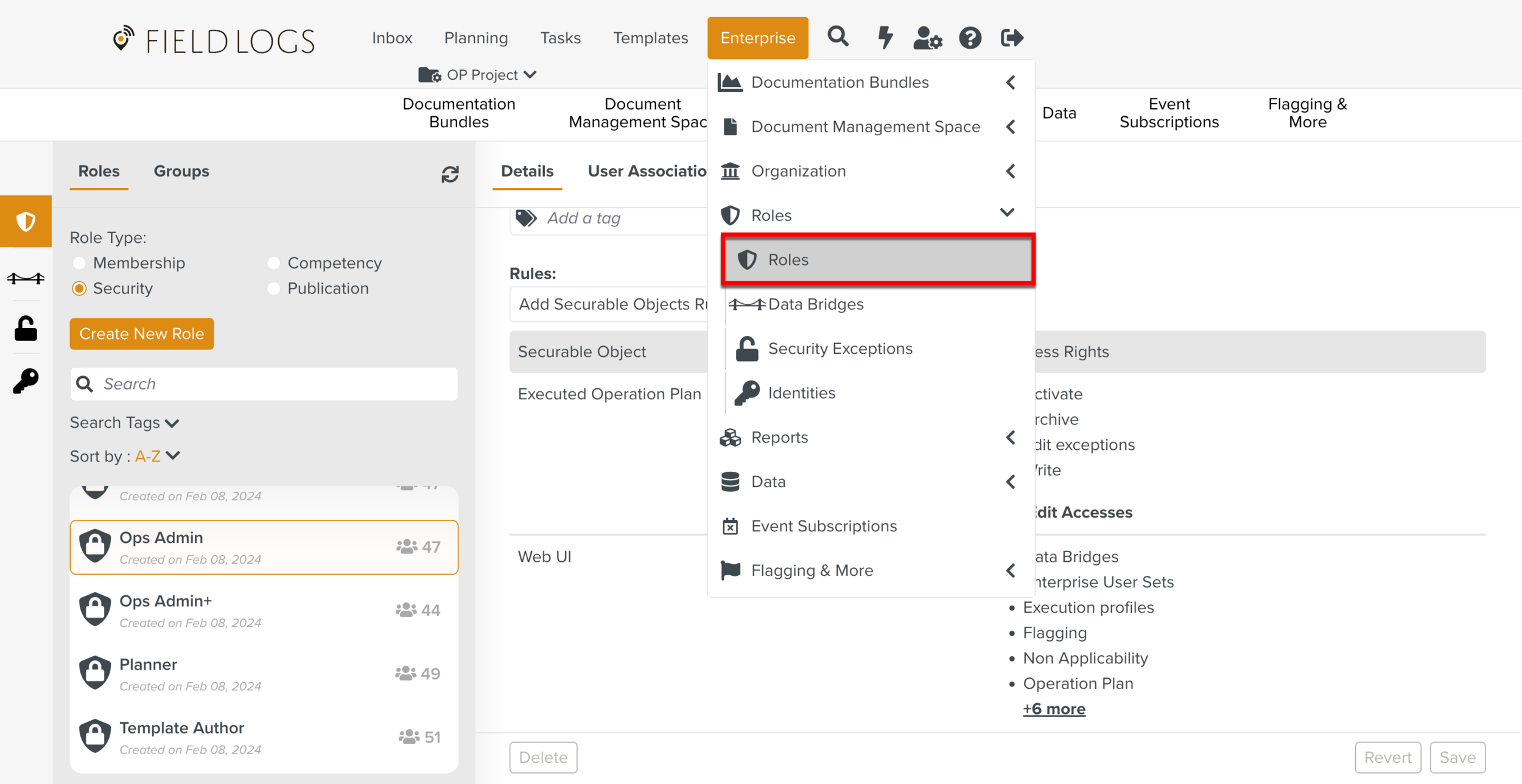
The page Roles opens.
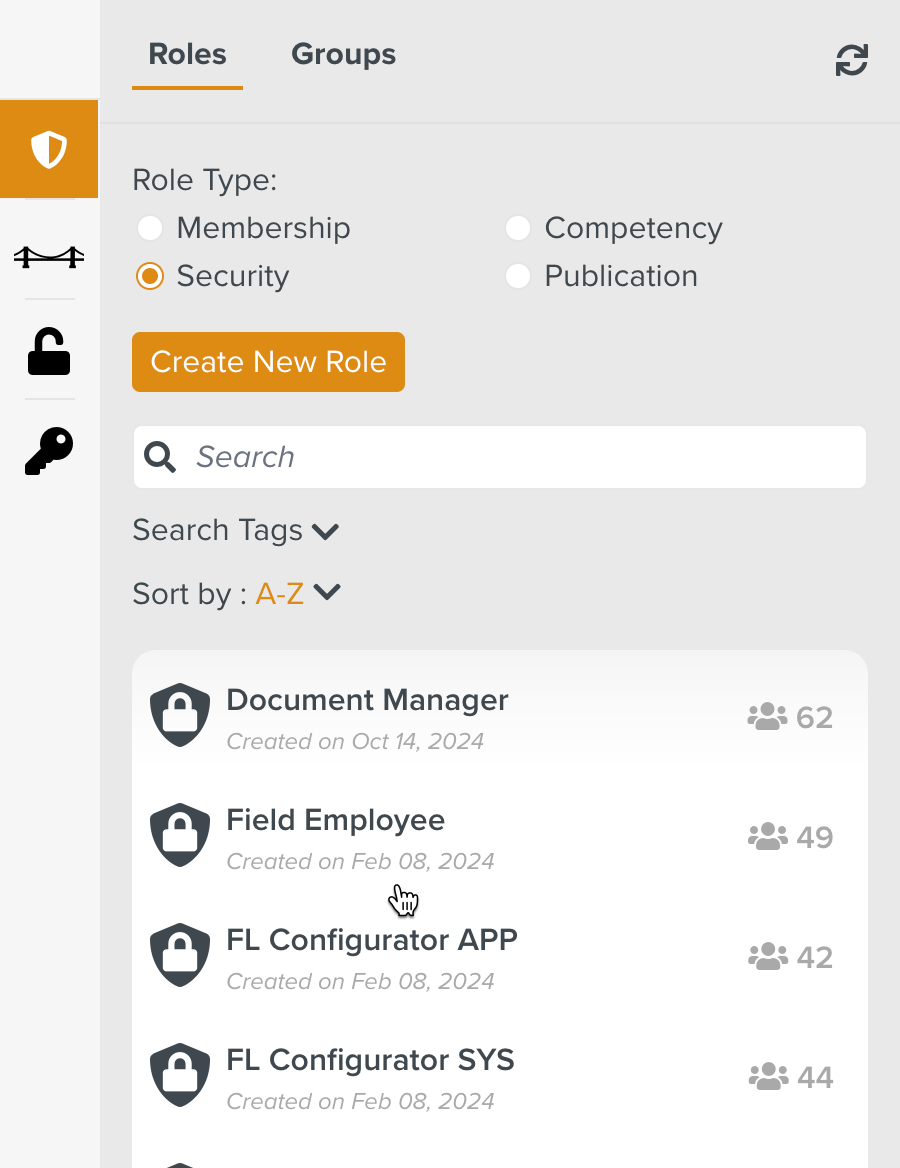
Check Security from Role Type as shown below.
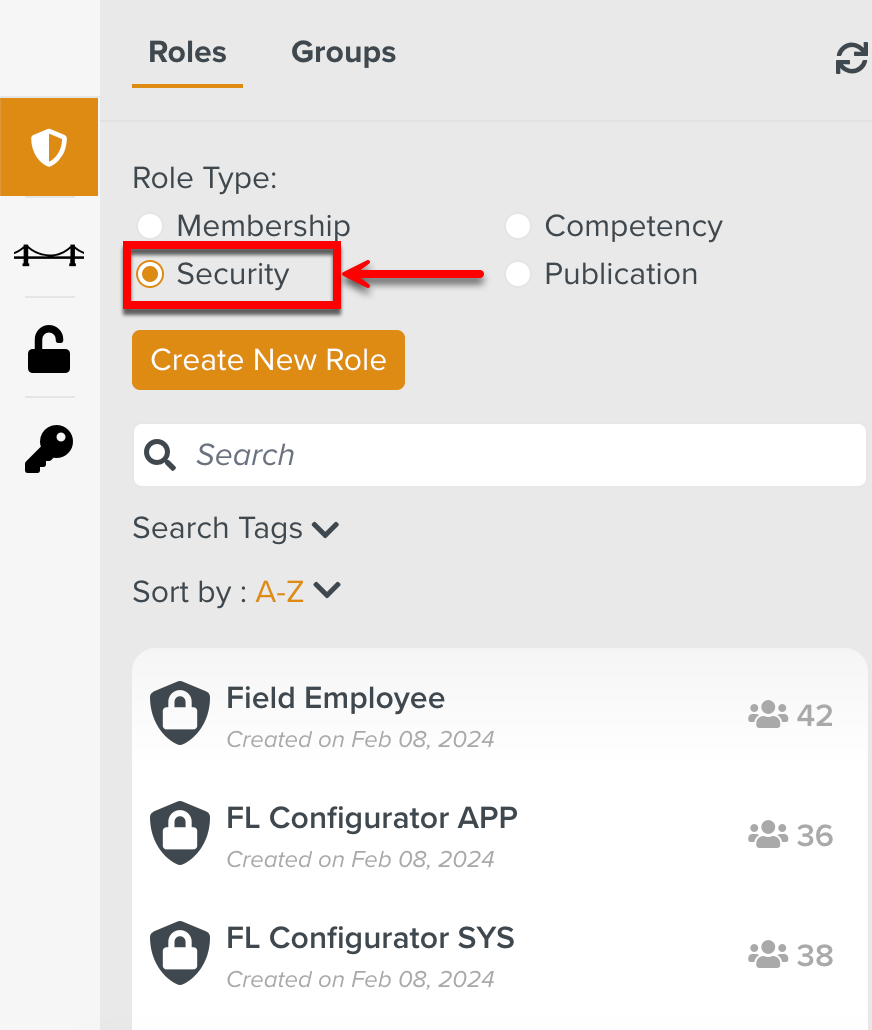
All the Roles in the Security Role Type are displayed.
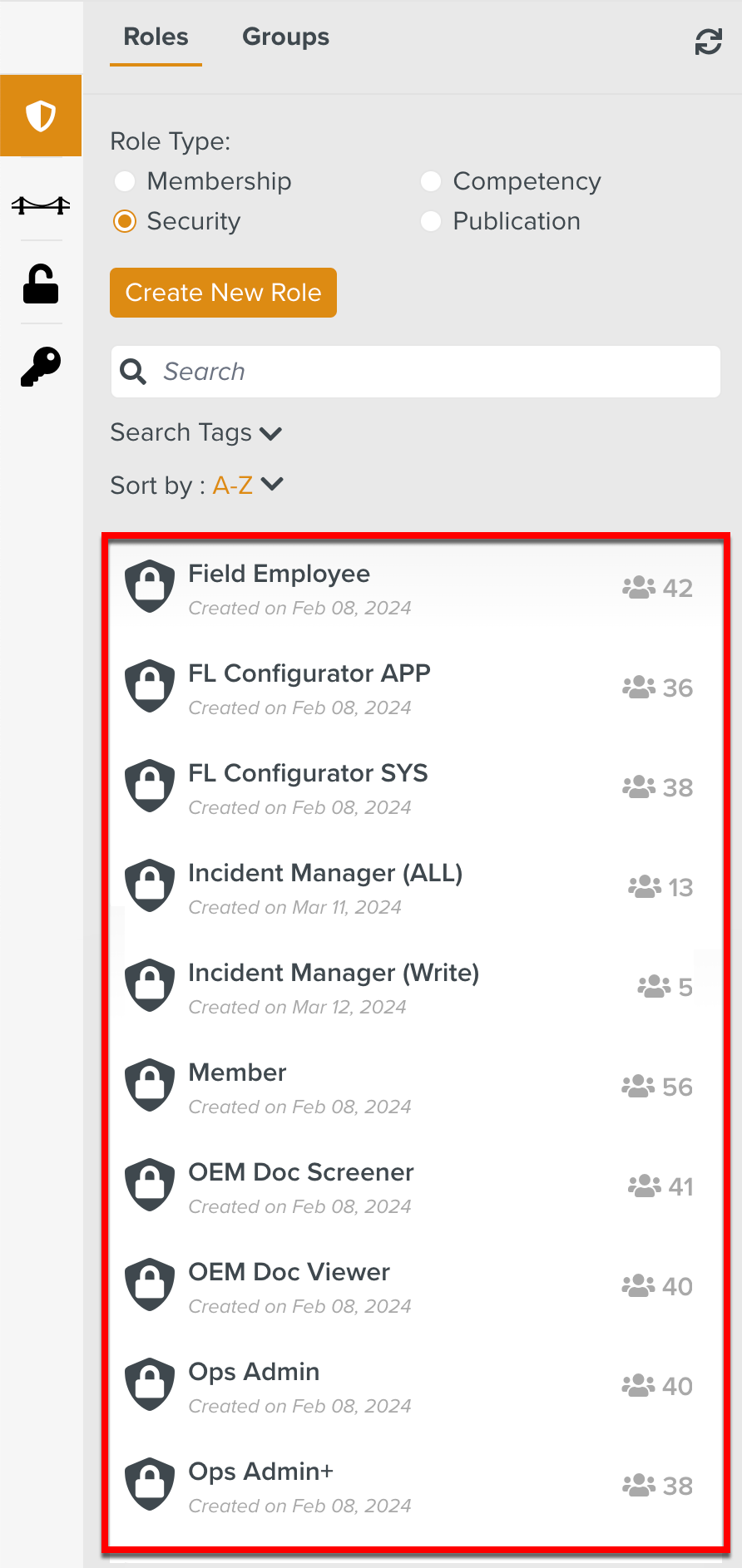
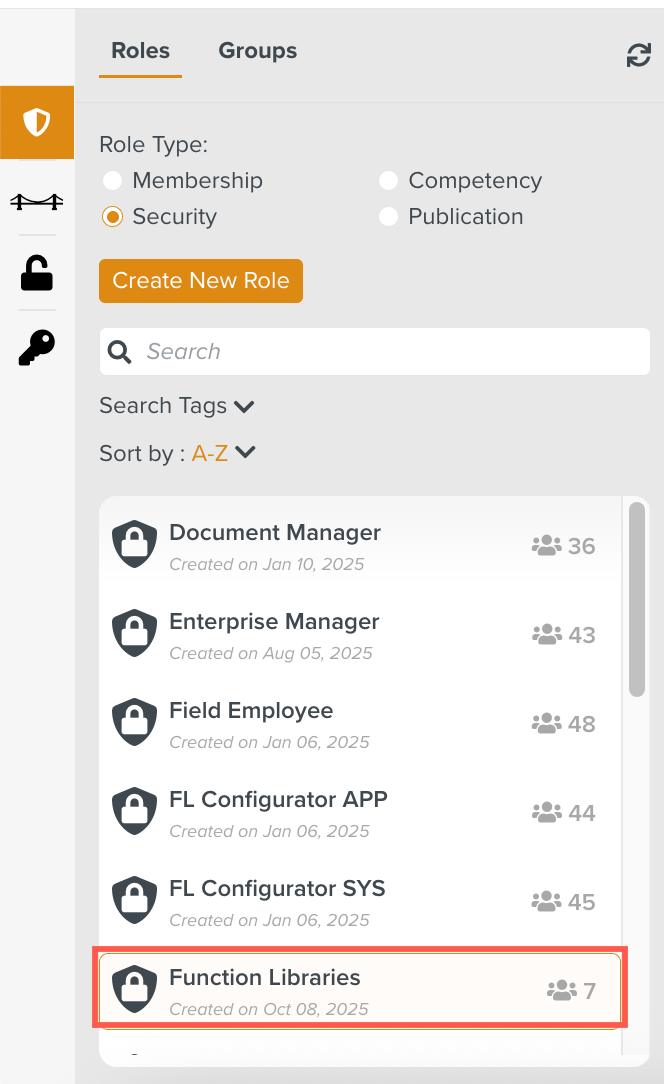
Select the Role to which the Custom Function access right is to be added.
In the below example, the Role Function Libraries is associated with the user who requires this access right.
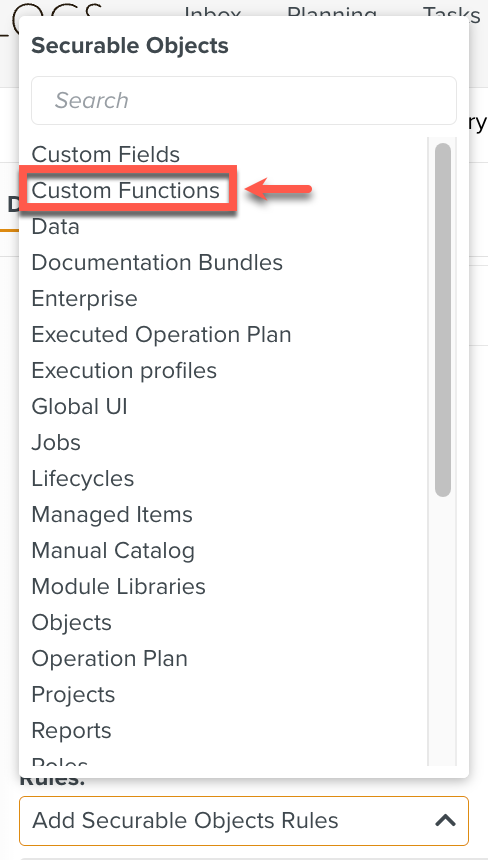
Select the Securable Object Custom Functions.
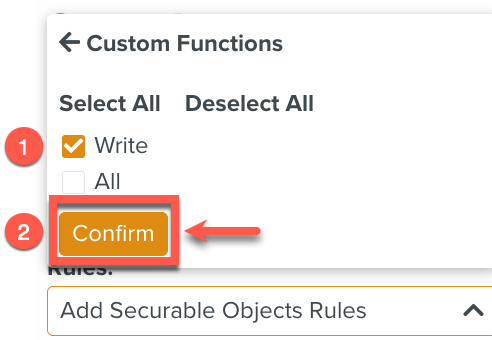
Check Write and click .
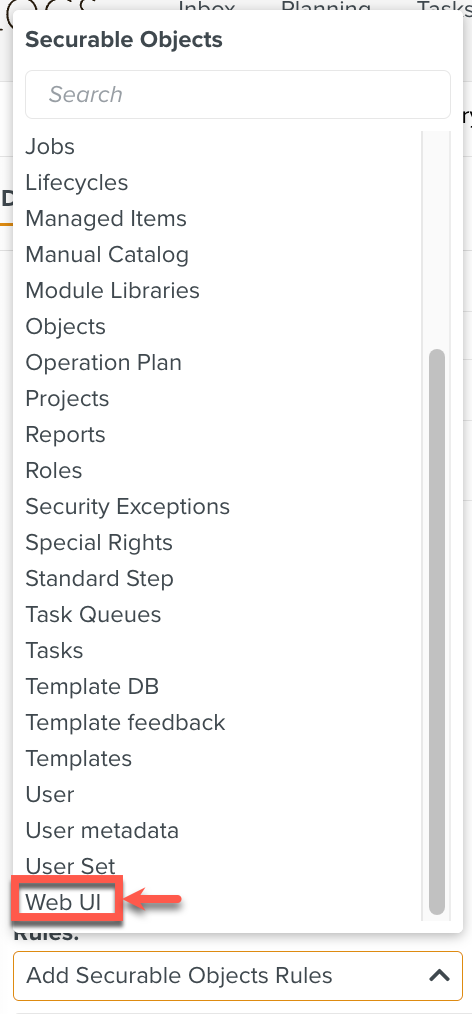
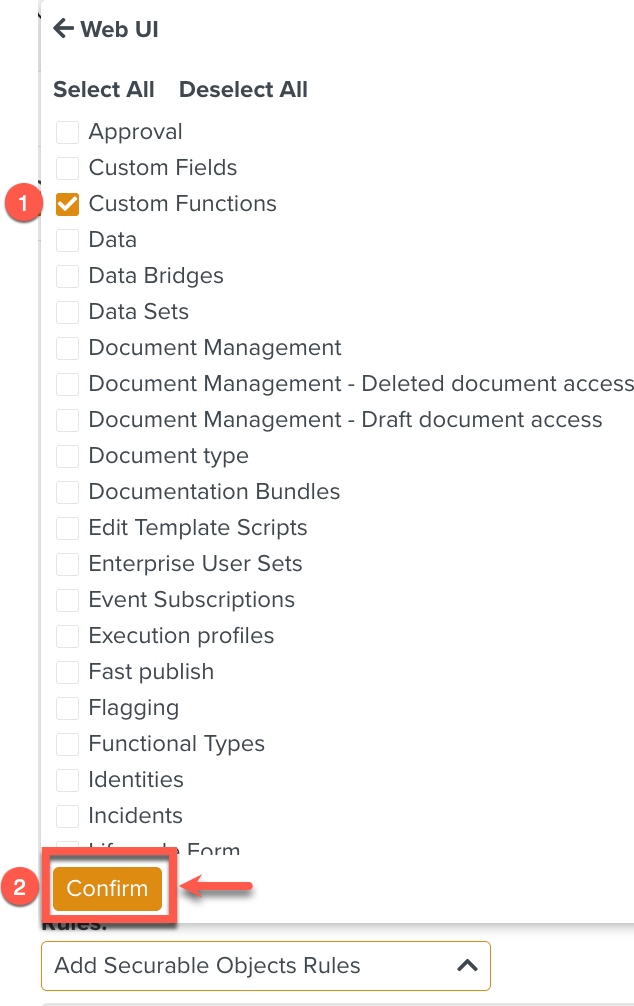
Select the Securable Object Web UI.
Select Custom Functions and click .
Click Save.
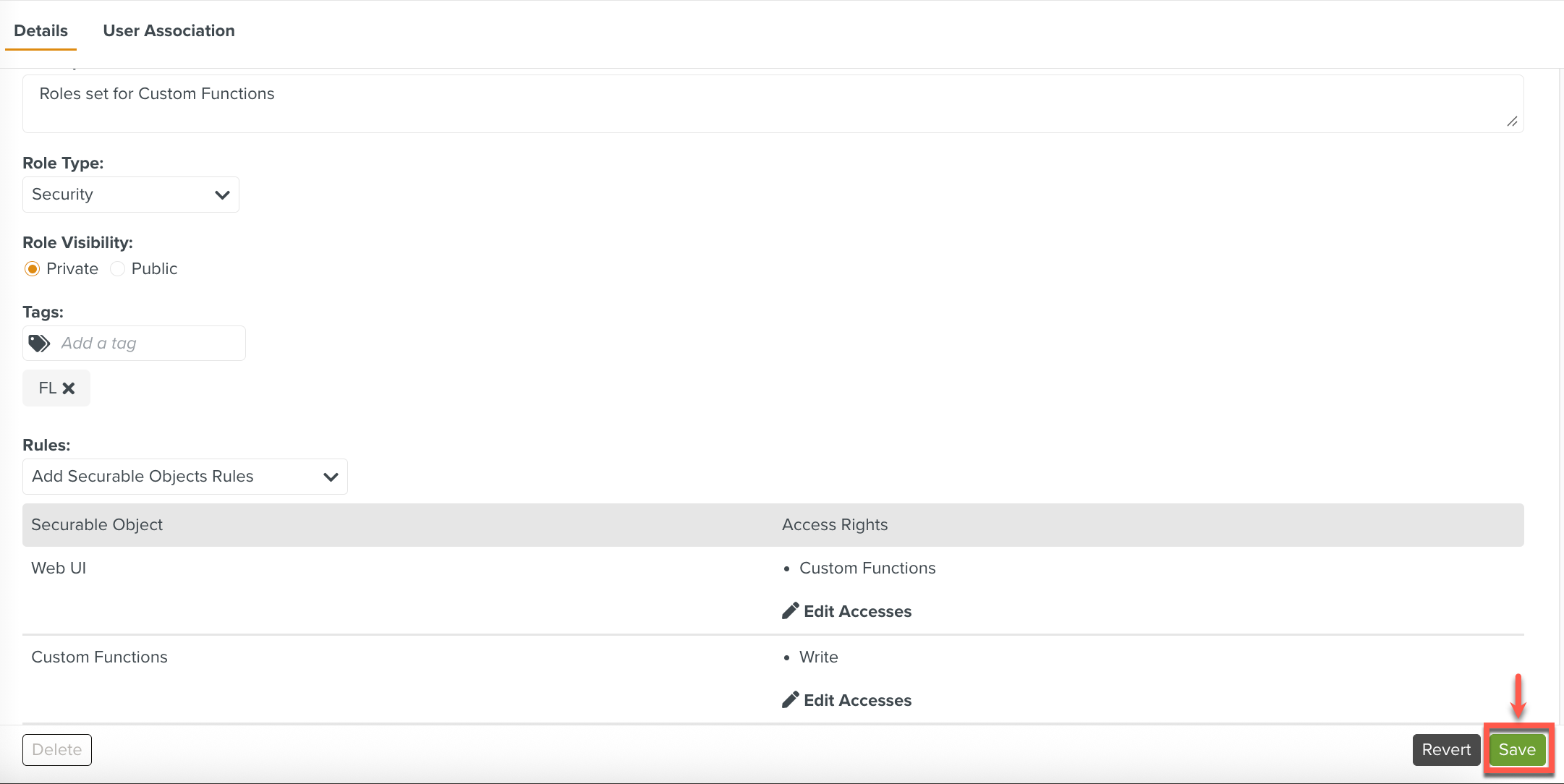
The Custom Functions Rights have been successfully added to this Role. Any user associated with this Role will be able to perform actions pertaining to Custom Functions.